Getting Started
What is webRoid?
webRoid is a native Android app that brings a nearly full-featured R environment to your phone or tablet. It uses webR, a port of R compiled to WebAssembly, so everything runs locally on your device. No server, no internet connection required after install, no accounts to create. You get an interactive R console, a code editor, plotting, environment inspection, file management, and package installation, all in a single app.
Because webRoid runs R through WebAssembly, some limitations apply compared to desktop R. Not all CRAN packages are available, and certain workflows (R package development, compiled code) are not supported. See the FAQ for details.
If you have used R before, you already know how to use webRoid. If you are new to R, this is a good place to start experimenting.
Install from Google Play

webRoid is available on the Google Play Store.

The app requires Android 15 (API level 35) or later. It works on phones and tablets. No special hardware needed.
First Launch
When you open webRoid for the first time, you will see a short onboarding sequence (7 pages) that introduces the main features of the app and lets you choose a storage location. Swipe through or tap to advance.
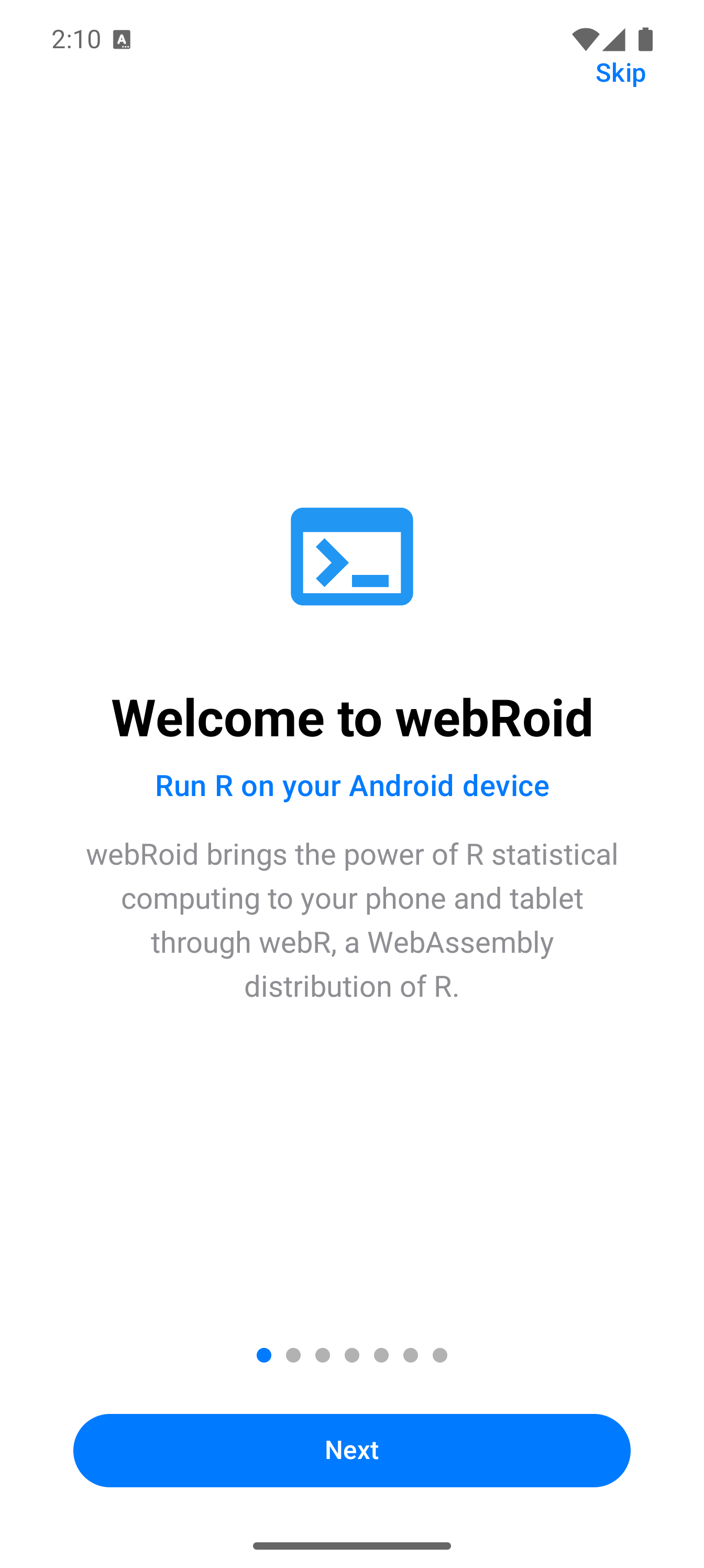
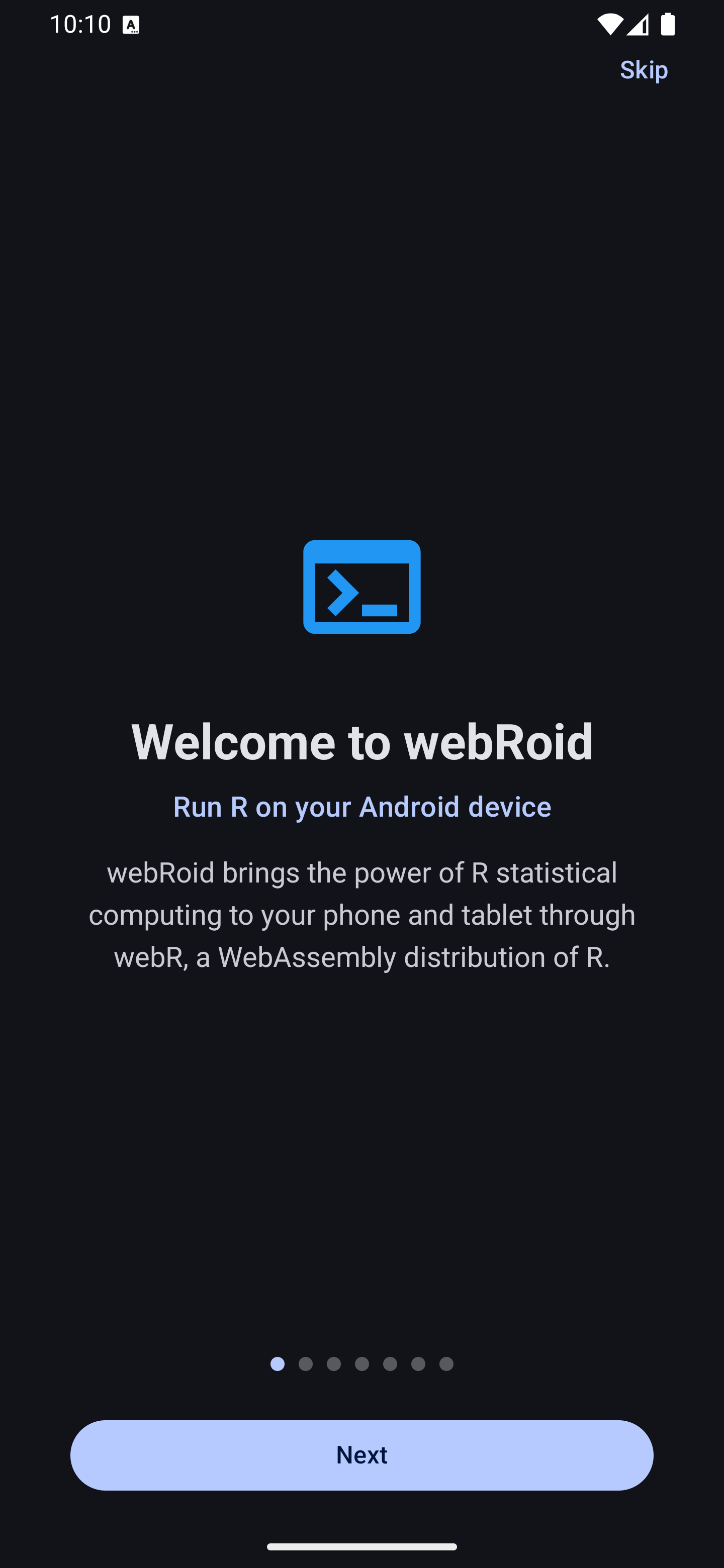
On the second page, you will be asked to choose a storage location for your R working directory. This is where your scripts, data files, and outputs will live.
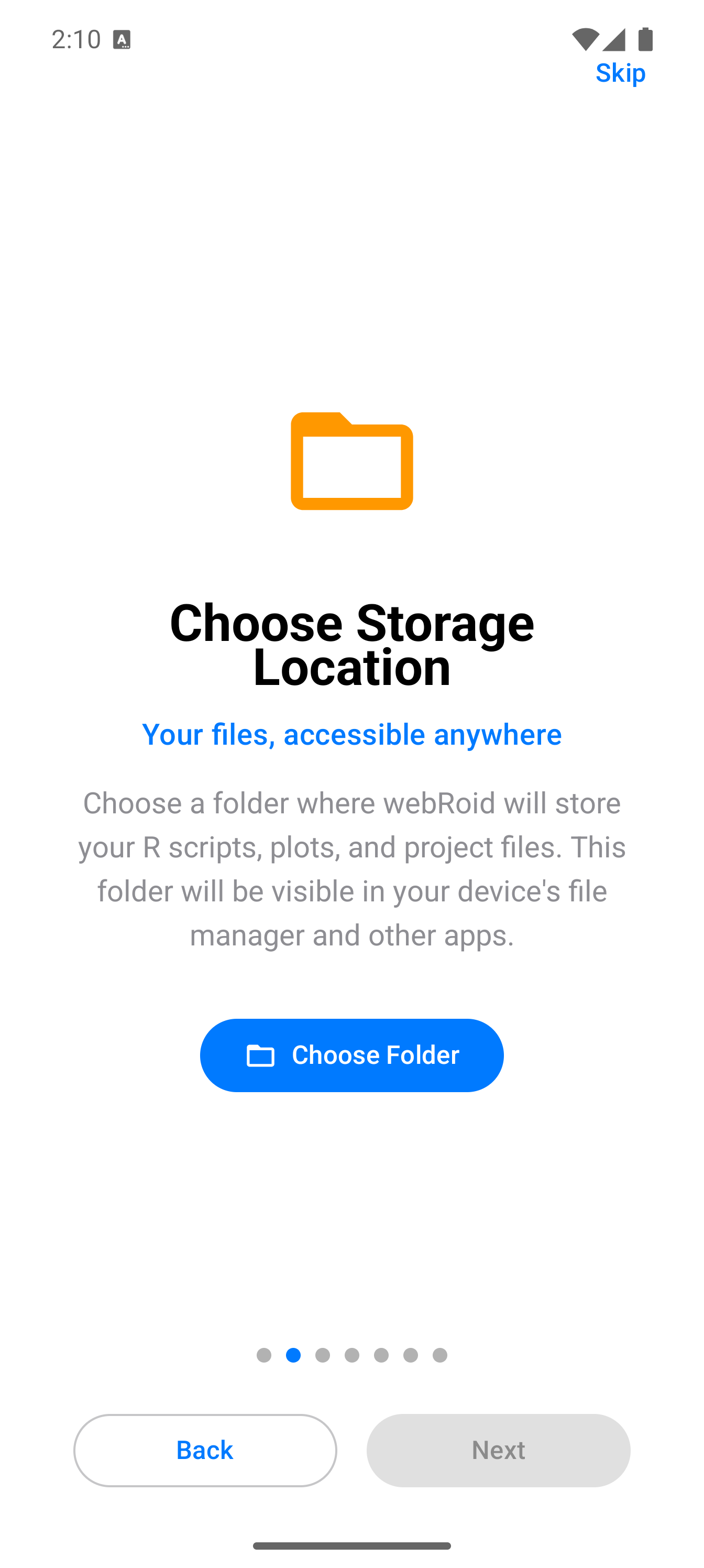
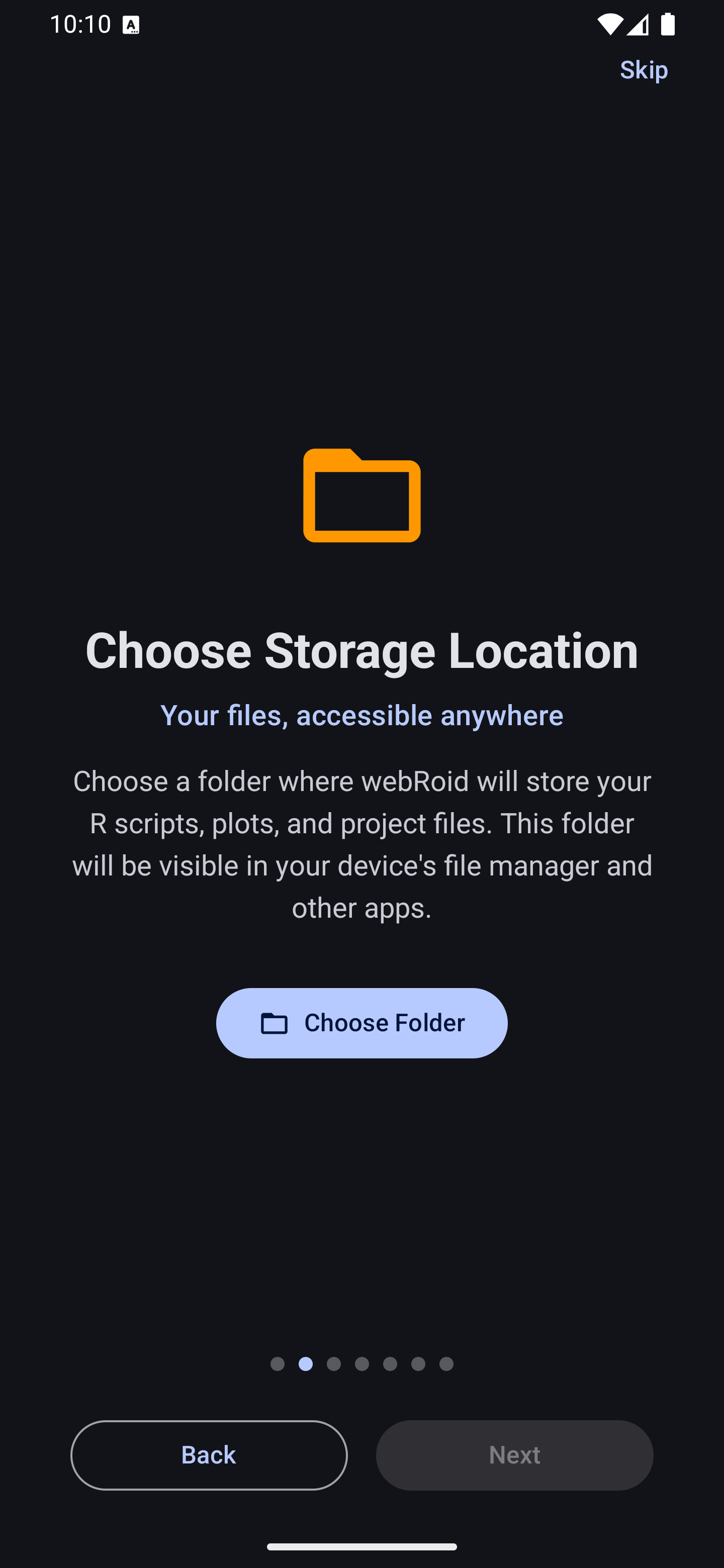
You can pick any folder on your device or external storage. If you are unsure, the default location works fine. You can always move files later using the Files tab or Android’s file manager.
After onboarding completes, the R runtime initializes. A loading screen shows a progress bar and the current initialization phase (preparing files, starting the server, loading R). On first launch this takes about 15 seconds while WebAssembly modules load; subsequent launches are faster.
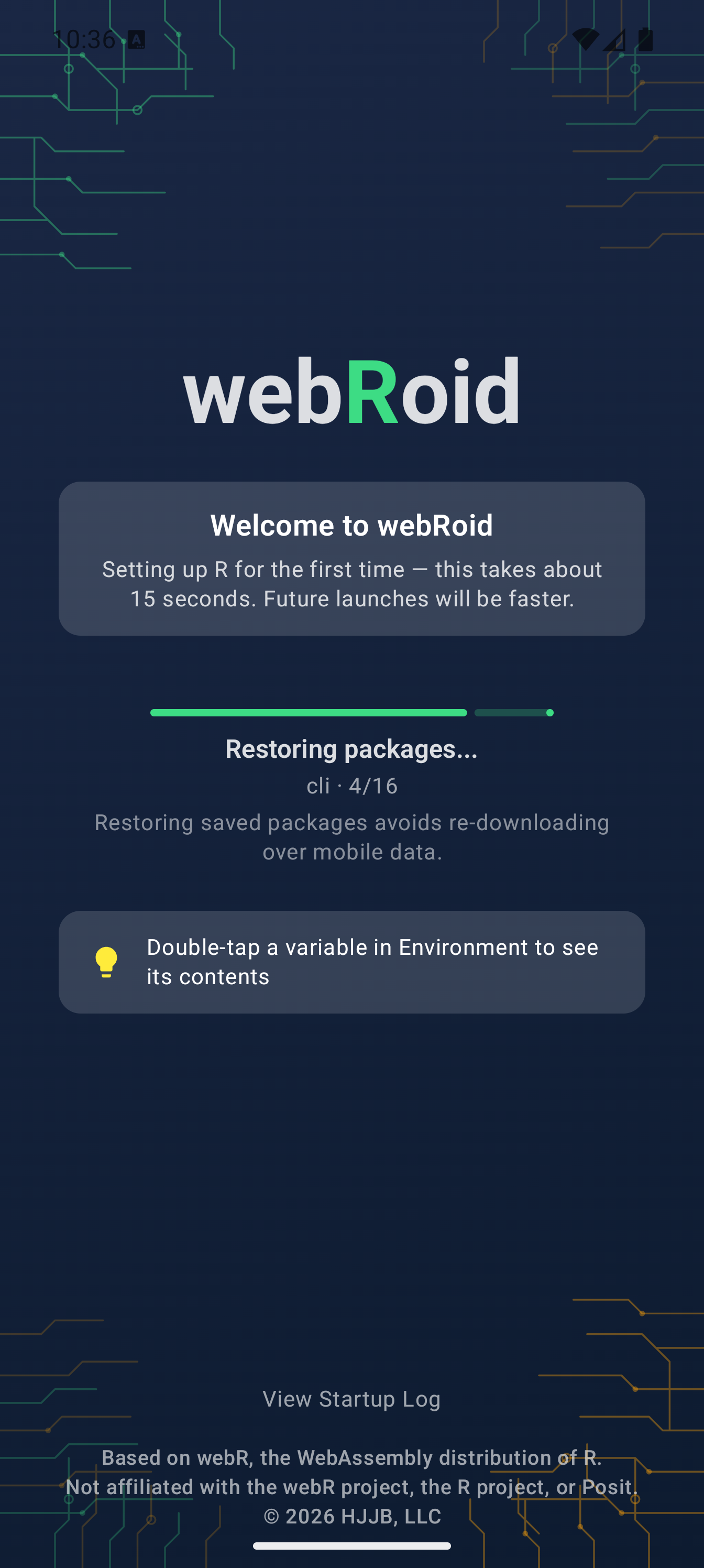
The App Layout
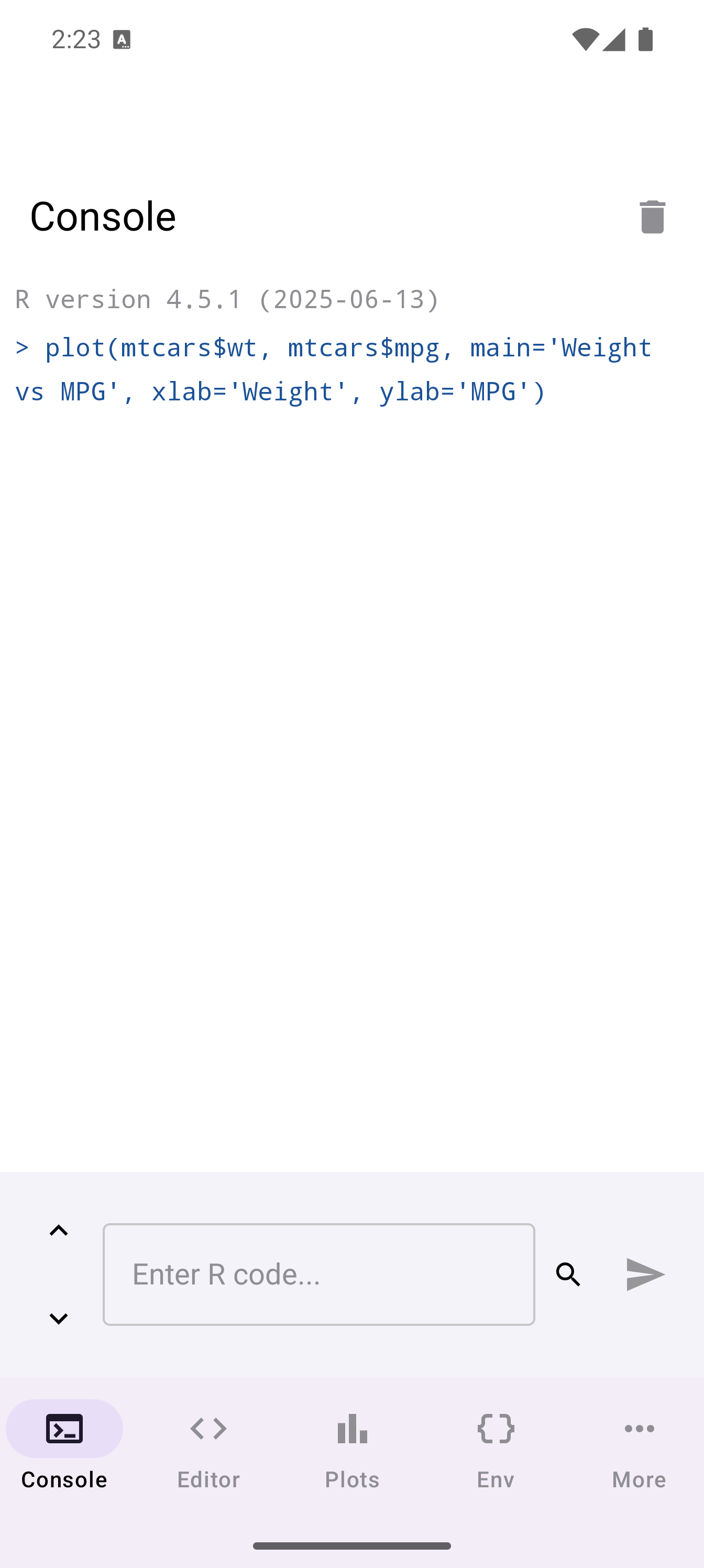
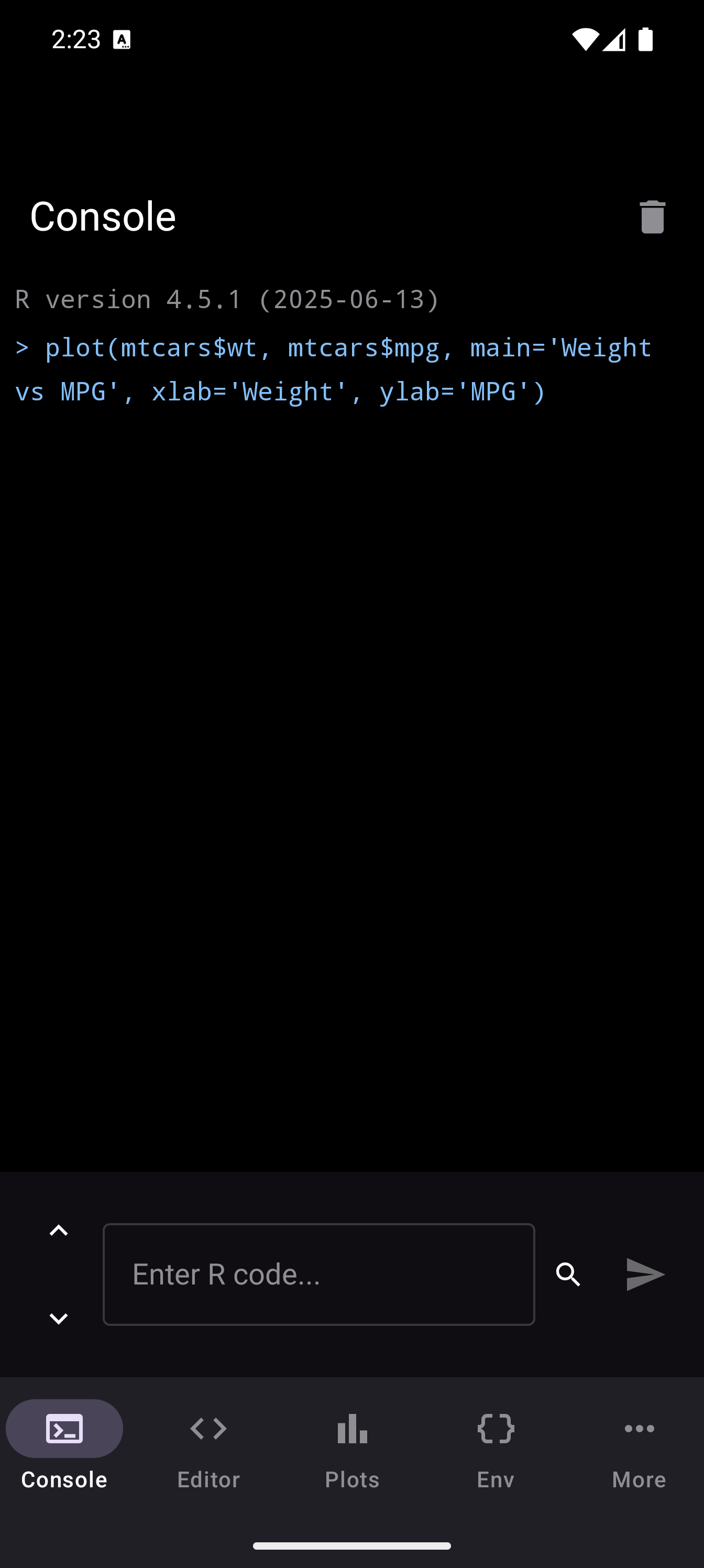
webRoid uses a bottom navigation bar with five primary tabs:
| Tab | Purpose |
|---|---|
| Console | Interactive R REPL. Type and run R code |
| Editor | Multi-tab script editor with syntax highlighting |
| Plots | Gallery of generated R graphics |
| Environment | Inspect variables, data frames, and functions in your workspace |
| Files | Browse and manage files in your working directory |
These five tabs are always visible in the bottom bar. Additional sections – Packages, Help, History, and Settings – are accessed through the More overflow button at the right end of the tab bar. They are not shown as separate tabs; tap More to reveal them.
On tablets with enough screen width, you can switch to Sidebar or Workspace layout mode for a multi-pane view. More on that below.
Your First R Session
After the runtime loads, you land on the Console tab. The screen is empty except for an input field at the bottom with the placeholder text “Enter R code…” and a blue play button.
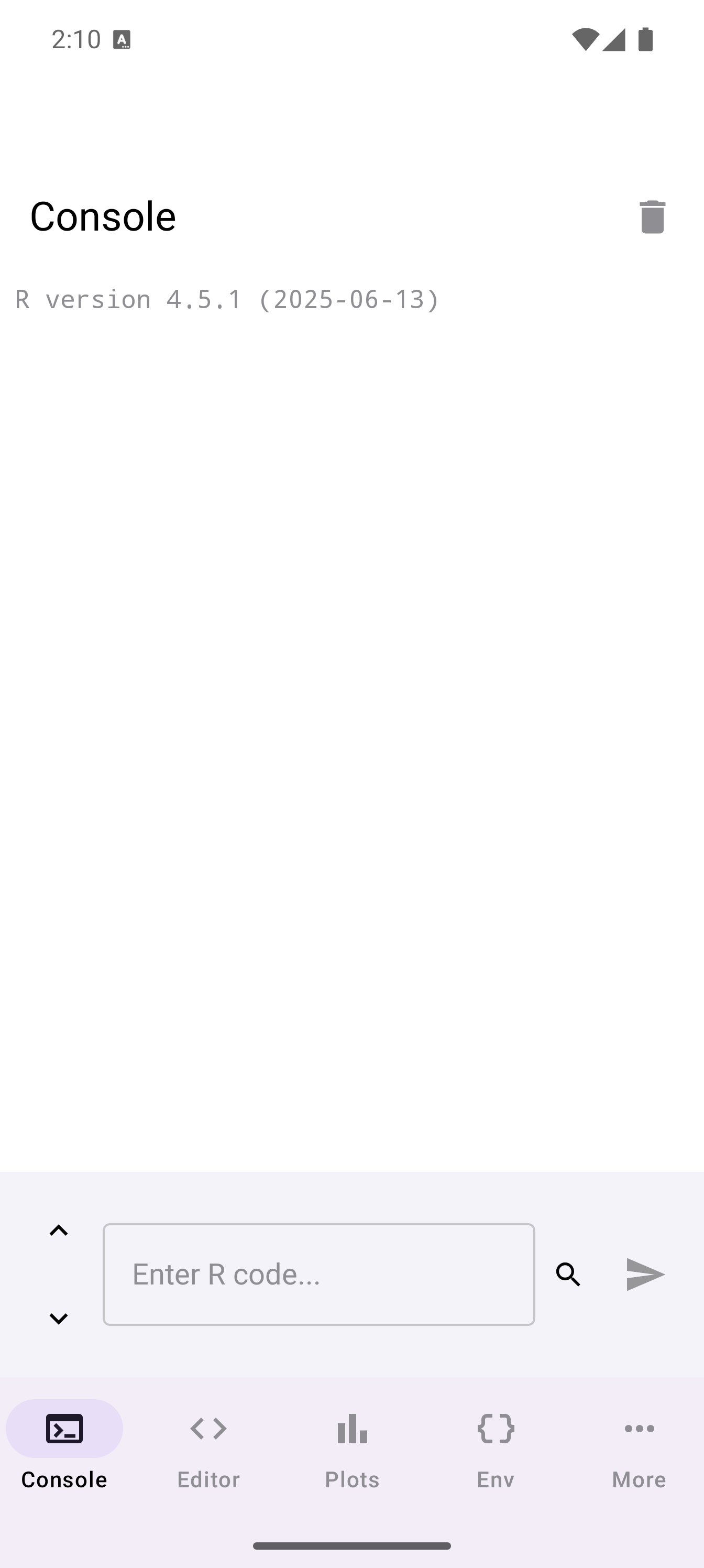
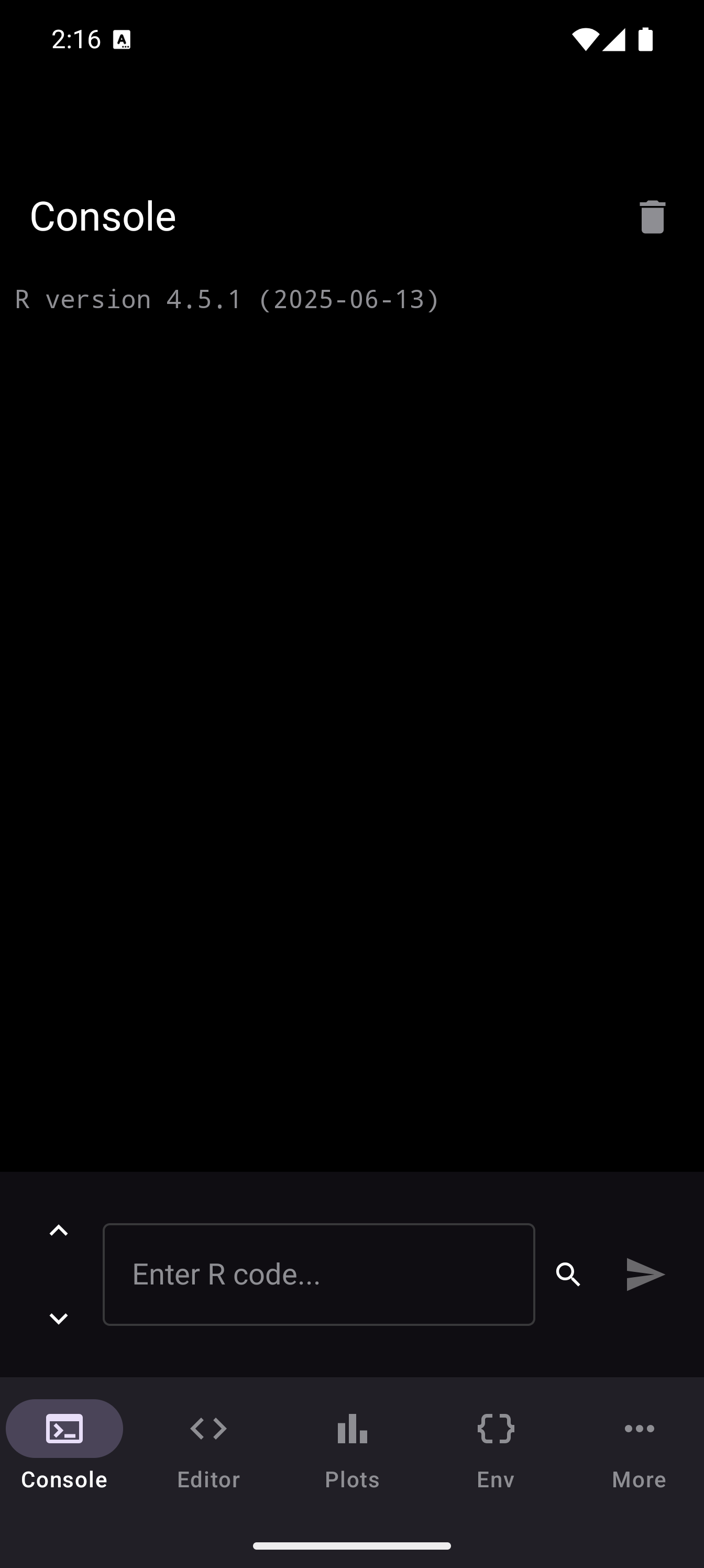
Type a simple expression and tap the blue play button (or press Enter on a hardware keyboard):
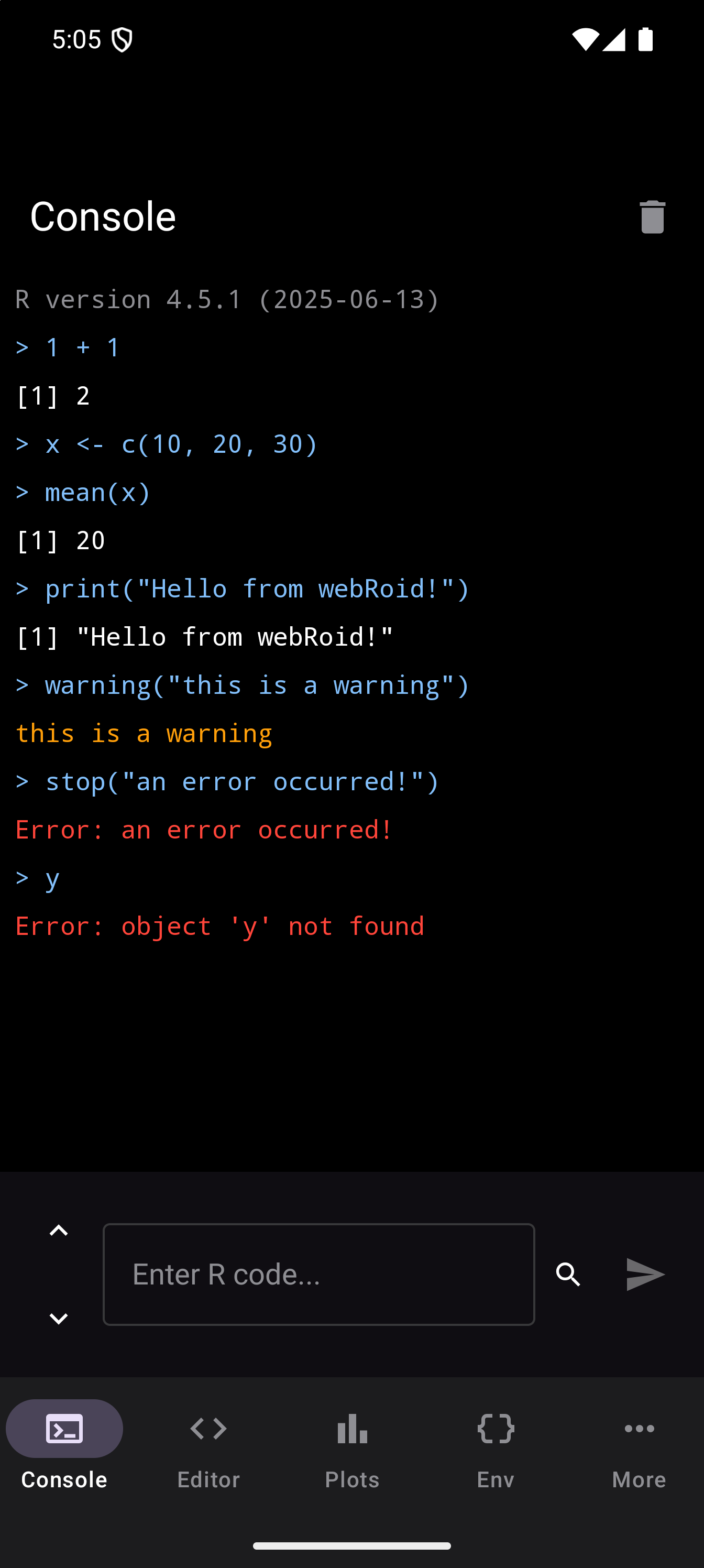
1 + 1You should see [1] 2 appear in the output area. Try a few more commands to see how different output types are displayed:
x <- c(10, 20, 30)
mean(x)
print("Hello from webRoid!")
warning("this is a warning")
stop("an error occurred!")
y
summary(mtcars)
Output is color-coded by type: regular results, messages, warnings, and errors each get a distinct color so you can scan results quickly.

The console toolbar also has:
- Up/down arrows to navigate your command history
- Trash icon to clear the console output
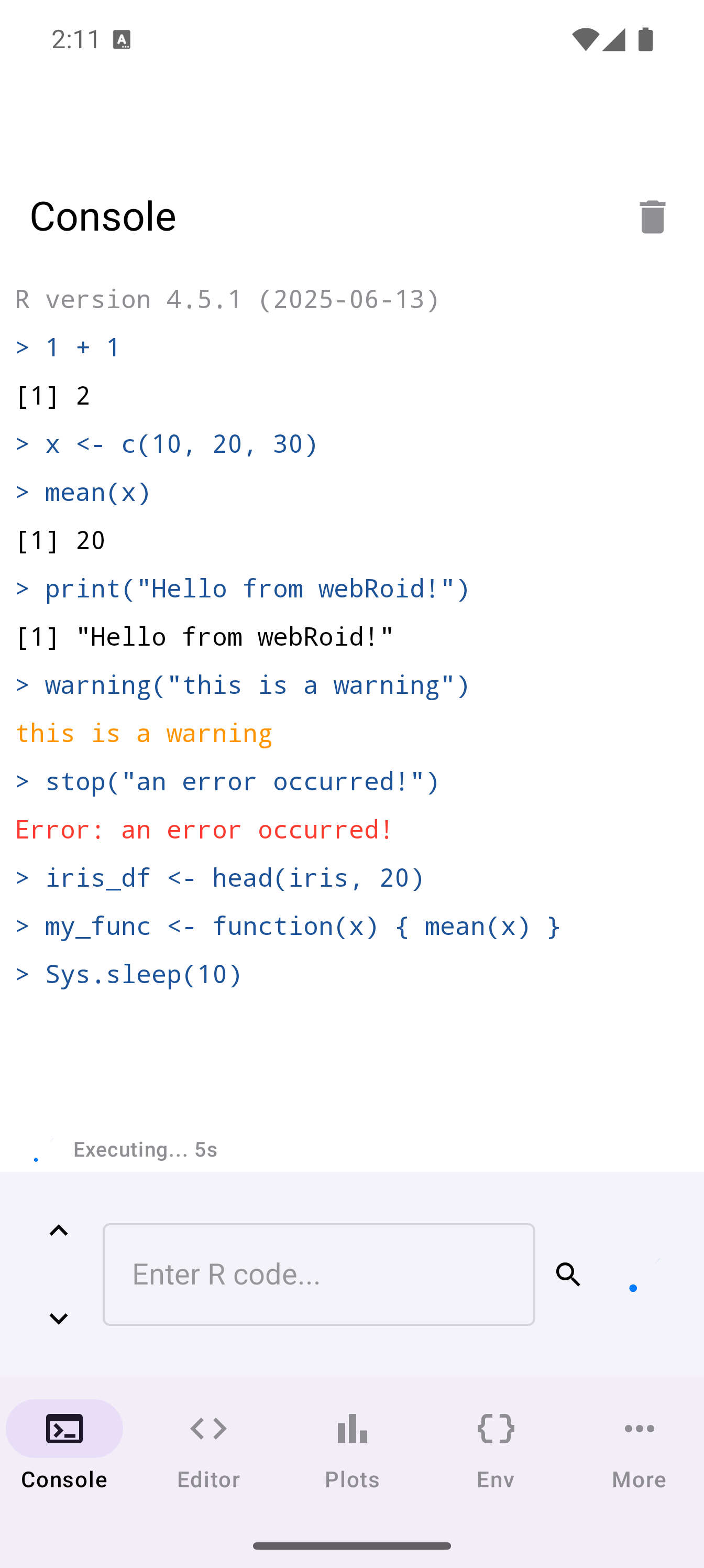
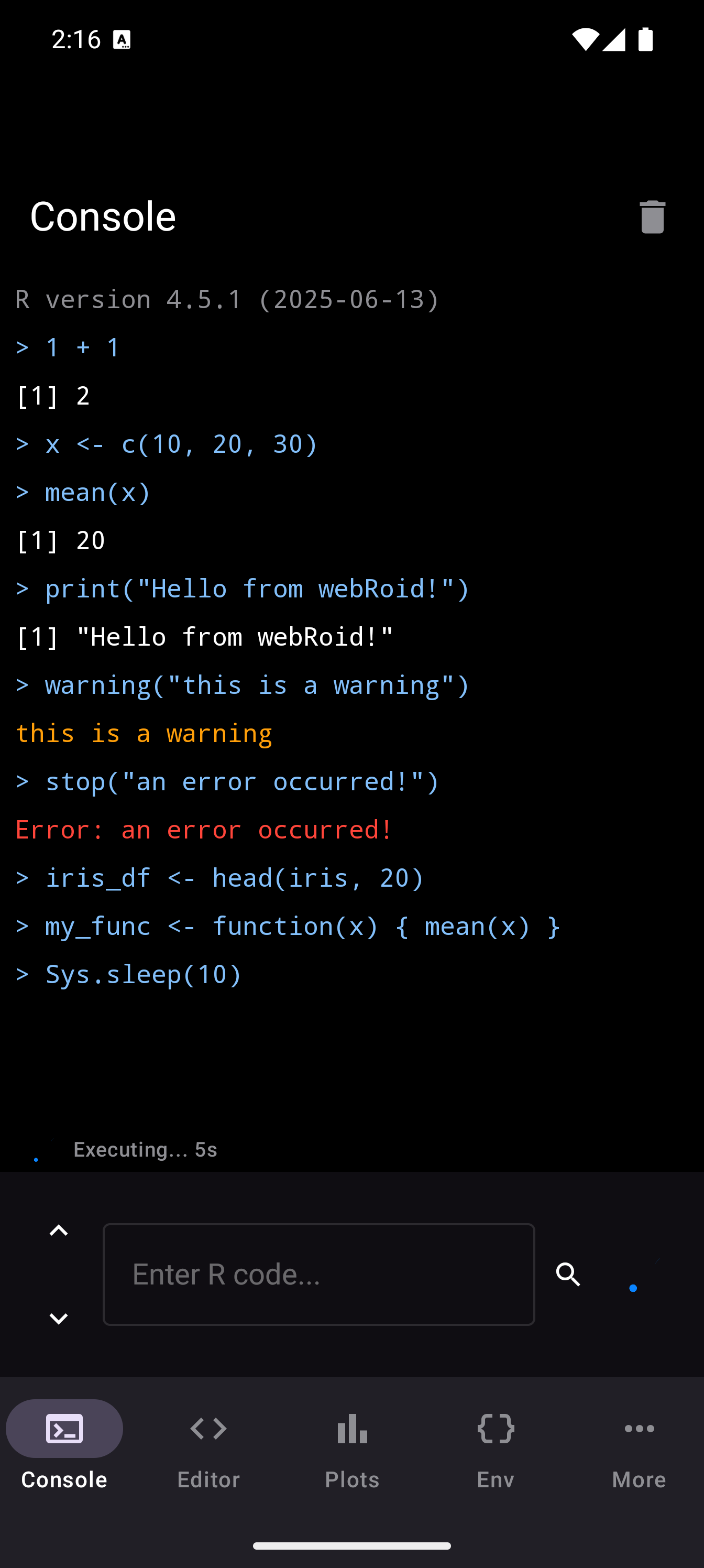
While code is running, you will see a progress indicator showing how long the computation has been executing.
Your First Plot
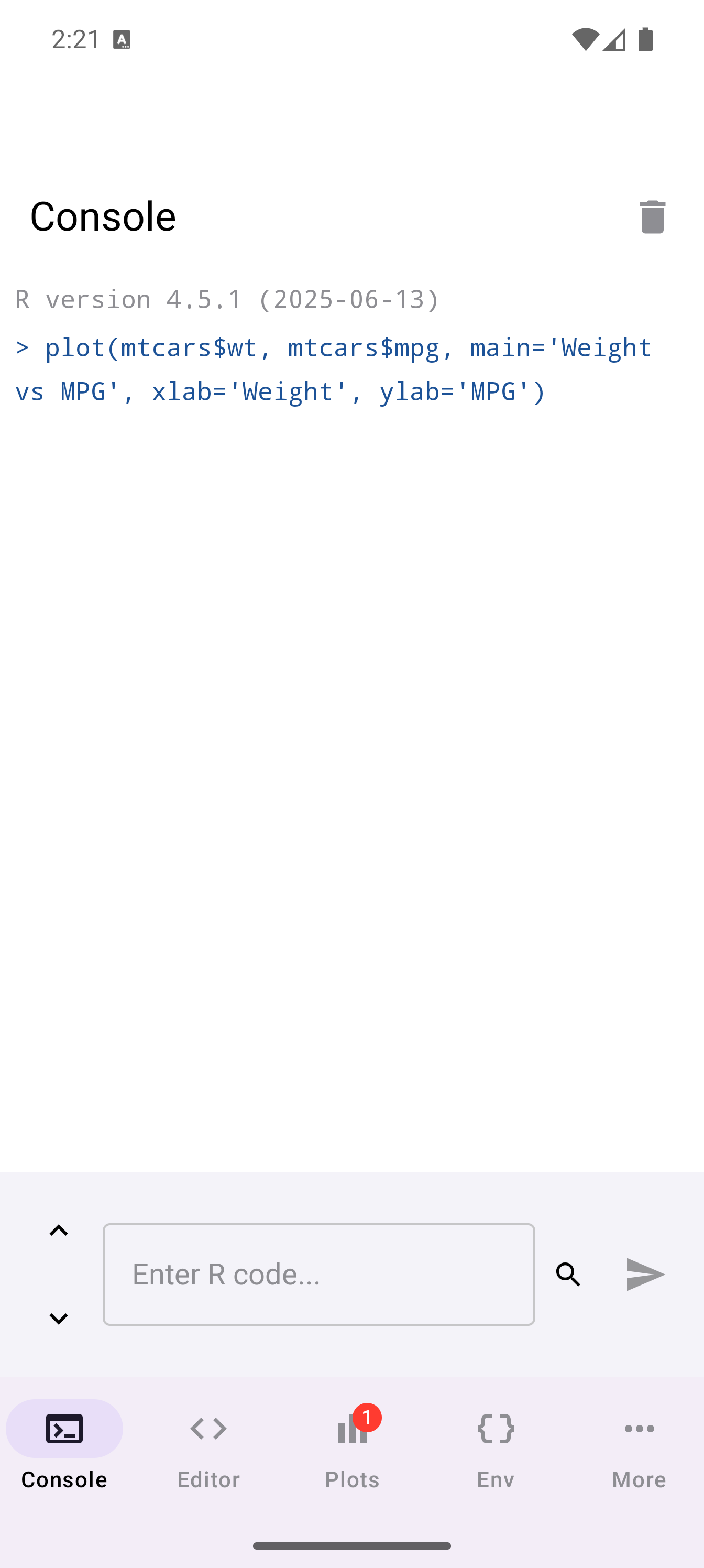
R’s plotting capabilities work out of the box in webRoid. Try generating a scatter plot from the console:
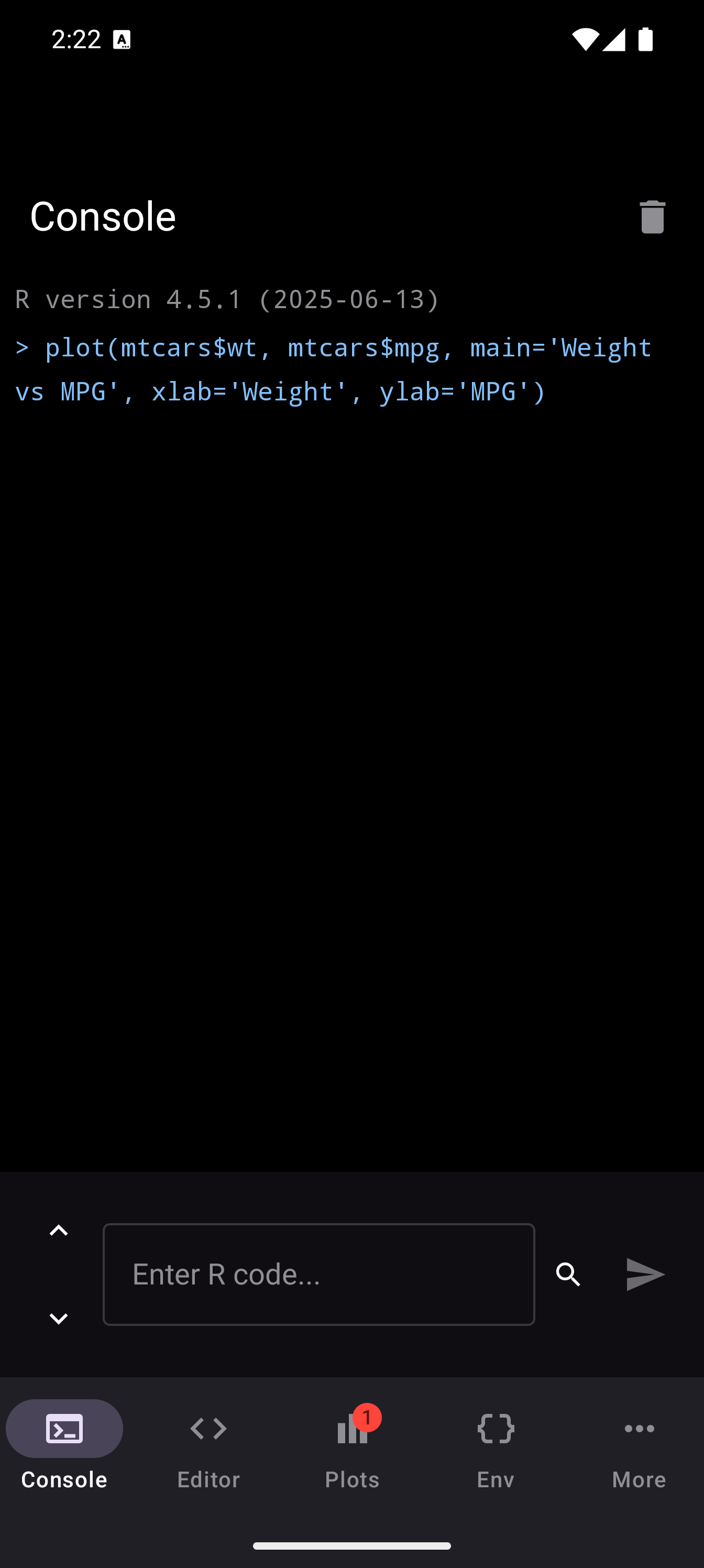
plot(mtcars$wt, mtcars$mpg, main = "Weight vs MPG", xlab = "Weight", ylab = "MPG")When a plot is generated, a badge appears on the Plots tab icon in the bottom navigation bar showing how many unseen plots are waiting. Tap the Plots tab to see your plot in the gallery.
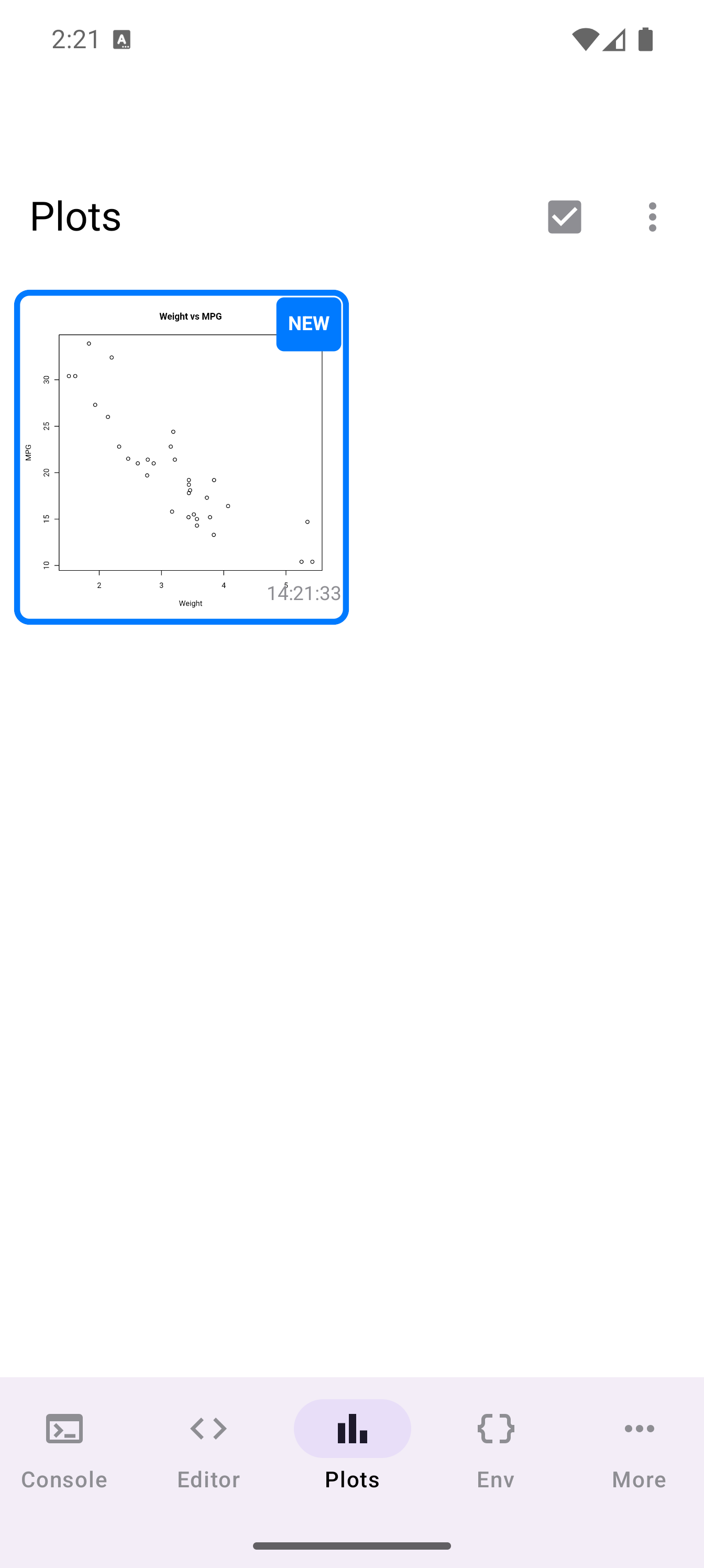
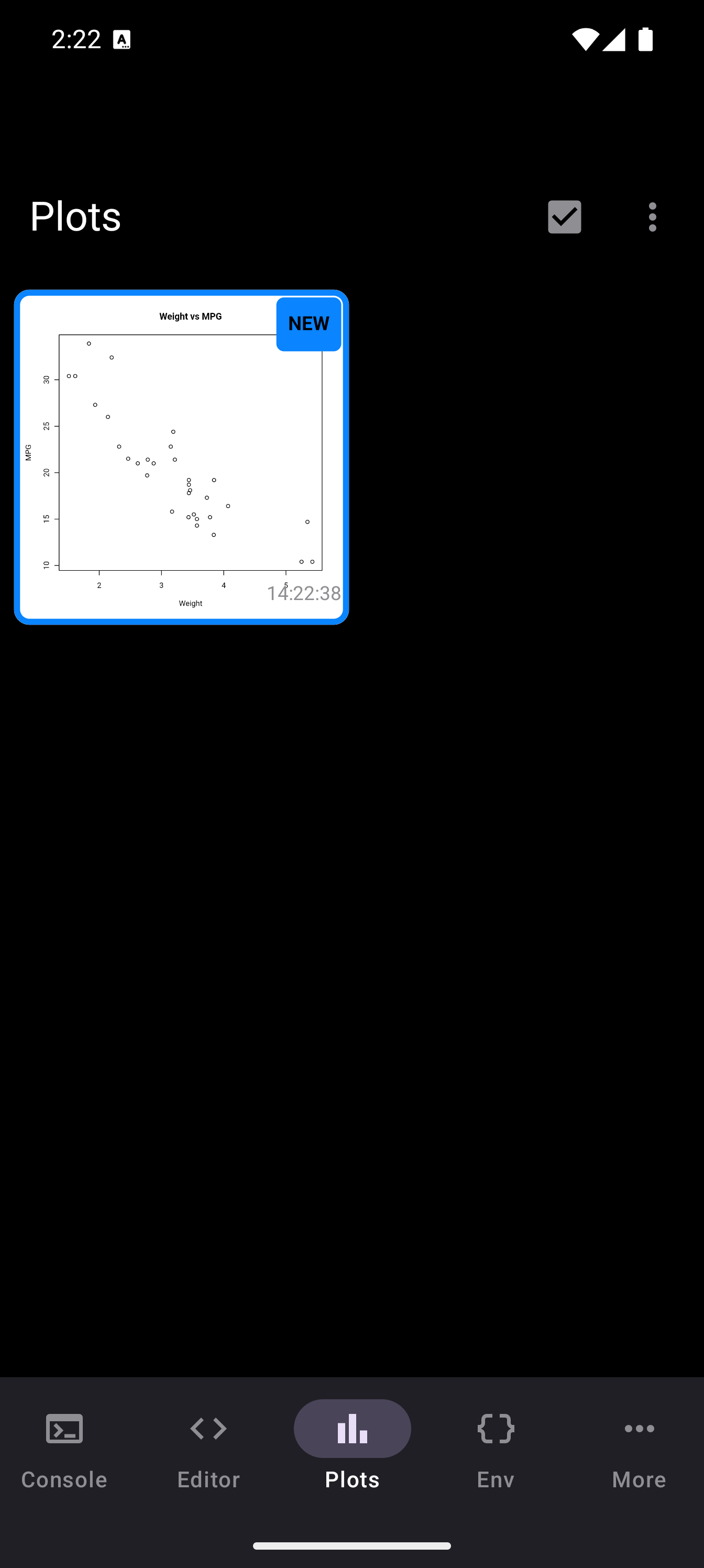
From the gallery you can tap any thumbnail to view it full-screen, pinch to zoom, and export or share it. See the Plots guide for details on comparison mode, display modes, and more.
Checking Your Workspace
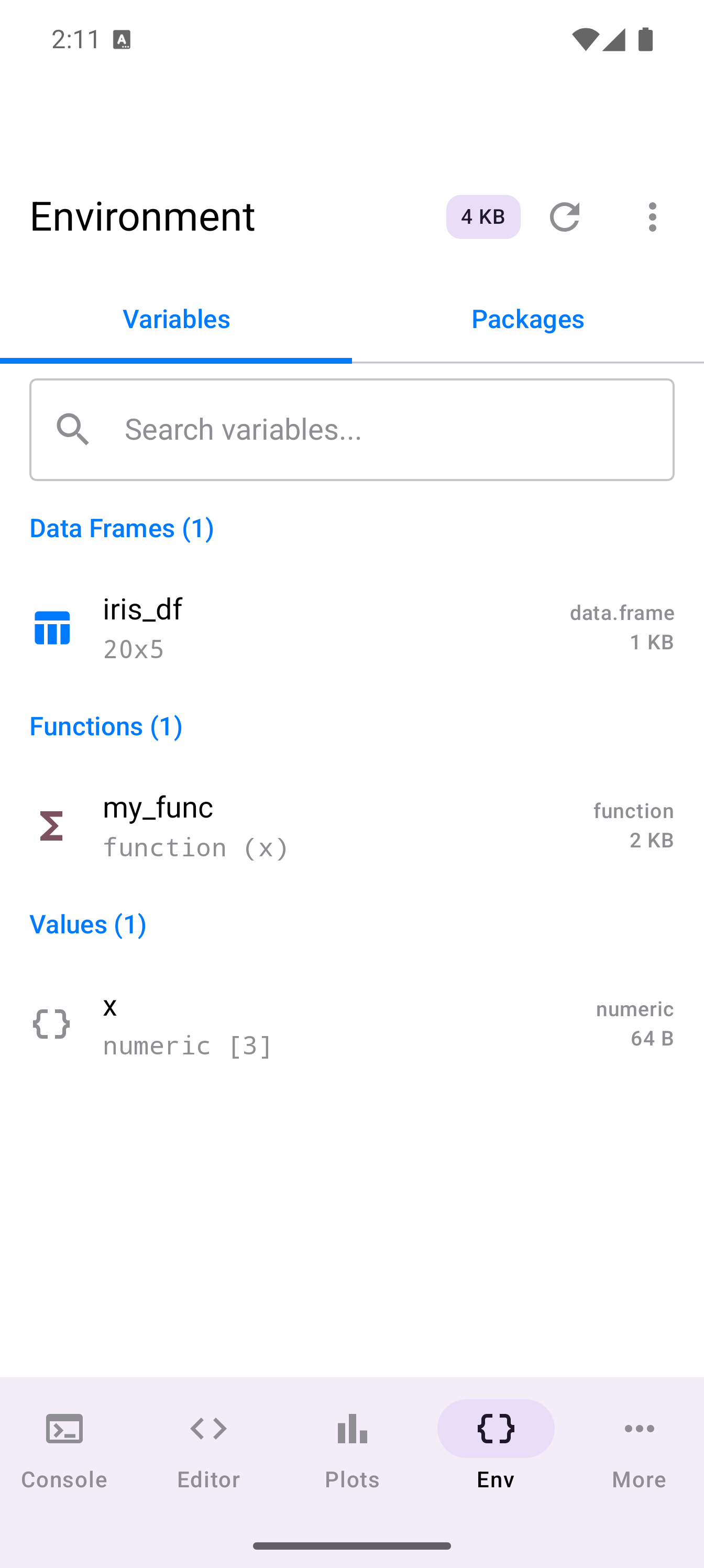
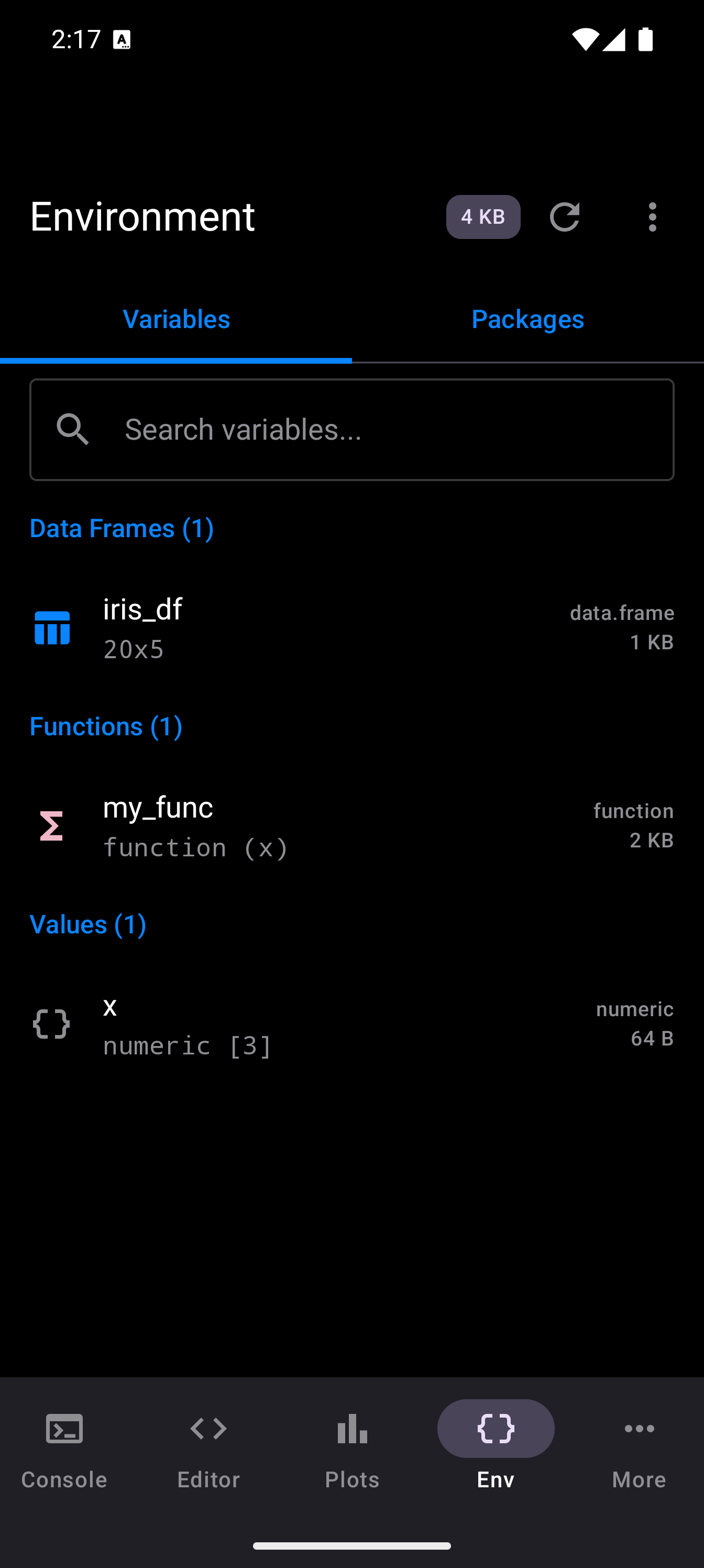
After running some commands, switch to the Environment tab to see the variables you have created. Variables are grouped by type (Data Frames, Values, Functions, Lists) and each entry shows a brief summary of its contents. A memory usage badge at the top tells you how much of the R session’s memory is in use.
You can search for specific variables using the search bar, and switch between the Variables and Packages sub-tabs.
Layout Modes
webRoid offers three layout modes, which you can change in Settings:
- Tab Bar (default)
- The standard bottom navigation. Best for phones. One screen at a time, switch between tabs.
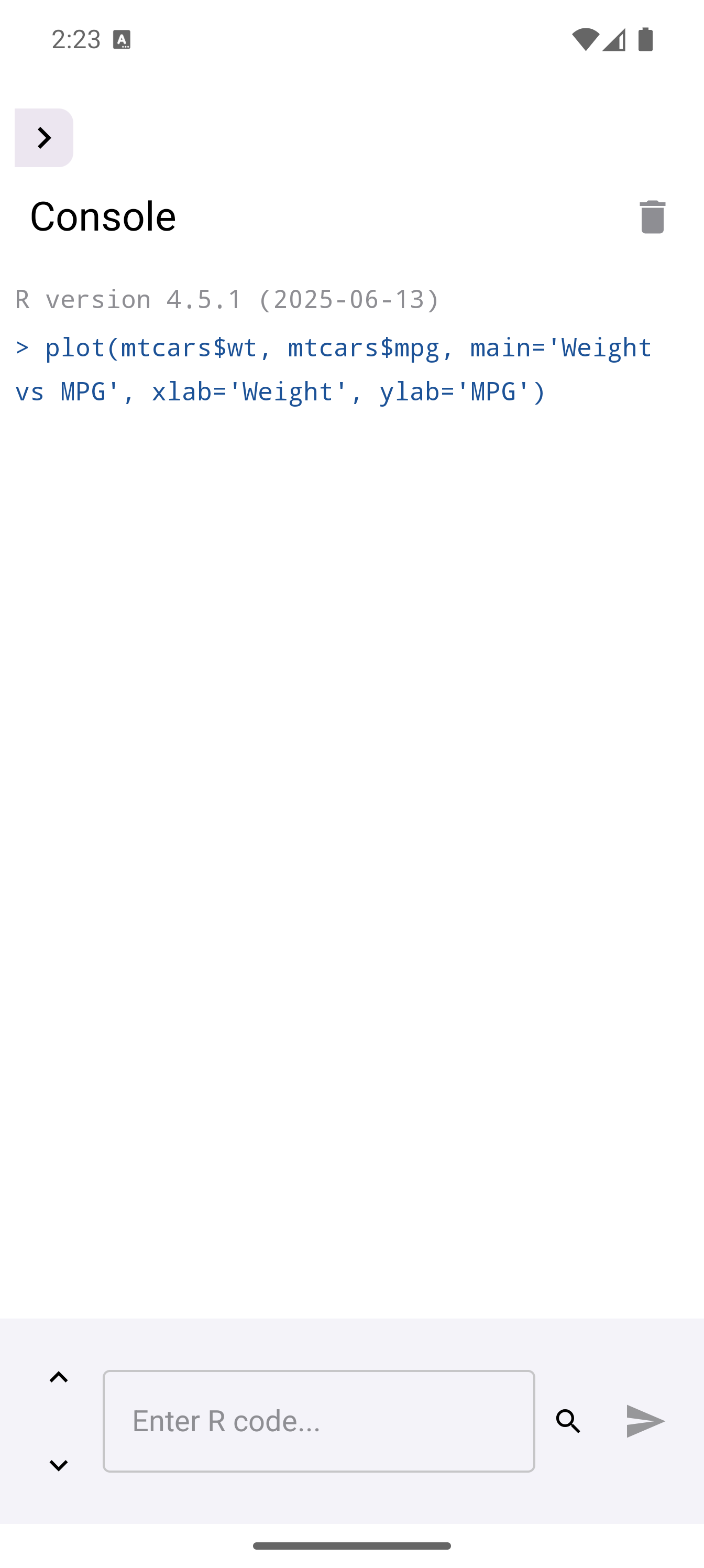
- Sidebar
- A collapsible navigation rail on the left. The sidebar can be collapsed to give more room for content.
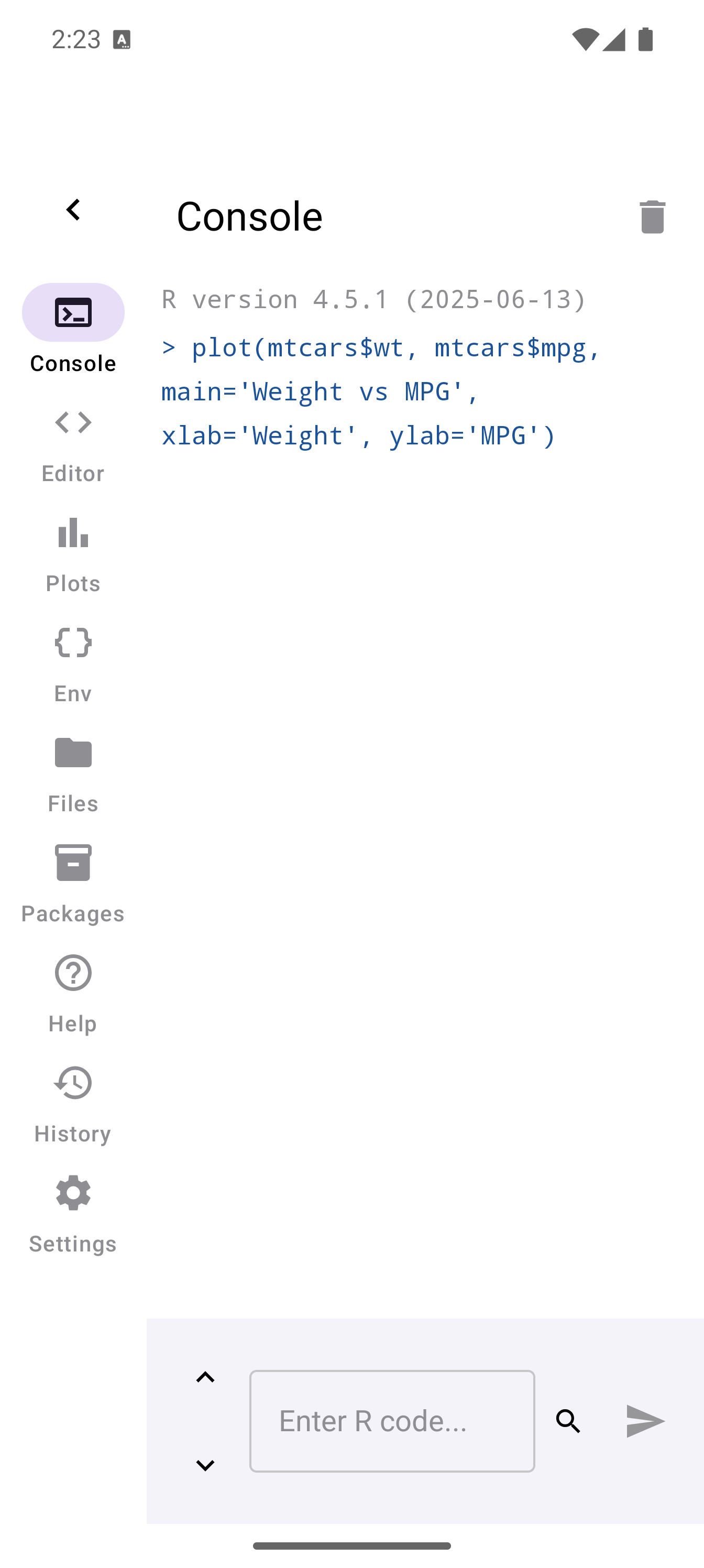
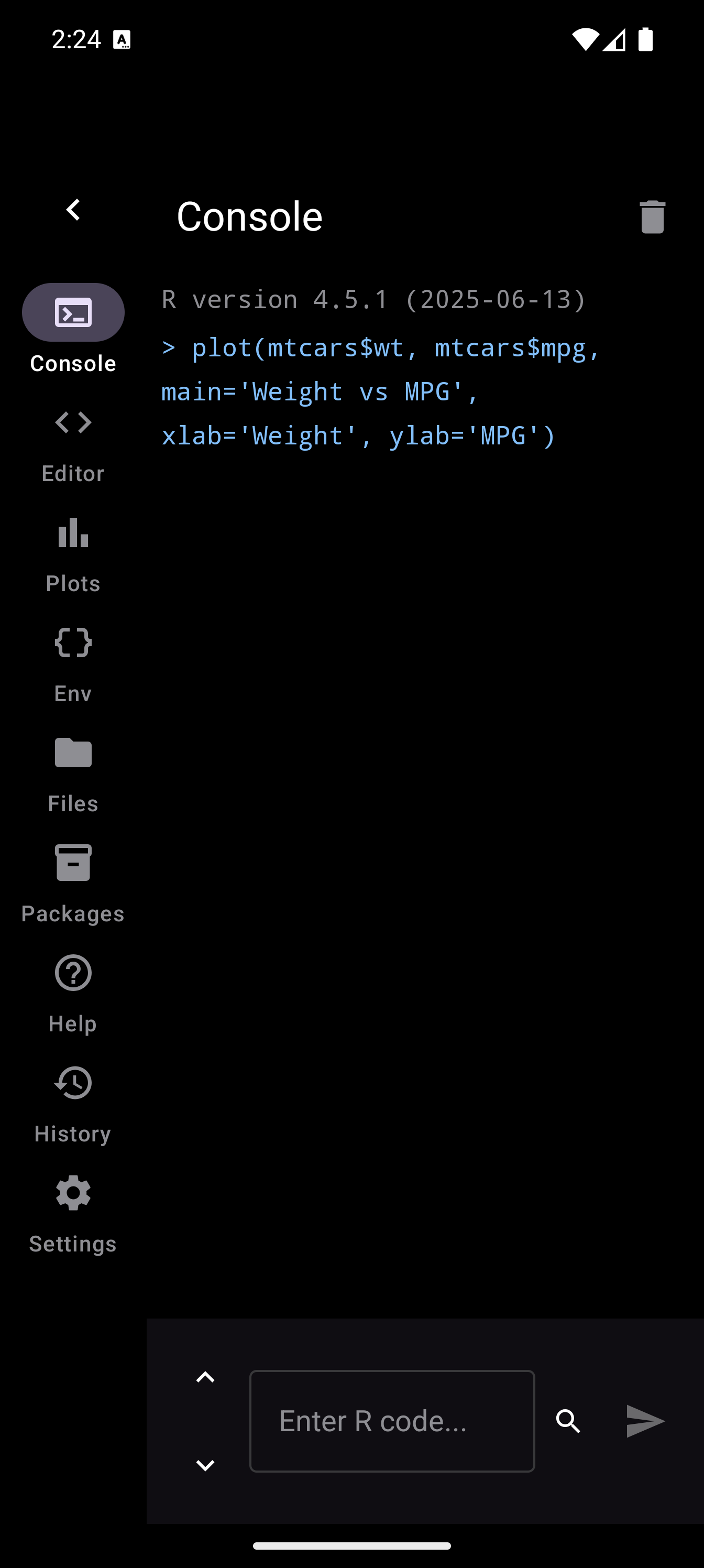
When collapsed, a small arrow button lets you expand the sidebar again:
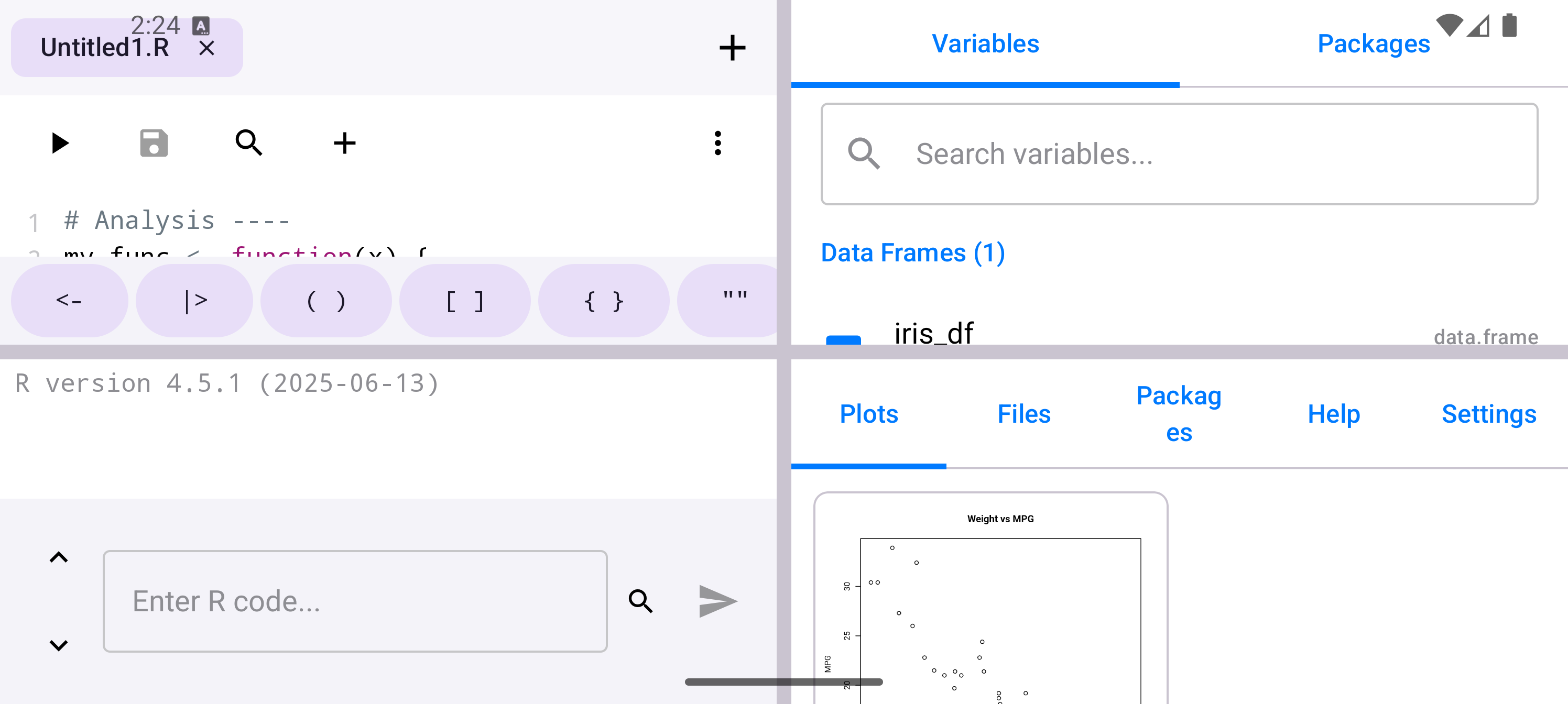
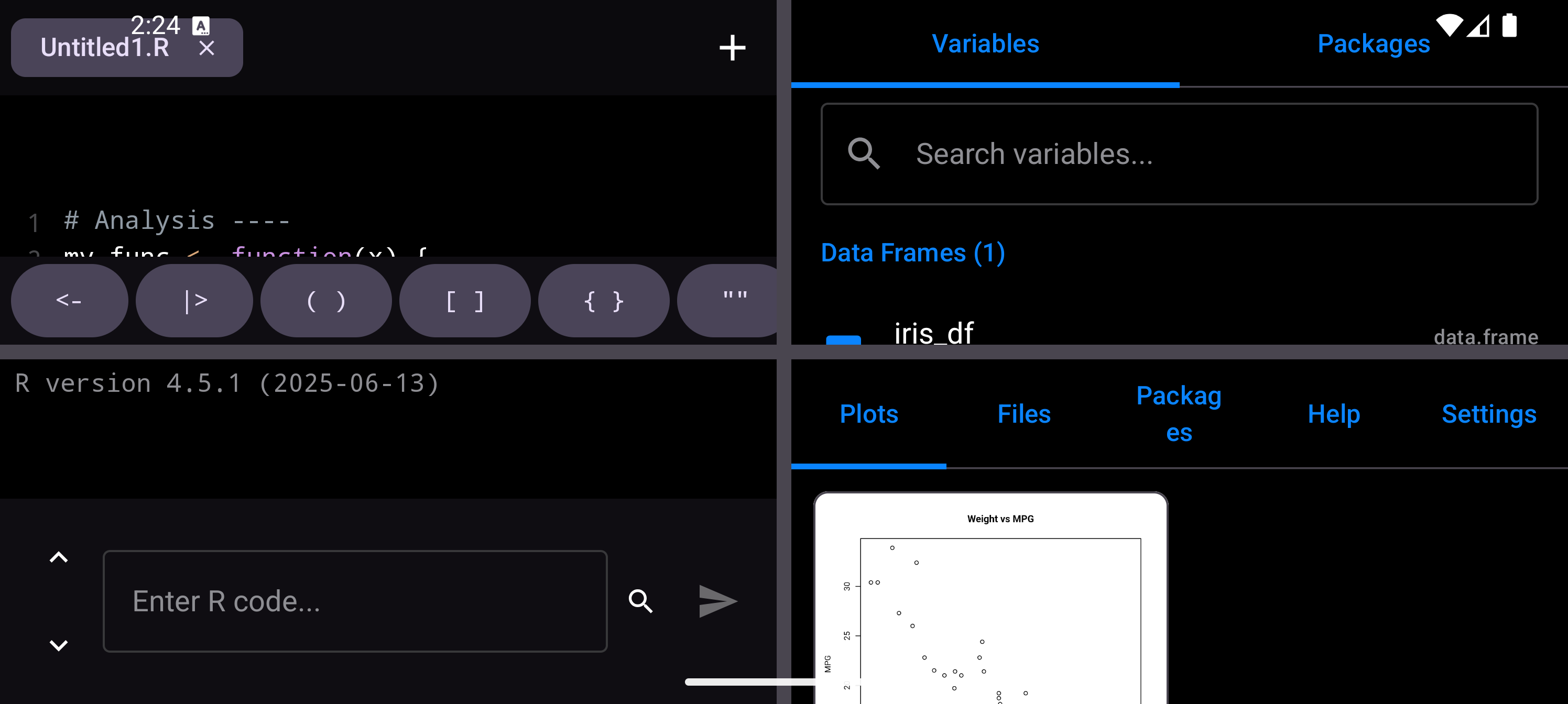
- Workspace
- A 4-pane layout with Console, Editor, Environment, and Plots all visible at once. Designed for tablets.
To change the layout mode:
- Open Settings (from the More menu in the navigation bar)
- Under Layout Mode, tap Tab Bar, Sidebar, or Workspace
- The app rearranges immediately
If you have a tablet, try Workspace mode. It gives you the Console and Editor on the left, with Environment and Plots on the right. You can drag the dividers to resize each pane.
Settings also lets you configure:
- Theme: System, Light, or Dark
- Plot Display: Tab Only, Floating, Sheet, or Inline
- Font sizes for the console and editor
Next Steps
You now have a working R environment on your Android device. Here is where to go from here:
Console
Learn about command history, keyboard shortcuts, and the R toolbar.
Editor
Write multi-line scripts with find/replace, code outline, snippets, and gist export.
Plots
View, zoom, pin, and share your R graphics.
Environment
Inspect variables, data frames, and memory usage.
Files
Manage scripts and data files on your device.
Packages
Install R packages from the webR repository.
Help
Browse R documentation with search, suggestion chips, and context-aware help.
Themes
Nine built-in themes, custom theme editor, and VS Code / RStudio import.
Settings
Configure layouts, fonts, and plot display.
FAQ
Common questions and troubleshooting.