Files
The Files tab is a built-in file manager for your R scripts, data files, and project folders. You can browse directories, create and edit files, search by name or content, import data, and organize your work into projects, all without leaving webRoid.
Browsing Files
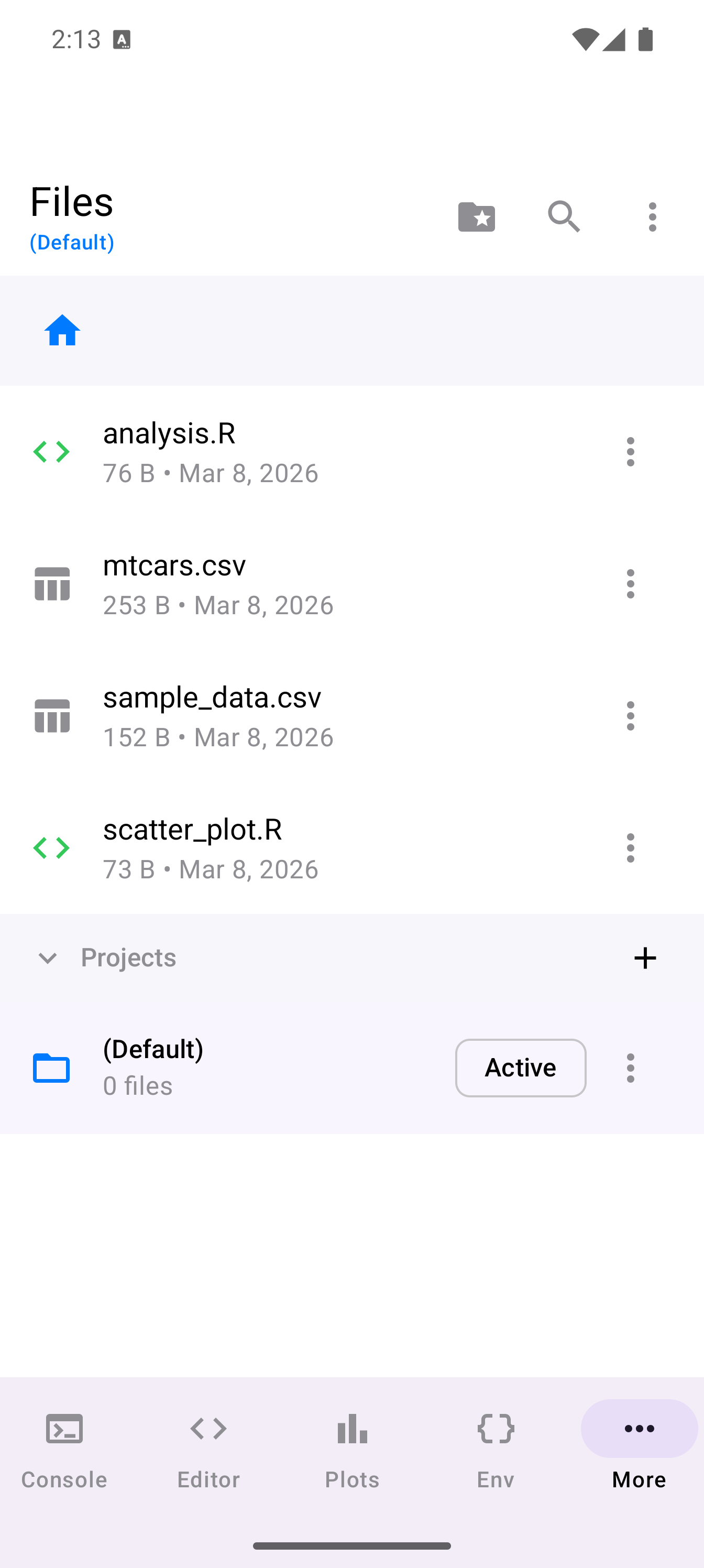
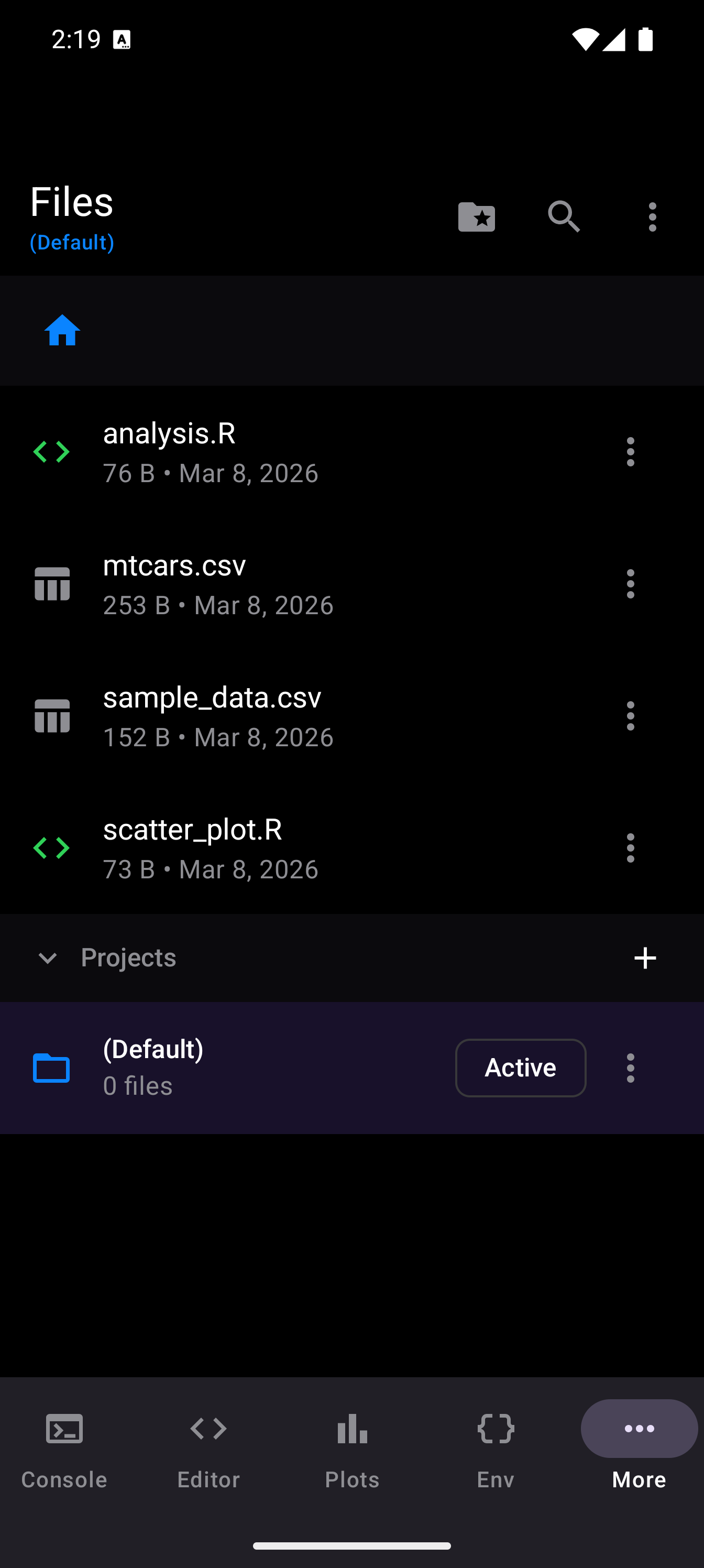
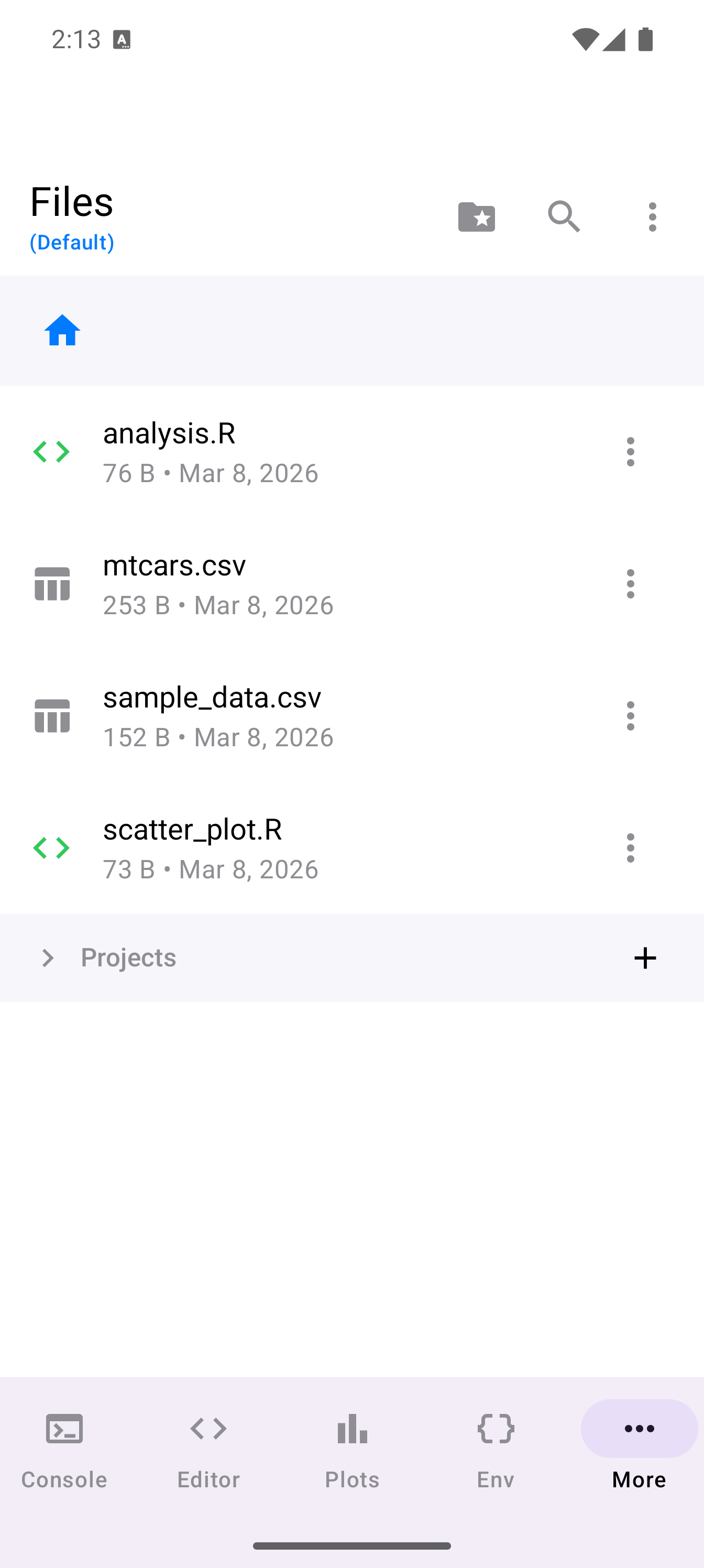
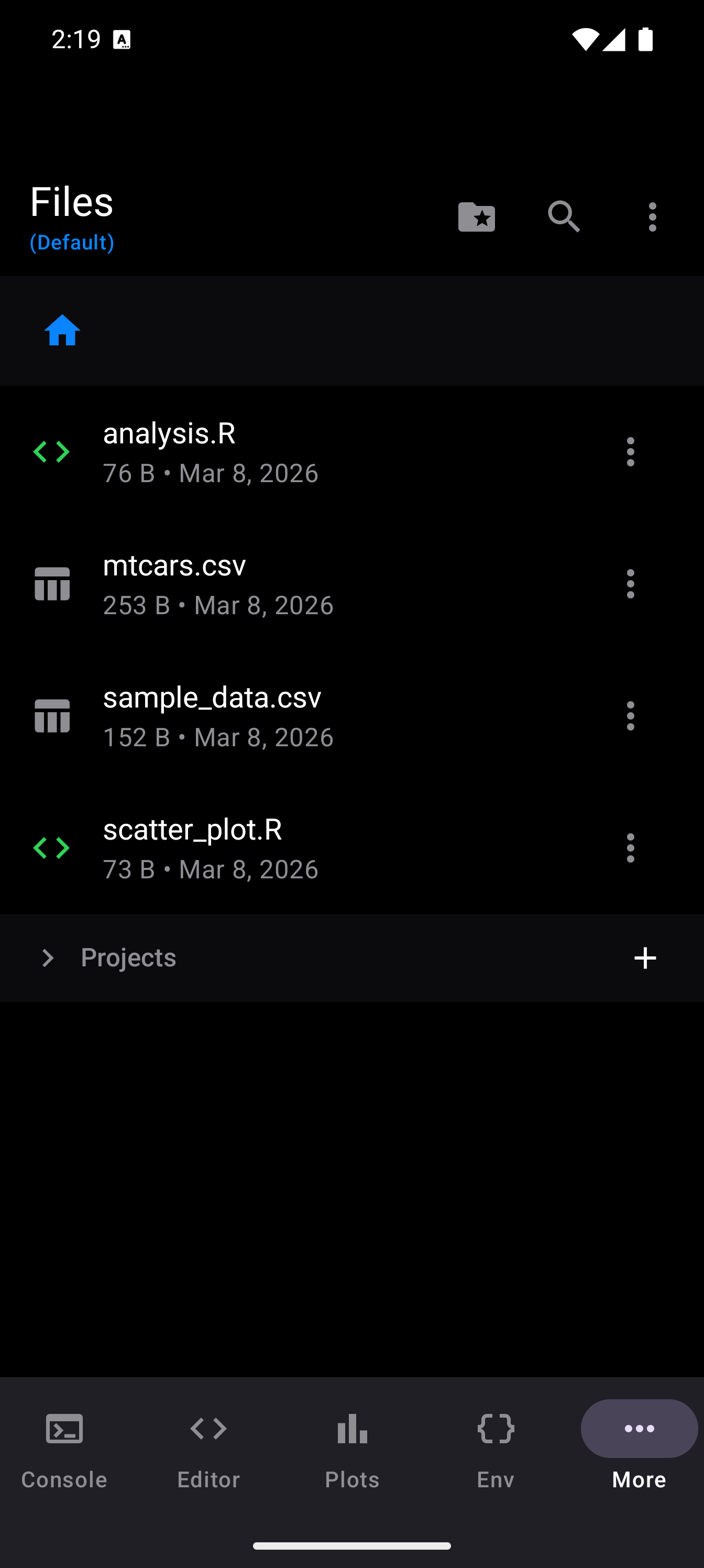
When you open the Files tab, you see the contents of your current project directory. Each row shows the file or folder name, along with its size and last-modified date. Folders display a chevron indicating you can tap to enter them.
At the top of the file list, a breadcrumb bar shows your current location in the folder hierarchy. Tap any breadcrumb to jump directly to that level. When you are deeper than the root, a back arrow appears in the toolbar to navigate up one level.
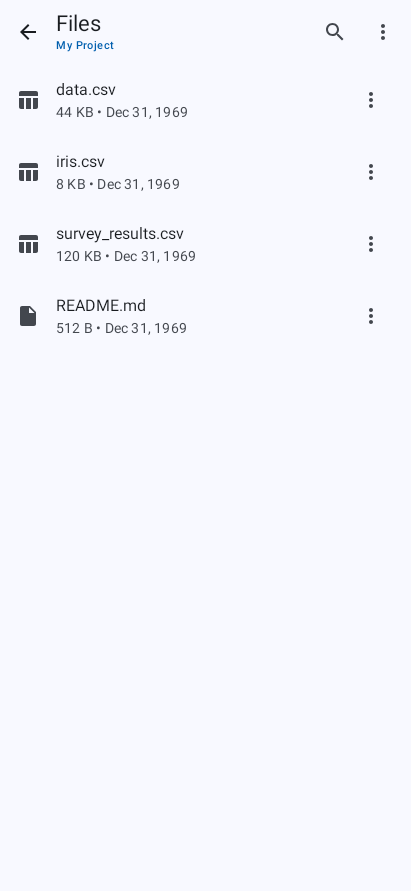
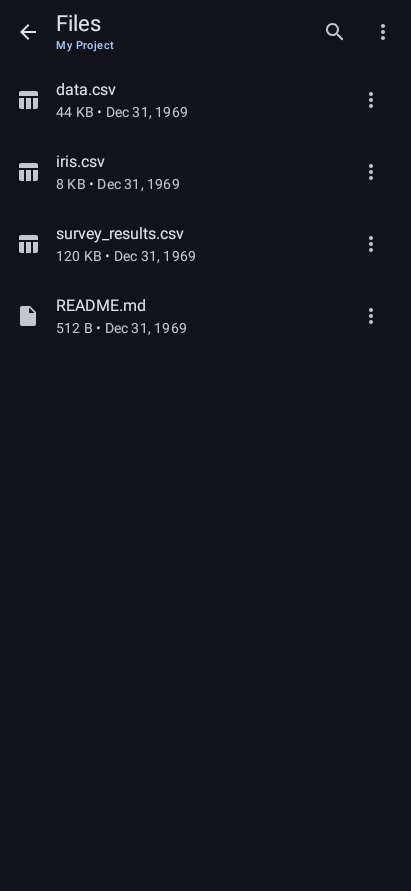
The toolbar title shows “Files” along with the current project name (if you have one selected) in a smaller label underneath.
Project Selector
At the root level of the file list, a collapsible Projects section appears below your files. This section lists all your projects and lets you switch between them. The active project is highlighted with a tinted background and an “Active” chip. Tap any other project to switch to it, which changes the file browser’s root directory.
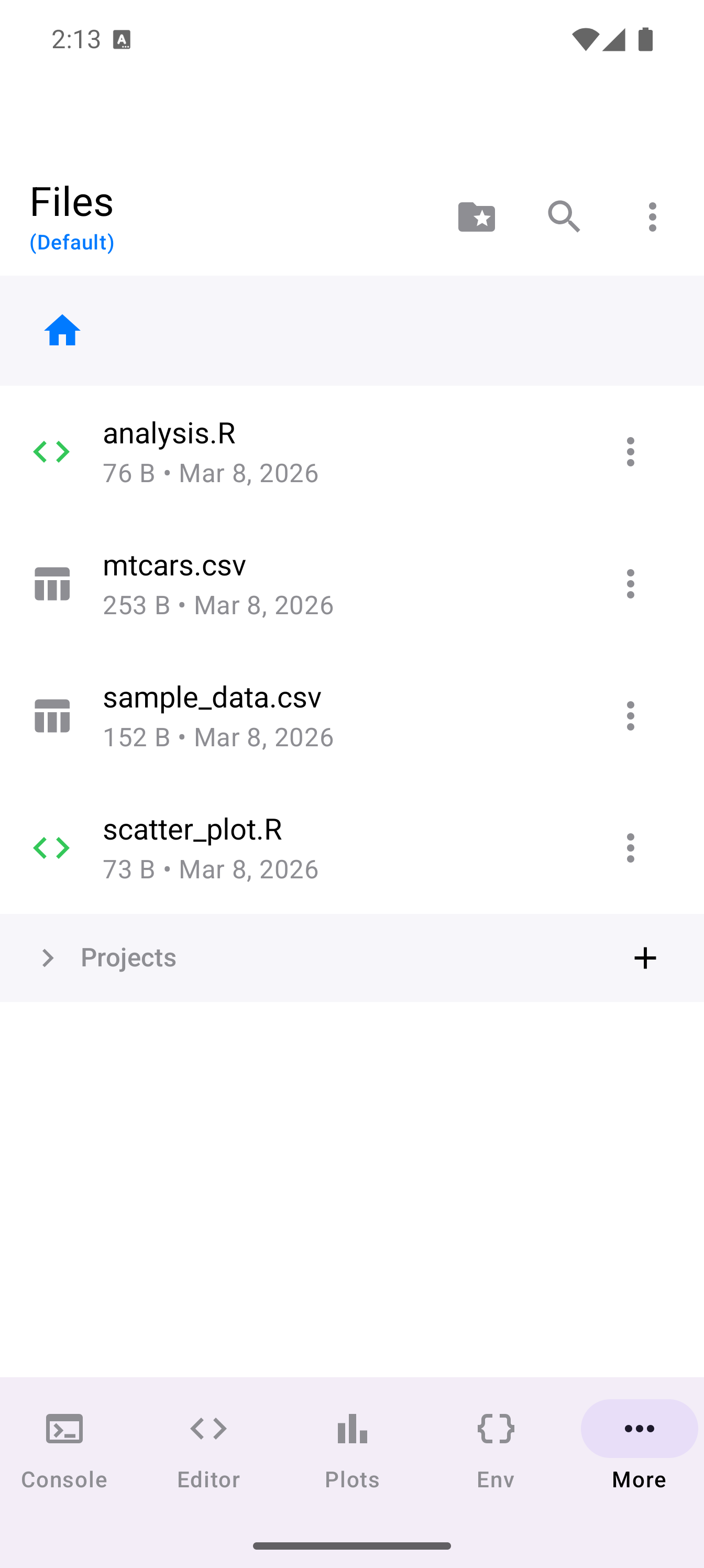
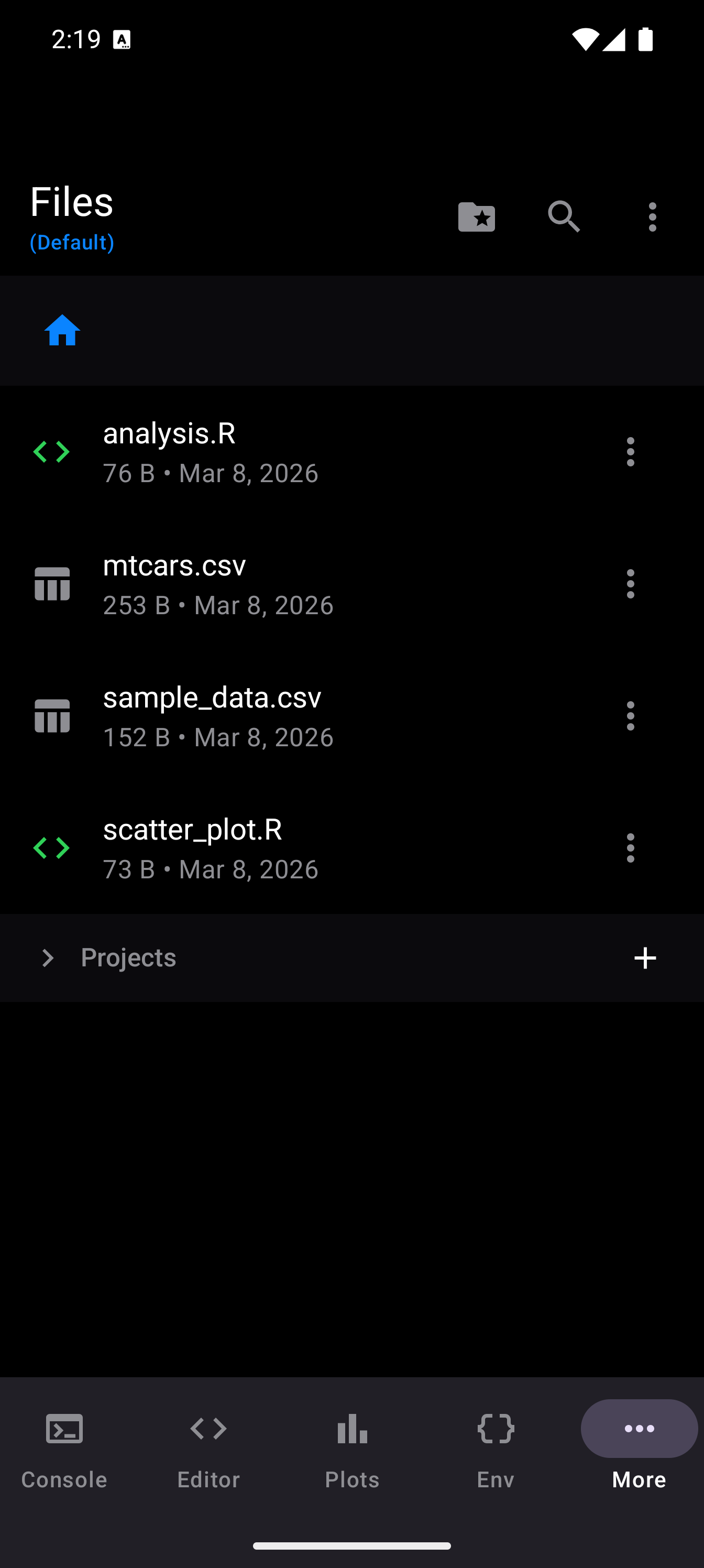
You can toggle the projects section open or closed using the folder icon in the toolbar.
Creating and Managing Files
Tap the three-dot menu in the toolbar to access file and folder creation:
- New R Script: creates a
.Rfile in the current directory. You name it in a dialog; the.Rextension is added automatically if you omit it. The new file opens in the Editor immediately. - New Folder: creates a subdirectory at the current location.
To rename or delete a file or folder, each item in the list has context actions available:
- Rename: opens a dialog pre-filled with the current name. Change it and tap “Rename.”
- Delete: shows a confirmation dialog. For folders, the dialog warns that all contents will be permanently deleted.
Deletion is permanent. There is no trash or undo. Always export or back up important files before deleting.
Tapping a text-based file (.R, .txt, .csv, .json, .md) opens it in the Editor. Tapping a folder navigates into it.
Search
webRoid provides two kinds of search in the Files tab.
Search by Filename
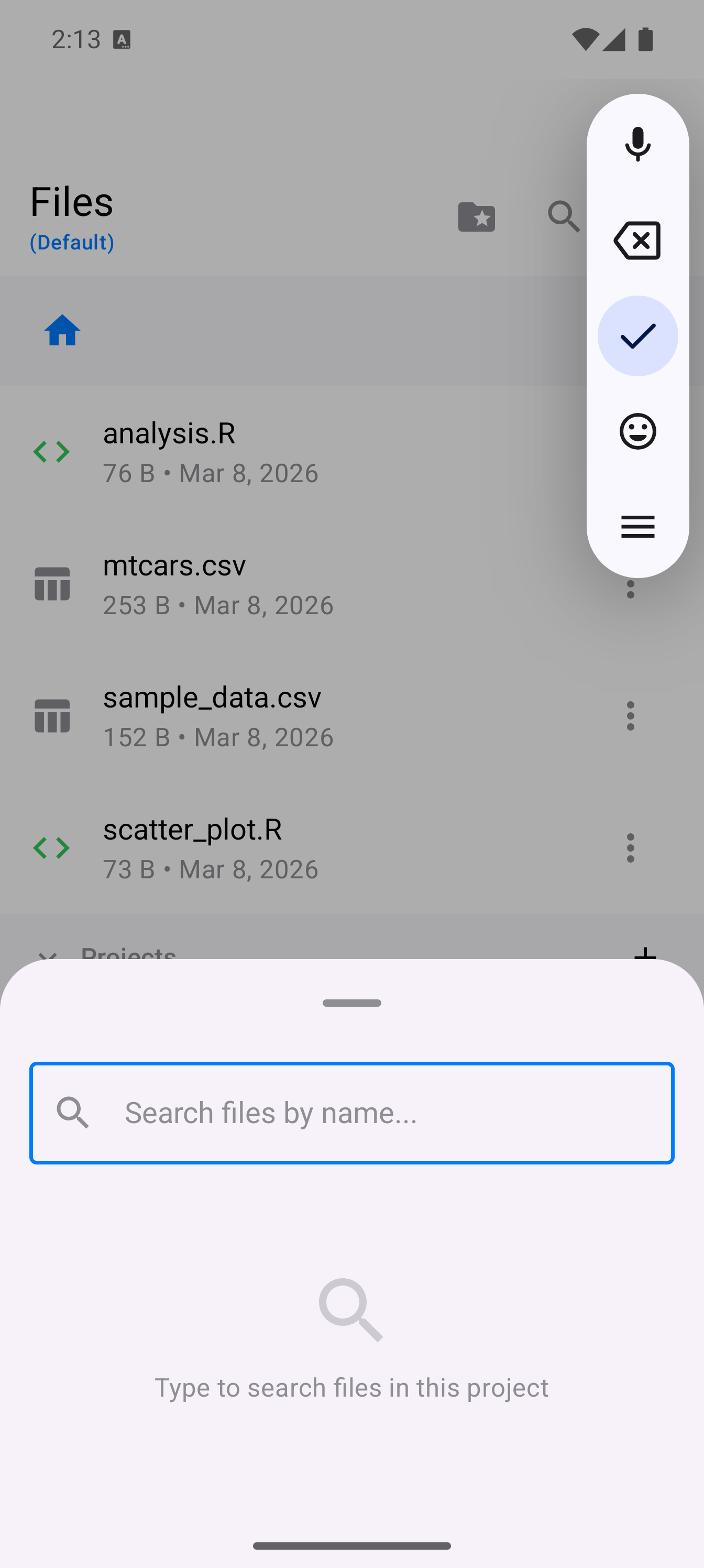
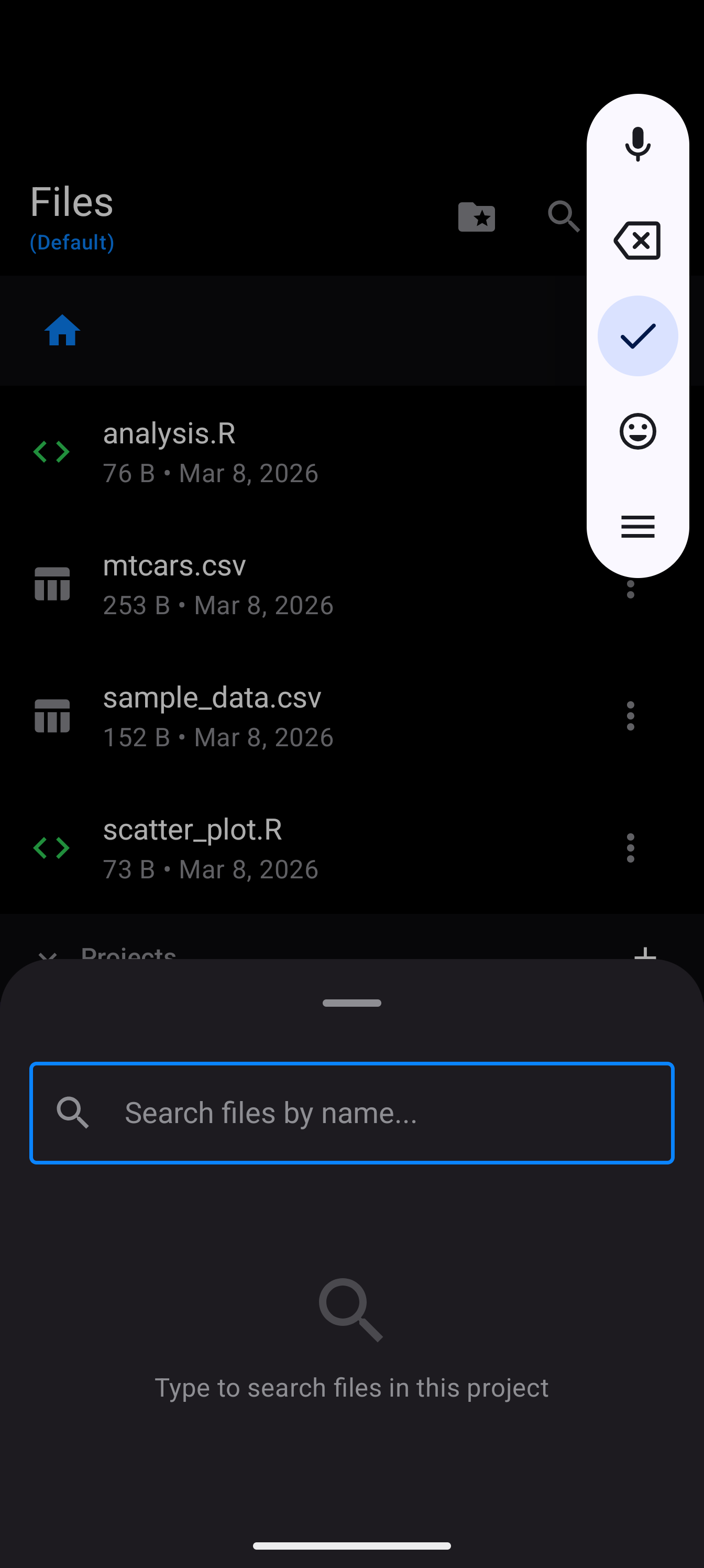
Tap the search (magnifying glass) icon in the toolbar to open the filename search sheet. As you type, results filter across all files in the current project. Tap a result to open it directly in the Editor.
Search by Content
For searching inside files, tap the three-dot menu and choose Search in Files. This opens a content search screen where you can enter a text query. The search runs across all text files in the project and returns matching results with file paths and context snippets. Tap any result to jump to that file in the Editor.
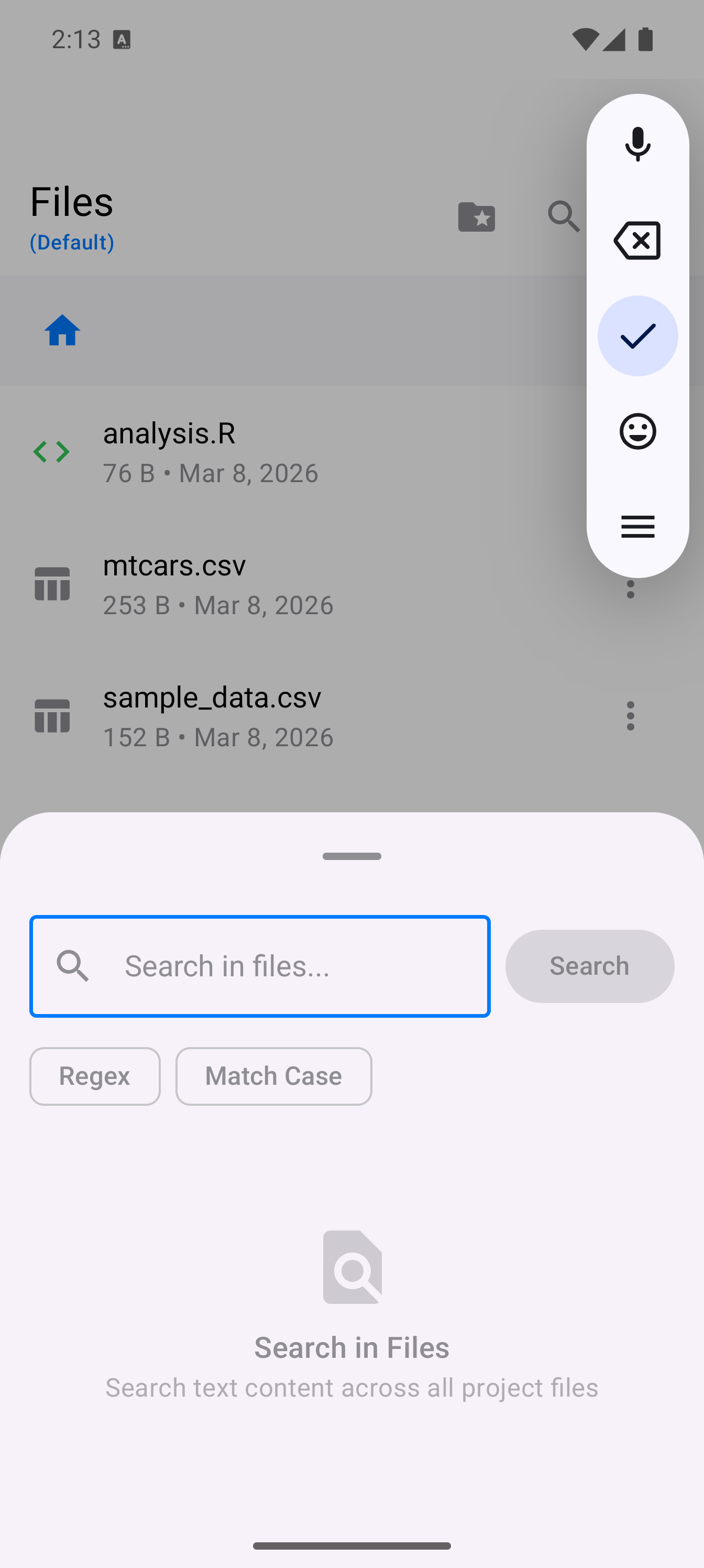
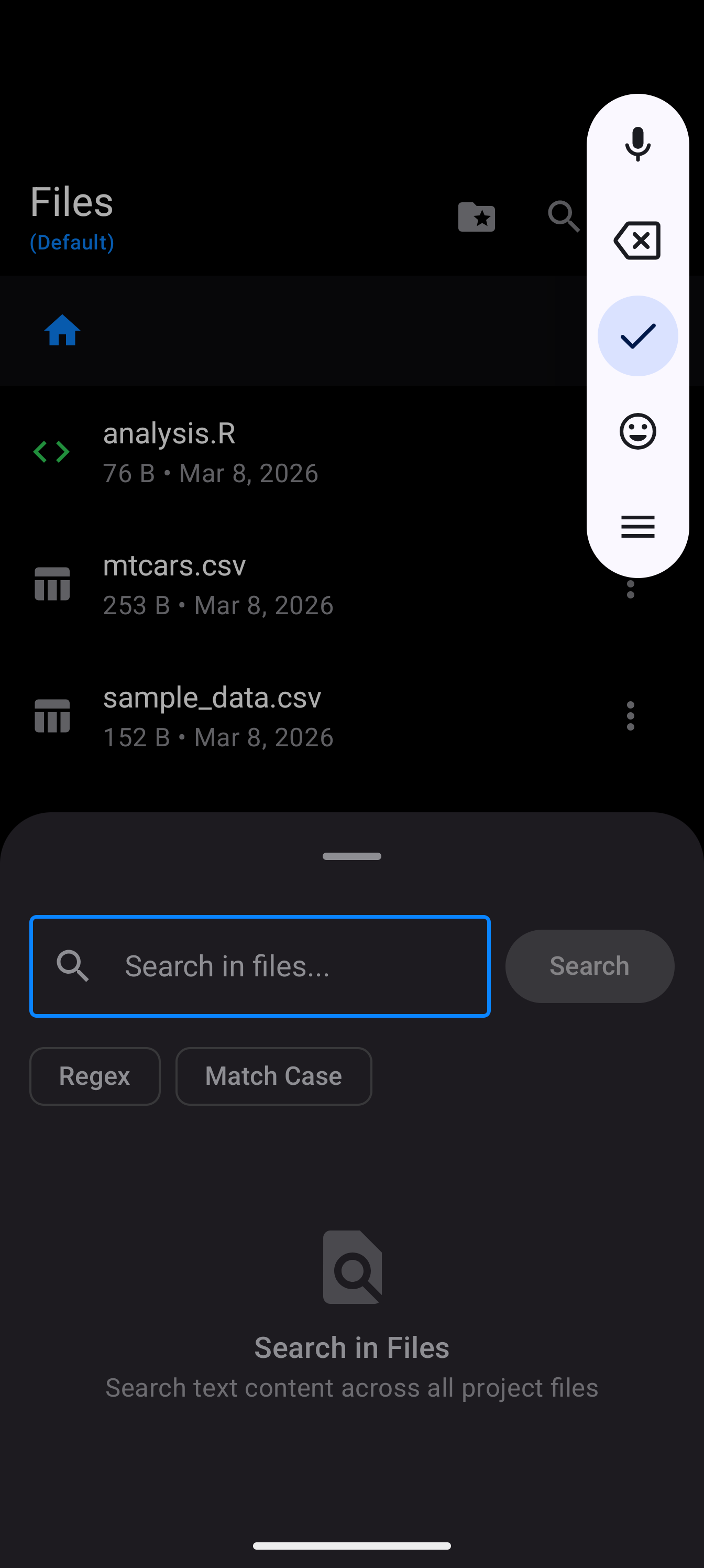
This is useful when you cannot remember which script contains a specific function or variable name.
Recent Files
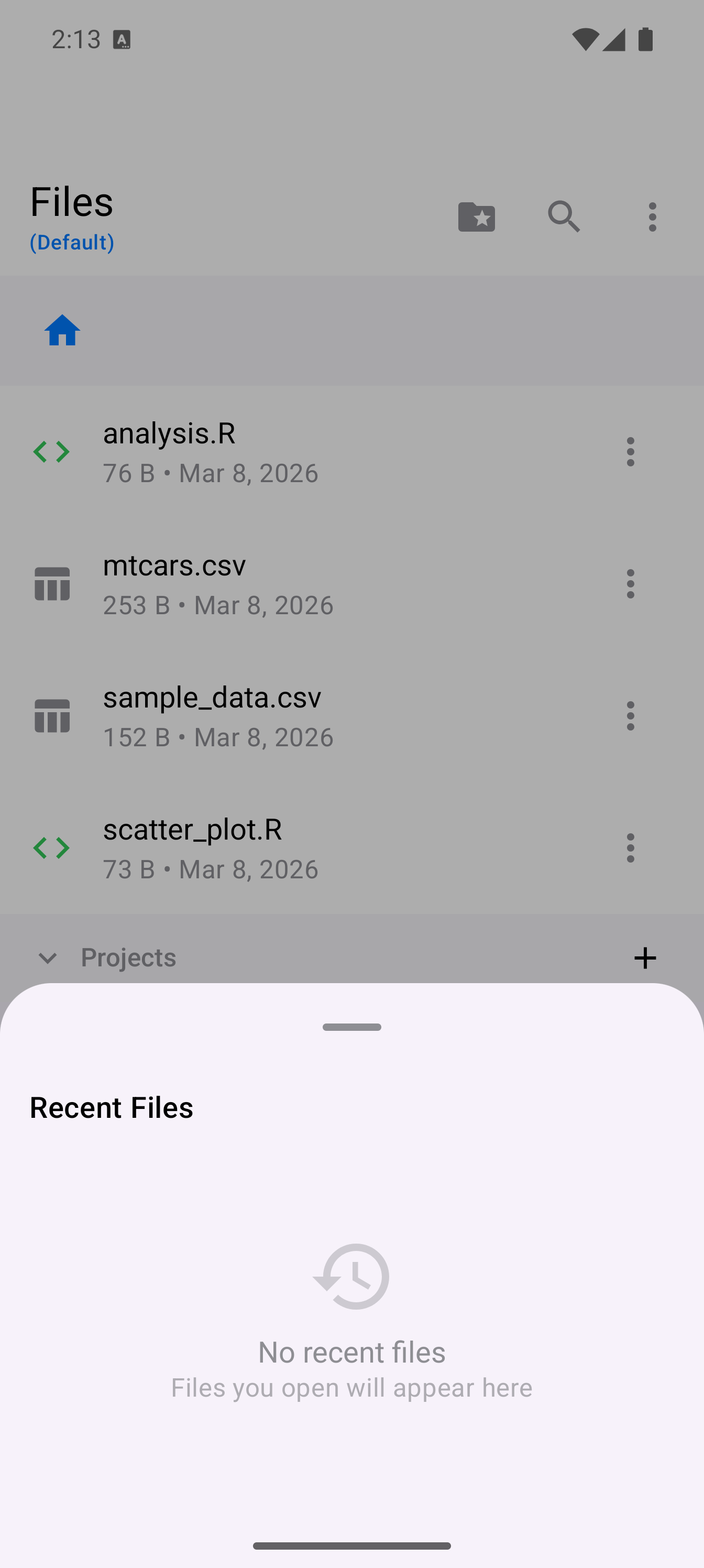
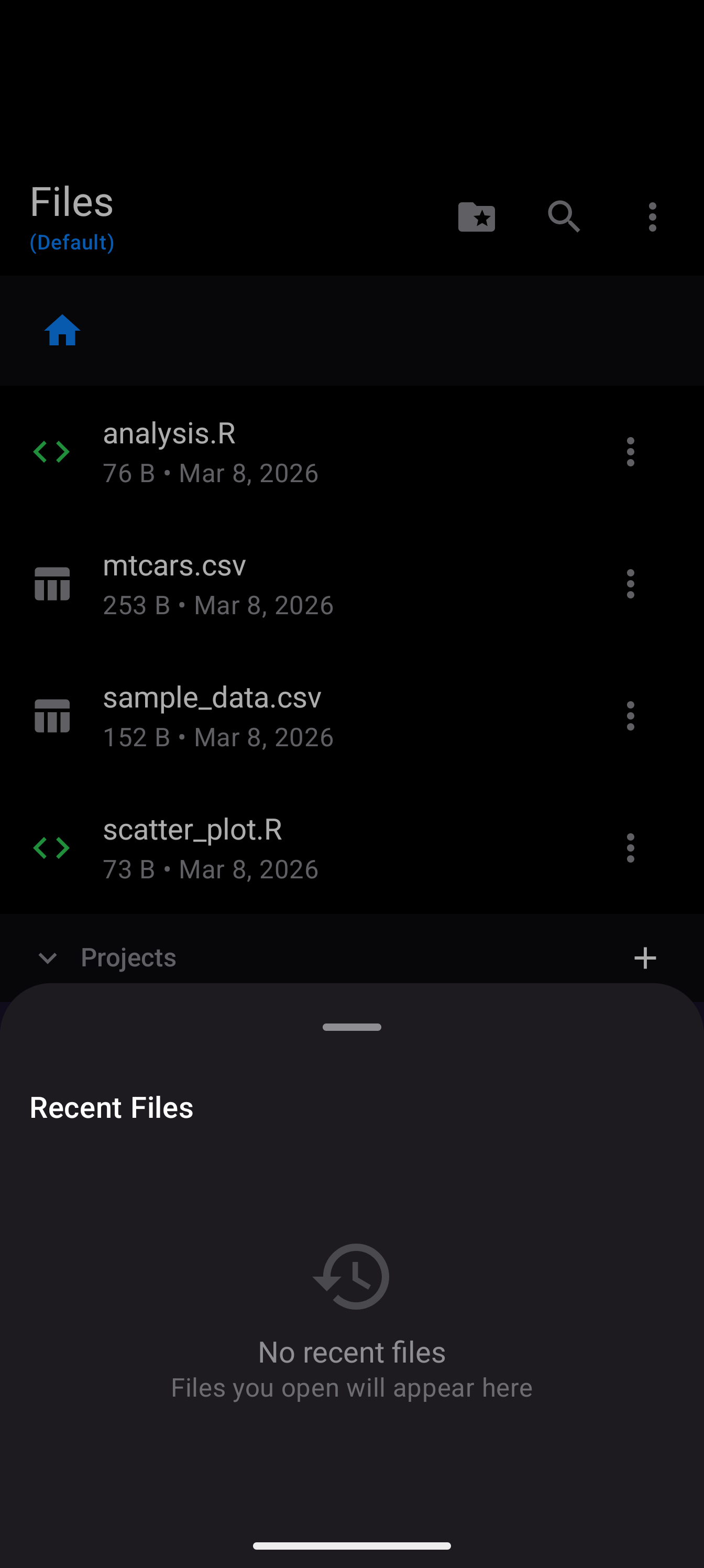
Tap the three-dot menu and choose Recent Files to open a sheet listing files you have recently opened. This gives you quick access to the files you are actively working on without navigating through the folder tree.
Data Import Wizard
webRoid includes a guided import wizard for bringing tabular data into your R environment. It supports CSV, TSV, and plain-text delimited files. (Excel files require the readxl package to be installed first.)
To start an import:
- Tap the three-dot menu and choose Import Data…
- The Android file picker opens, filtered to common data file types (CSV, TSV, Excel, plain text)
- Select a file, and the import wizard sheet appears
The wizard has three tabs:
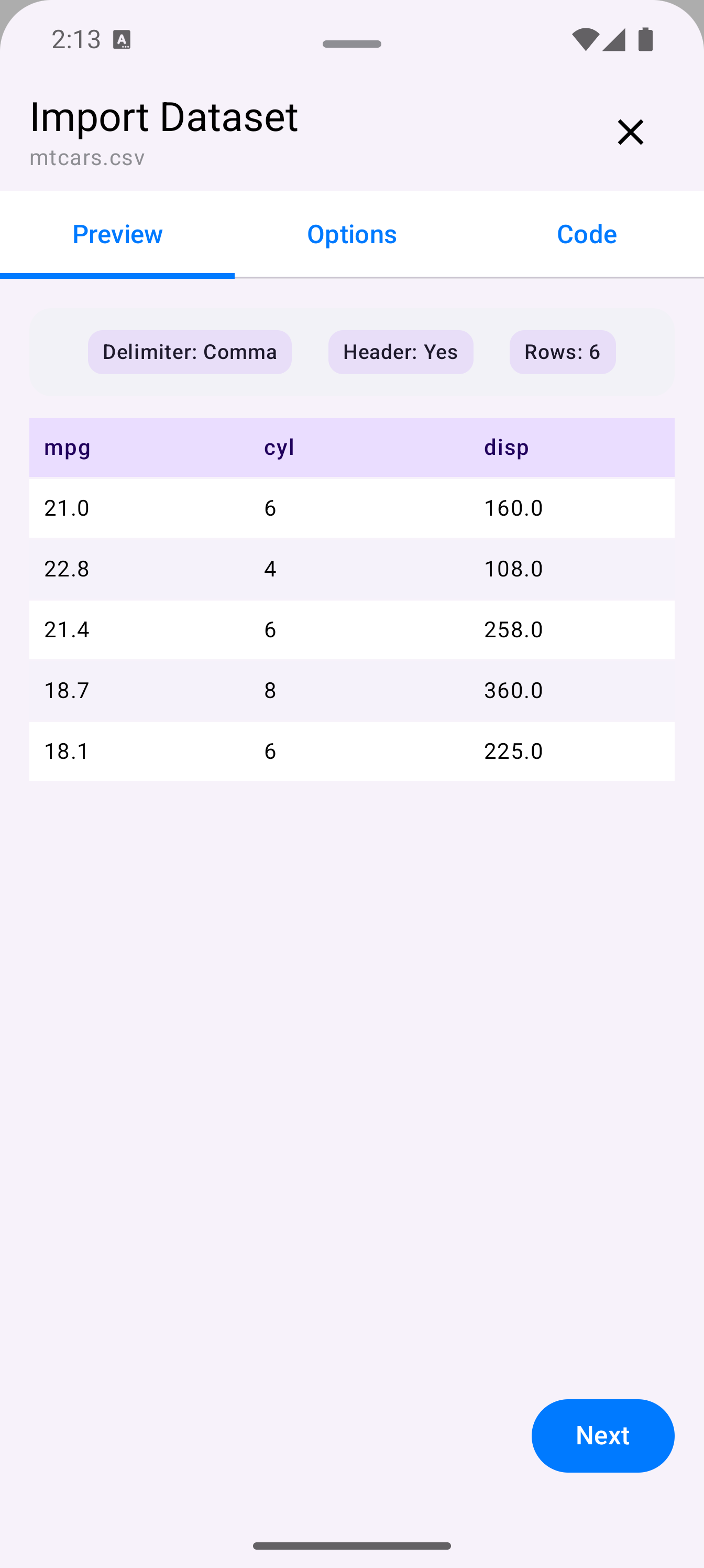
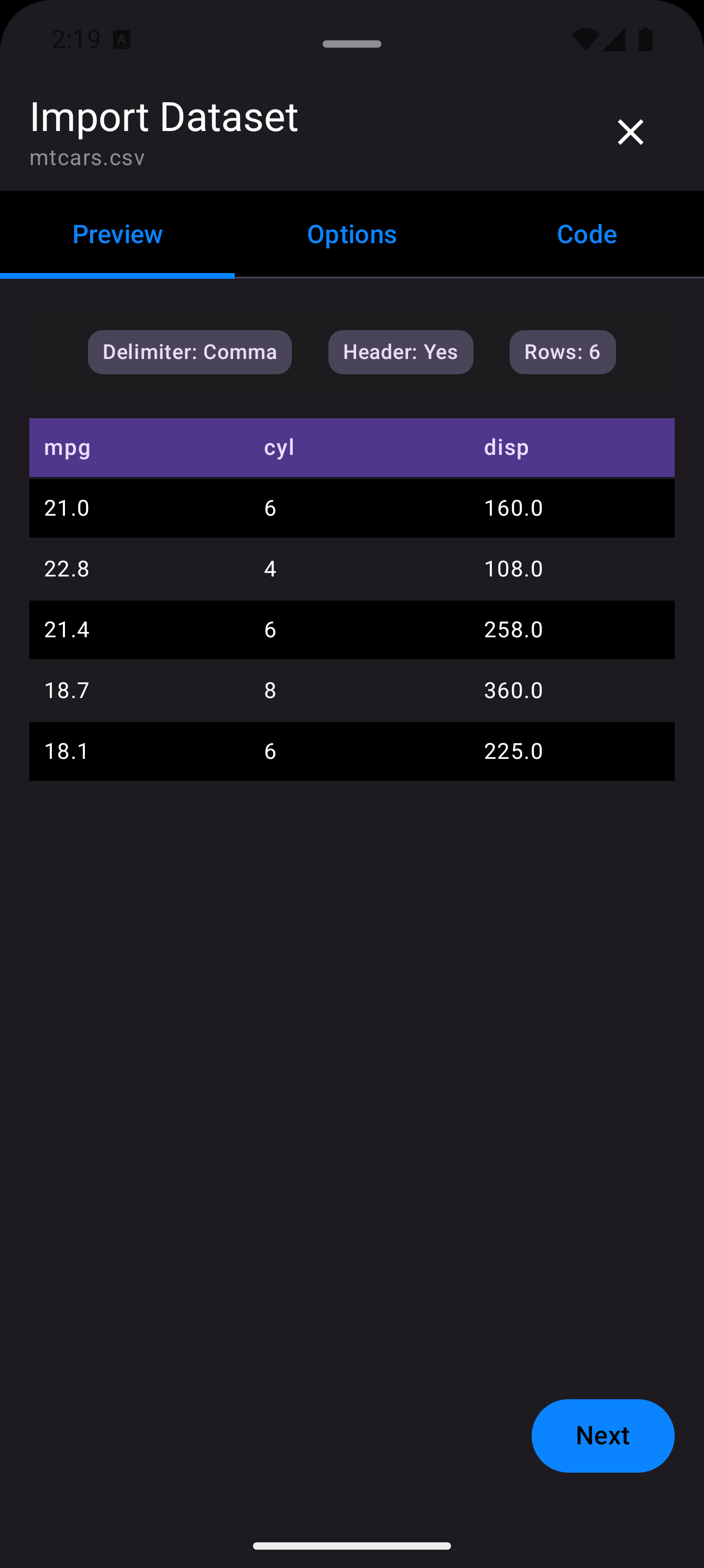
- Preview
- Shows a scrollable table preview of the detected data. A summary card at the top displays the auto-detected delimiter (comma, tab, semicolon, or pipe), whether a header row was found, and the total row count.
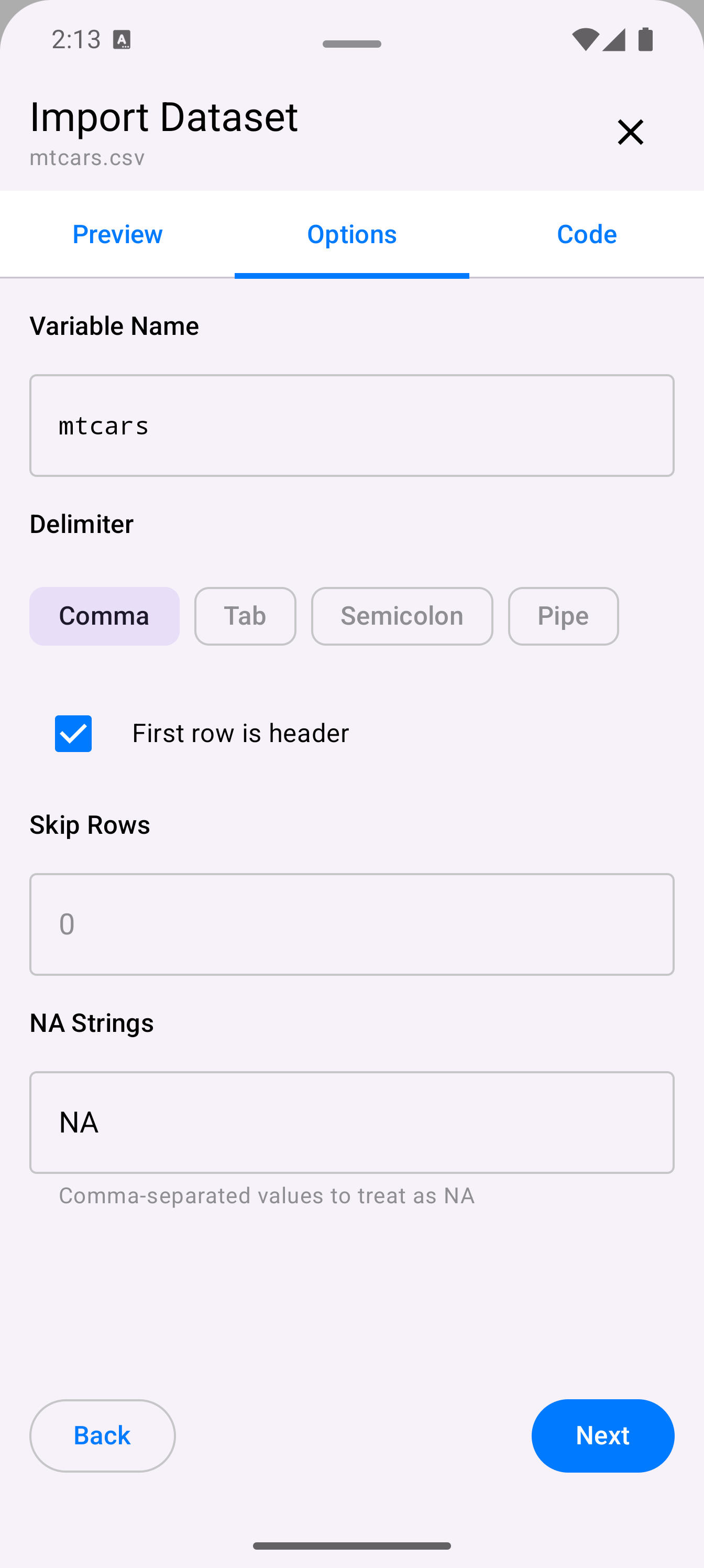
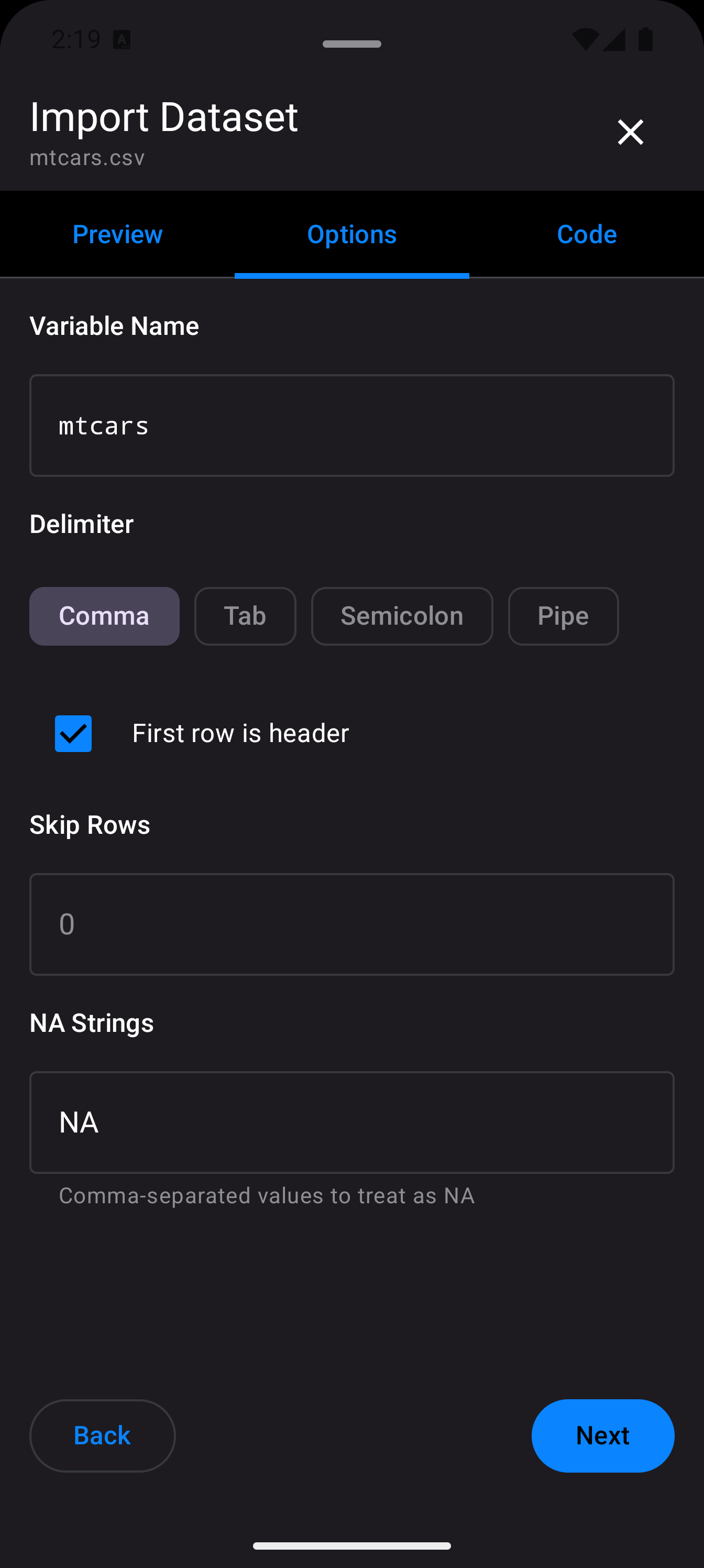
- Options
- Lets you override the auto-detected settings. You can change the delimiter, toggle the header row on or off, set the variable name for the data frame, and adjust other import parameters.
- Code
-
Displays the generated R code that will perform the import (typically a
read.csv()orread.delim()call). You can edit the code directly before running it. Tap Import to execute the code and load the data into your R session.
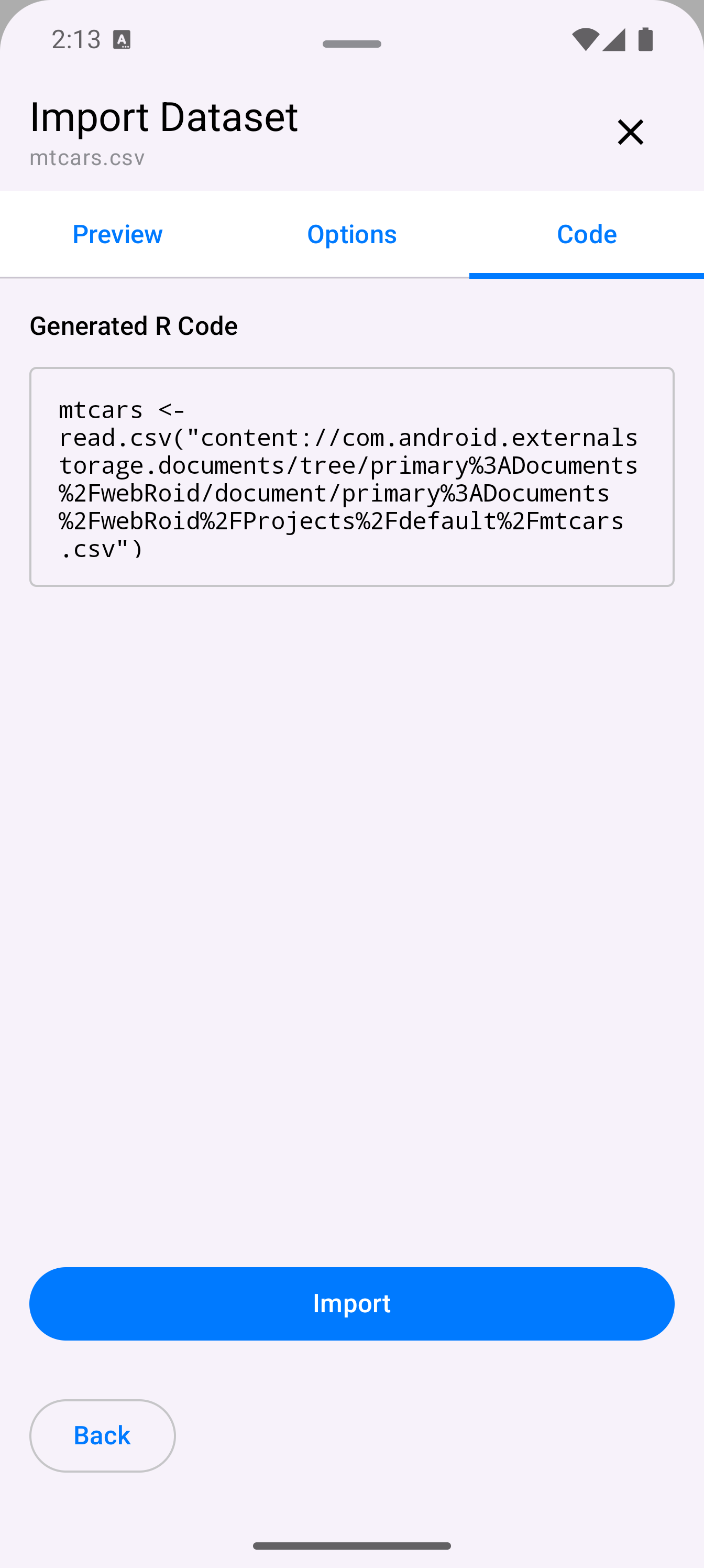
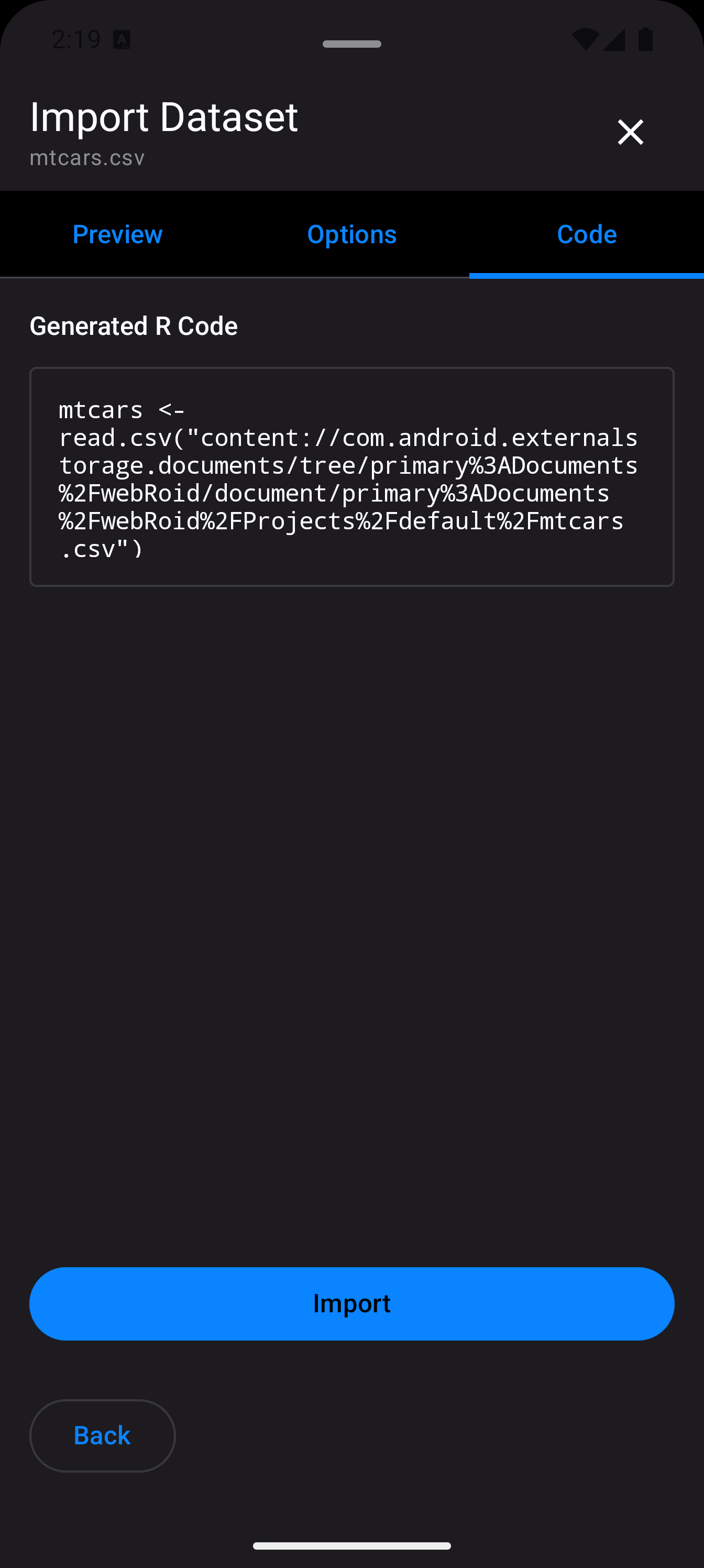
Navigation buttons at the bottom let you move between steps, and you can also tap the tab labels directly to jump to any step.
You can also trigger the import wizard from within the file list. If a file in the browser is a recognized data format (CSV, TSV, etc.), its context actions include an import option that feeds it directly into the wizard.
Excel files (.xlsx, .xls) require the readxl package. If it is not installed, the wizard displays an error message directing you to install it from the Packages tab.
Projects
Projects in webRoid are directories that serve as self-contained workspaces. Each project has its own set of files and folders. The active project determines the root of the file browser and the R working directory.
To create a new project:
- Scroll to the Projects section at the root of the file list (or tap the folder icon in the toolbar to show it)
- Tap the + button next to the “Projects” header
- Enter a name and an optional description, then tap “Create”
To switch projects, tap a different project in the list. To delete a project, tap its three-dot menu and choose “Delete.” A confirmation dialog appears warning that all files in the project will be permanently removed. The default project cannot be deleted.
Tap any project to see its details, including creation date, file count, and a list of contained files.
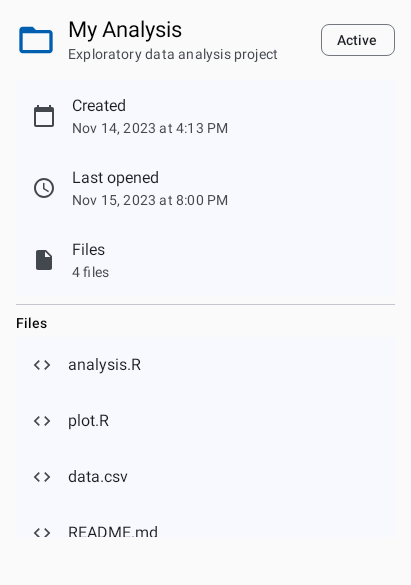
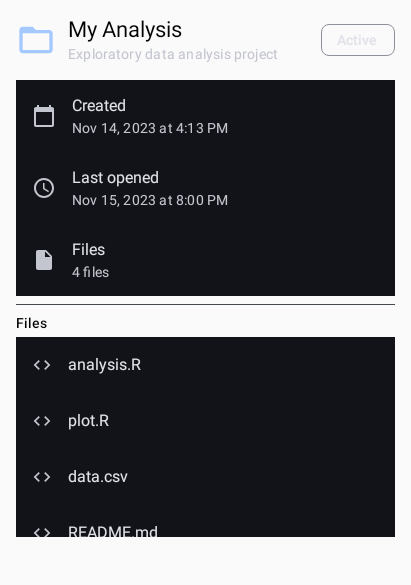
Projects are a good way to keep unrelated analyses separate. Each project gets its own folder, so file names do not conflict across projects.
Storage Location
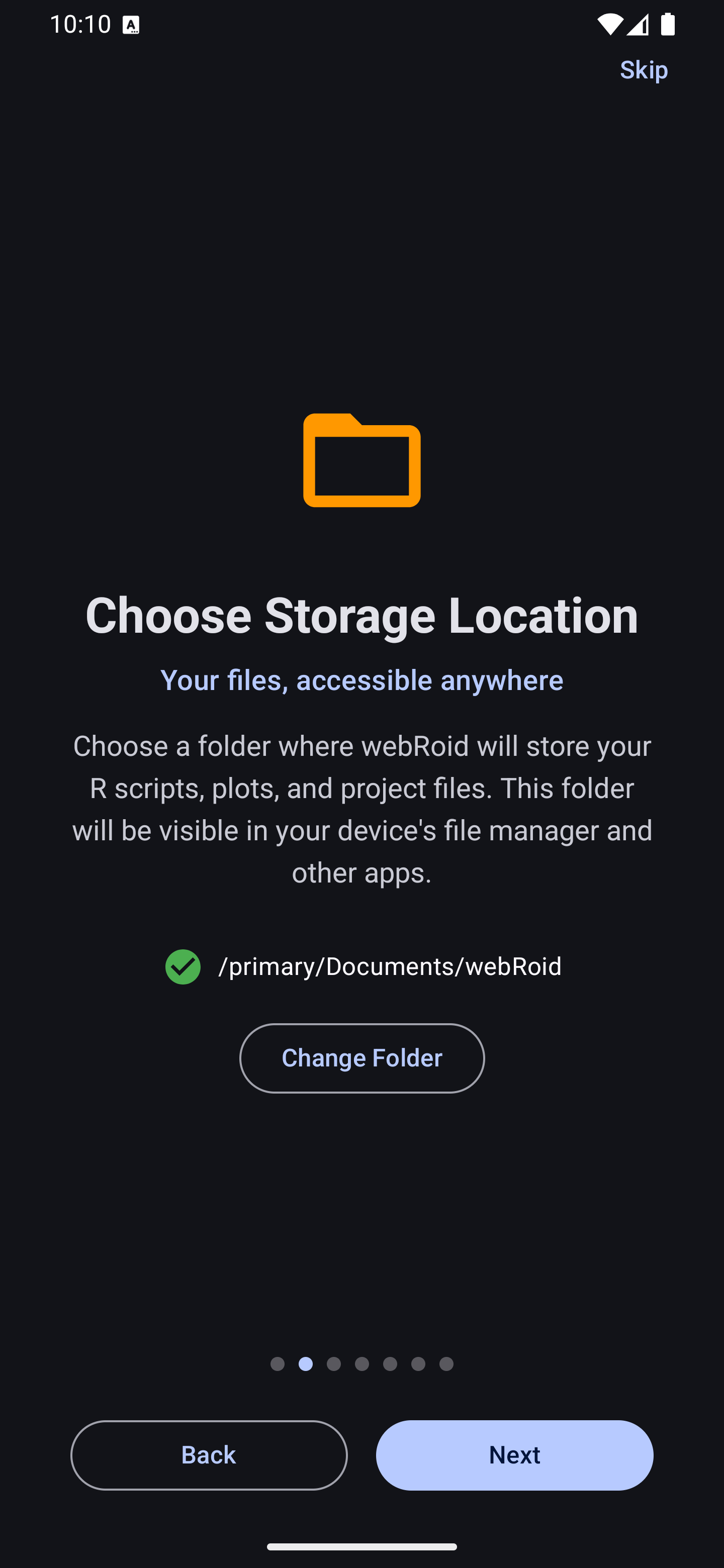
webRoid stores files using Android’s Storage Access Framework (SAF). During first launch, you are prompted to choose a storage folder where webRoid will keep your R scripts, plots, and project files. This folder is visible in your device’s file manager and other apps.
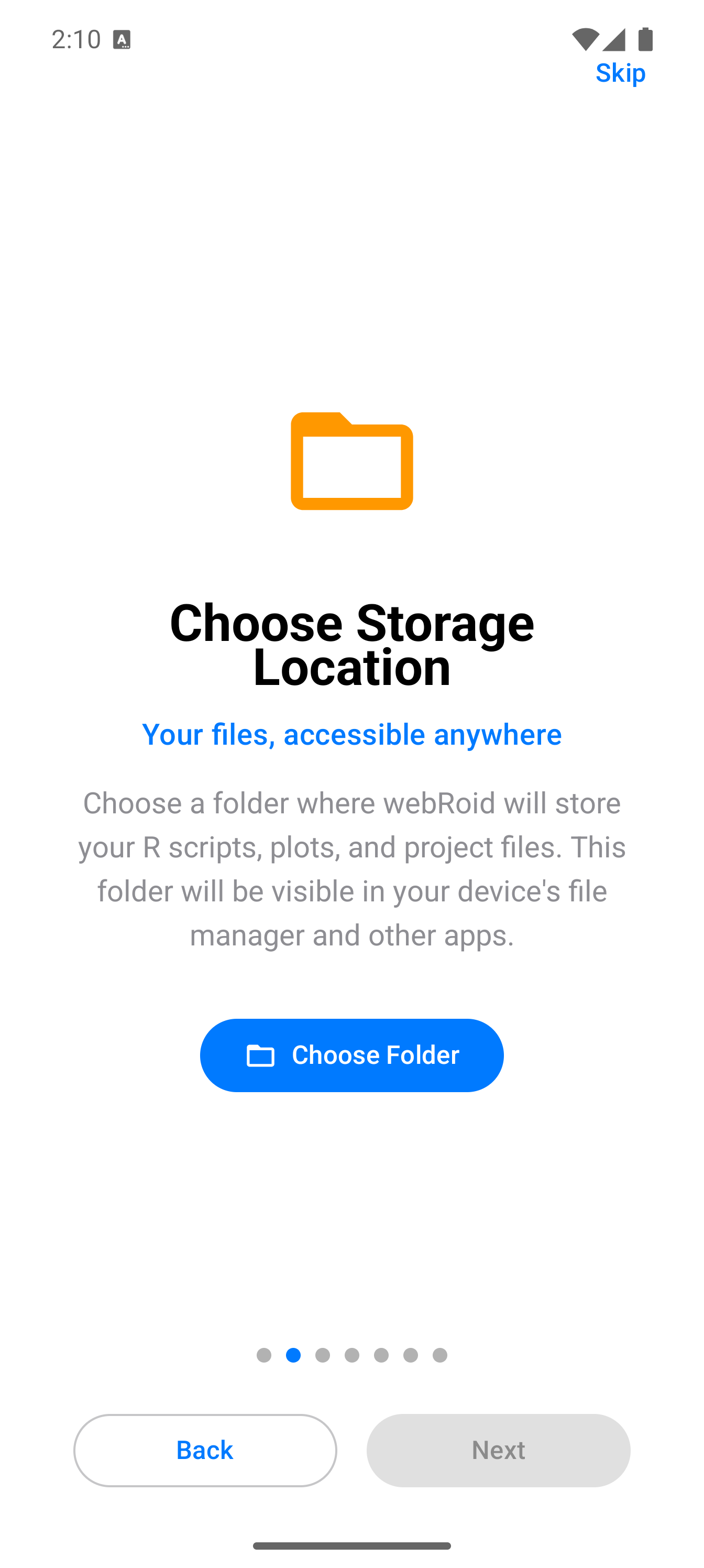
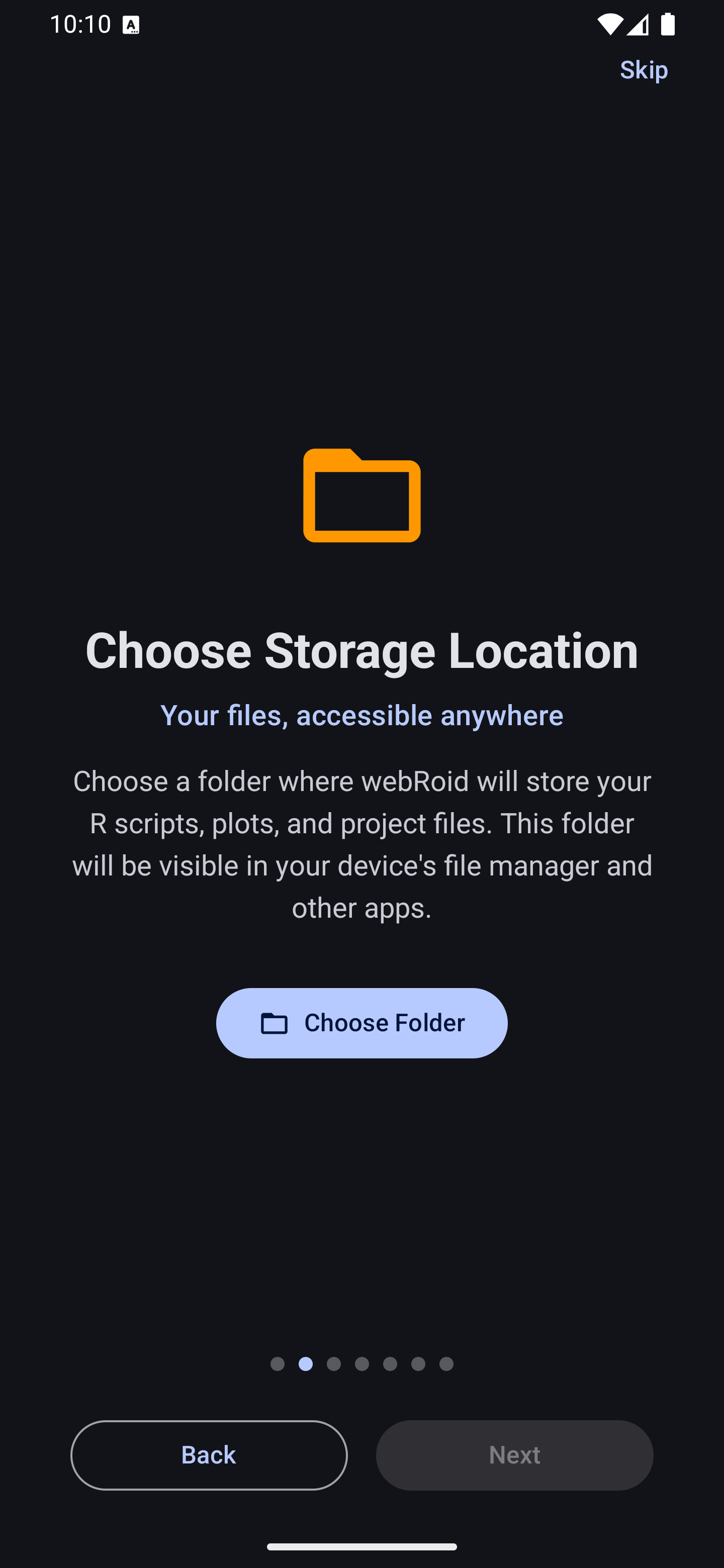
Once a folder is selected, a confirmation appears showing the chosen path.
You can also import files from other locations. When you share a file to webRoid from another app (via Android’s share intent system), the file is copied into your current project directory and can then be opened in the Editor or fed into the import wizard.
Use the Refresh option in the three-dot menu to reload the file list if you have modified files outside the app (for example, through a file manager or by connecting the device to a computer).