Plots
R’s visualization capabilities are one of its greatest strengths, and webRoid brings them fully to Android. Whenever your R code produces a graphic (whether from the Console or the Editor), the app captures it automatically and adds it to the Plots gallery. You do not need to call dev.off() or save anything manually.
Generating Plots
Any R code that produces graphical output will create a plot in webRoid. This includes base R graphics, ggplot2, lattice, and any other package that uses the standard R graphics device:
# Base R
plot(1:10, sin(1:10), type = "l", main = "Sine Wave")
hist(rnorm(100), main = "Normal Distribution")
boxplot(mpg ~ cyl, data = mtcars)

# ggplot2 (after installing the package)
library(ggplot2)
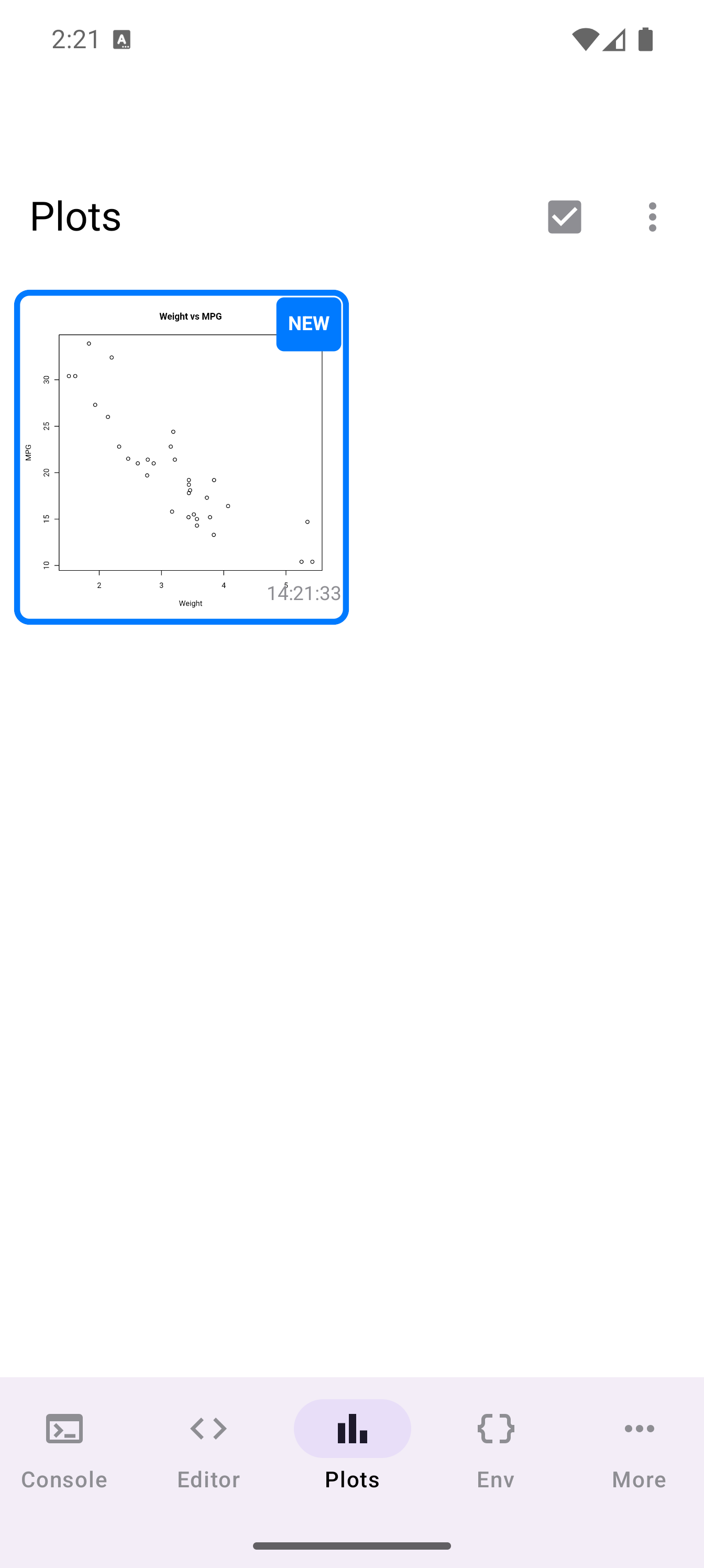
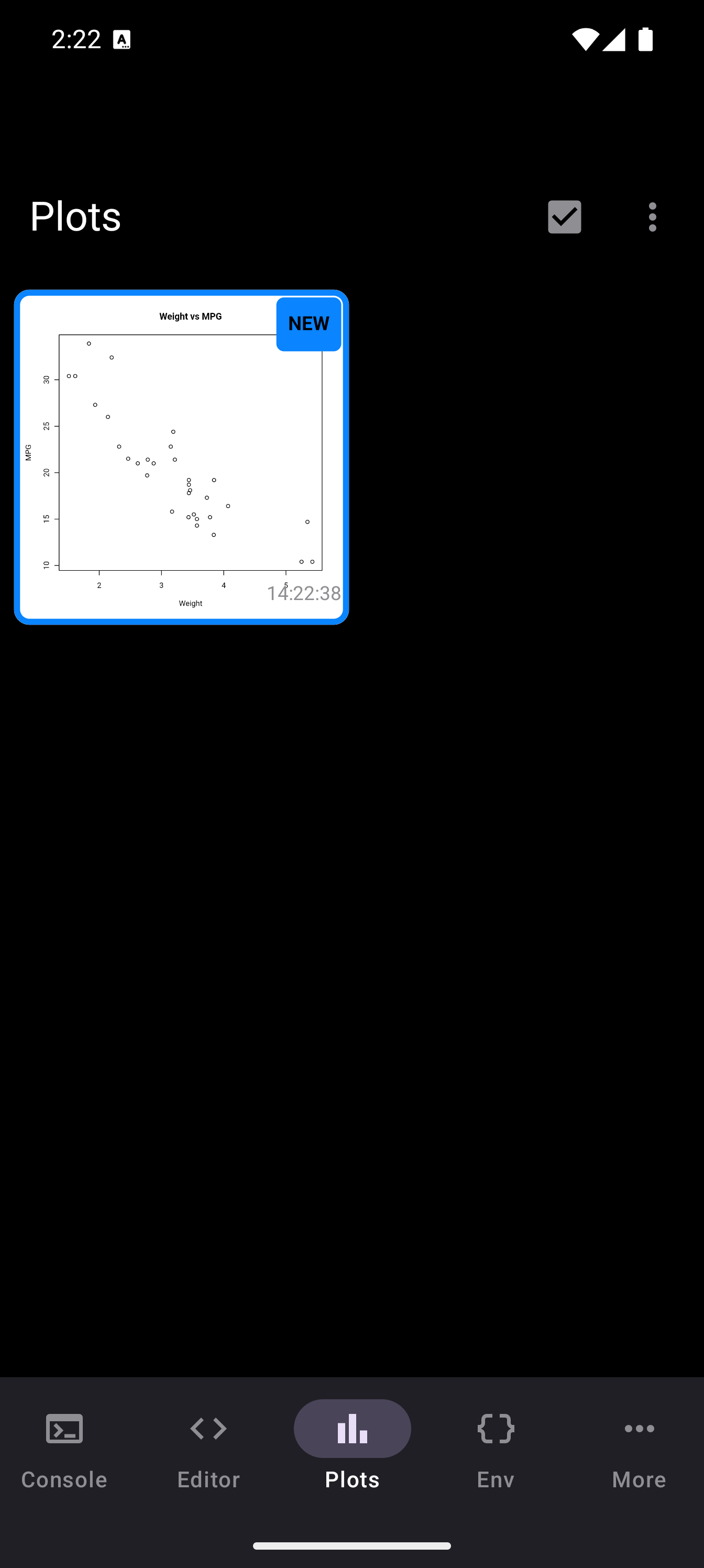
ggplot(mtcars, aes(wt, mpg)) + geom_point()
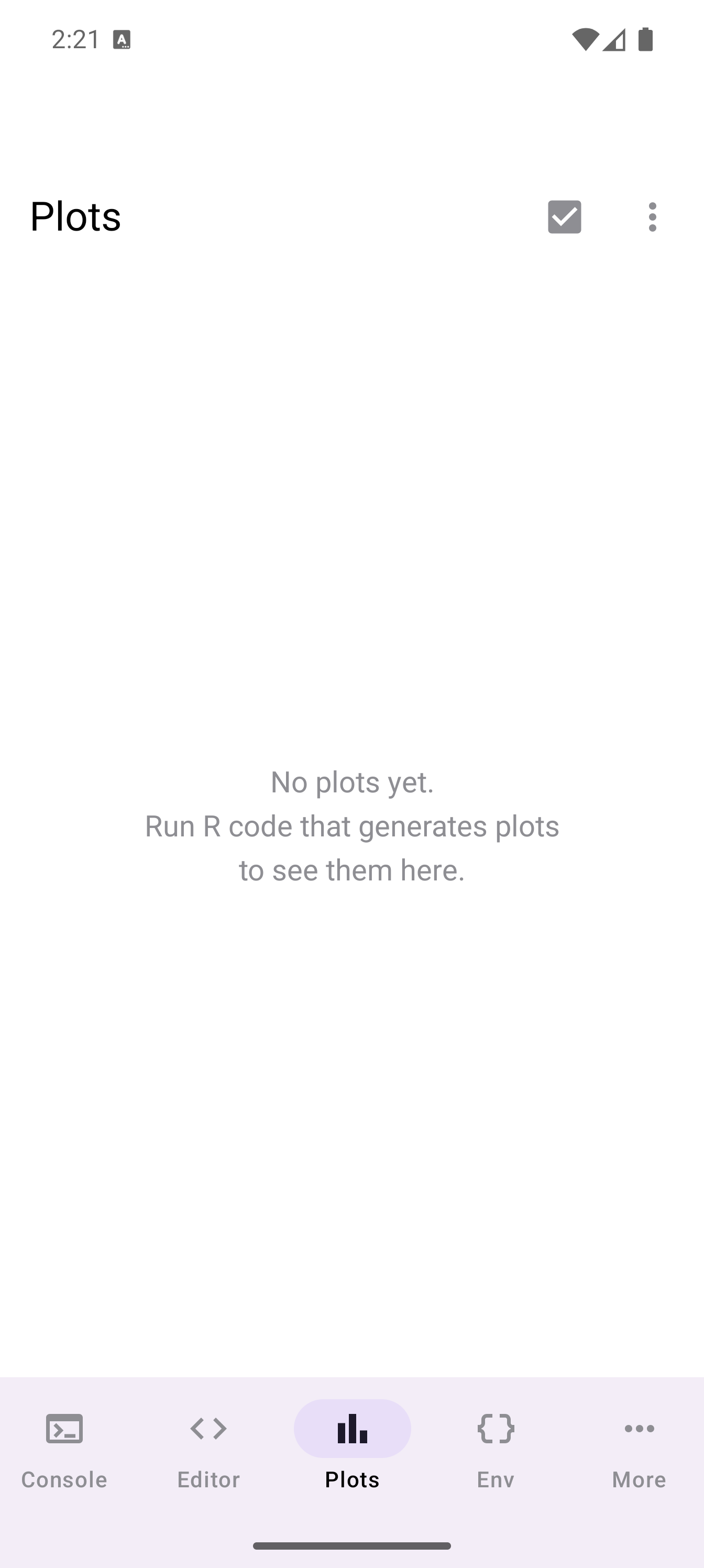
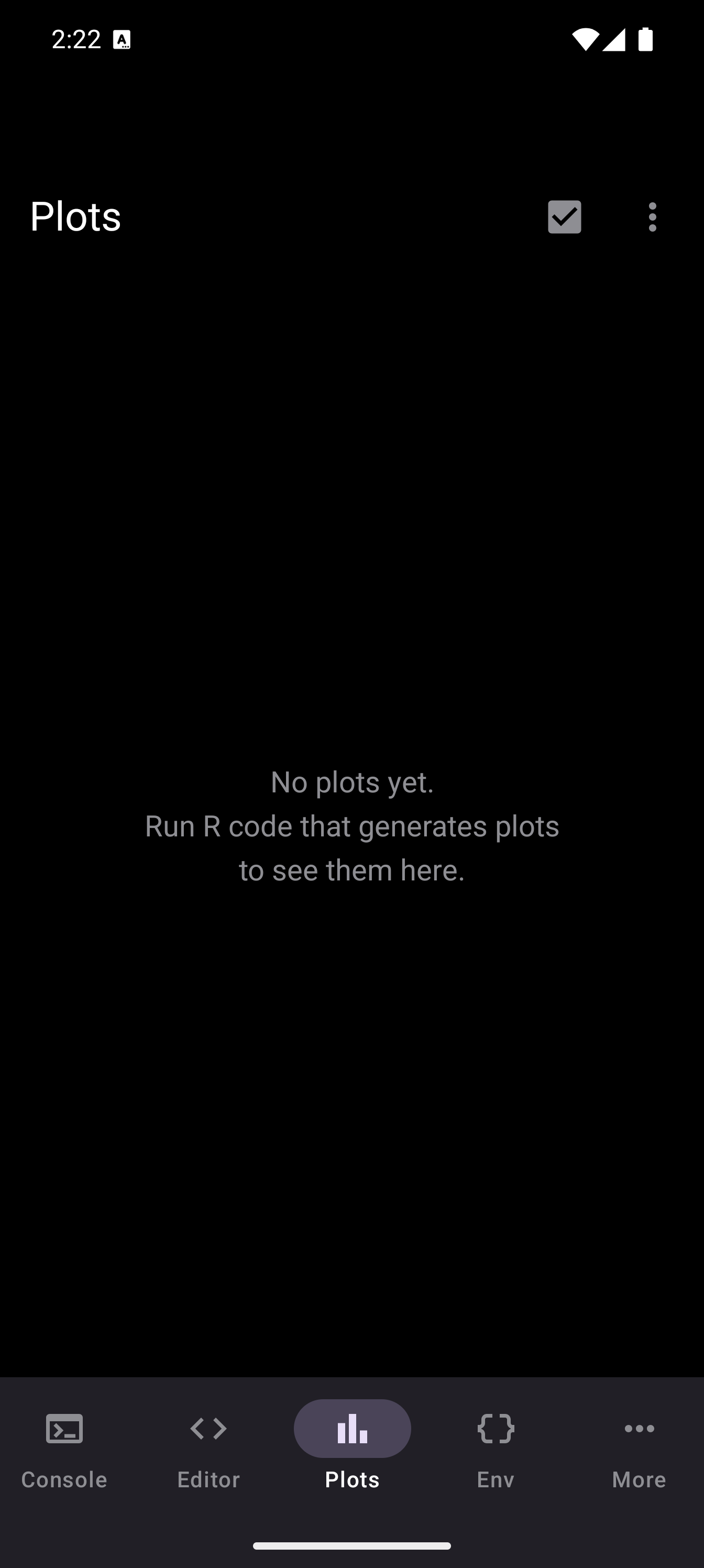
Run the code from the Console or the Editor and the resulting plot appears in the Plots tab. Before any plots have been generated, the gallery shows an empty state with a prompt to get started.
When new plots are generated, a badge appears on the Plots tab icon in the bottom navigation bar showing how many unseen plots are waiting. The badge clears once you visit the Plots tab.
Interactive Plots
In addition to static graphics, webRoid supports interactive plots produced by htmlwidgets-based R packages. These plots are rendered in a WebView and retain full interactivity: you can hover over data points, zoom into regions, toggle layers, and more.
Packages that produce interactive plots include:
- plotly - interactive versions of ggplot2 charts and standalone interactive plots
- leaflet - interactive maps with markers, popups, and tile layers
- DT - interactive, sortable, searchable data tables
- dygraphs - interactive time-series charts
- visNetwork - interactive network and graph visualizations
To install any of these, use the Packages screen and search by name.
Interactive plots appear under a separate Interactive tab within the Plots screen. The gallery lists each interactive plot by title and timestamp. Tap an entry to open it in a full-screen bottom sheet where you can interact with the visualization, copy the underlying HTML, or share it as an HTML file.
Interactive plots require their JavaScript dependencies to be embedded in the HTML output. Some complex widgets may take a moment to render in the WebView. Pinch-to-zoom is supported within the WebView for fine control.
Plot Gallery
The Plots tab displays all your captured plots as a scrollable grid of thumbnails. The grid adapts to your screen size, showing more columns on wider screens and fewer on phones in portrait. Each thumbnail shows a miniature preview of the plot with its creation timestamp underneath.
When you first open the Plots tab after generating new plots, the new thumbnails briefly highlight with an animation so you can spot them quickly.
The toolbar at the top provides access to the main actions:
- Compare (icon): enters comparison mode (available when you have two or more plots)
- Select (checkbox icon): enters selection mode for bulk operations
- More (three-dot menu): contains “Clear All Plots” to remove everything at once
If your session has produced interactive plots (from htmlwidgets or similar), a tab row appears at the top with Static Plots and Interactive tabs.
Viewing and Zooming
Tap any thumbnail to open it in the detail view, a full-screen bottom sheet where you can examine the plot closely.
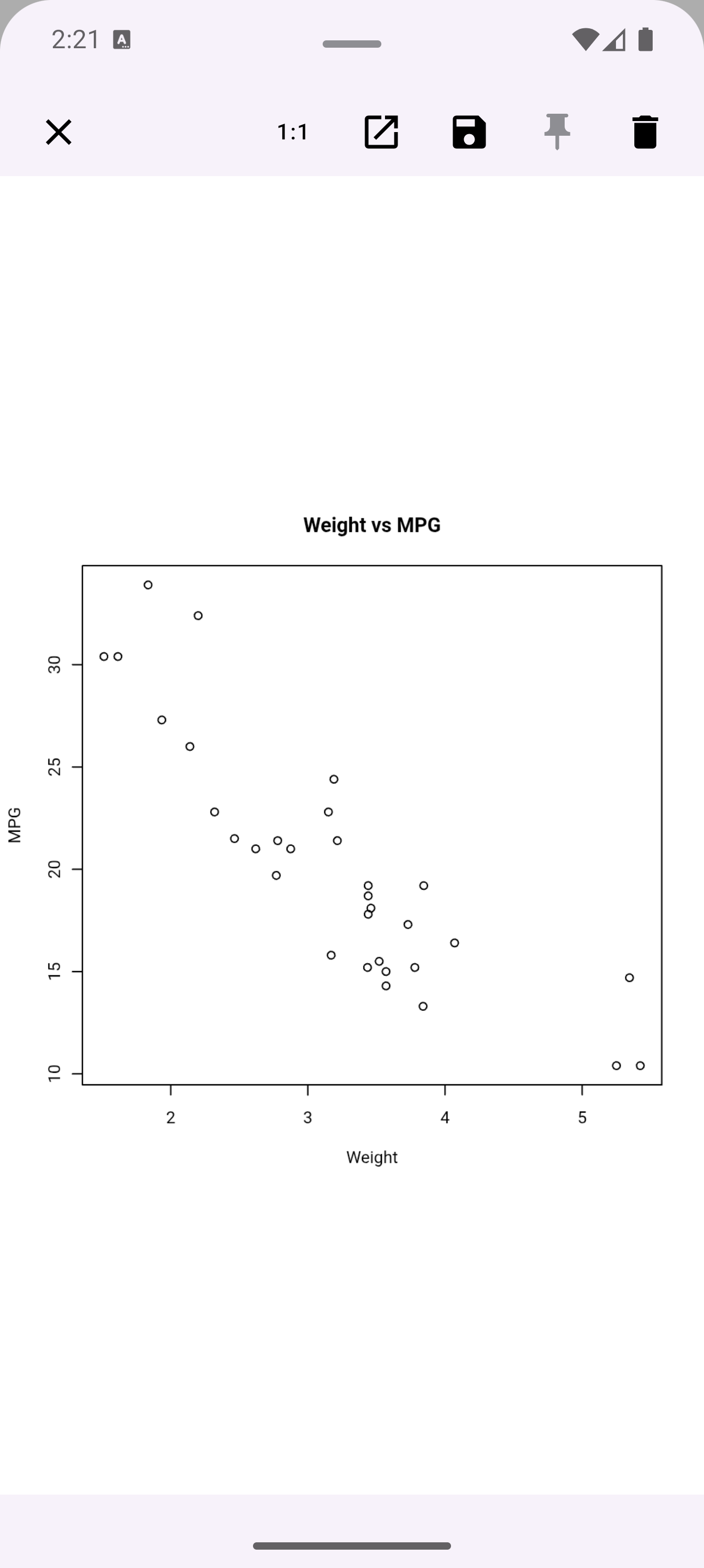
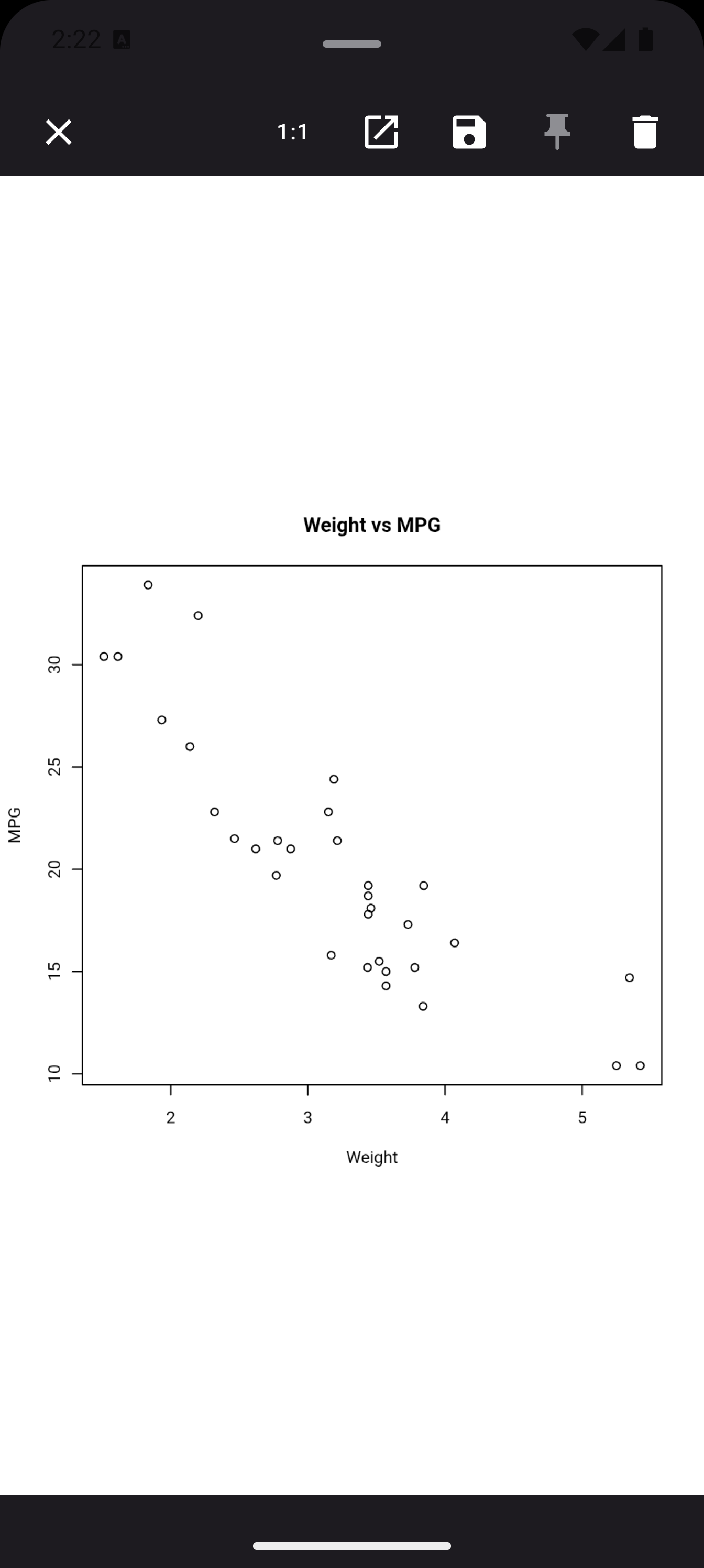
The detail view supports several touch gestures:
- Pinch to zoom: scale from 0.5x up to 5x magnification
- Drag to pan: when zoomed in, drag with one finger to move around the image
- Double-tap: toggles between 1x and 2x zoom, providing a quick way to zoom into a section and snap back
The toolbar across the top of the detail view offers:
- 1:1: resets zoom and pan to the original view
- Detach to window: opens the plot in a separate Android activity, useful on tablets for side-by-side viewing with your code
- Export: opens the export sheet to save the plot to device storage
- Pin/Unpin: pins the plot so it is protected from deletion (a pinned plot’s delete button is disabled)
- Delete: removes the plot from the gallery (disabled when the plot is pinned)
Pinning is useful when you have a “good” version of a chart and want to iterate freely without risking it. Pinned plots are protected from both individual deletion and “Clear All Plots.”
Comparing Plots
When iterating on a visualization, it helps to see the before-and-after side by side. webRoid’s comparison mode lets you do exactly that.
To compare two plots:
- Tap the Compare icon in the toolbar (it appears when you have at least two plots)
- Tap the two plots you want to compare. They receive numbered badges (“Plot 1” and “Plot 2”)
- Tap View in the toolbar to open the comparison sheet
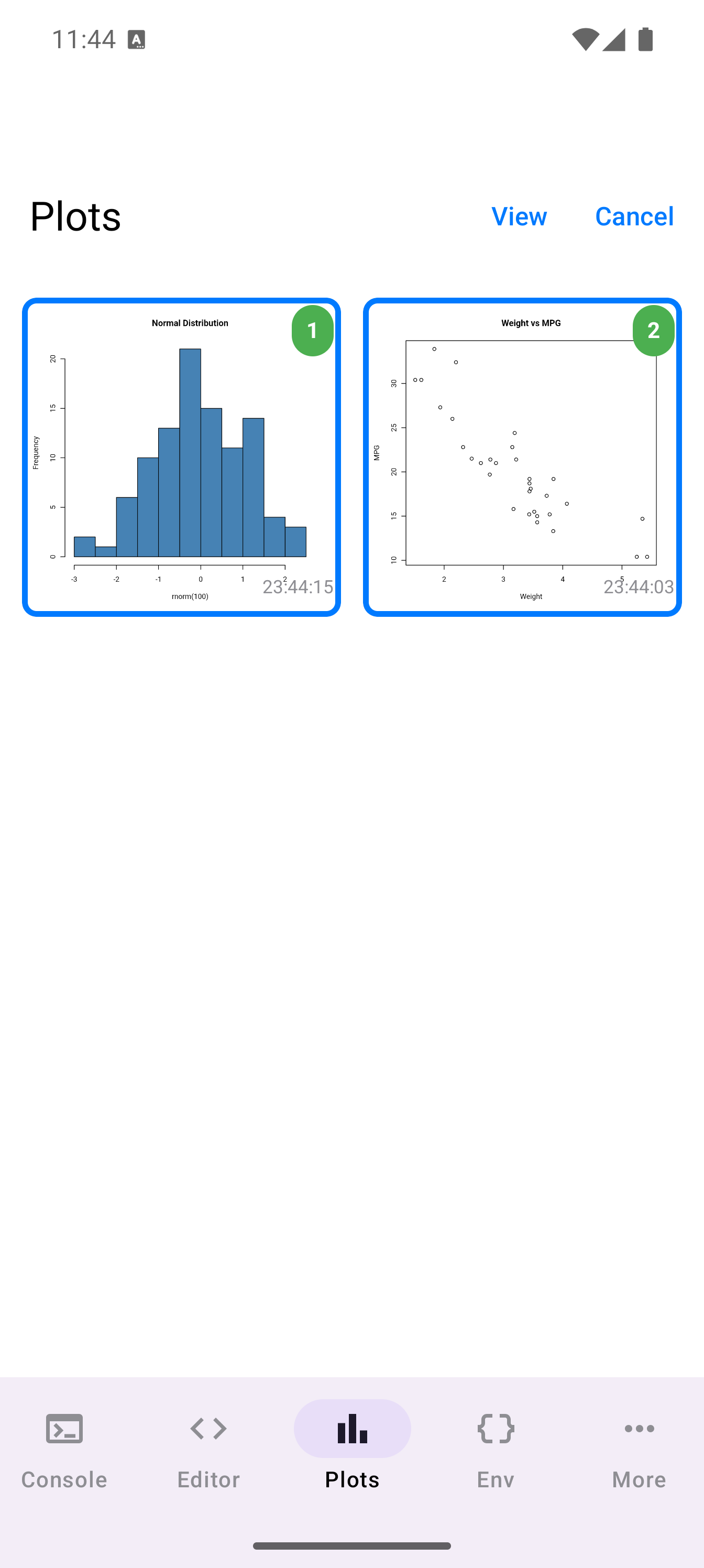
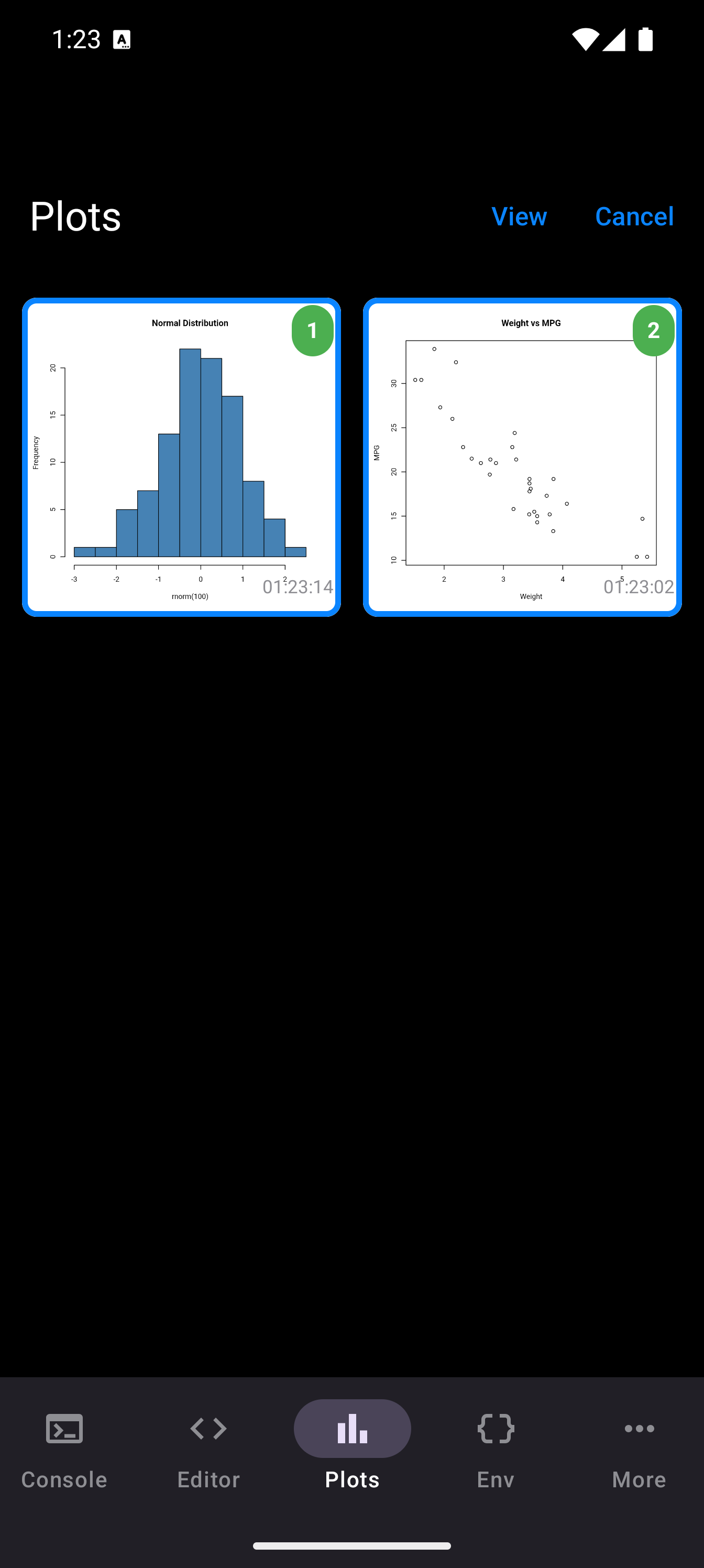
The comparison view shows both plots stacked vertically in a bottom sheet, separated by a divider. Each plot area supports independent pinch-to-zoom and pan. By default, sync zoom is enabled, so zooming or panning one plot automatically mirrors the action on the other. This lets you inspect corresponding areas together. Tap the link icon to toggle sync off and control each plot independently.
A Reset button returns both plots to their original 1x zoom and centered position.
Tap Cancel in the toolbar at any time to exit comparison mode without opening the viewer.
Sharing and Saving
There are two ways to get plots out of webRoid:
Export to file. From the detail view, tap the export (save) icon. The Export Plot sheet appears with:
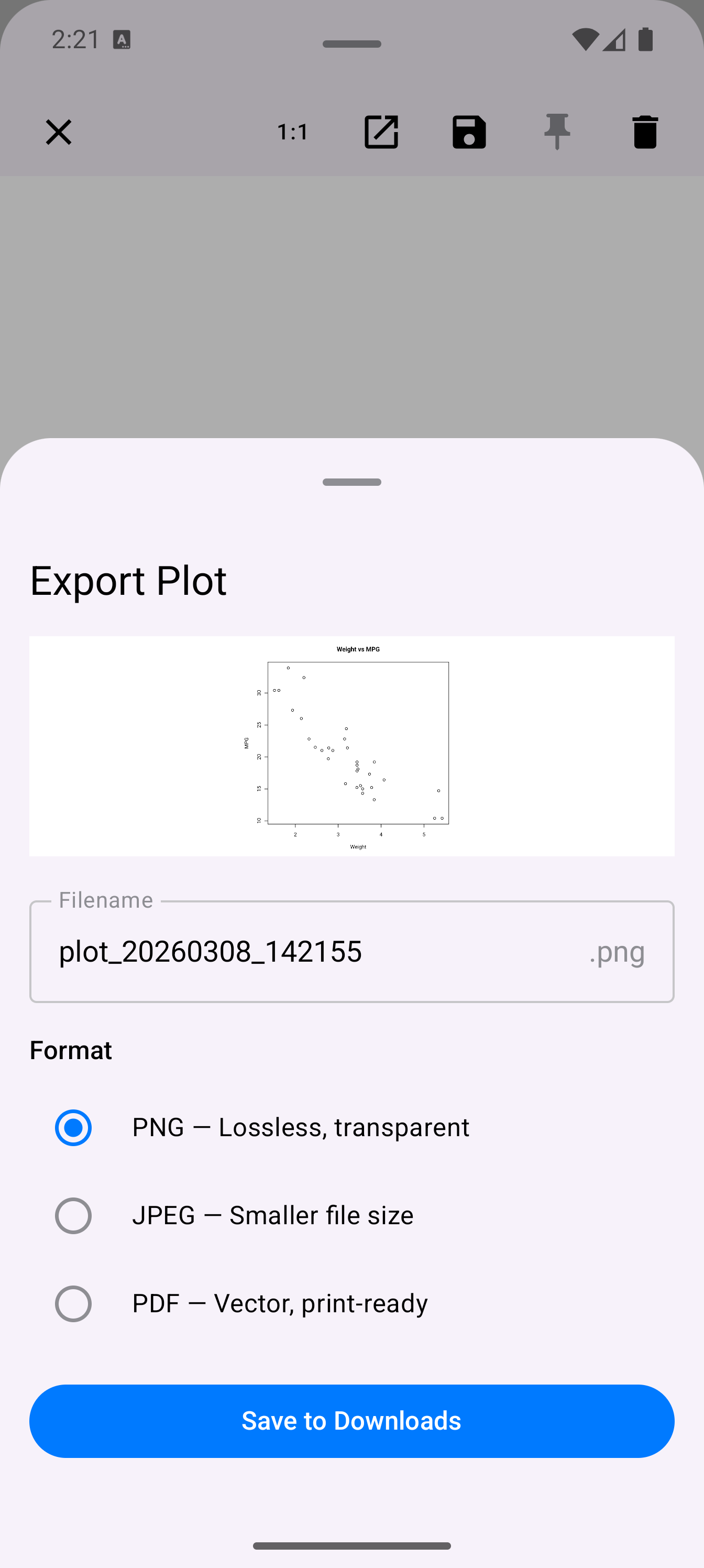
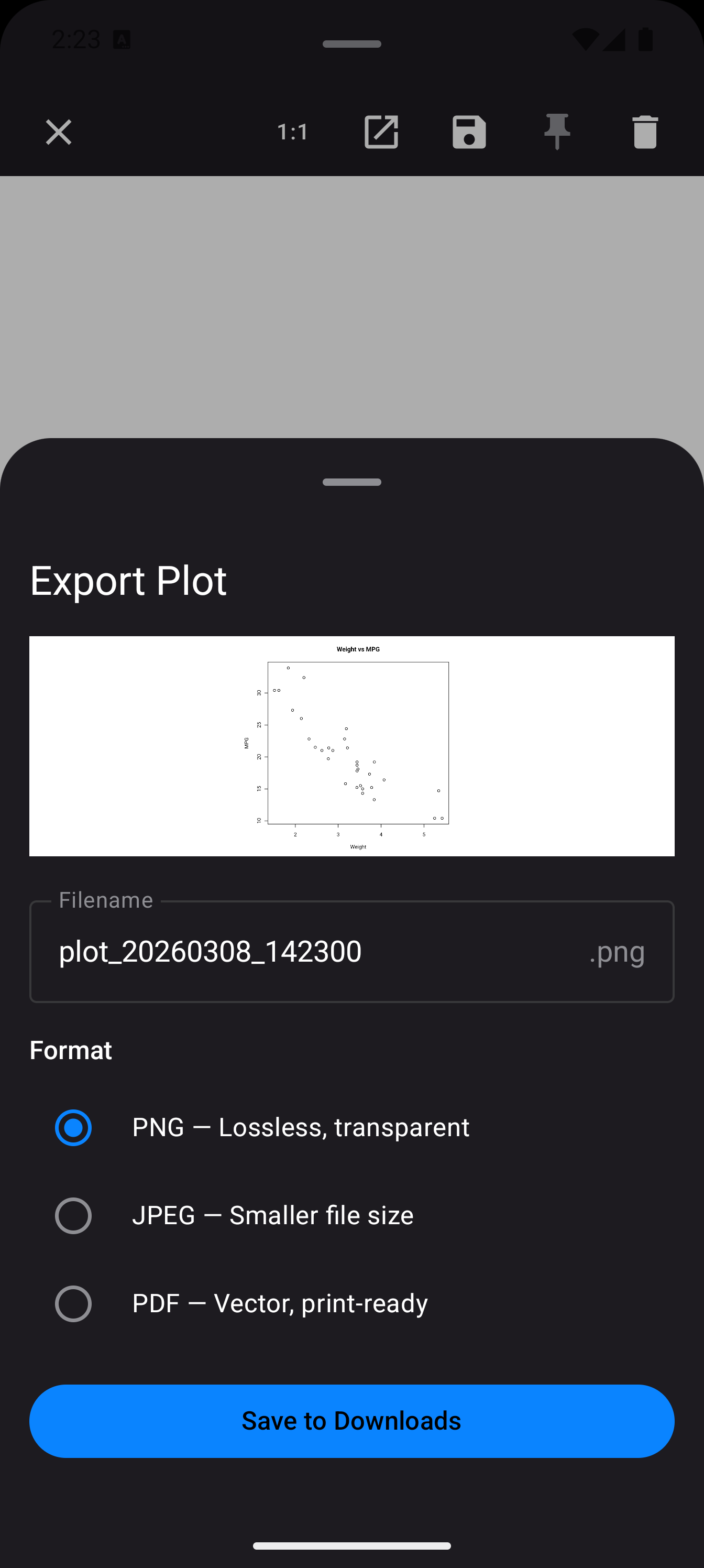
- A preview of the plot
- A filename field (defaults to
plot_YYYYMMDD_HHmmss) - Format selection with radio buttons:
- PNG: lossless, supports transparency
- JPEG: smaller file size
- PDF: vector container, suitable for printing and papers
- A Save to Downloads button that writes the file to your device’s Downloads folder using the Android MediaStore API
Share via Android share sheet. From the detail view toolbar or by long-pressing a thumbnail in the gallery, you can share the plot image directly to any app that accepts images, such as Gmail, Messages, Google Drive, and social media apps.
Plots are stored in the app’s internal cache. They persist across app launches, but Android may reclaim the storage if the device is low on space. If you create a plot you want to keep permanently, export or share it to a location outside the app.
Display Modes
By default, new plots appear only in the Plots tab. But you can change how plots are presented as they are generated. Go to Settings > Plots > New Plot Display and choose from four modes:
- Tab Only (default)
- Plots are saved silently to the Plots gallery. A badge on the Plots tab icon tells you how many new plots are waiting. This is the least intrusive option and works well when you are running batch scripts or do not need to see each plot immediately.
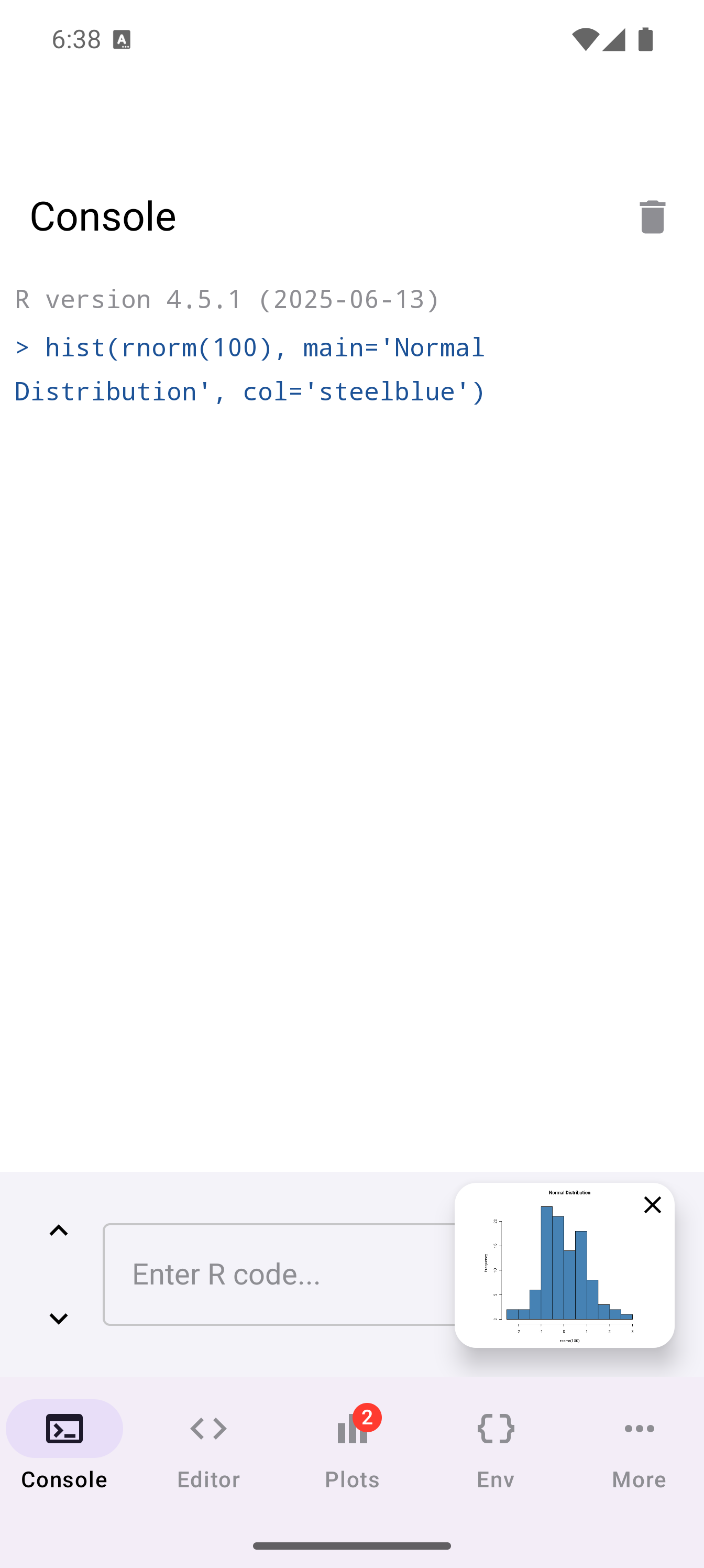
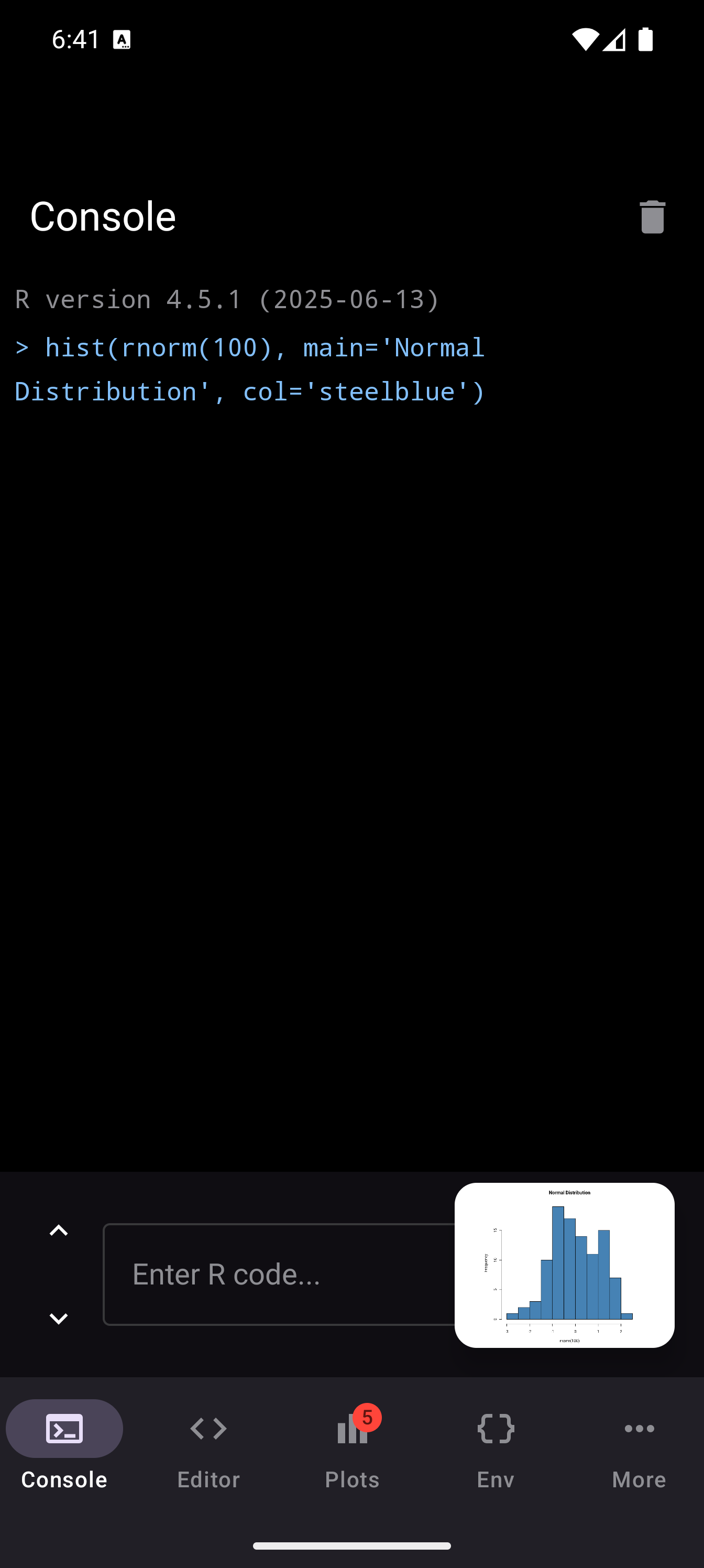
- Floating
- When a new plot is generated, a small floating thumbnail card appears in the bottom-right corner of whatever screen you are on. The card is draggable so you can reposition it, and it auto-dismisses after five seconds. Tap the card to open the plot in the full detail view, or tap its close button to dismiss it early.
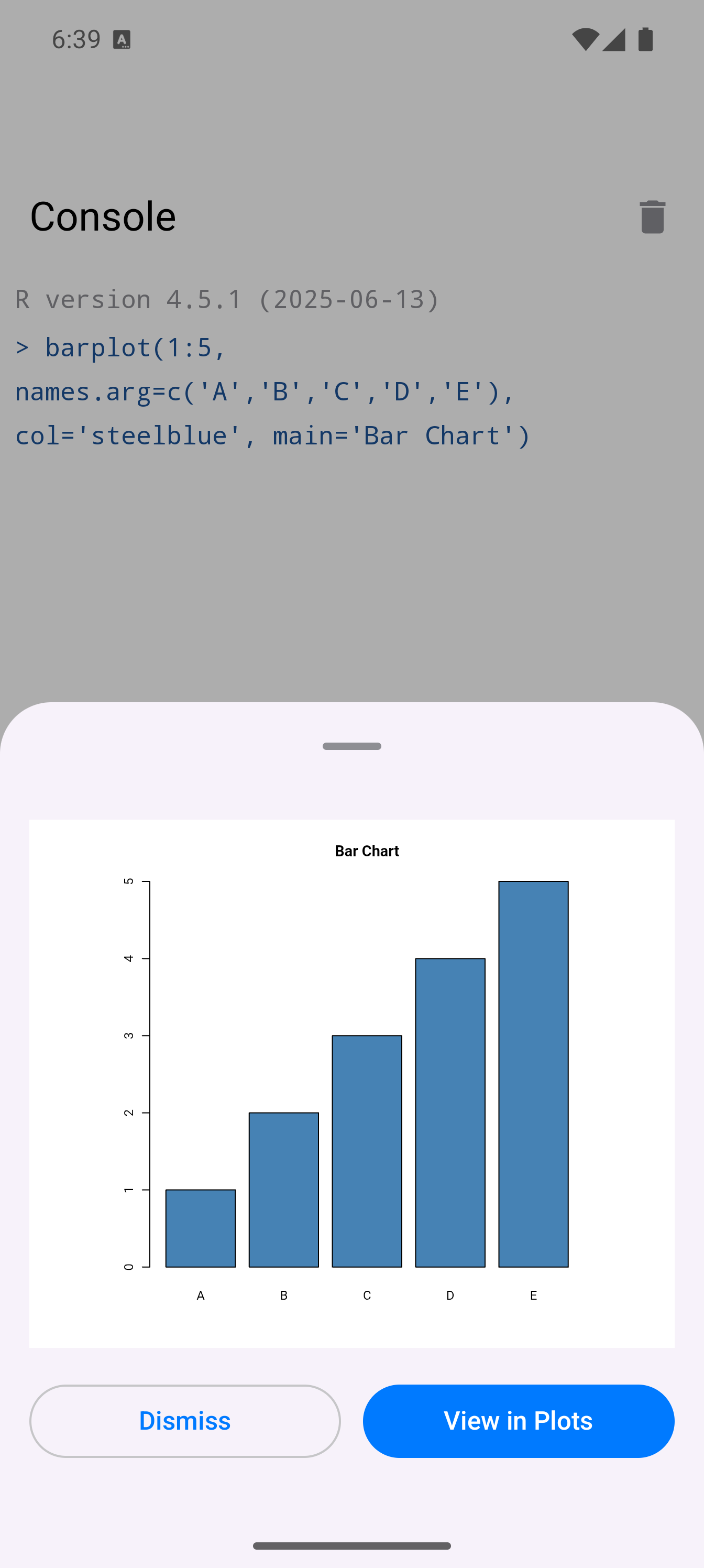
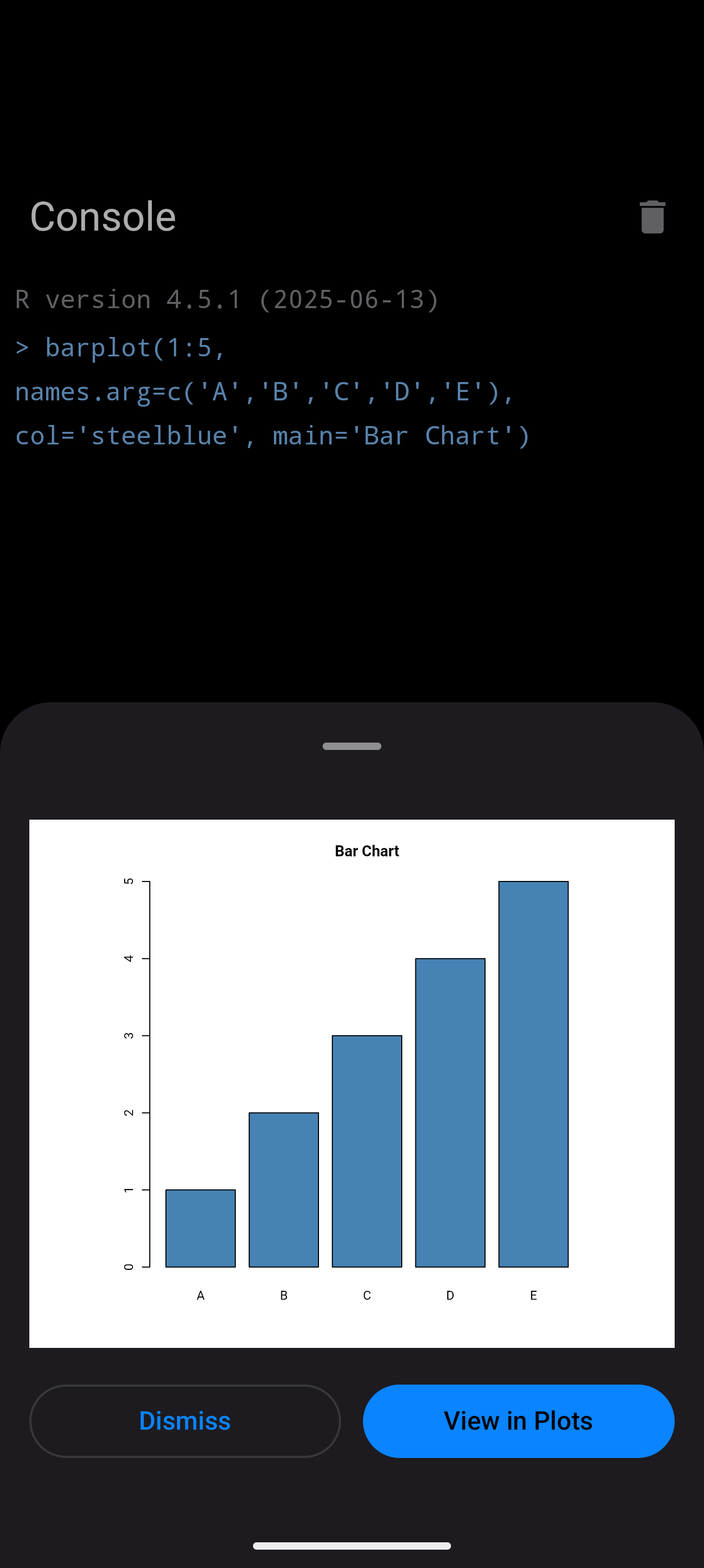
- Sheet
- New plots pop up as a bottom sheet preview overlay, giving you a larger immediate view of the plot without leaving your current screen. Swipe down or tap outside to dismiss.
- Inline
- Plots are inserted directly into the console output, appearing right after the code that generated them. This gives the most notebook-like experience, where code and output flow together.
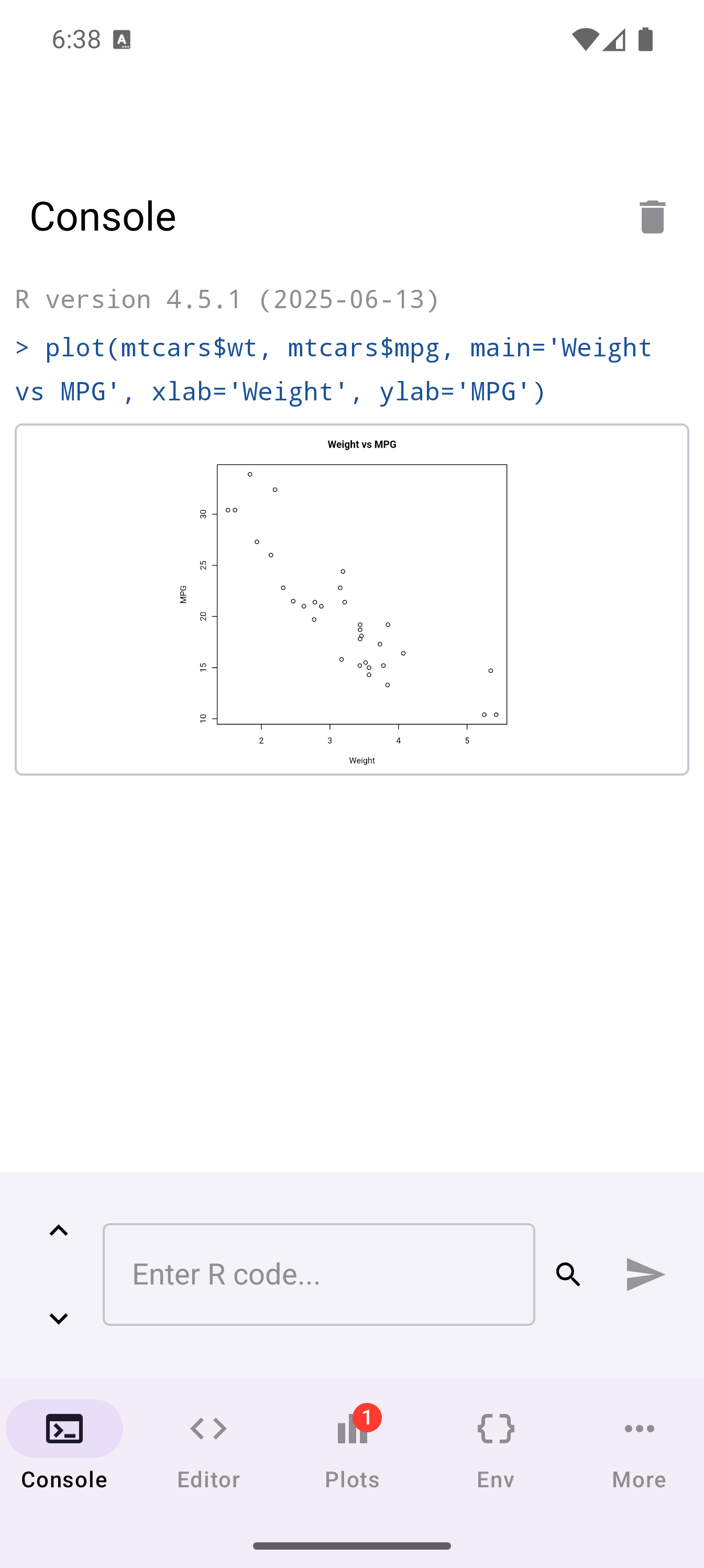
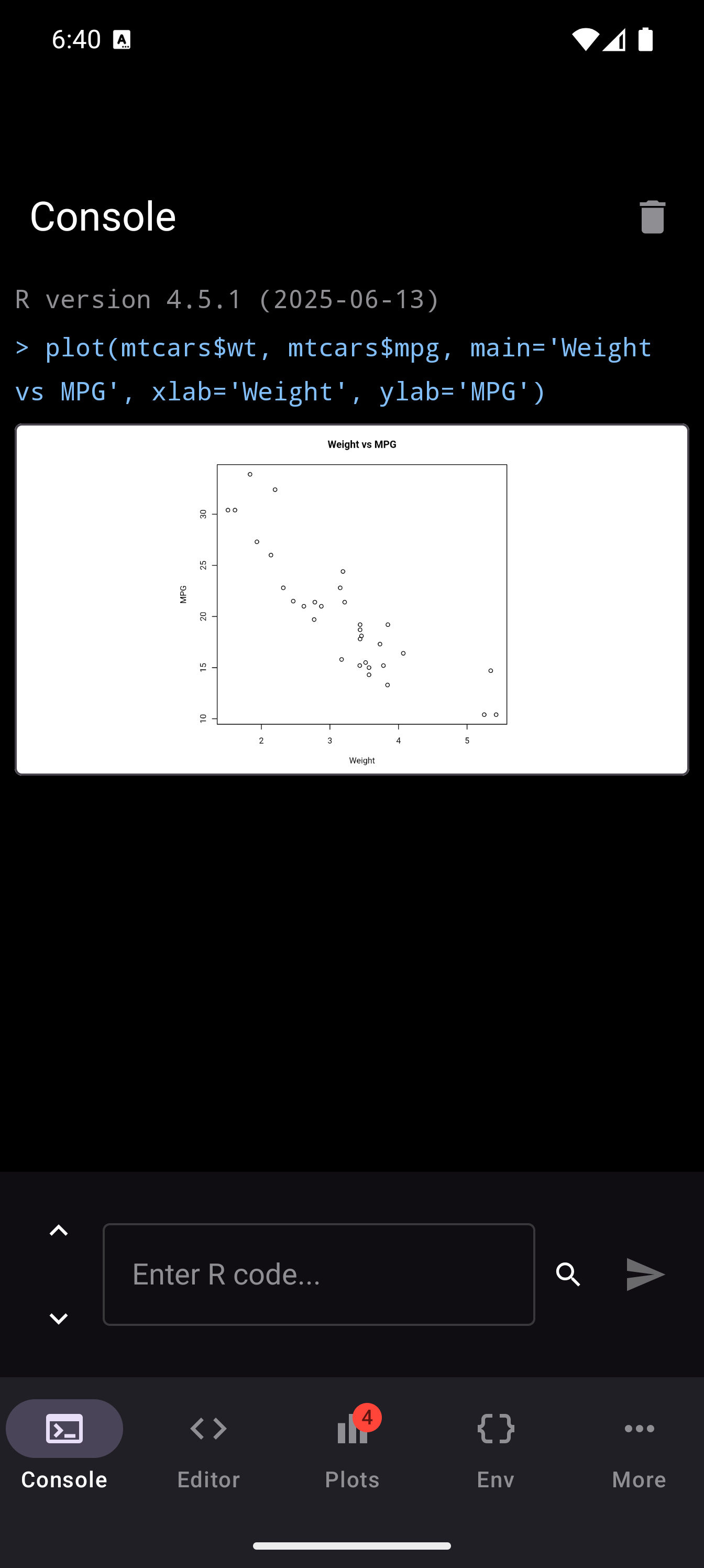
Floating is great when you are editing a script and want a quick glance at the output without switching tabs. Inline works best for exploratory work in the Console where you want to see everything in one stream. Tab Only is ideal for long-running scripts that produce many plots.