Help
The Help tab gives you direct access to R’s built-in documentation system. You can search for functions, read full help pages with formatted arguments and examples, and look up package documentation, all without leaving webRoid or needing an internet connection.
Overview
R ships with extensive documentation for every function in base R and for every function in installed packages. The Help screen in webRoid provides a native interface to this documentation. Help pages are parsed from R’s internal RdXML format and rendered natively as styled text, so they look clean and are easy to read on a mobile screen.
The Help tab has two views:
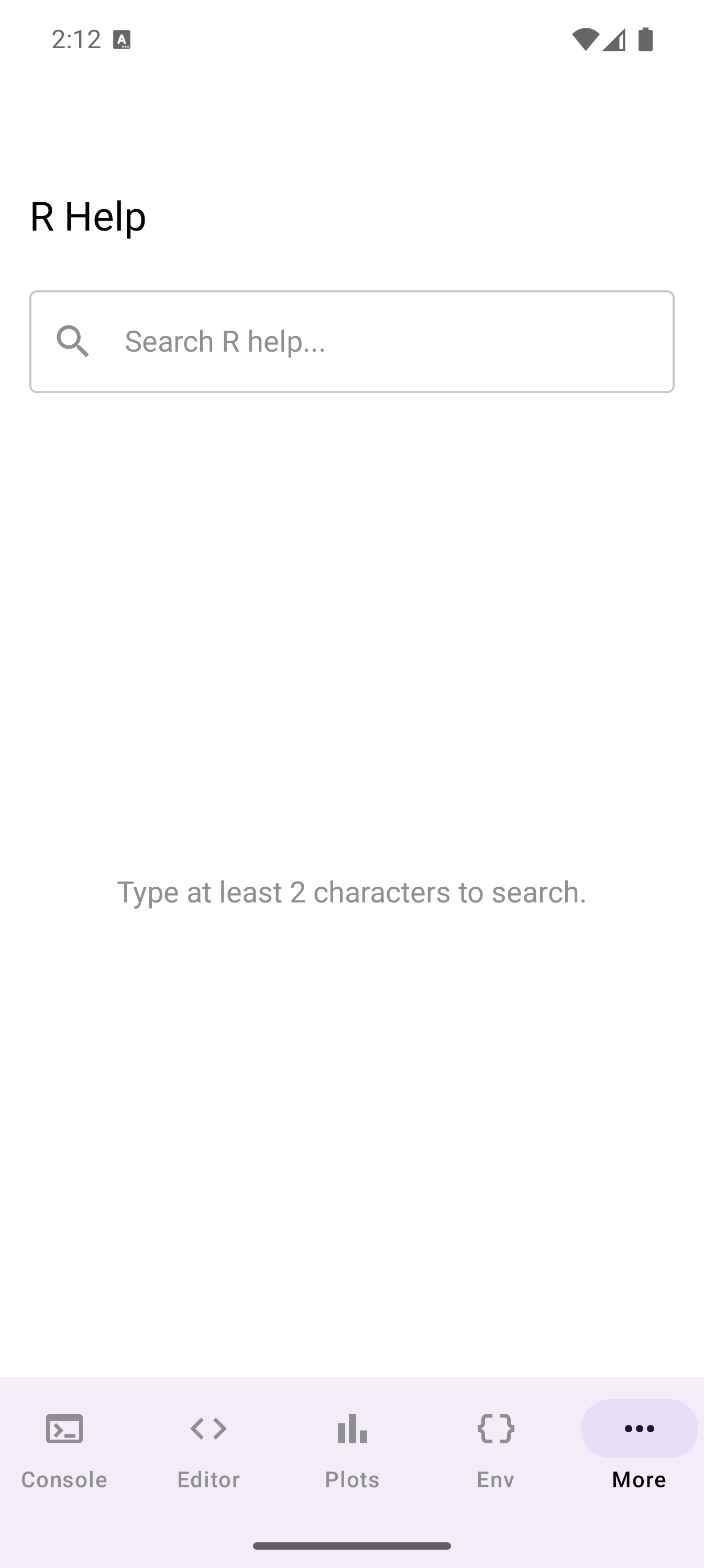
- Search view: the default when you open the tab. Shows a search bar, suggestion chips, and a results list.
- Detail view: opens when you select a search result. Displays the full help page for a function or topic. The toolbar title changes to show the current topic (e.g., “base::mean”), and a back arrow lets you return to the search view.
Searching for Help
The search bar at the top of the Help tab accepts function names, topic names, or partial matches. Type at least two characters to start searching. Results update as you type, with a brief delay to avoid excessive queries.
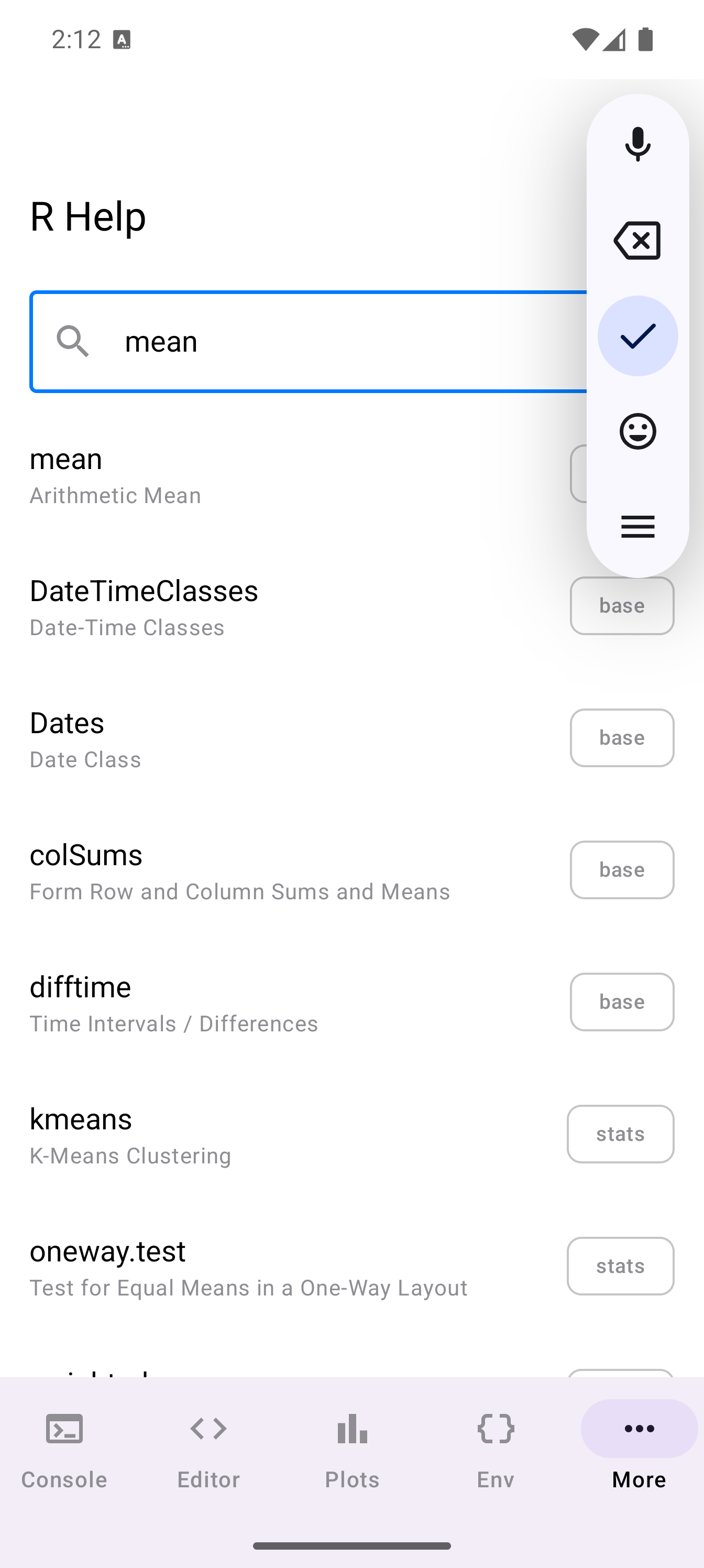
Each search result shows three pieces of information:
- Topic name: the function or help topic (e.g.,
mean,read.csv,lm) - Title: a short description of what the function does
- Package chip: a suggestion chip showing which package the function belongs to (e.g.,
base,stats,utils)
Tap any result to open its full help page.
Search results come from R’s built-in help search system and cover all installed packages. If you install a new package, its documentation becomes searchable immediately.
Reading Help Pages
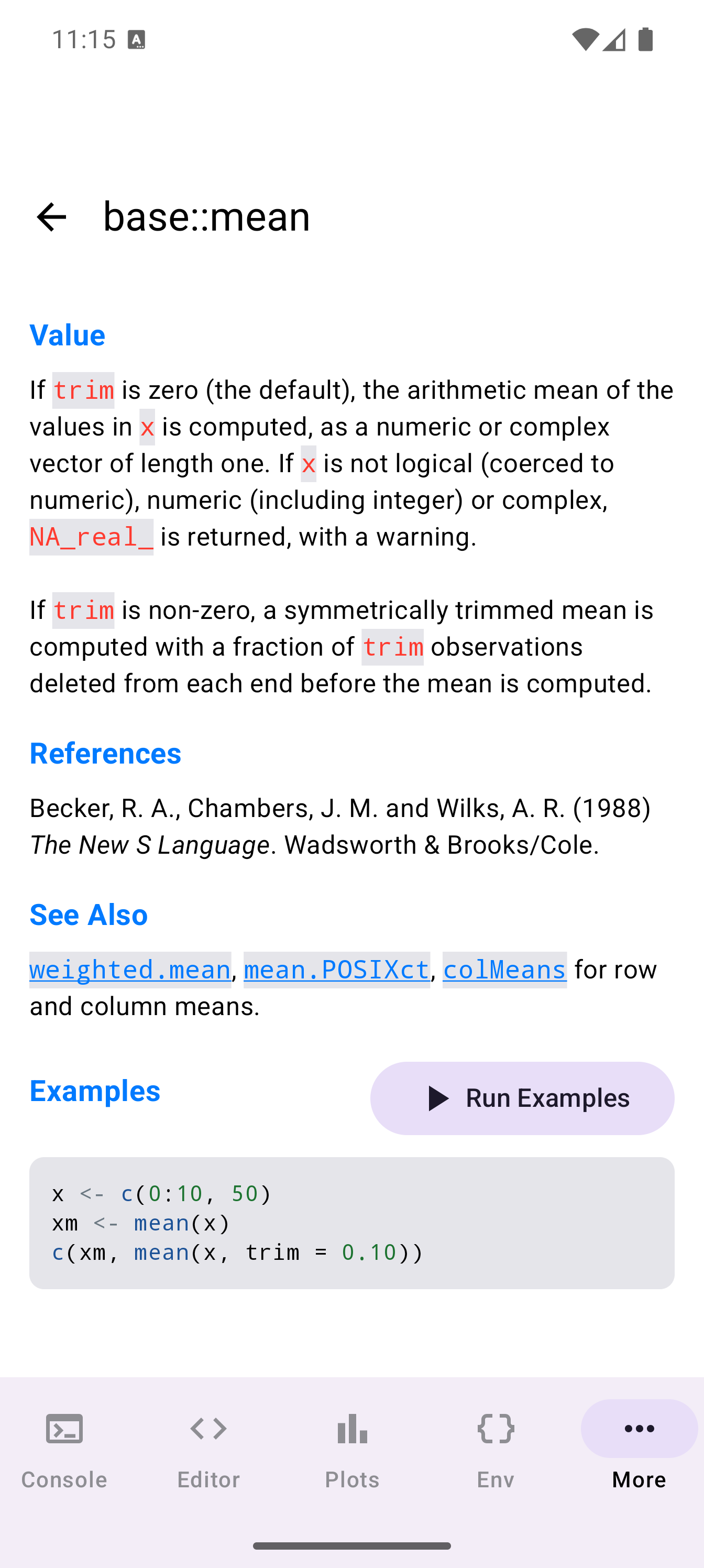
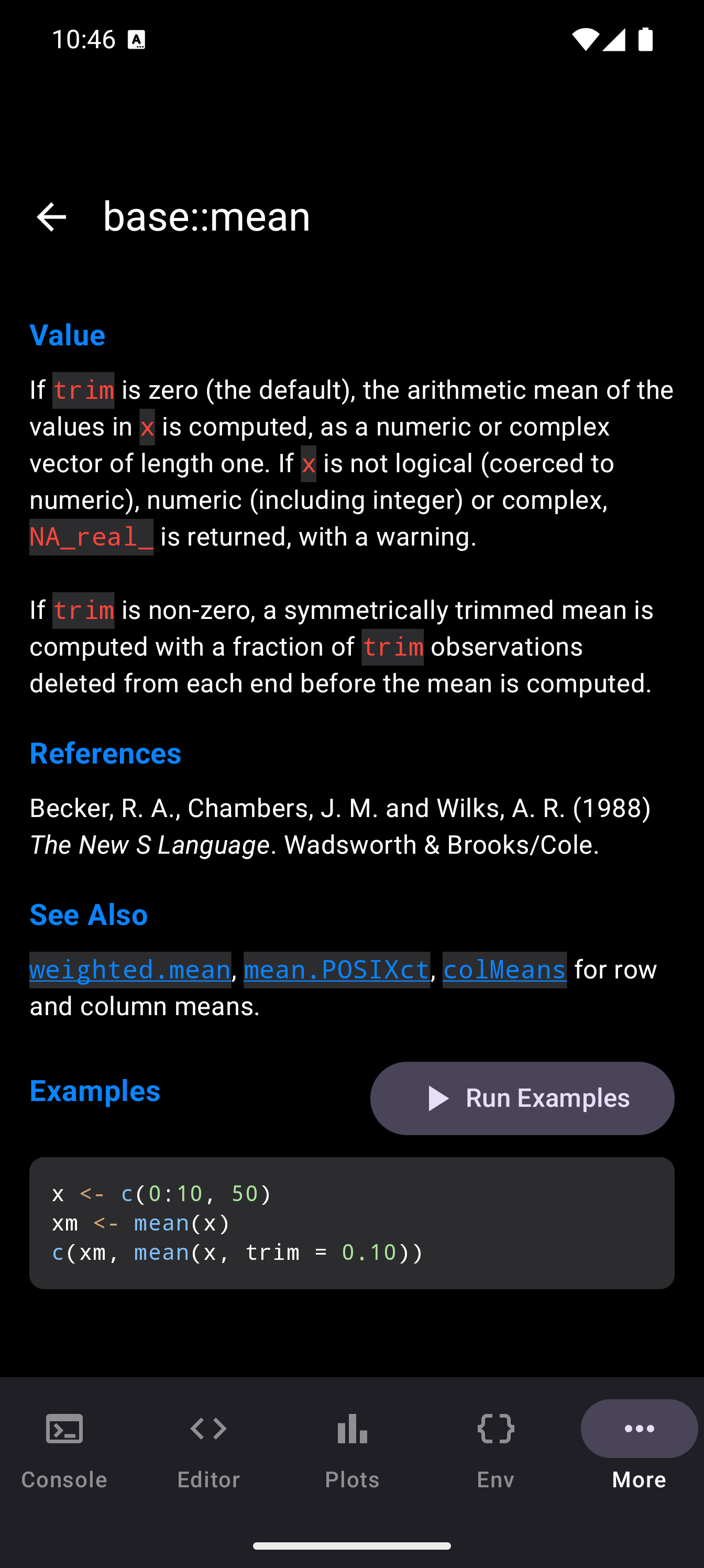
When you tap a search result, the detail view opens with the full help page. The page is rendered with clear formatting and includes all standard R documentation sections:
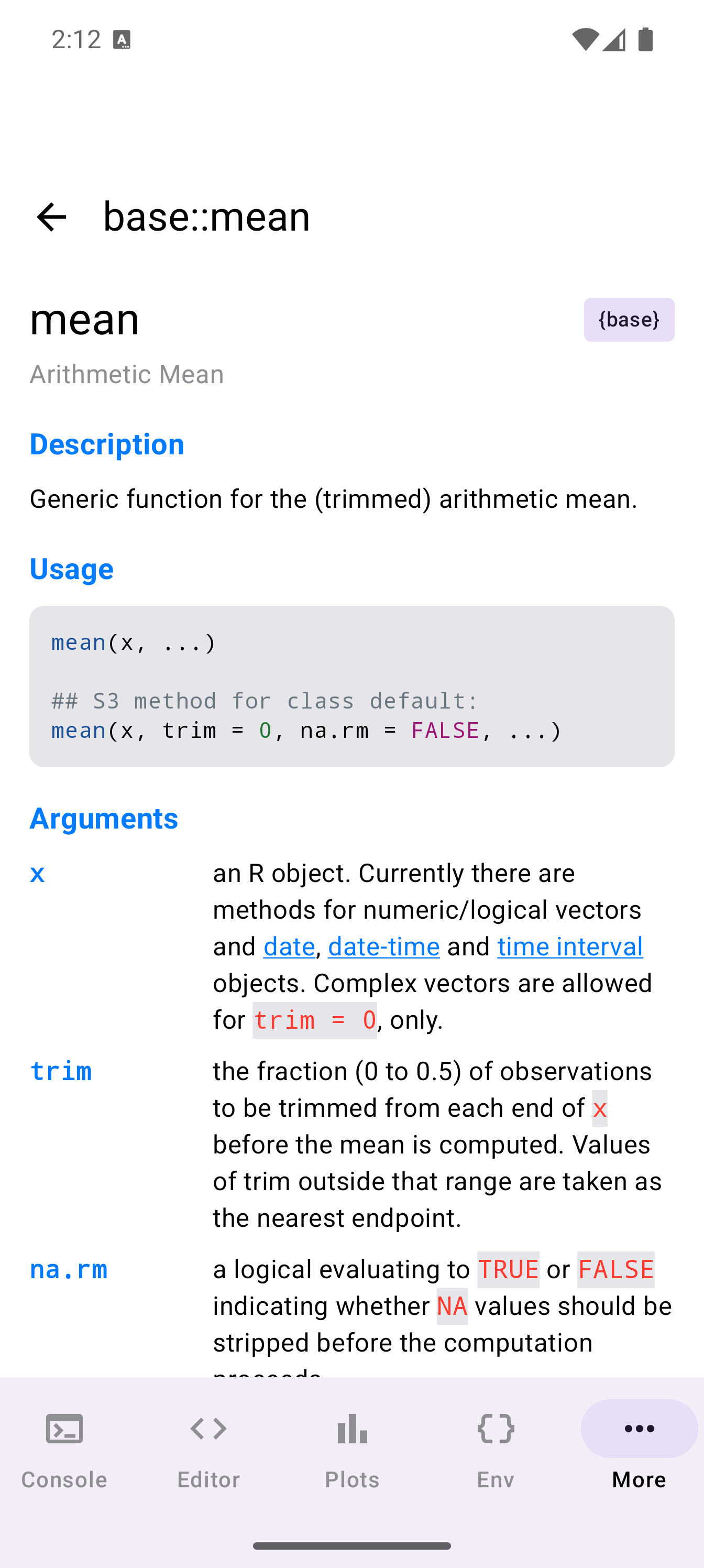
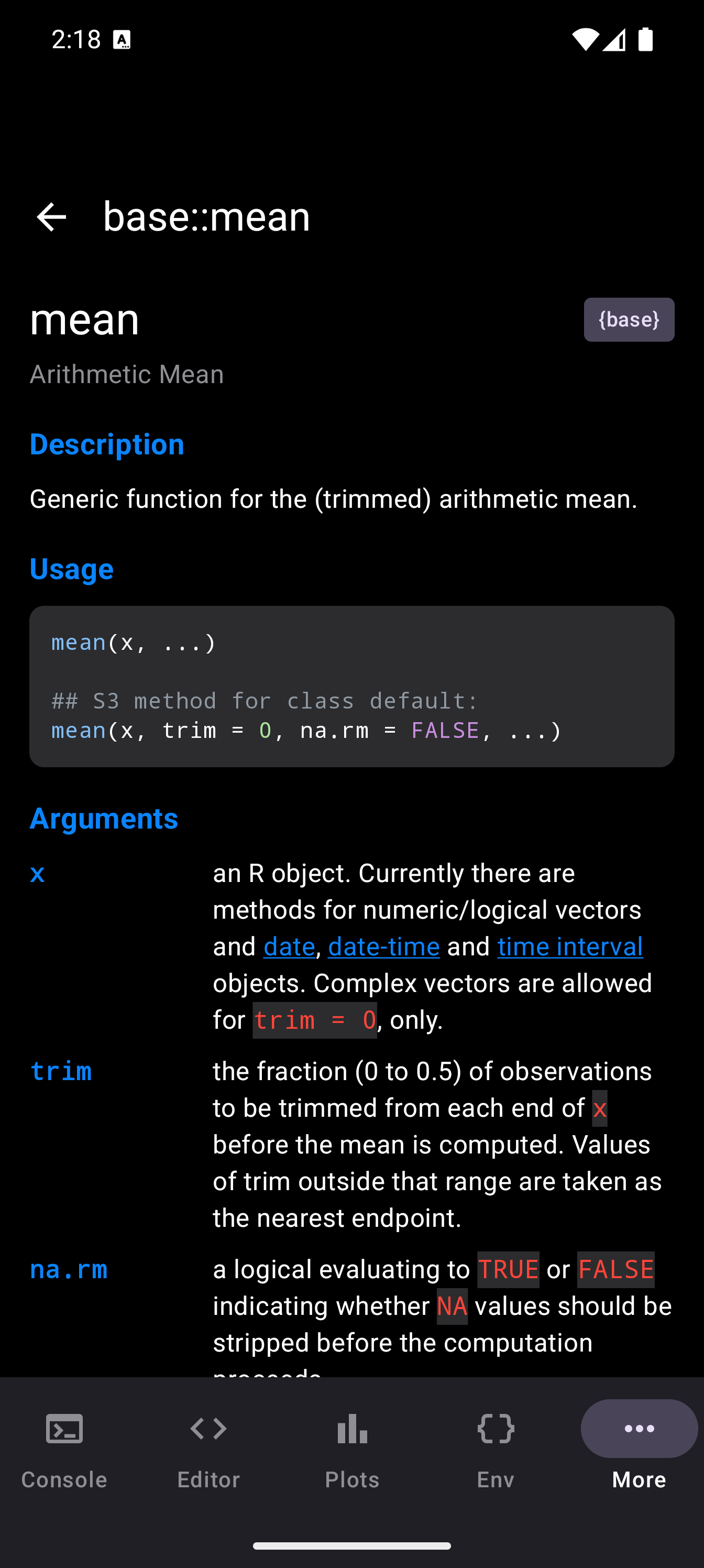
- Title and description: what the function does
- Usage: the function signature with all parameters, displayed in a monospace code block
- Arguments: a formatted list of each parameter with its description
- Details: extended explanation of the function’s behavior
- Value: what the function returns
- Examples: runnable code examples with syntax highlighting
- See Also: links to related functions (these are tappable and navigate to the referenced help page)
A Run Examples button at the bottom of the examples section sends the example code to the Console for execution, so you can see the function in action immediately.
Function names mentioned in the “See Also” section and elsewhere in the help text are tappable. Tapping one navigates directly to that function’s help page, letting you browse related documentation without returning to the search view.
The “See Also” links are one of the best ways to discover related functions. If you know one function but need something slightly different, the cross-references often lead you to exactly what you need.
Suggestion Chips
Search results display a package name chip next to each entry. These chips serve as visual indicators of which package a function belongs to, making it easy to distinguish between functions with similar names from different packages (e.g., dplyr::filter vs stats::filter).
Help from Other Screens
You do not have to navigate to the Help tab to look up documentation. webRoid integrates help access into the Console and Editor:
From the Console
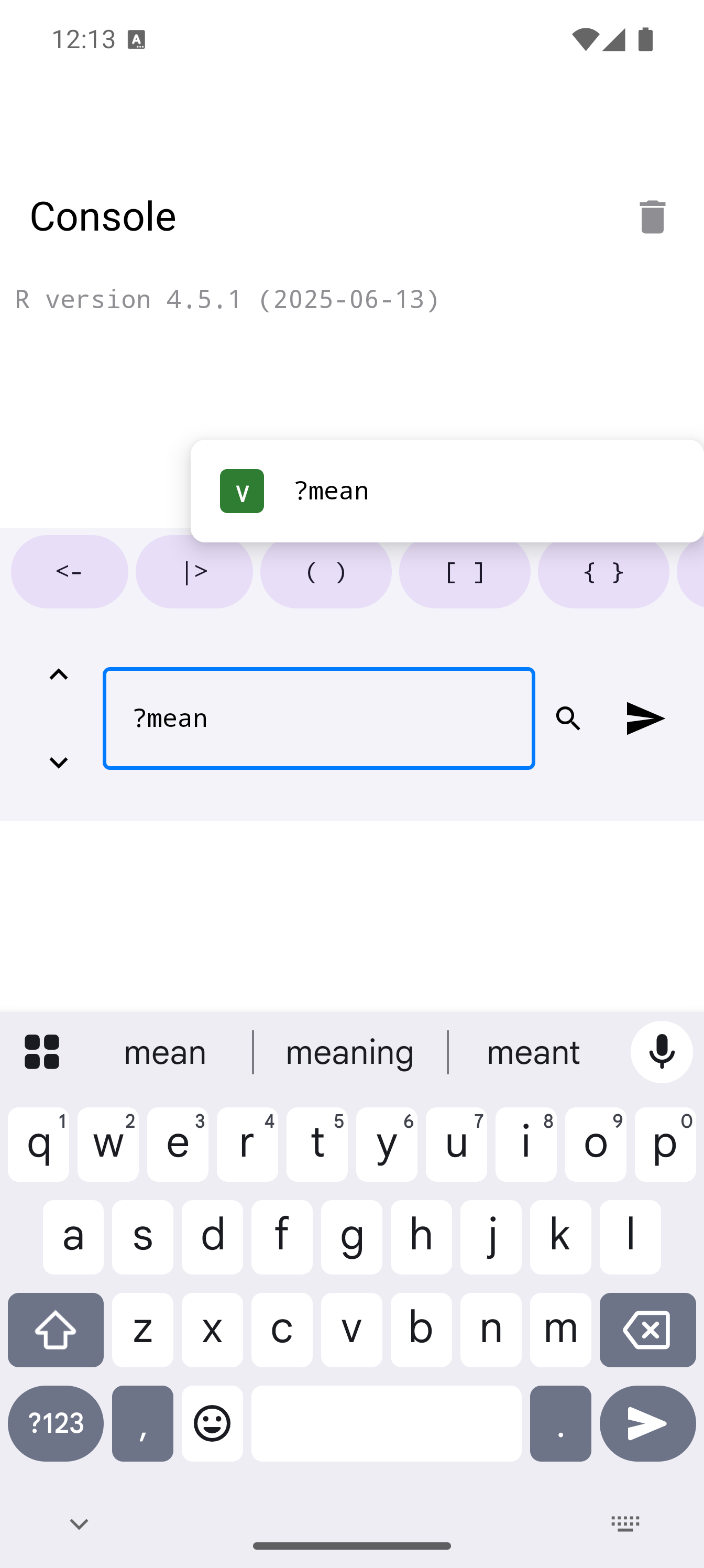
Type a help query directly in the Console using standard R syntax:
?mean
help("read.csv")
help(package = "dplyr")
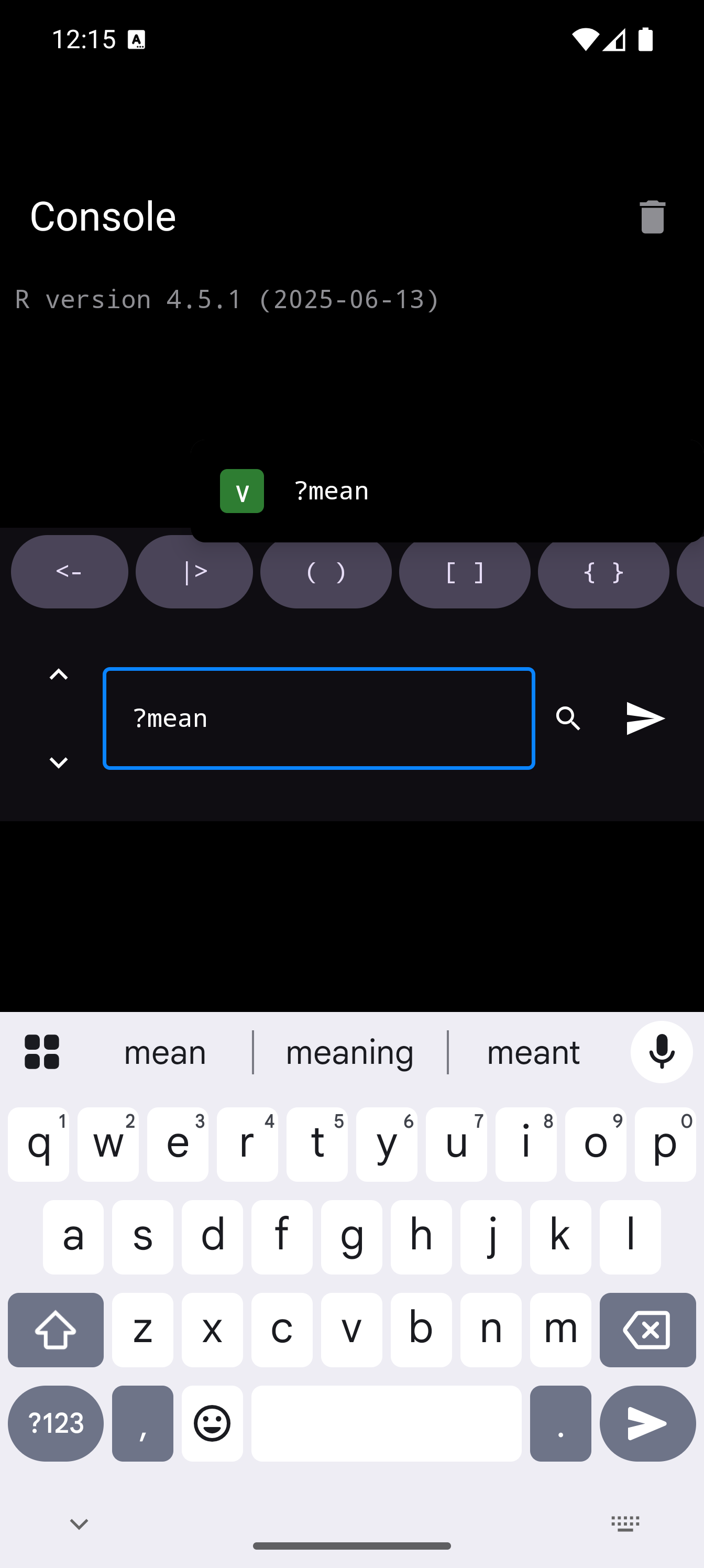
When you run a ? or help() command, webRoid intercepts the request and opens the help page in the Help tab automatically. The app switches to the Help tab to display the result.
From the Editor
When editing R code, you can look up help for any function your cursor is near. Use the ?function_name pattern in the Console to get help on the function you are working with.
The same help detail view appears as shown in Reading Help Pages above.
Running Examples
From any help page, tap Run Examples to execute the function’s built-in examples. The code is sent to the Console via example("function_name", package = "pkg") and the results (including any plots) appear in the Console and Plots tabs respectively.
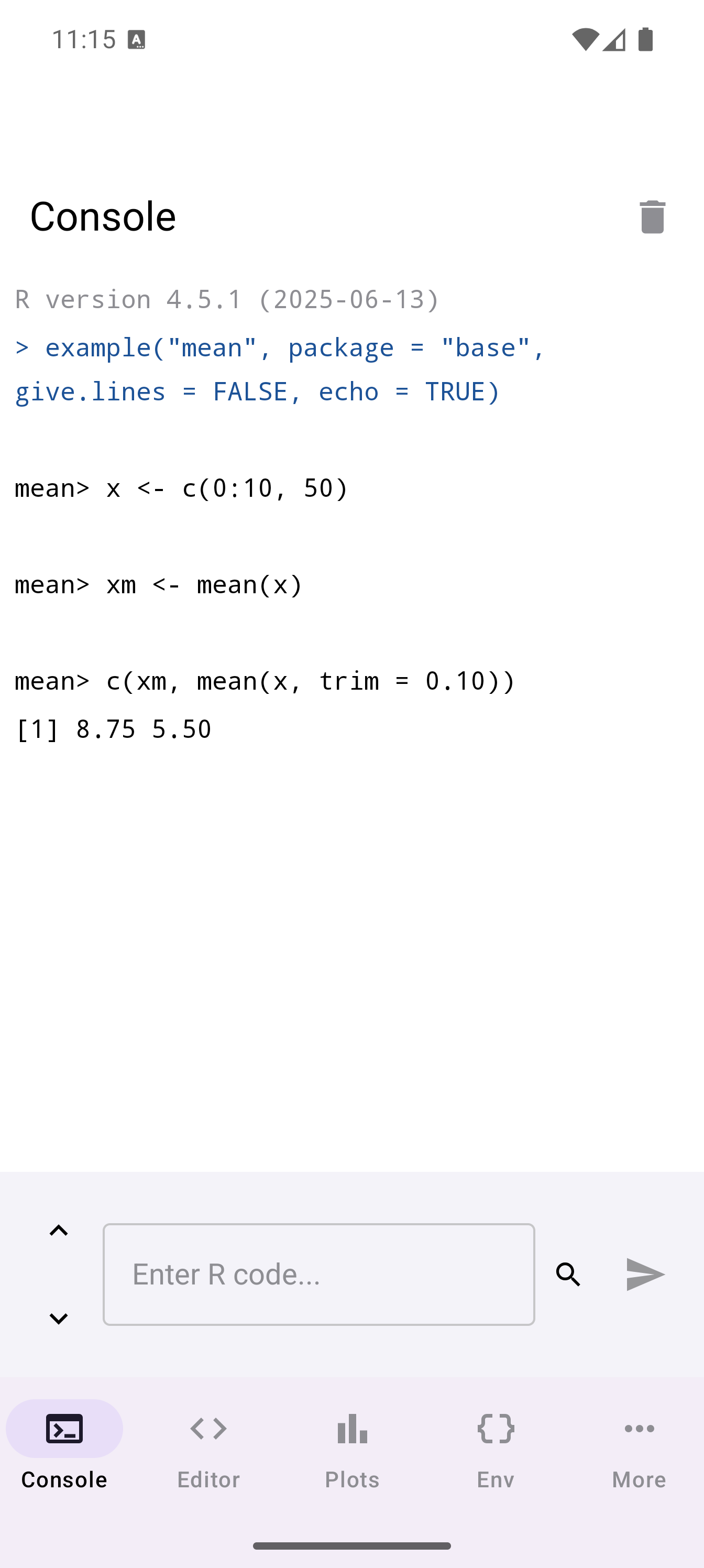
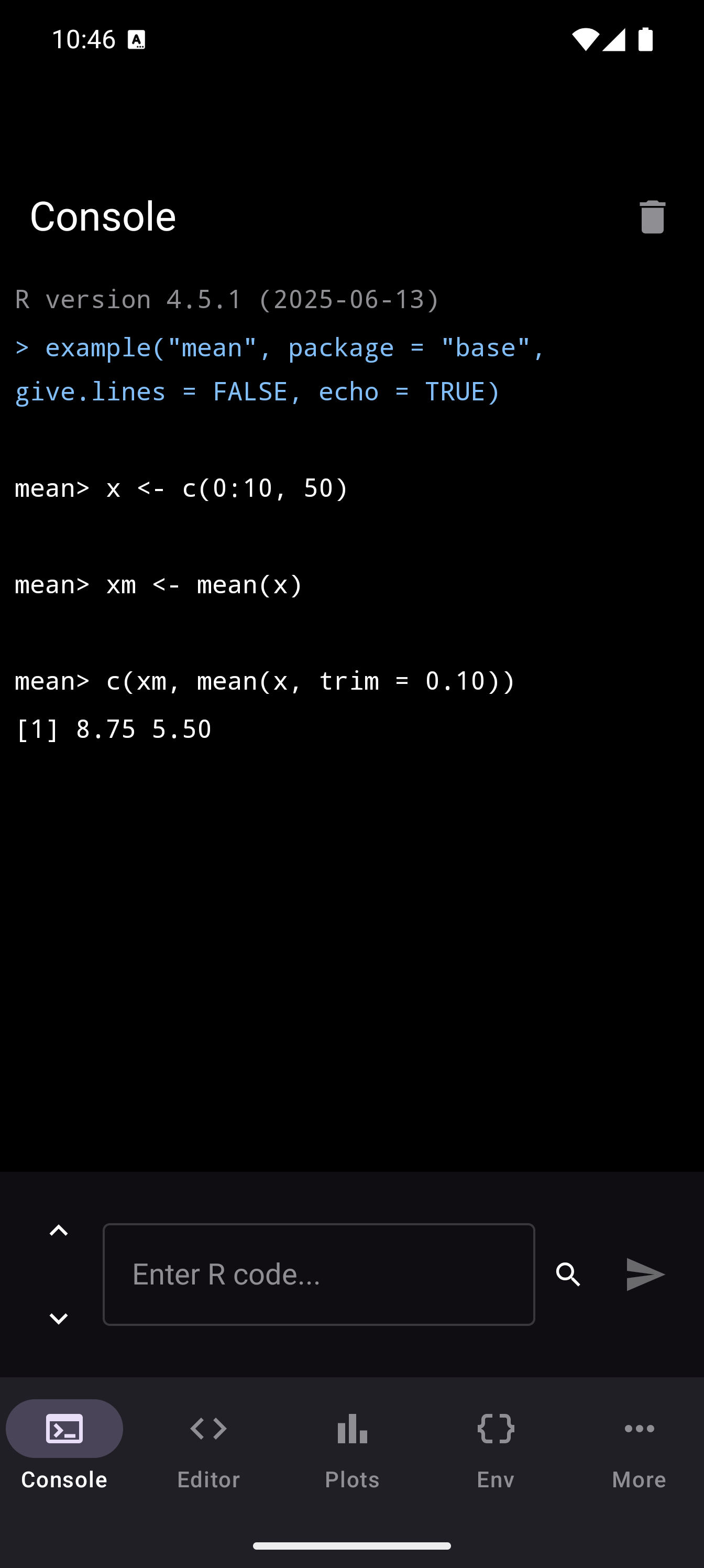
Running examples is a quick way to understand how a function works. Most R functions ship with practical examples that demonstrate common usage patterns.
Package Documentation
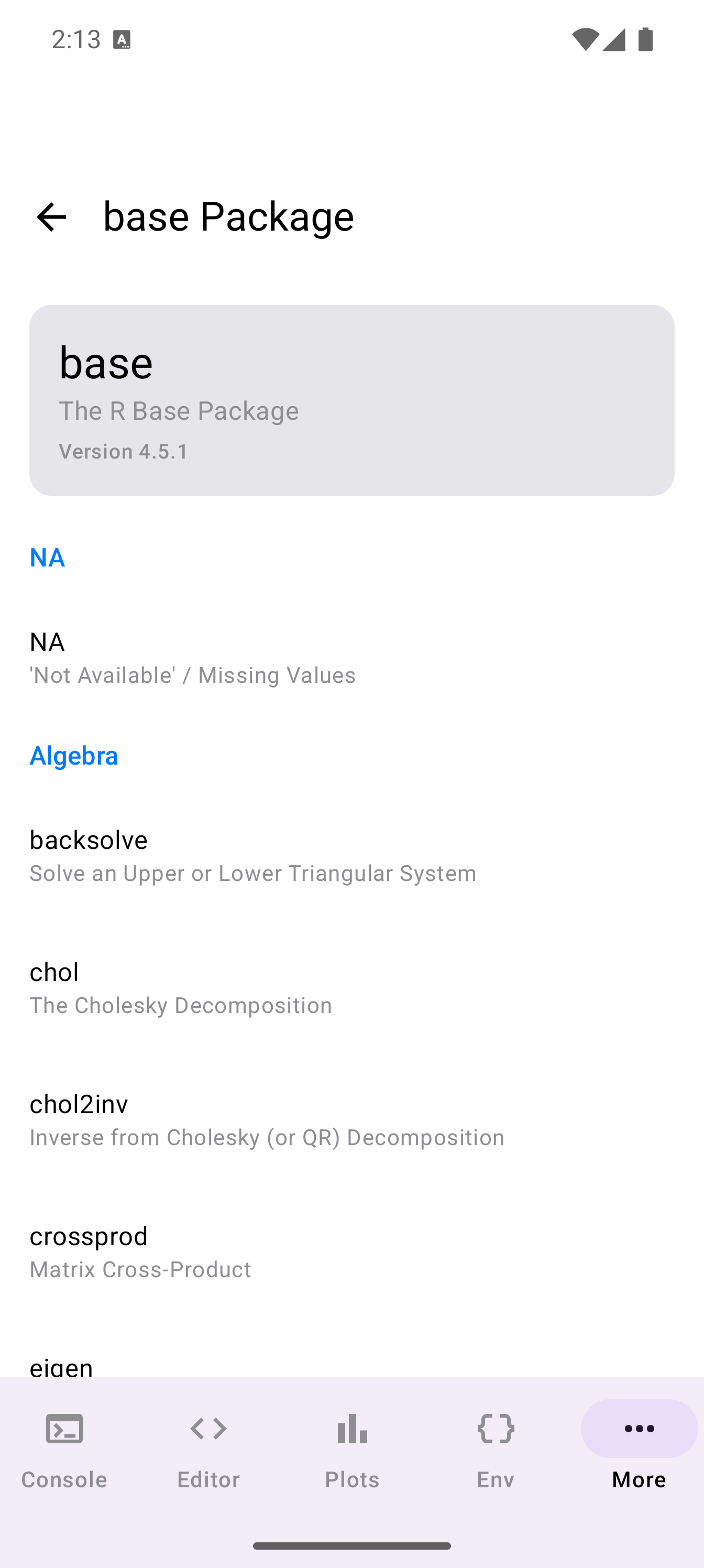
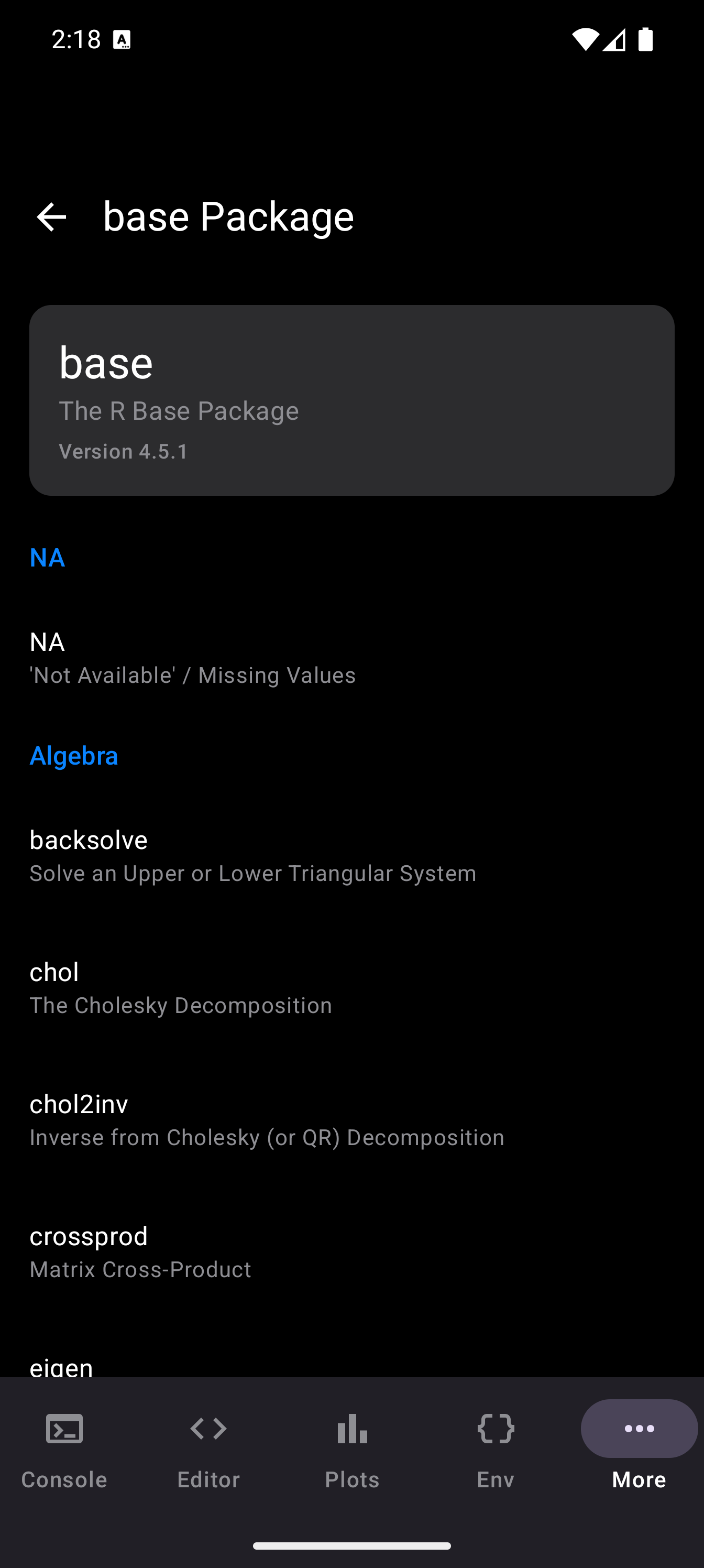
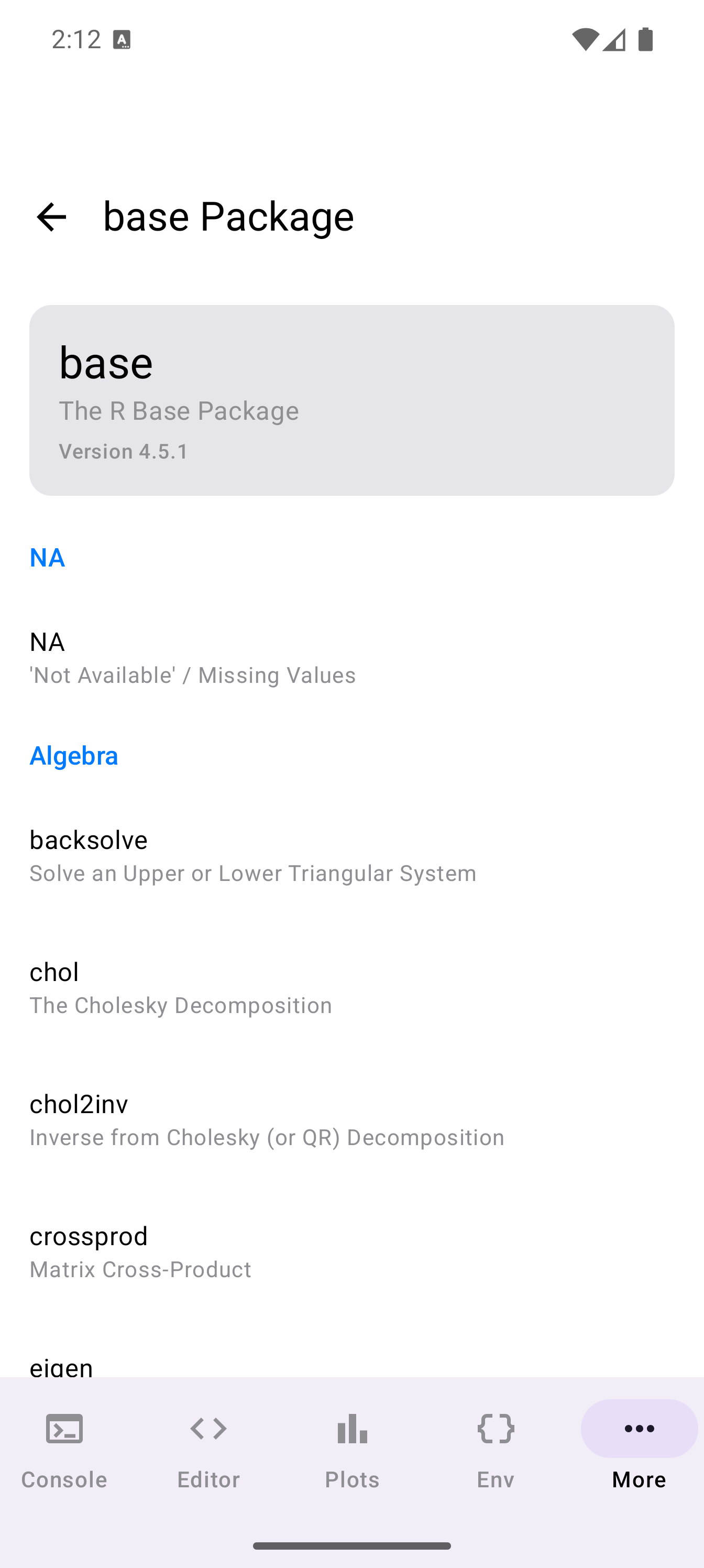
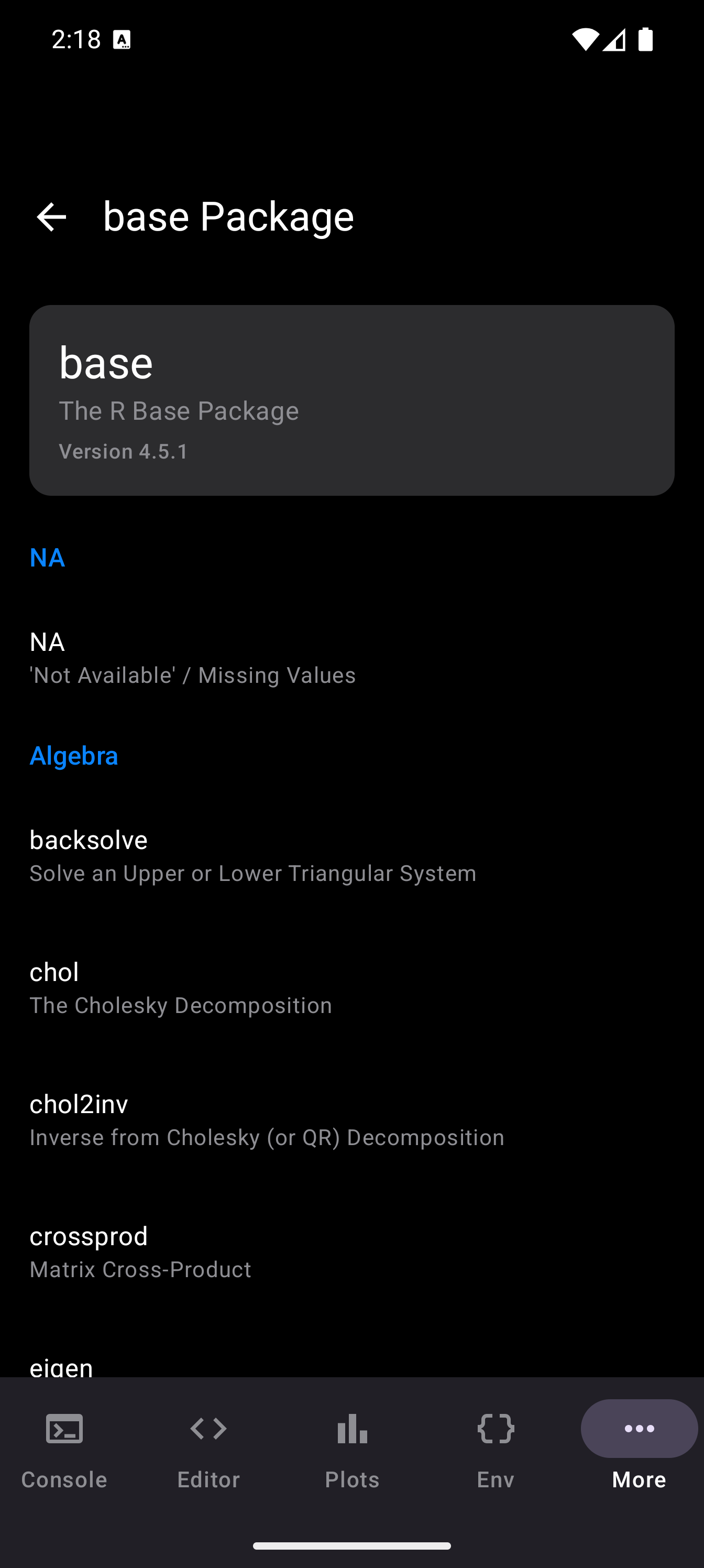
You can browse all help topics for an installed package by searching for the package name. This is useful for discovering functions you might not know about within a package you have already installed.
From the Console, you can also list all topics in a package:
help(package = "ggplot2")This displays an index of every documented function and dataset in the package, with brief descriptions. Tap any entry to read its full help page.
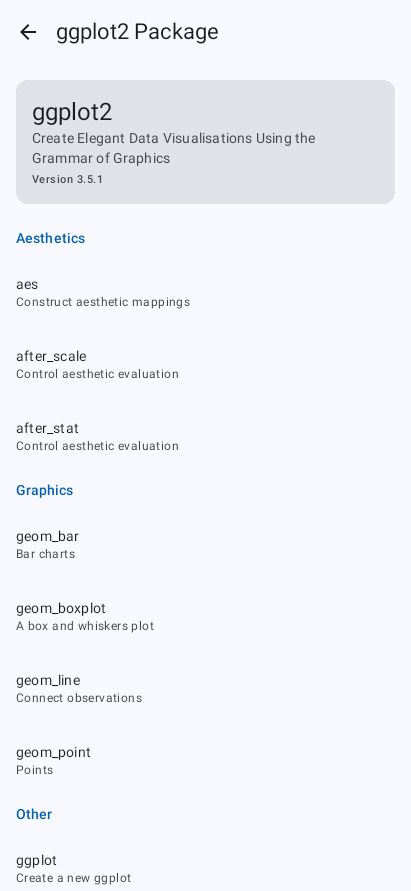
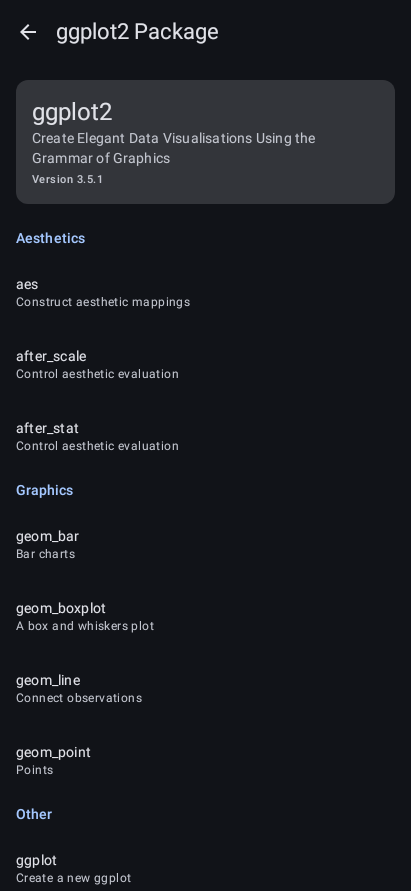
Help documentation is rendered locally from R’s built-in help system. No internet connection is required to browse help pages for installed packages.