Editor
The Editor is where you write, organize, and run R scripts. While the Console is ideal for quick one-off commands, the Editor gives you a proper multi-file workspace with syntax highlighting, tabs, find and replace, code snippets, and an output panel. It has everything you need to build and iterate on longer analyses.
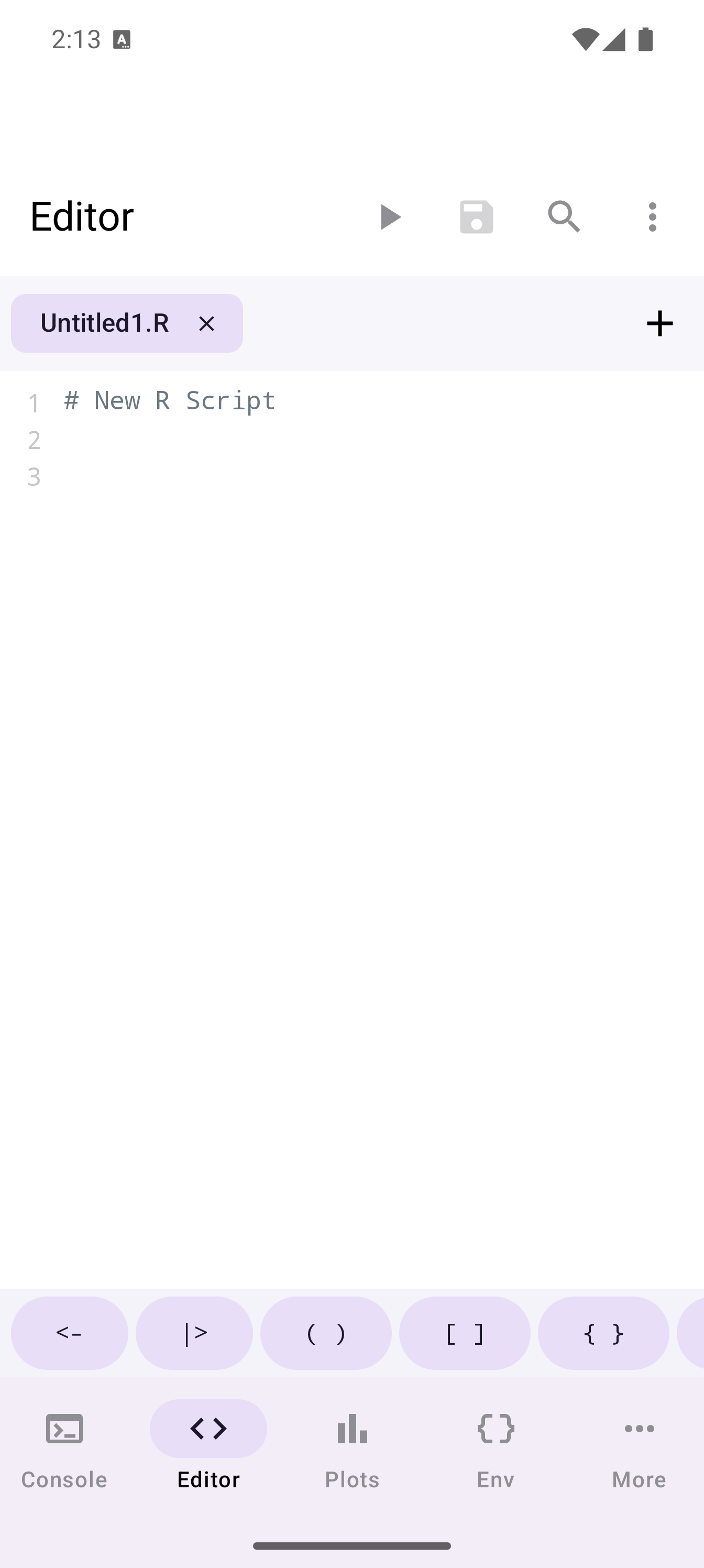
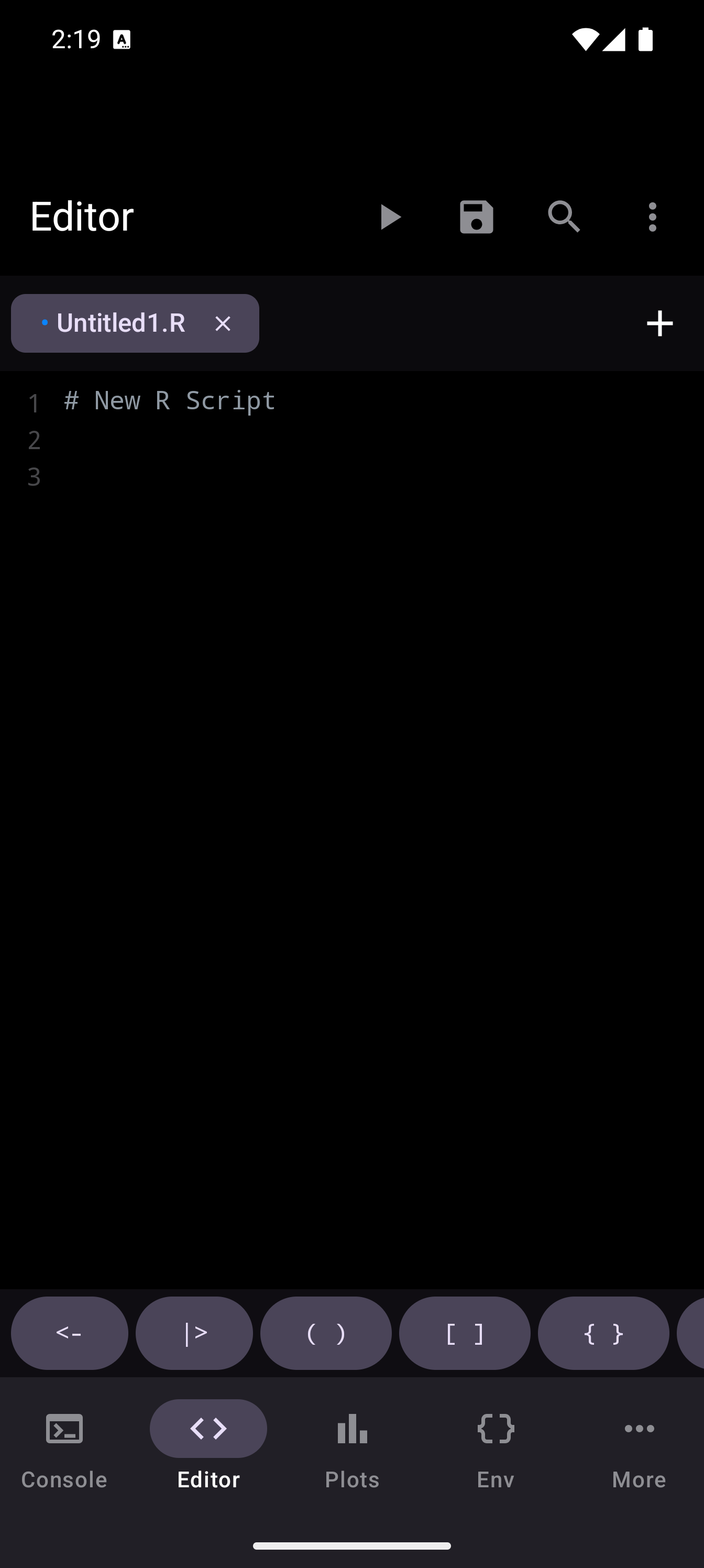
When you first open the Editor (or have no files loaded), you see an empty state with a prompt to create or open a file:
Working with Tabs
The Editor uses a multi-tab interface. A horizontal tab bar runs across the top of the screen, and each open file gets its own tab.
What tabs show you
Each tab displays:
- The filename (e.g.,
analysis.R,Untitled) - A close button (x) on the right side to close that tab
- A modified indicator (a dot) when the file has unsaved changes
The currently active tab is visually highlighted so you always know which file you are editing.
Managing tabs
- Switch between files: tap any tab to bring that file into the editing area.
- Create a new file: tap the + button at the end of the tab bar to open a blank R script. To start from a pre-built code template instead, open the Snippets panel from the editor menu and browse categorized templates (Data Structures, Control Flow, Functions, Visualization, Statistics, Input/Output, and Tidyverse).
- Close a file: tap the x button on a tab. If the file has unsaved changes, you will be prompted to save or discard them.
- Rename a file: long-press a tab (or use the editor menu) to rename it. The new name is reflected in the tab and in the file system.
If you have many tabs open and they overflow the visible area, swipe horizontally along the tab bar to scroll through them.
Opening and saving files
The editor overflow menu (three-dot icon in the toolbar) provides access to file operations, code tools, and more:
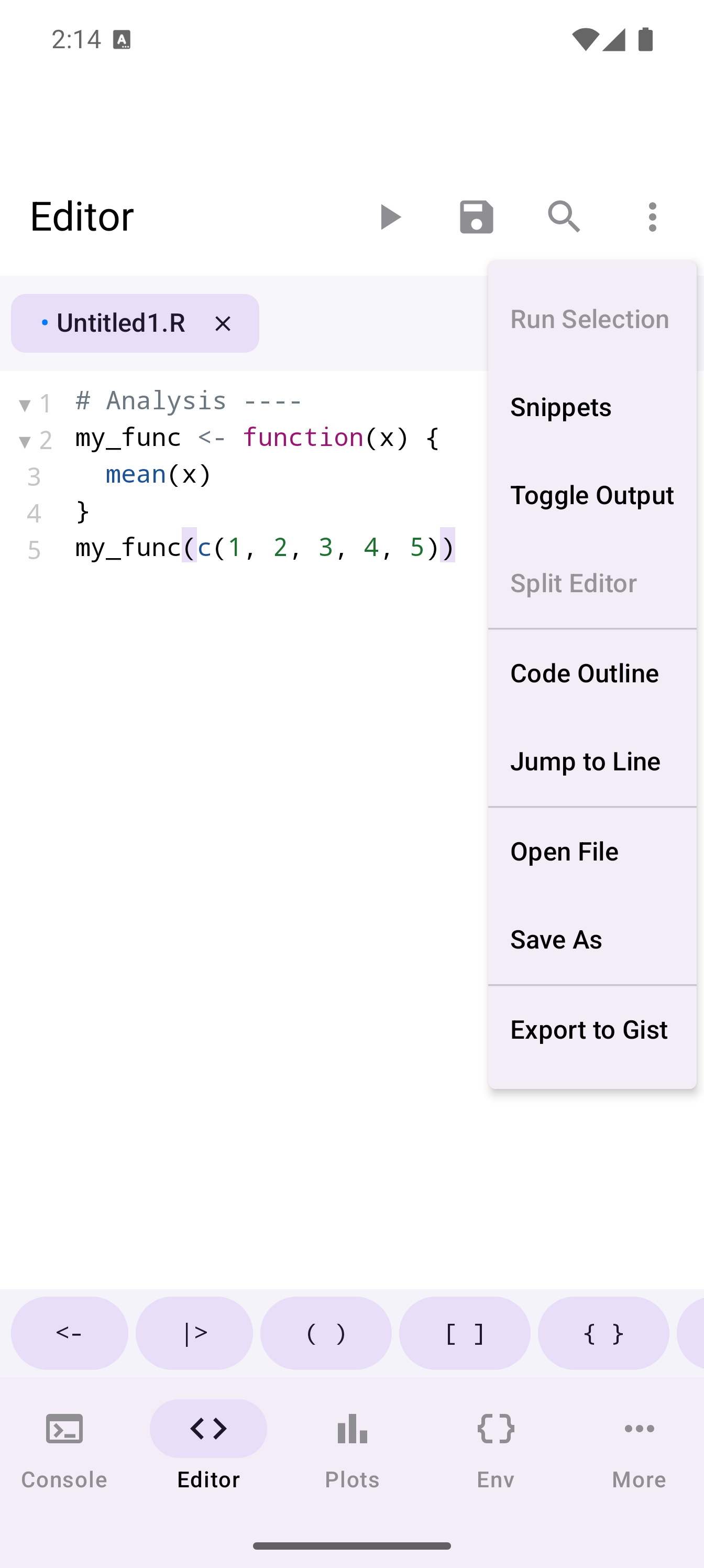
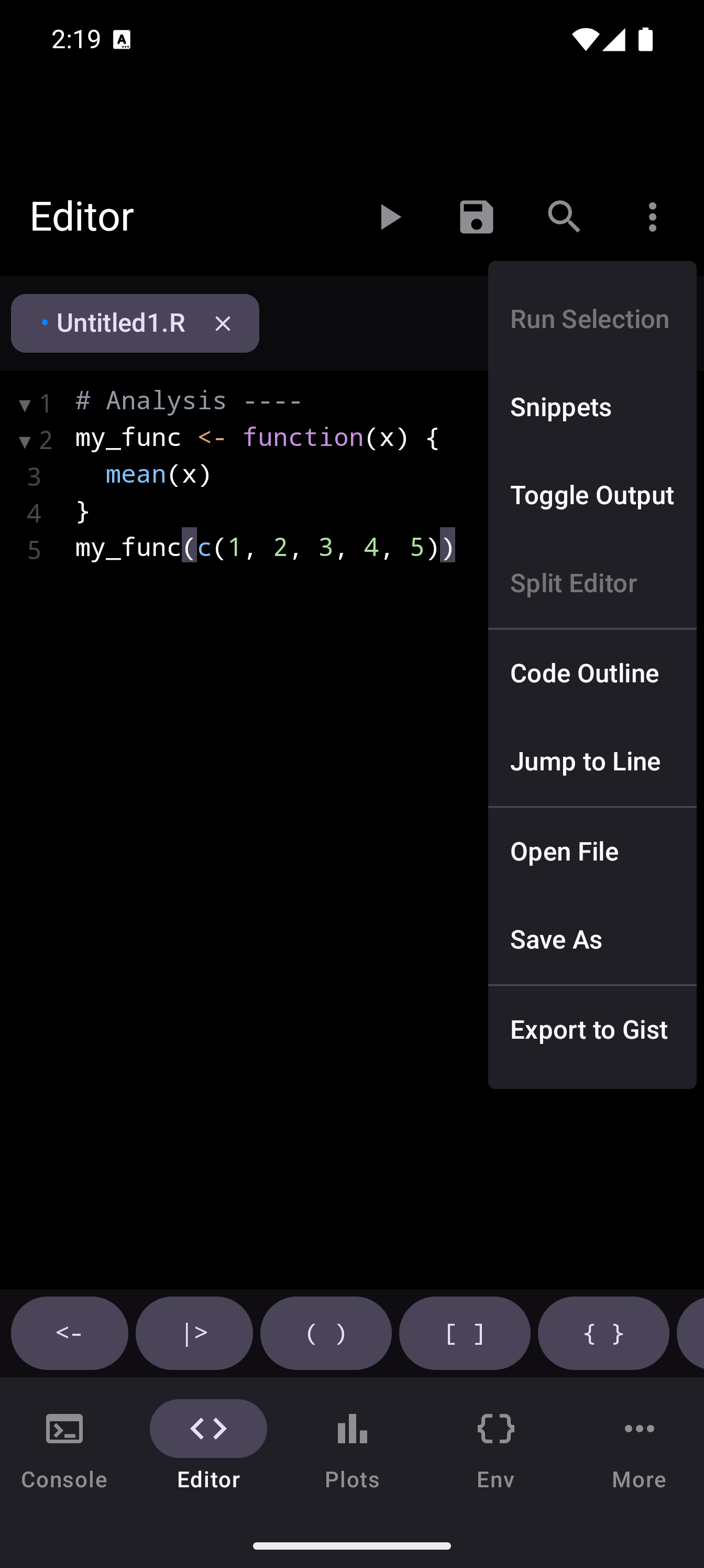
Use the editor menu to access file operations:
- Open: launches Android’s file picker so you can load any
.Ror text file from your device storage, SD card, or connected cloud storage. - Save: writes the current file to its storage location. If the file is new and has never been saved, you will be prompted to choose a name and location.
- Snippets: opens the Snippets panel, where you can browse and insert categorized code templates or your own custom snippets. See Code Snippets for details.
Files are auto-saved periodically. If the app is closed unexpectedly, your recent work can be recovered the next time you open it.
Writing Code
Syntax highlighting
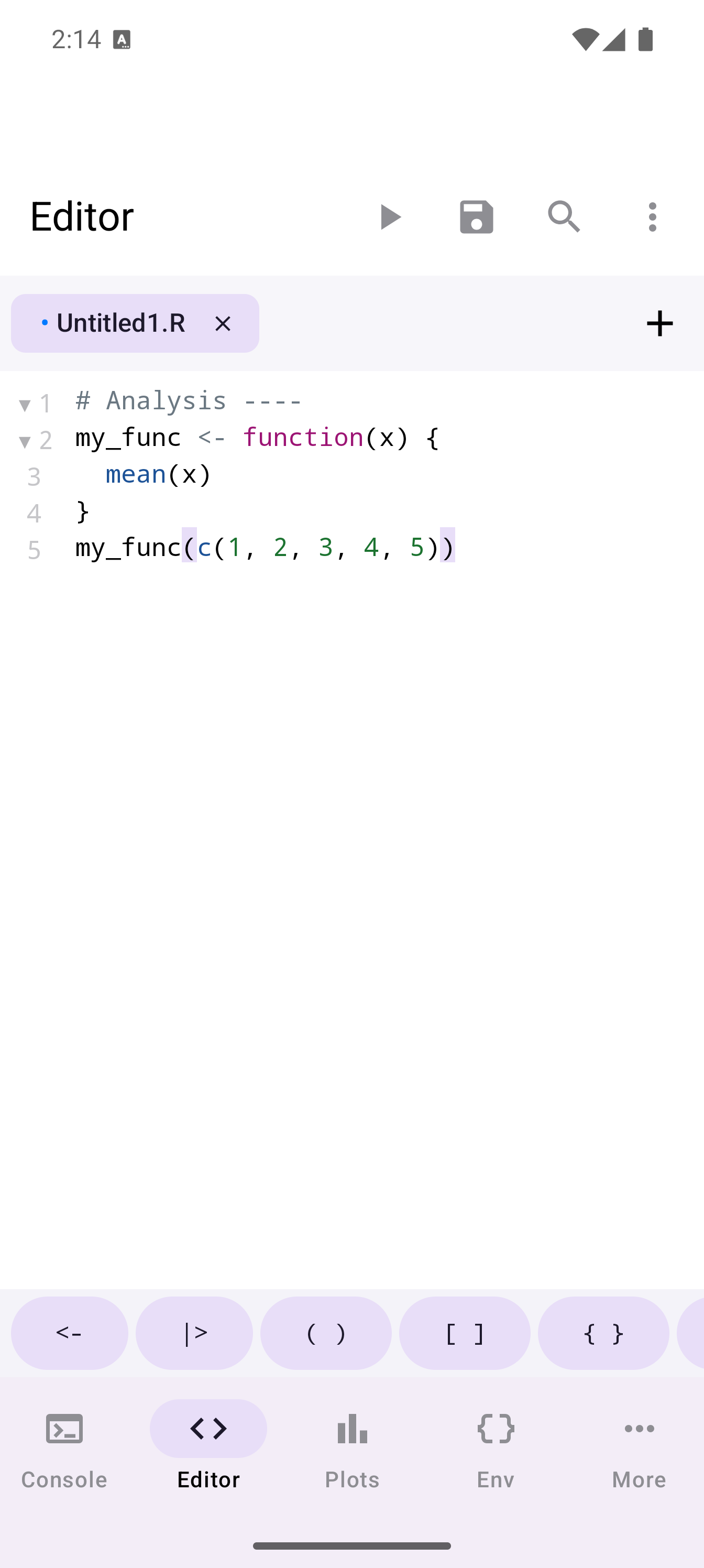
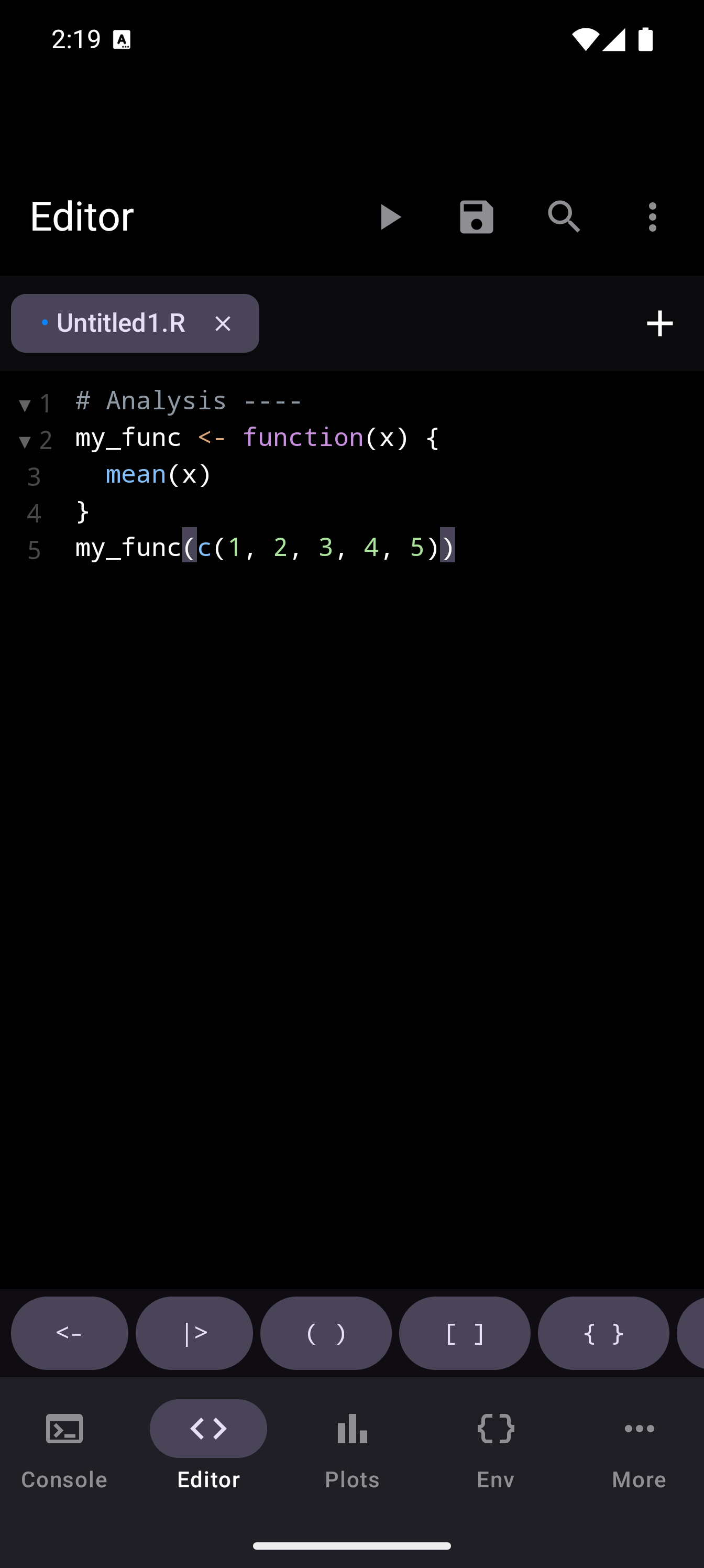
The Editor automatically color-codes your R code as you type. Keywords like if, for, and function are visually distinct from strings, numbers, comments, and function calls. This makes it easier to scan your code and spot mistakes. An unclosed string, for example, will cause the coloring of everything after it to look wrong.
R Keyboard Toolbar
When the on-screen keyboard is open, a scrollable toolbar appears directly above it. This toolbar provides one-tap access to R characters and operators that would otherwise require switching to the symbol keyboard:
<-: assignment operator|>: native pipe()[]{}"": matched pairs (both opening and closing characters inserted at once)~: formula operatorc(): vector wrapper::$@: namespace, list element, and slot access%in%!&|: logical operators#: comment prefix- Tab: indentation
This is the same toolbar that appears in the Console. A dismiss button at the far right hides the keyboard when you want to see more of your code.
You can customize these buttons in Settings > Editor > R Toolbar Buttons. See Customizing the R Toolbar for details.
Auto-indent and formatting
When auto-indent is enabled in Settings, pressing Return automatically indents the new line to match the current block depth. For example, inside a function body or a loop, the cursor moves to the correct indentation level without you having to add spaces manually.
You can choose between Spaces and Tabs for indentation in Settings > Editor > Indent Style.
Auto-close brackets and quotes
webRoid can automatically insert matching closing characters as you type:
| You type | Inserted |
|---|---|
( |
() |
[ |
[] |
{ |
{} |
" |
"" |
' |
'' |
When the cursor sits before a closing character that was auto-inserted, typing that character simply moves the cursor past it instead of adding a duplicate. Pressing backspace on an empty pair deletes both characters at once.
Toggle this feature in Settings > Editor > Auto-close Brackets.
Auto-close works in both the Editor and the Console.
Bracket matching
When the cursor is next to a bracket – (, ), [, ], {, or } – the editor highlights both it and its matching counterpart. This helps you spot mismatched or missing brackets at a glance.
The matcher is syntax-aware: brackets inside strings and comments are ignored.
Code Folding
The editor can collapse blocks of code so you can focus on the parts that matter. Foldable regions include:
| Region type | Example |
|---|---|
| Functions | my_func <- function() { ... } |
| Control flow | if, for, while, repeat, tryCatch |
| Matched braces | Any { ... } pair |
| R code sections | Lines ending with # Name ---- |
Tap the triangle indicator in the gutter to fold or unfold a region. While folded, a placeholder shows the number of hidden lines.
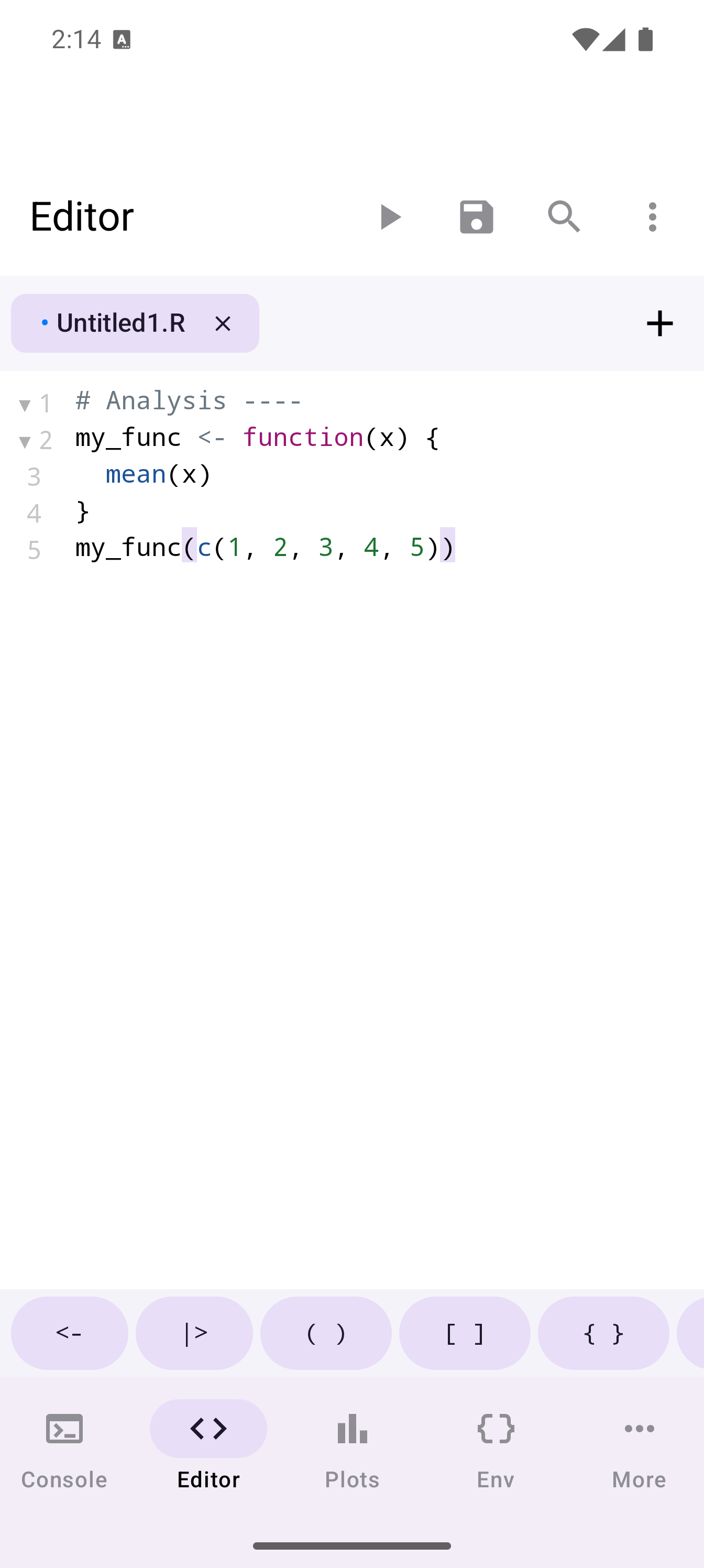
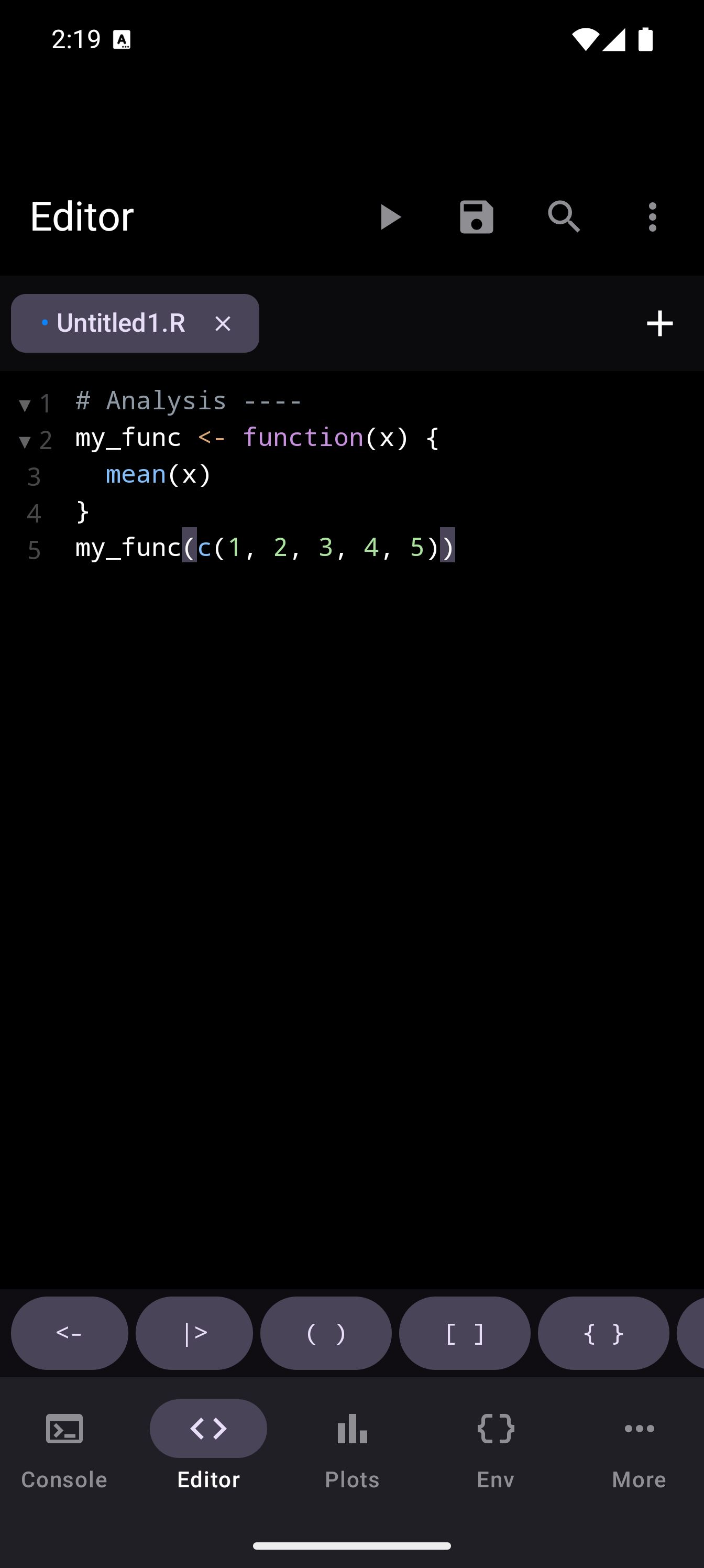
Combine code folding with the Code Outline to navigate large scripts quickly.
Running Code
The Editor has a Run button in the toolbar. Its behavior depends on whether you have text selected:
- No selection: tapping Run executes the entire script from top to bottom.
- Text selected: tapping Run executes only the highlighted portion.
Output panel
Results from running your code appear in the output panel at the bottom of the Editor. This panel shows text output, errors, warnings, and messages, the same kinds of output you would see in the Console.
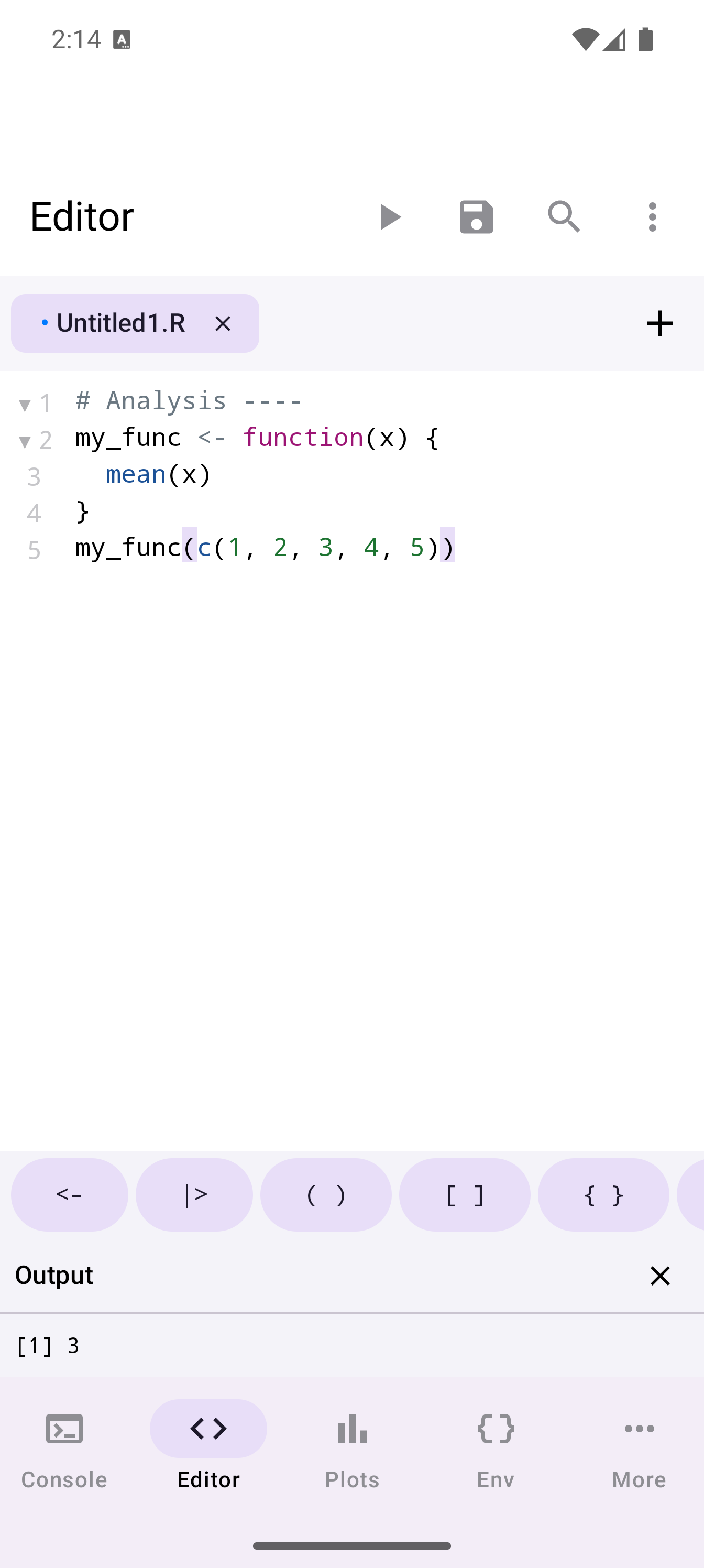
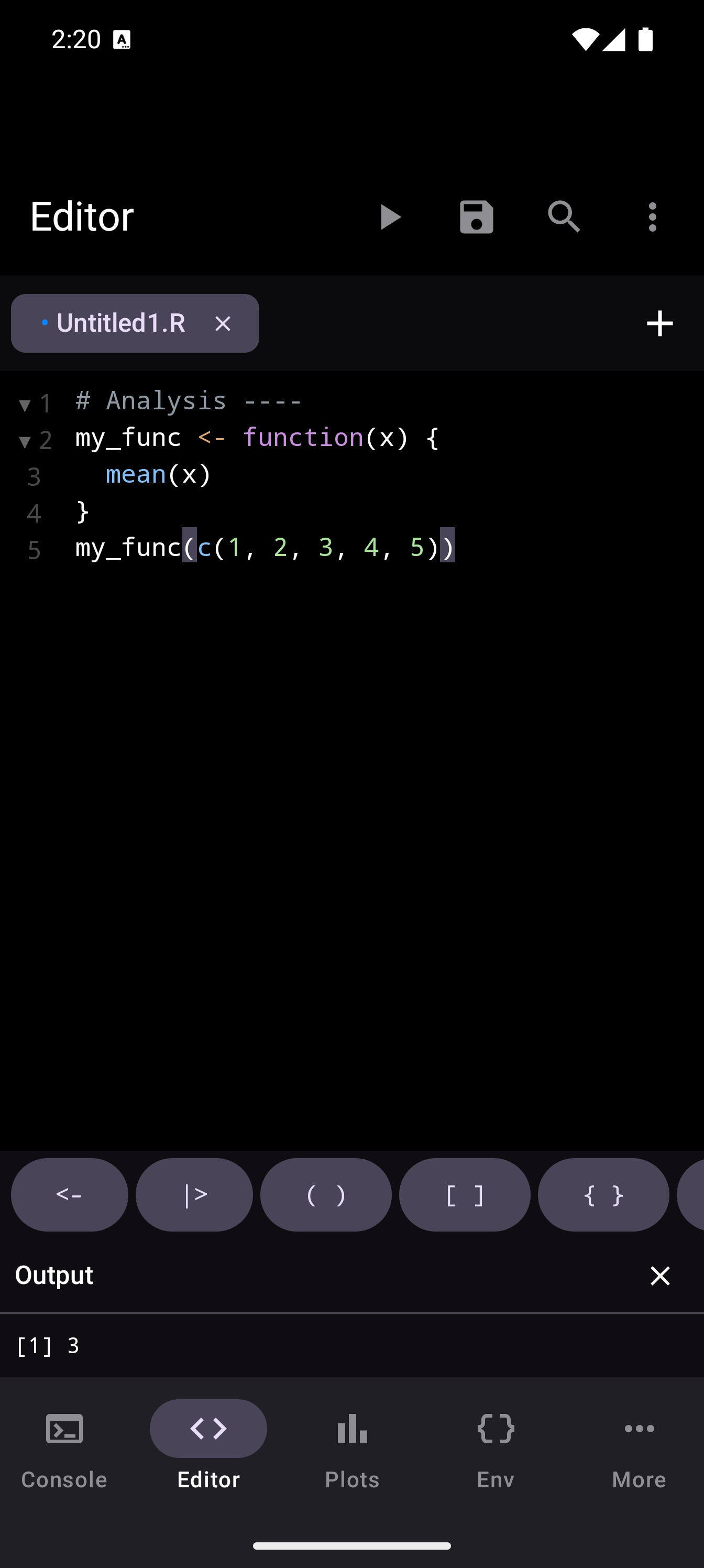
You can:
- Resize the output panel by dragging its top edge up or down.
- Collapse it to give the code area more room.
- Expand it when you need to read through longer output.
Running a selection is useful for debugging. If a script produces unexpected results, select and run it section by section to isolate the problem.
Missing package detection
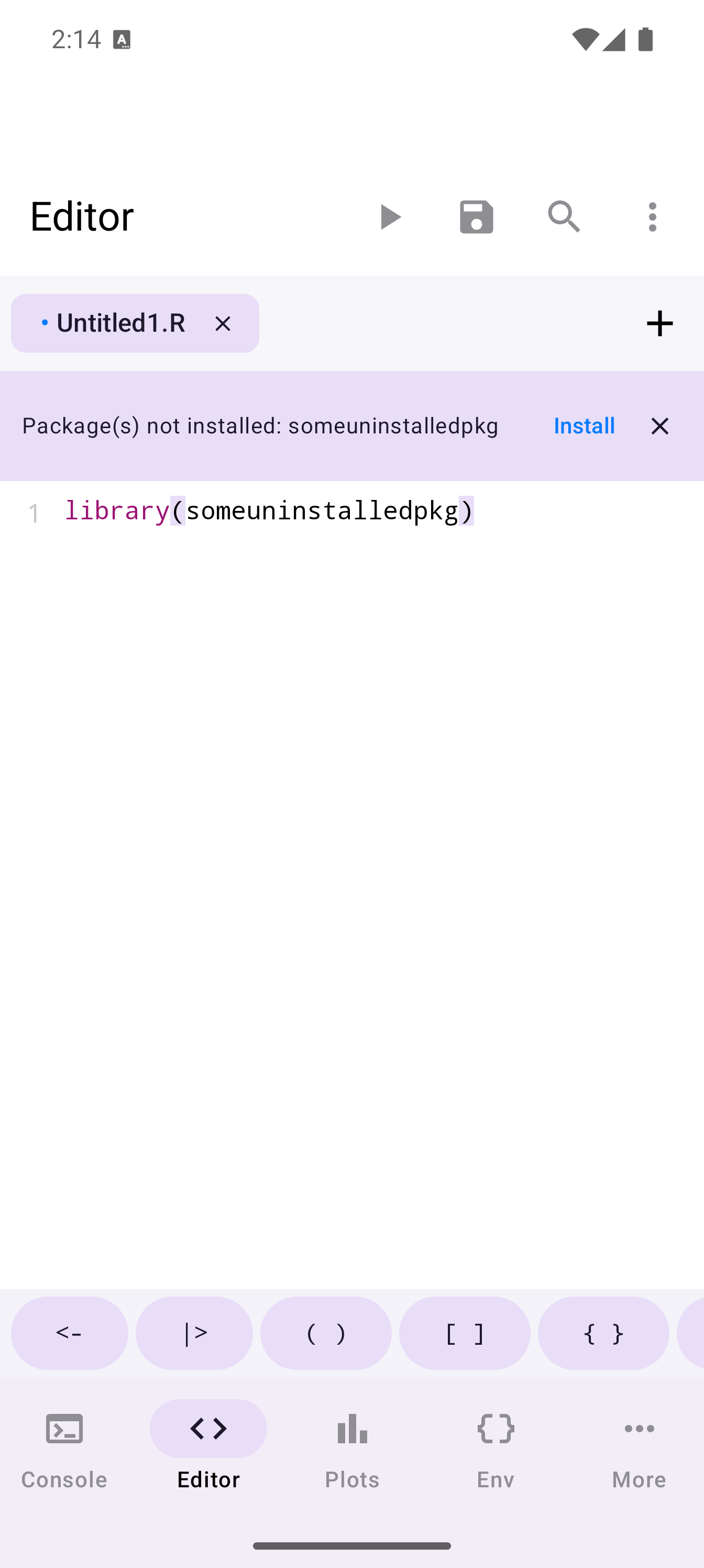
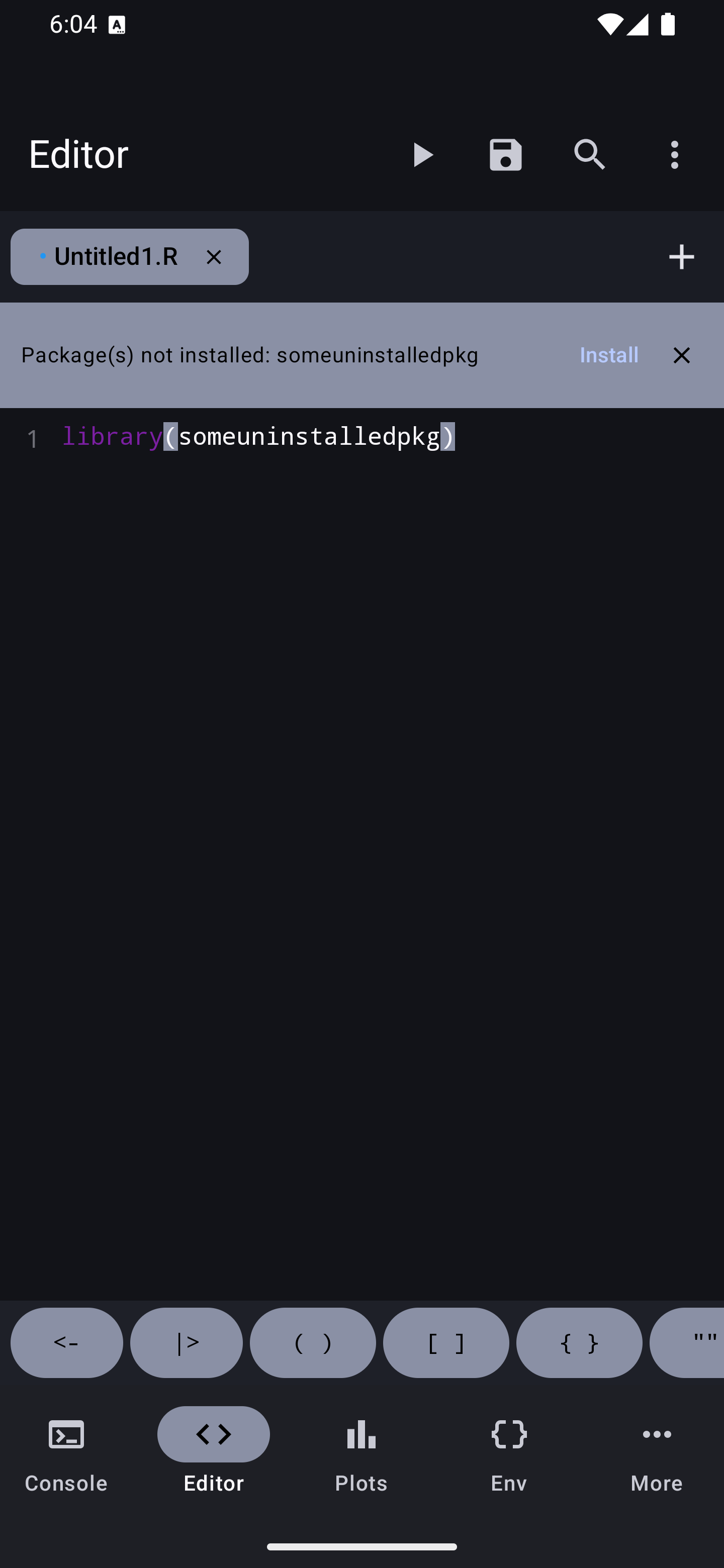
webRoid scans your code for library(), require(), and pacman::p_load() calls. If a referenced package is not installed, a banner appears below the editor with an Install button to fetch the missing packages in one tap.
Find & Replace
Tap the search icon in the toolbar (or use the keyboard shortcut) to open the Find bar. It appears at the top of the editing area.
Finding text
Type your search term in the field and the Editor highlights all matches in your code. Navigation arrows let you jump to the next and previous match. A counter shows how many matches were found and which one is currently focused (e.g., “3 of 12”).
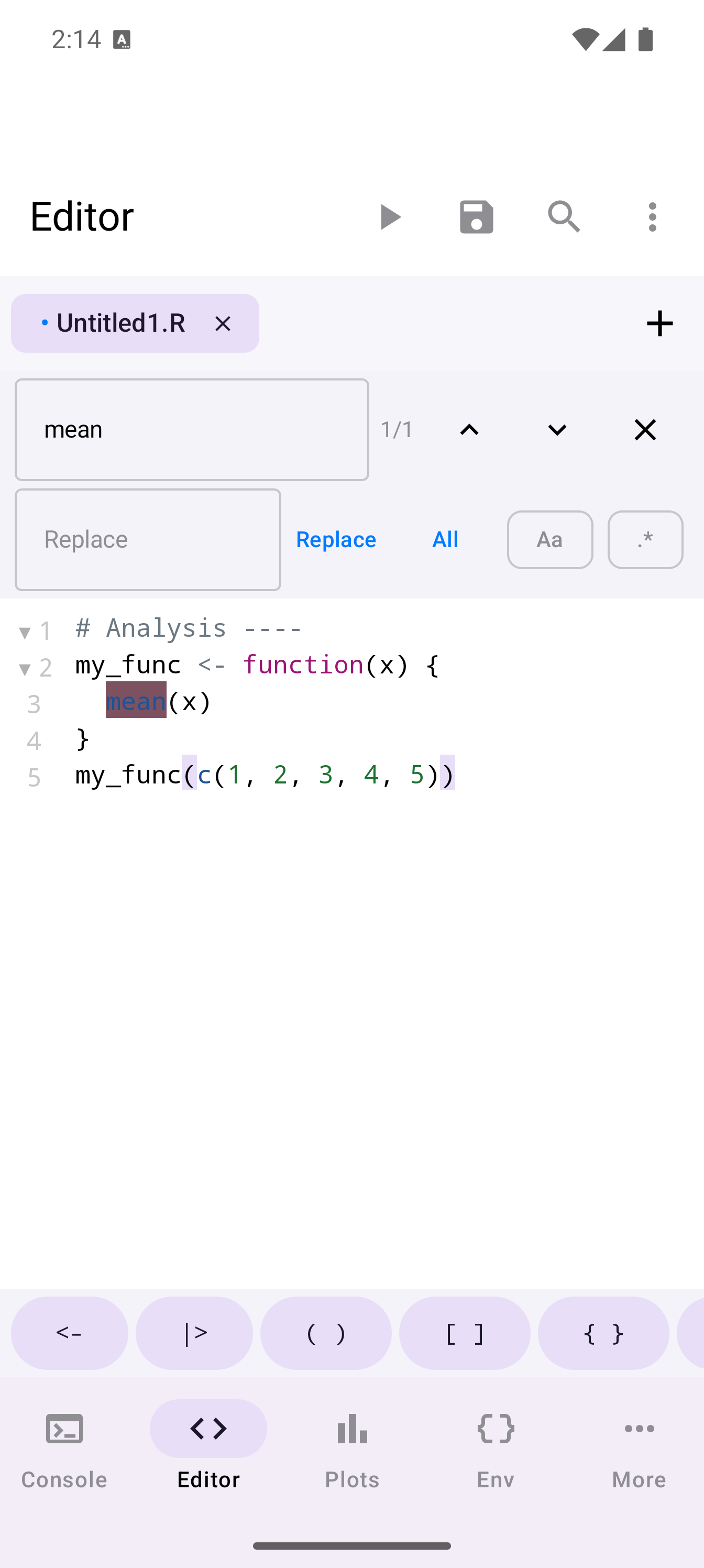
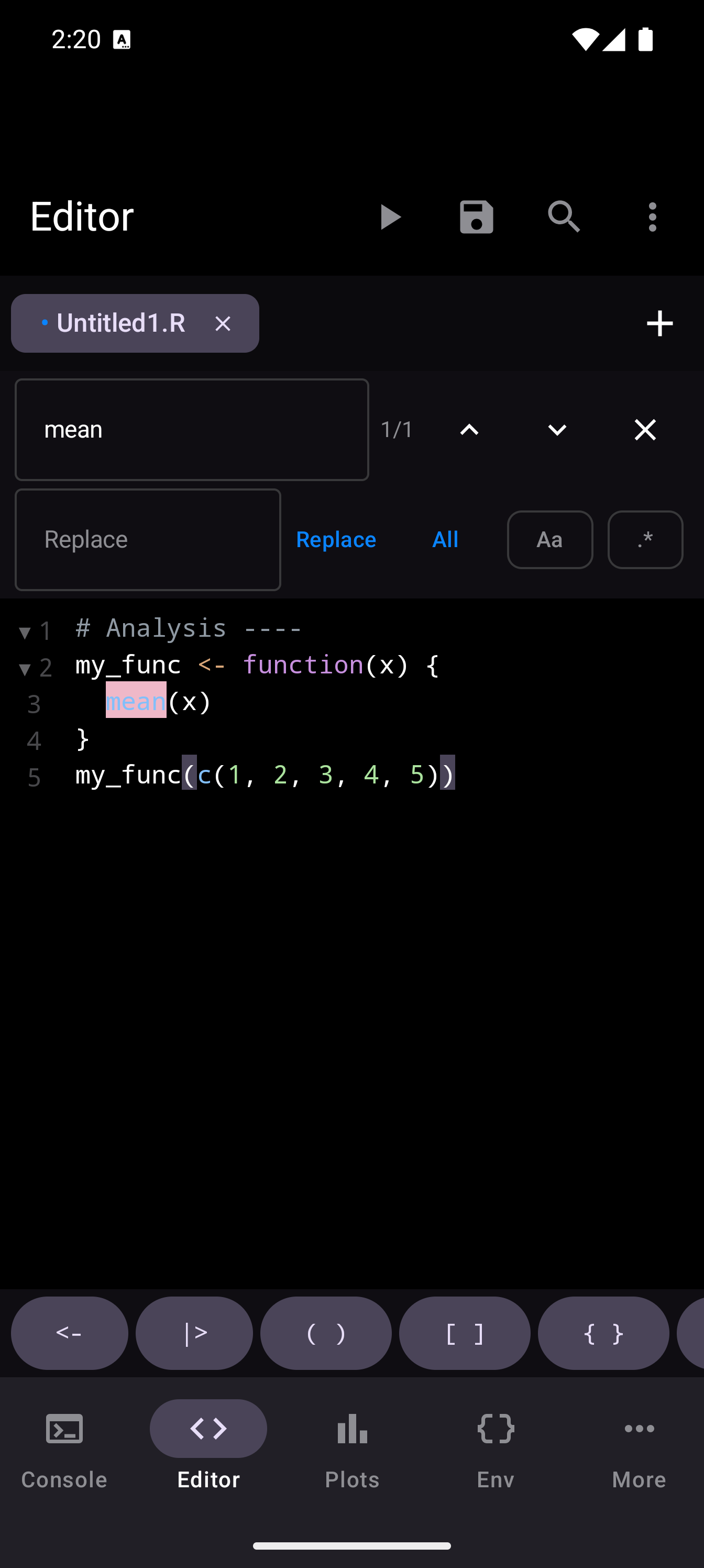
Case sensitivity
A toggle button in the Find bar controls whether the search is case-sensitive. When enabled, searching for Data will not match data.
Regular expressions
The .* toggle in the Find bar switches to regex mode. When active, the search field accepts regular expression patterns (e.g., \d+ to match numbers or df\$\w+ to match column references).
In the Replace field, use $1, $2, etc. to reference capture groups from your pattern.
Replacing text
Expand the Find bar to reveal the Replace field. Type the replacement text and use the buttons to:
- Replace the current match
- Replace all matches in the file at once
Find & Replace operates on the currently active tab only. If you need to search across multiple files, check each tab separately.
Code Snippets
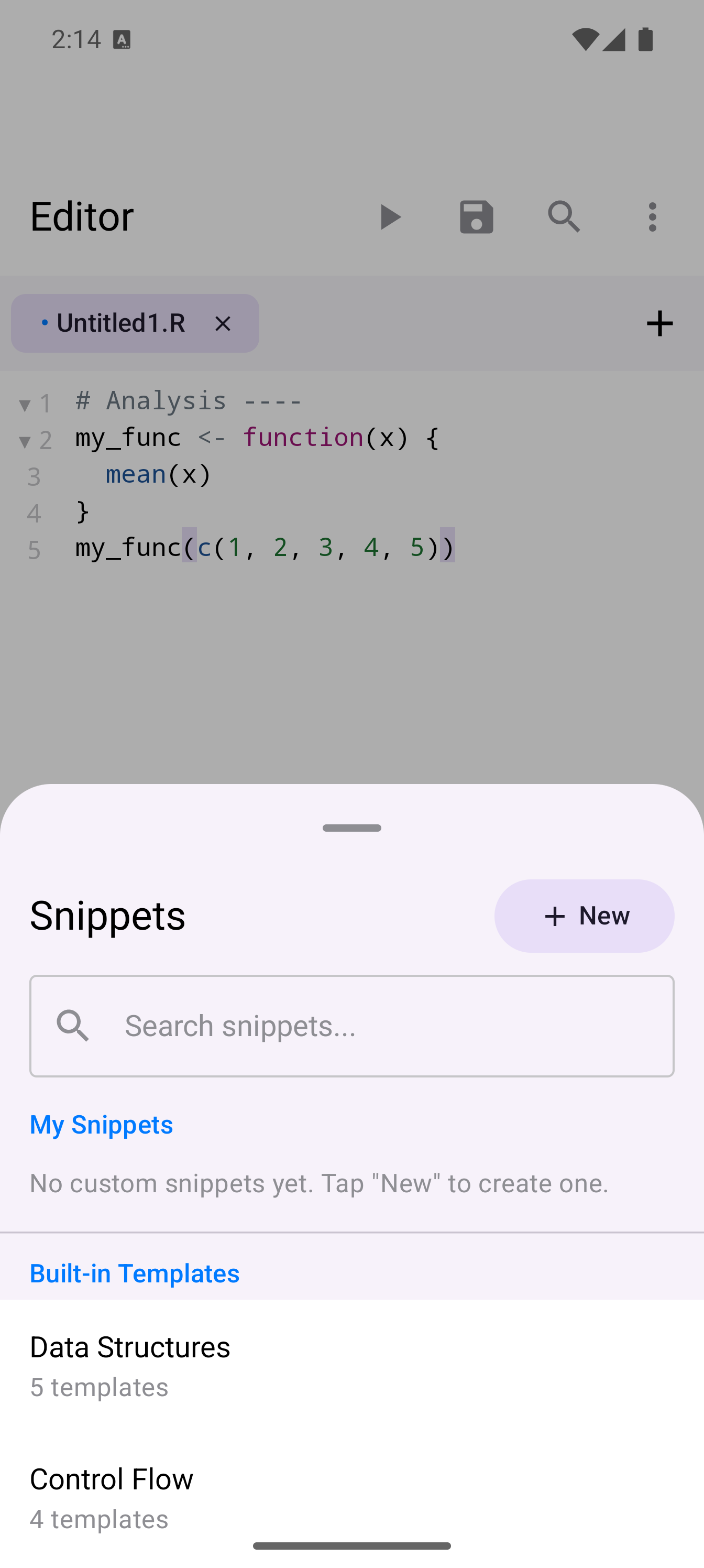
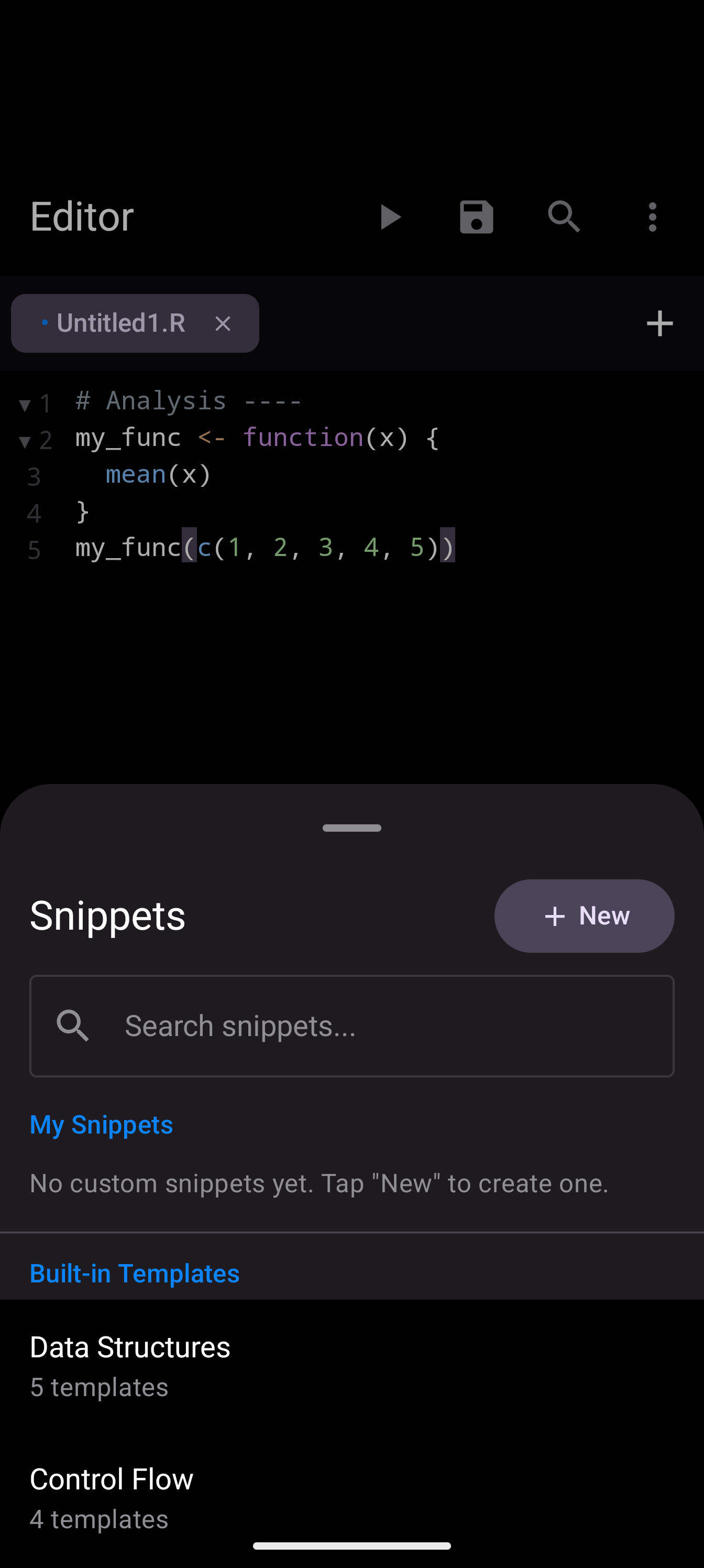
Snippets are pre-built R code templates that you can insert into your script with a few taps. Open the Snippets panel from the editor actions menu.
Built-in snippets
Snippets are organized by category (Data Structures, Control Flow, Functions, Visualization, Statistics, Input/Output, and Tidyverse). Browse a category, tap a snippet to preview it, and insert it into your code at the cursor position.
Each built-in snippet includes placeholder values (like variable_name or file_path) that you replace with your own values after inserting.
Custom snippets
You can create your own snippets for code patterns you use frequently:
- Open the Snippets panel.
- Tap the New button.
- Give it a name, assign it to a category, and write the code template.
- Use placeholder syntax to mark the parts that should be filled in each time you use the snippet.
Placeholders use the syntax ${name} for a required field, or ${name:default} to supply a default value. When you insert a snippet that contains placeholders, a form appears where you can fill in each value before the code is inserted.
For example, a custom snippet like this:
${data:mtcars} |>
  filter(${column} > ${threshold:0}) |>
  summary()
will prompt you for three fields: Data (defaulting to mtcars), Column (required), and Threshold (defaulting to 0).
Custom snippets appear alongside the built-in ones and can be edited or deleted at any time.
If you find yourself writing the same boilerplate over and over (a ggplot skeleton, a data import block, a function header), save it as a custom snippet.
Code Outline
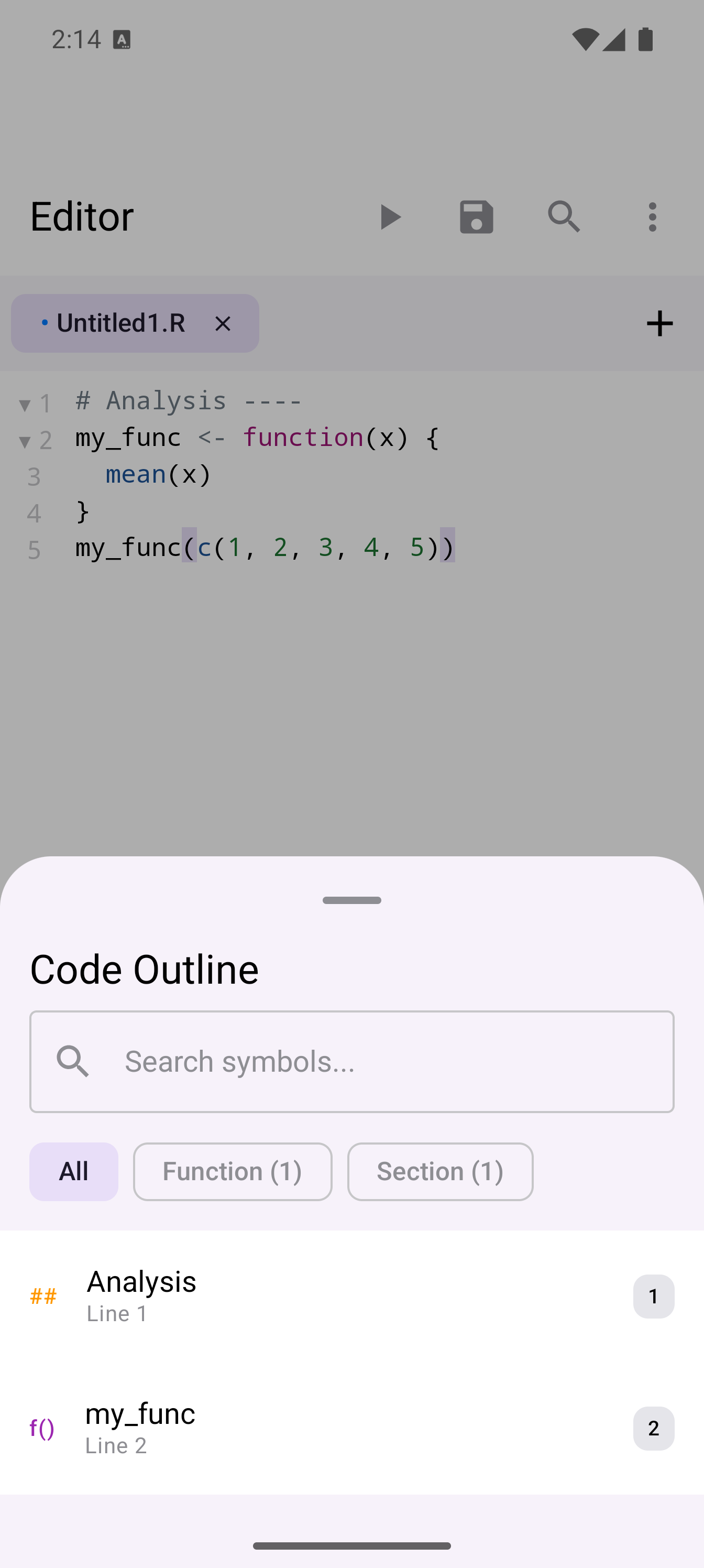
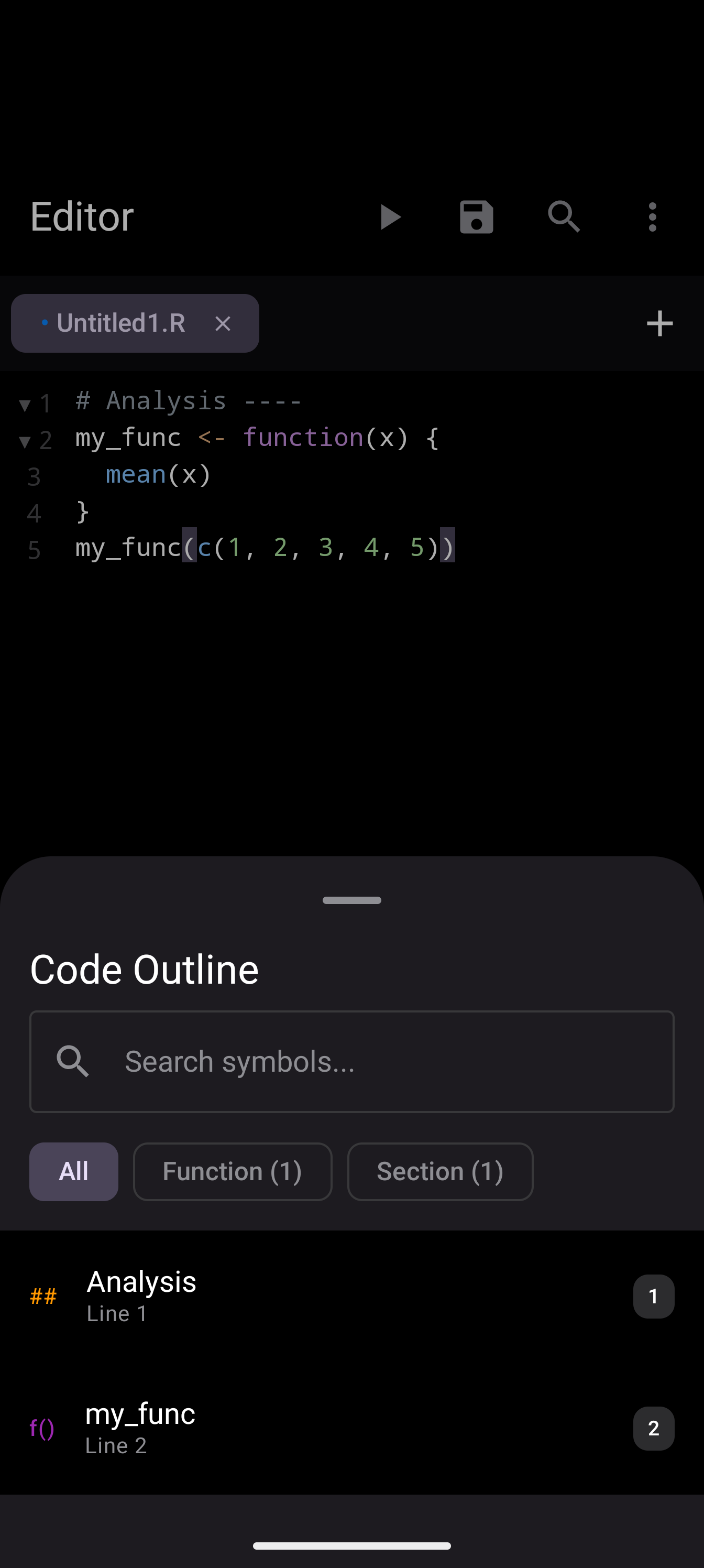
The Code Outline shows a structural overview of your script. It lists the functions, sections (marked with # Section Name ---- comments), and other top-level structures in your file.
Tap any item in the outline to jump directly to that location in your code. This is especially useful in longer scripts where scrolling to find a specific function takes too long.
Open the Code Outline from the editor actions menu.
Jump to Line
The editor overflow menu includes a Jump to Line option. Selecting it opens a dialog where you type a line number and tap Go to scroll directly to that line. This is a quick alternative to scrolling manually or using the Code Outline when you already know the exact line you need.
Gist Export
You can share your code as a GitHub Gist directly from the Editor. Open the editor actions menu and choose Export to Gist. The current file is uploaded to GitHub as a Gist, and you get a shareable URL.
This is handy for:
- Sharing a script with a collaborator
- Posting a code example in a forum or discussion
- Creating a quick backup of a single file
Gist export creates a public gist by default. If you need a private gist, you can change the visibility on GitHub after creating it.
Split Pane
On tablets or in landscape orientation, you can split the Editor into two side-by-side panes, each showing a different file. This lets you reference one file while editing another. For example, you can view a data processing script on the left while writing a visualization script on the right.
To enable split pane:
- Open at least two tabs.
- Open the editor actions menu.
- Select Split Editor.
Each pane has its own tab bar and operates independently. You can run code from either pane, and the output panel is shared between them.
To close the split, use the editor actions menu again and choose to exit split mode, or close tabs until only one pane remains.
Split pane works best on larger screens. On a phone in portrait, the panes will be too narrow to be practical, so try it in landscape or on a tablet.