Settings
Settings is where you tailor webRoid to the way you work. Everything is organized into clearly labeled sections that you scroll through on a single screen: Appearance, Layout, Plots, Console, Editor, Session, Storage, and App Info.
Appearance
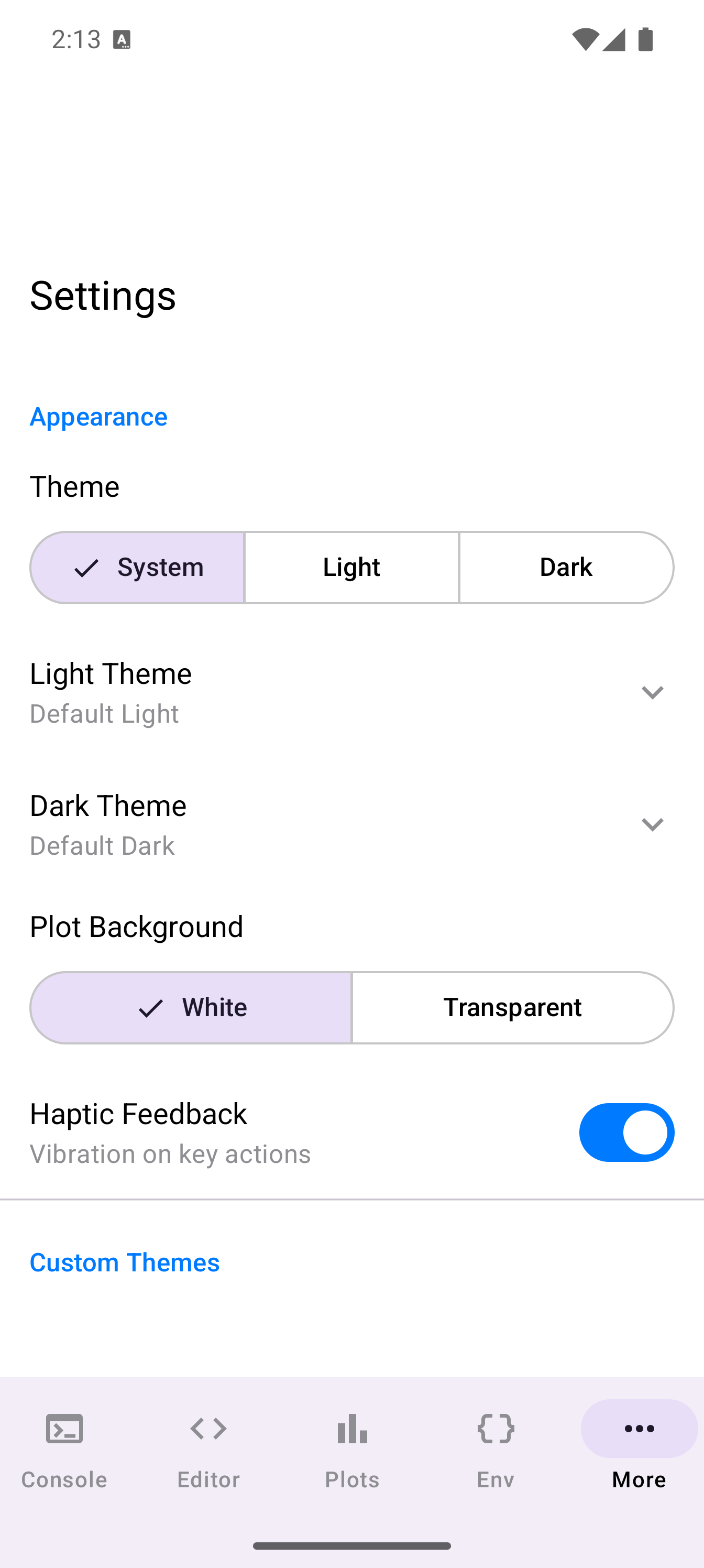
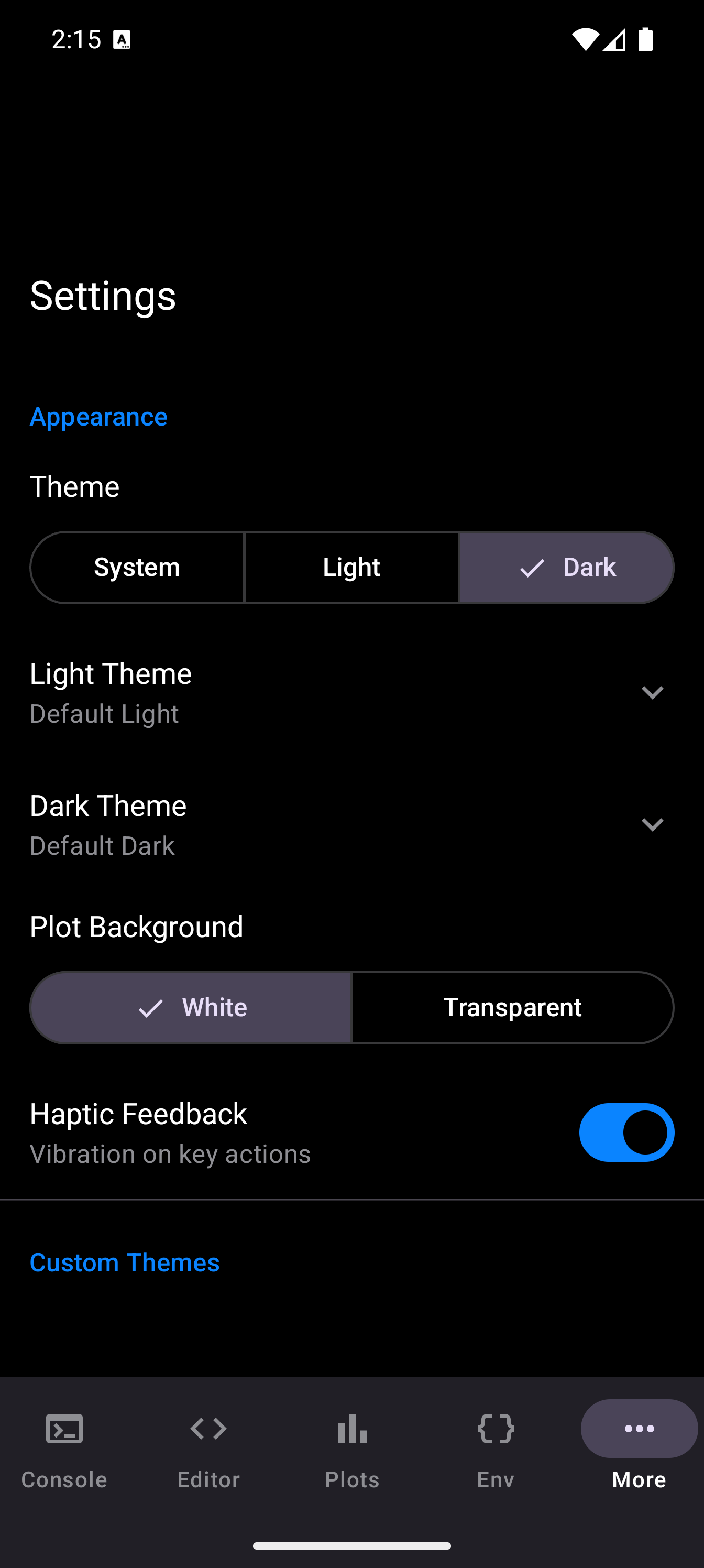
The Appearance section controls the visual feel of the app. It includes theme mode selection, theme pickers for light and dark mode, custom theme management, and haptic feedback.
For full details on choosing, creating, and importing themes, see the Themes guide. That page also covers the Plot Background setting, which controls whether R plots render on a white or transparent background.
Haptic Feedback
A toggle switch labeled “Vibration on key actions.” When enabled, you get a short vibration when you tap toolbar buttons, run code, or perform other key actions. Turn it off if you prefer a silent experience or if vibrations are distracting.
Layout Modes
The Layout Mode setting controls how you navigate between the Console, Editor, Plots, Environment, and other sections of the app. A segmented button gives you three choices.
Tab Bar
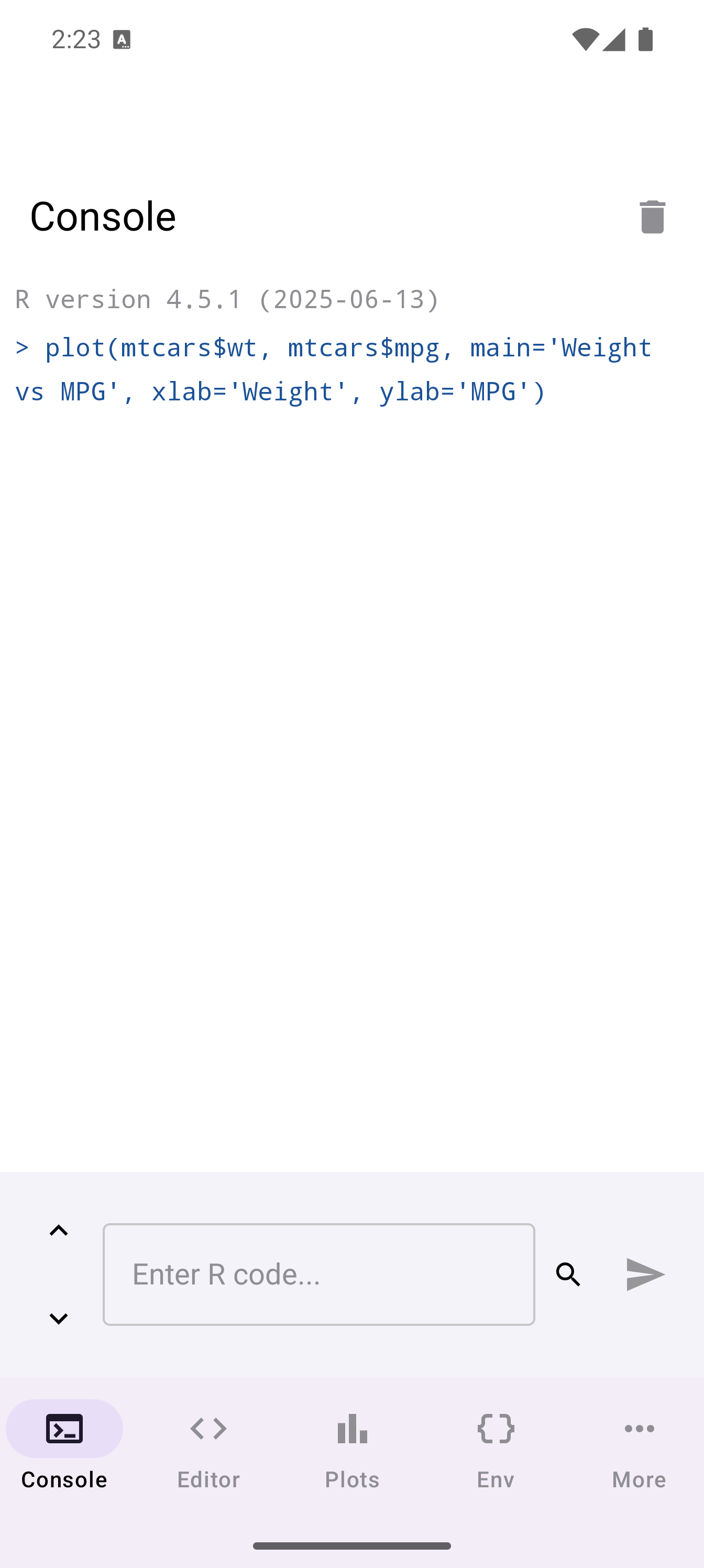
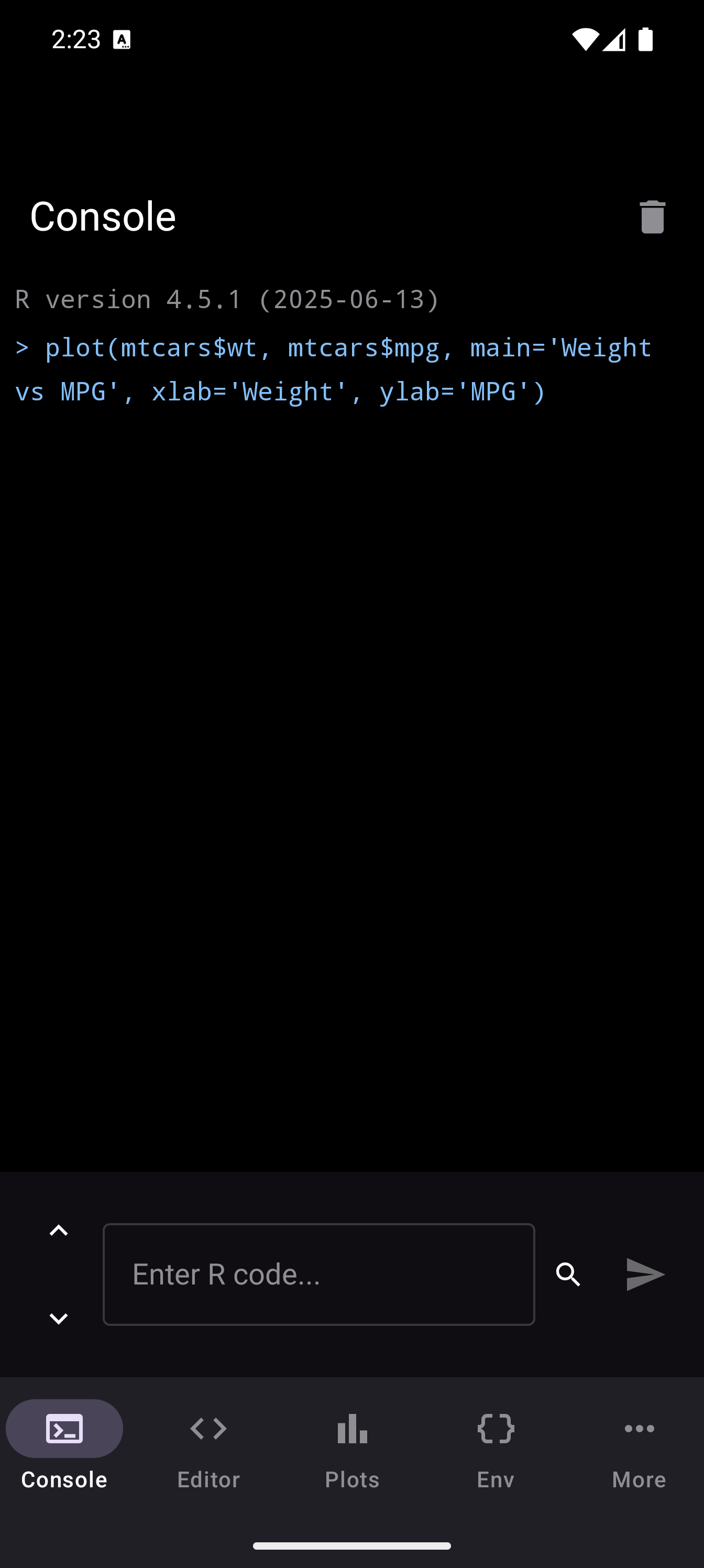
The default layout. A row of icons sits along the bottom of the screen, just like most Android apps. Tap an icon to switch to that section. Each section takes up the full screen.
When to use it: Tab Bar is the simplest option. It works well on phones and on tablets when you only need to focus on one thing at a time.
Sidebar
A collapsible navigation panel on the left side of the screen, with the main content area on the right. The sidebar groups sections into categories so you can jump between them quickly. When you select Sidebar mode, an additional toggle appears: Collapse sidebar: when enabled, the sidebar automatically collapses after you tap an item, giving you more room for content.
When to use it: Sidebar works well on tablets in landscape, where you have enough horizontal space to keep the sidebar visible alongside your work. On phones, it overlays the content and dismisses on tap.
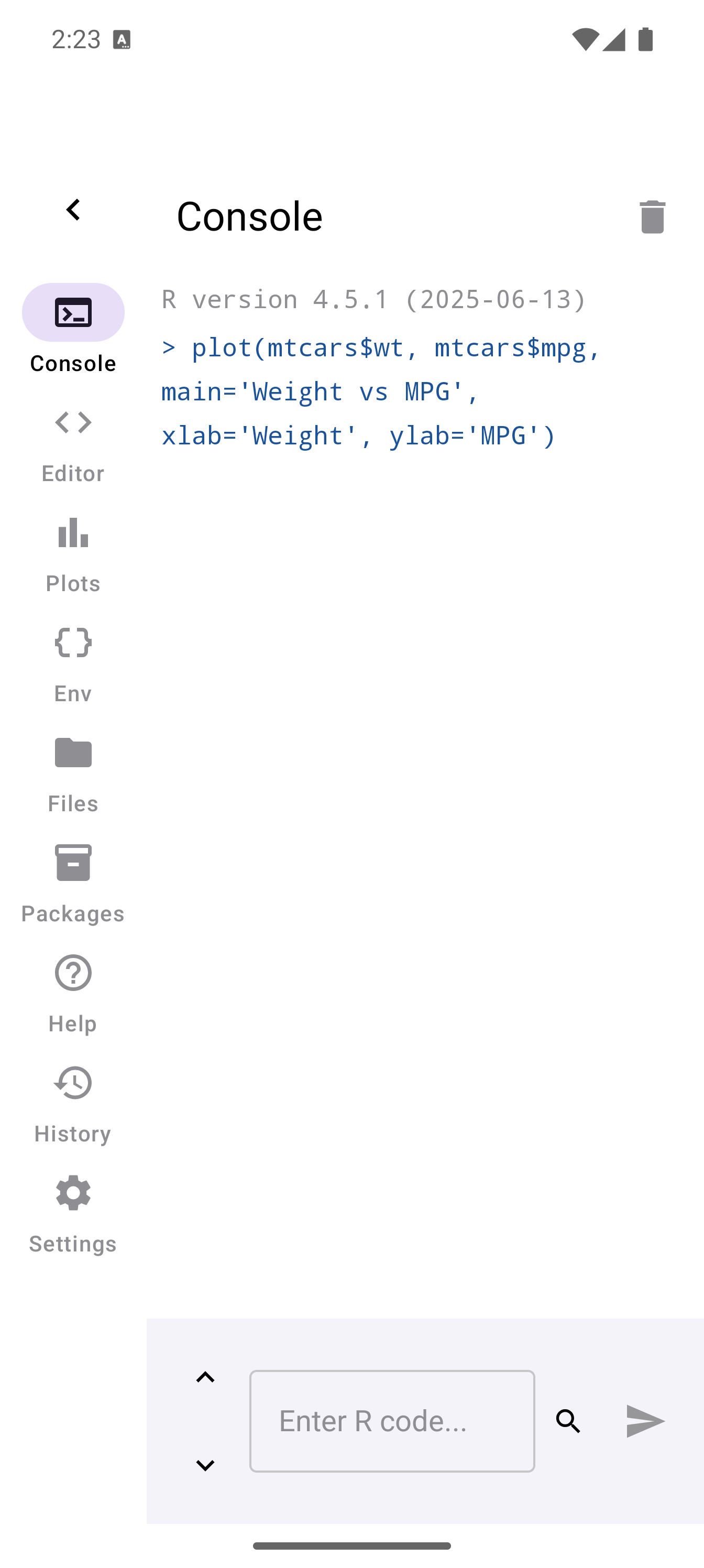
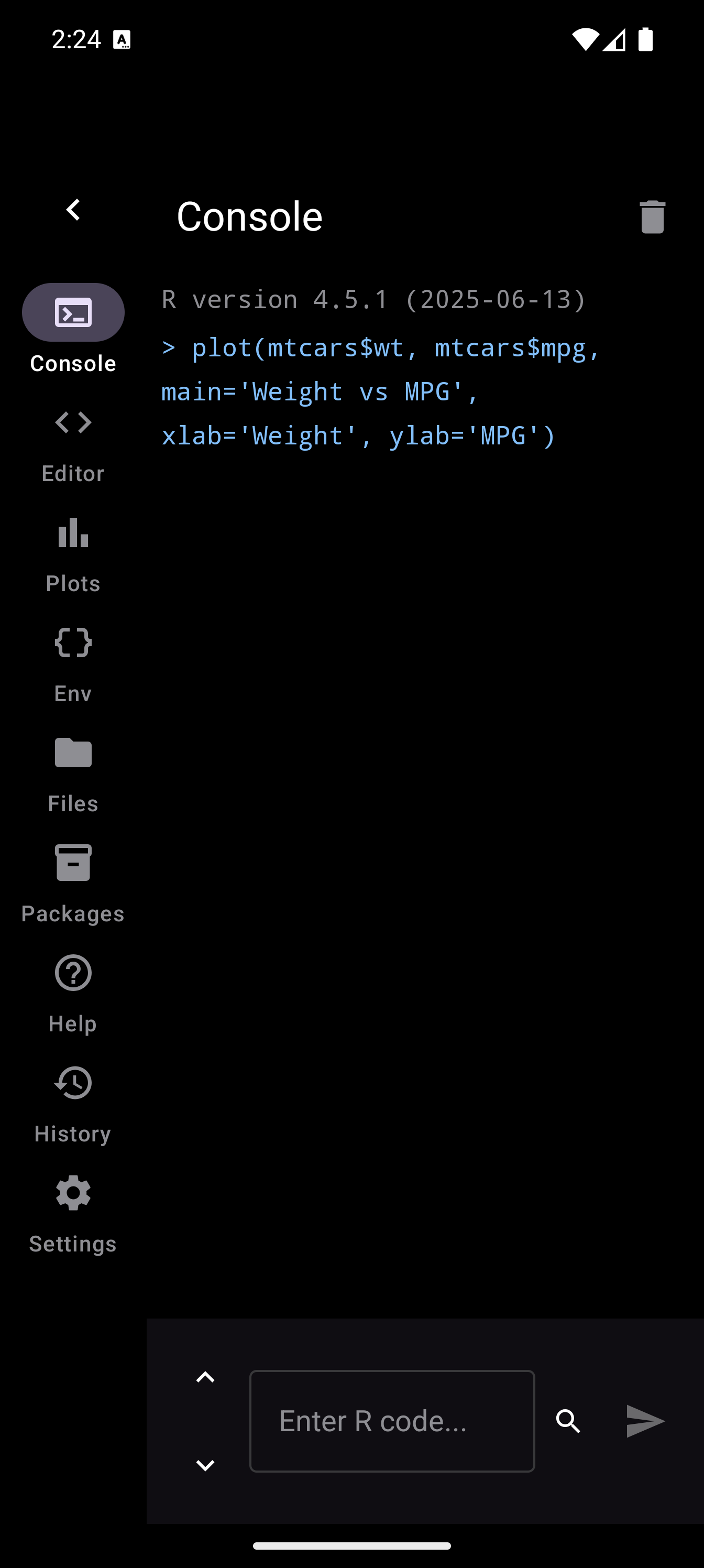
When collapsed, a small arrow button at the top-left lets you expand the sidebar again:
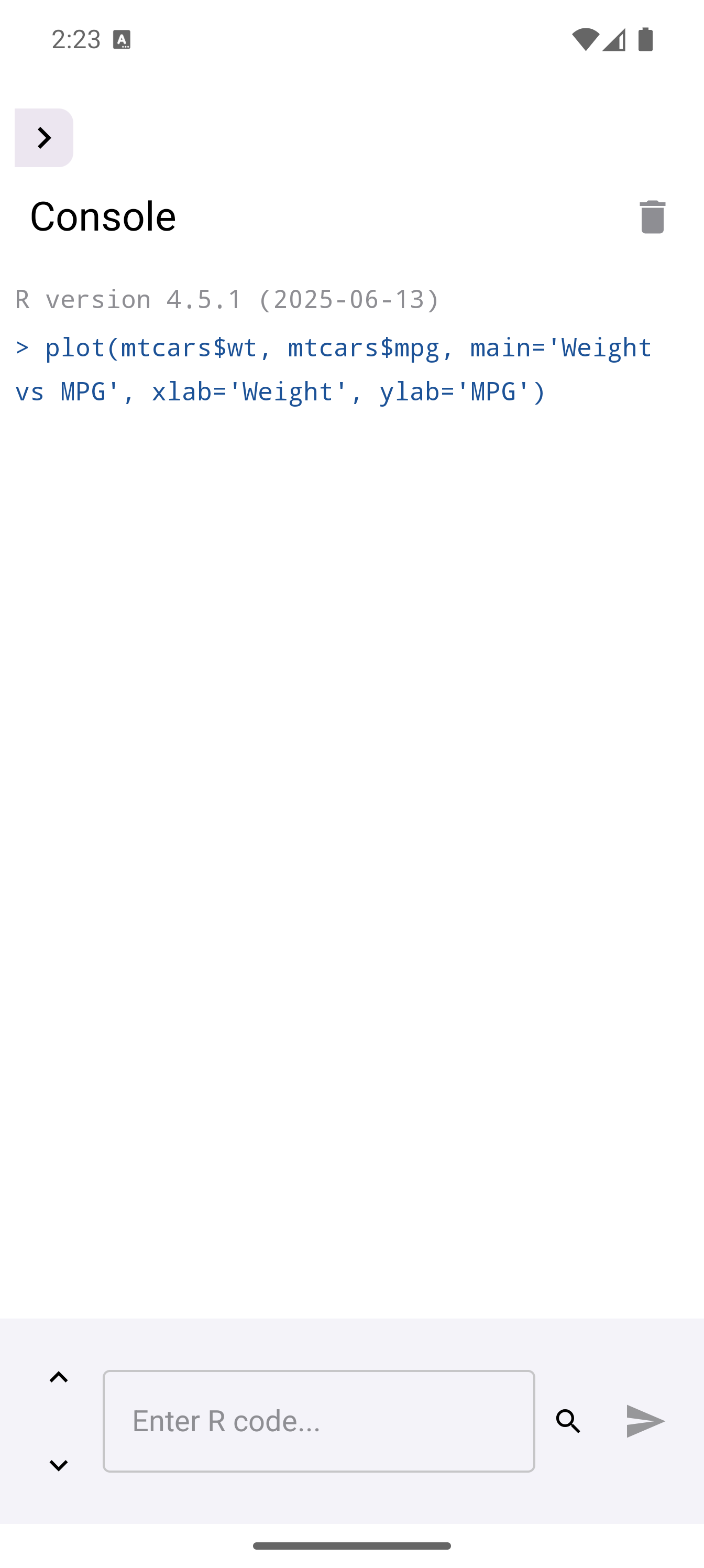
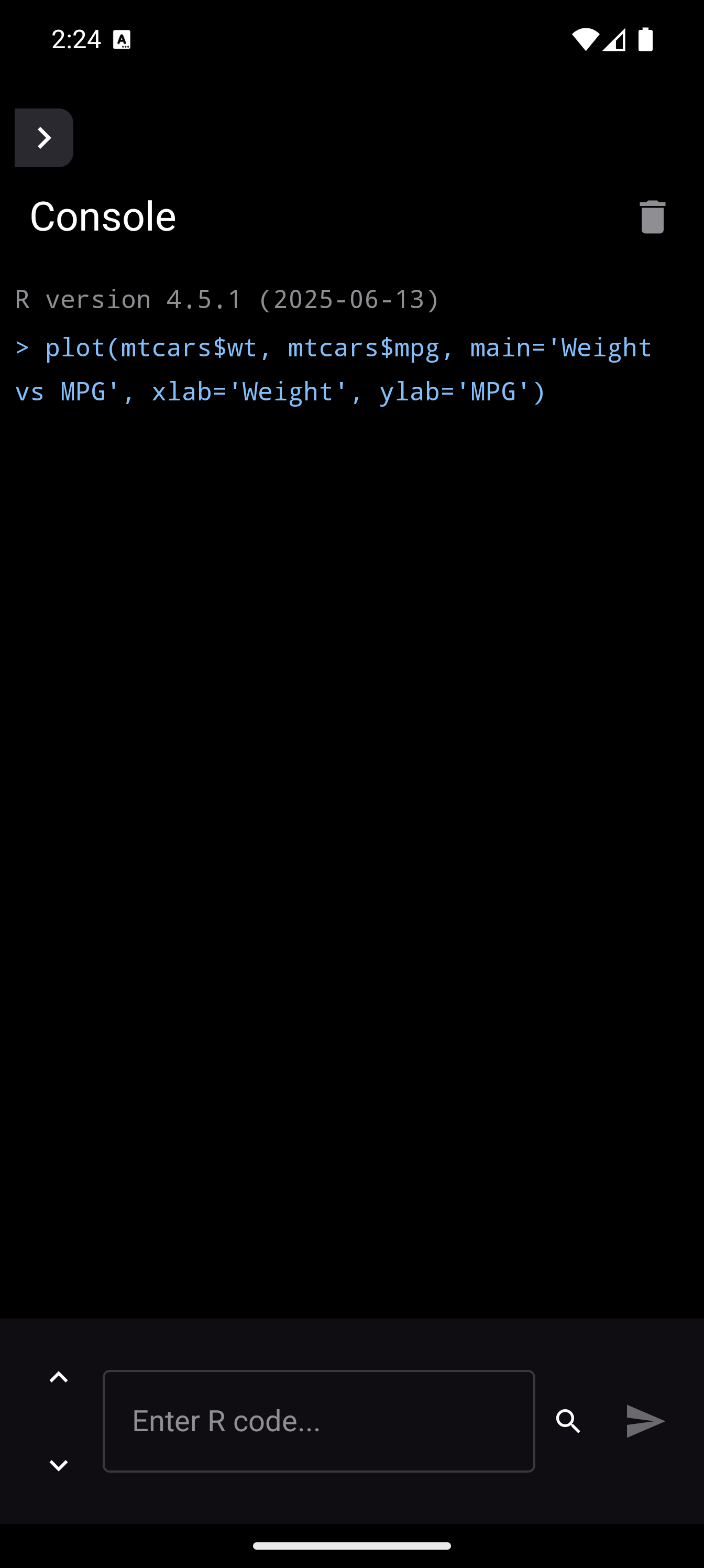
Workspace
A 4-pane layout with all key tools visible at once. The screen is divided into resizable panes: Editor and Console on one side, Environment and other tools on the other. Drag the dividers to adjust proportions.
When to use it: Workspace mode is ideal for tablets in landscape orientation. It lets you see your code, console output, and environment variables all at once without switching between tabs.
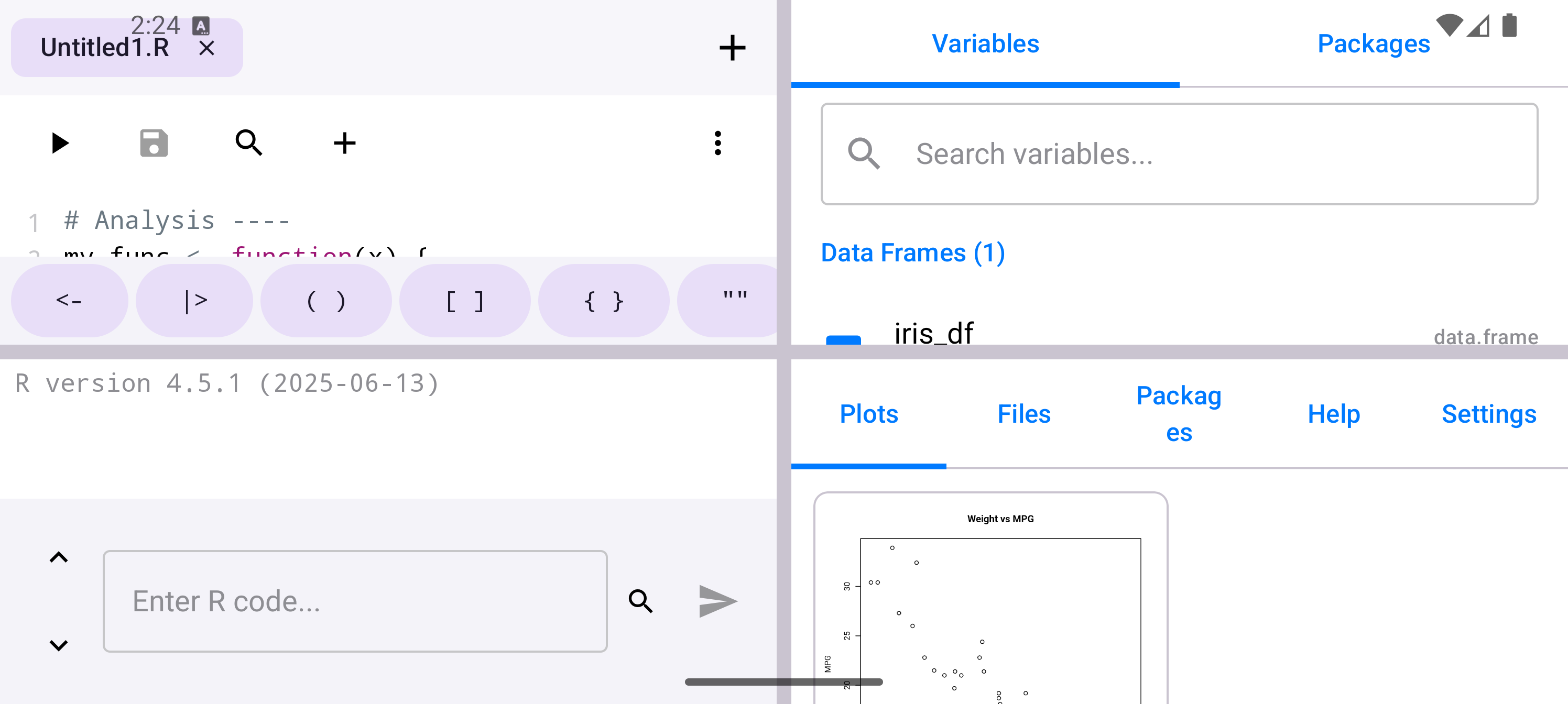
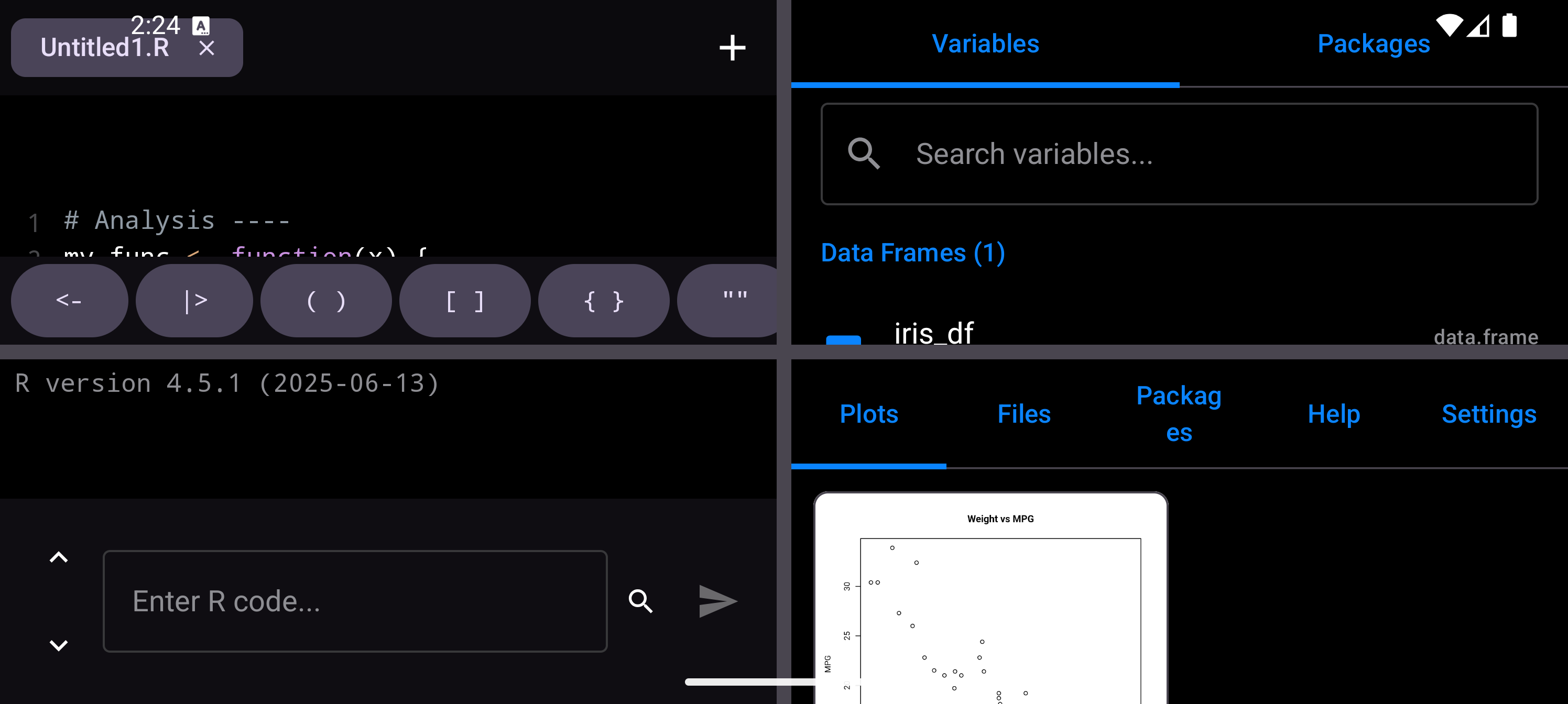
You can switch layout modes at any time. If you are on a phone and find Workspace too cramped, switch back to Tab Bar. If you plug your tablet into a keyboard and want a desktop-like experience, try Workspace.
Plot Display Options
The New Plot Display setting controls what happens when R generates a new plot. A segmented button offers four modes:
| Mode | Behavior |
|---|---|
| Tab Only | The plot is added to the Plots tab quietly. You switch to the Plots tab to see it. Best when you are running scripts that produce many plots and you do not want to be interrupted. |
| Floating | The plot appears as a floating window that you can drag around the screen. You can dismiss it or move it out of the way while continuing to work. |
| Sheet | The plot slides up as a bottom sheet, showing the result prominently. Swipe it down to dismiss. Good when you want to see each plot immediately but not have it permanently on screen. |
| Inline | The plot renders directly in the Console output, inline with your other results. This is the most integrated option, and your plots flow naturally with your code output. |
Regardless of display mode, all plots are always accessible from the Plots tab. The display setting only controls how a new plot is presented the moment it is generated.
Font and Editor Preferences
Console Font Size
A slider that adjusts the font size in the Console output area. The range is 10px to 24px, and the current value is displayed next to the slider (e.g., “14px”). Drag the slider to find a size that is comfortable for your screen and eyesight.
Editor Font Size
A separate slider (also 10-24px) that controls the font size in the code editor. You can set the Console and Editor to different sizes if you prefer larger output text but a more compact editor.
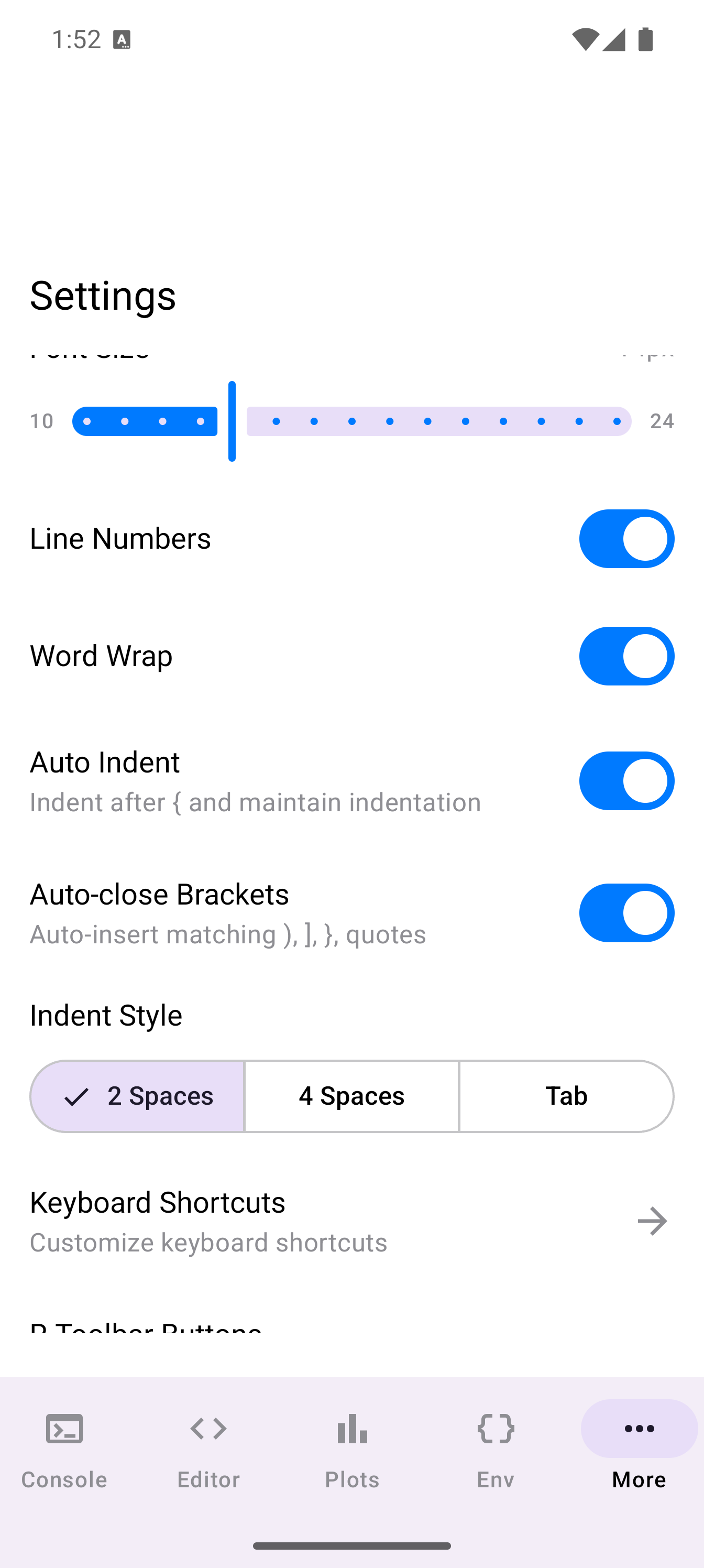
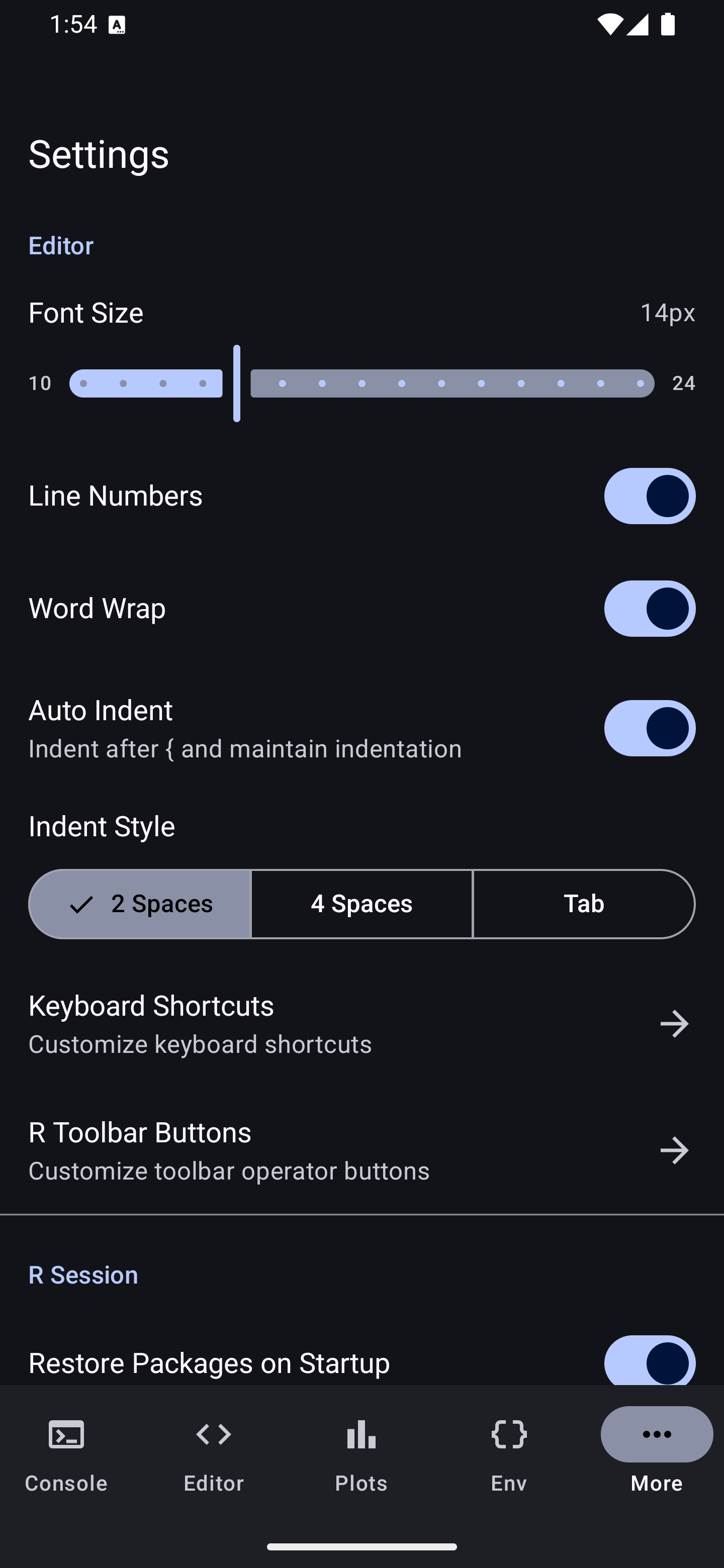
Editor Toggles
The Editor section includes several on/off switches:
| Setting | What it does |
|---|---|
| Show Line Numbers | Displays line numbers in the left gutter of the editor. Useful for debugging and discussing code with others (“check line 42”). |
| Word Wrap | When enabled, long lines wrap to fit the screen width instead of scrolling horizontally. Helpful on narrow phone screens. |
| Auto-Indent | Automatically indents new lines to match the current block depth. Keeps your code neatly aligned as you type. |
| Auto-close Brackets | Automatically inserts matching closing brackets and quotes when you type an opener ((, [, {, ", '). |
Indent Style
A segmented button to choose between Spaces and Tabs for indentation. This applies when you press the Tab key on an external keyboard or when auto-indent inserts whitespace.
If you are sharing code with others or following a style guide (like the tidyverse style), Spaces with 2-space indentation is the most common R convention.
R Toolbar Buttons
The R Toolbar Buttons screen lets you customize the operator buttons that appear on the keyboard toolbar in the Editor and Console. A live preview of the toolbar is shown at the top of the screen, with the full button list below.
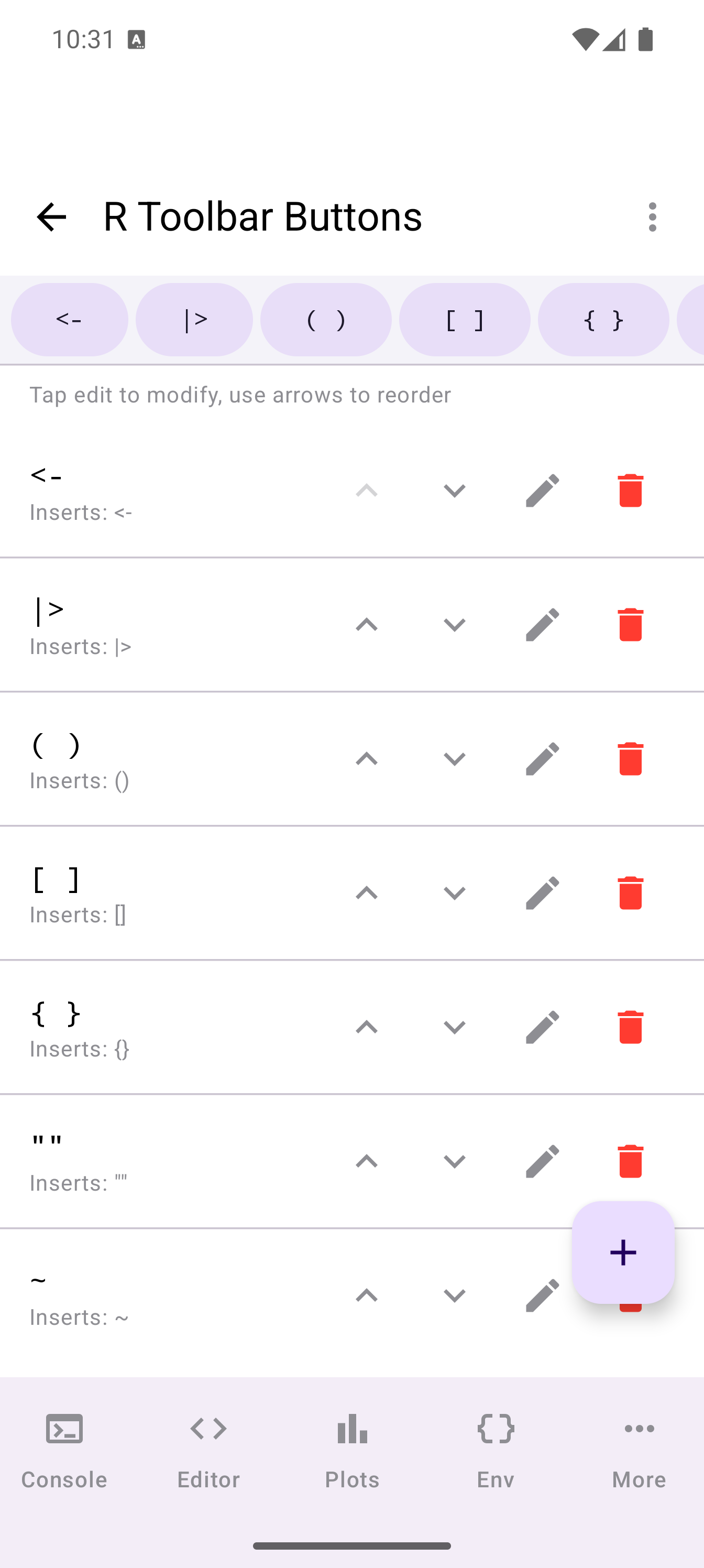
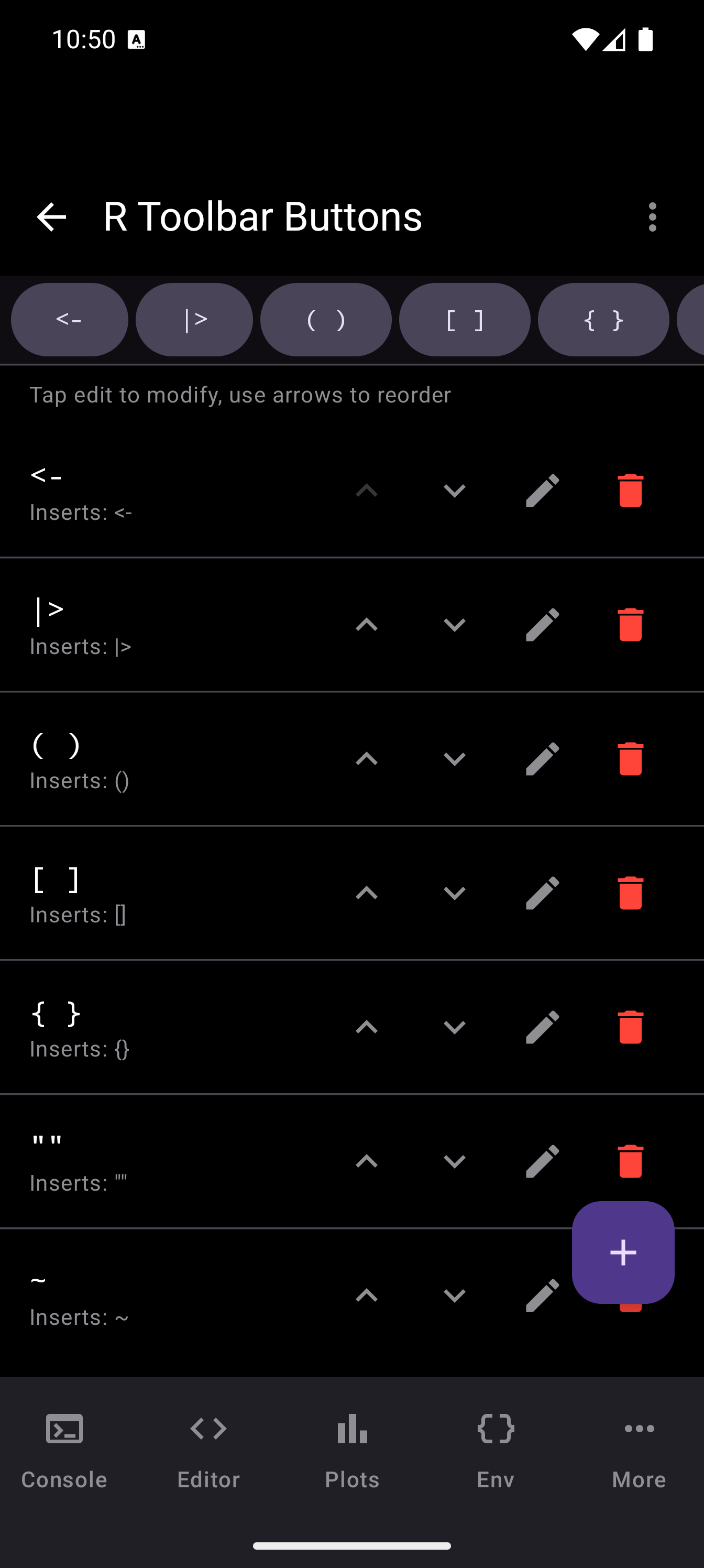
Use the floating action button to add a new button. Each button in the list can be:
- Edited with the pencil icon to change its label or inserted text
- Reordered with the up/down arrows
- Deleted with the trash icon
To restore the default set of buttons, tap the overflow menu and select Reset to Defaults.
Add custom operators like %>%, |>, or \(x) for quick access while coding.
Session Management
The Session section gives you control over the R engine and its state.
Soft Reset R
Tap this button to perform a soft reset of the R session. This clears your global environment (all variables and data) and restarts the R interpreter, but it does not unload packages or remove installed libraries. Your editor files are preserved. Use this when you want a clean slate without waiting for a full restart.
Garbage Collection
Tap this button to run gc() and free up memory used by R objects that are no longer referenced. Worth trying if the app feels sluggish or you have just deleted large datasets.
Restore Packages on Startup
When this toggle is enabled, packages you have previously installed are automatically restored when webRoid launches. This means you do not have to run install.packages() again after restarting the app. Your packages are ready to load with library() right away.
Persist Workspace
When enabled, your R workspace (variables, data frames, and other objects in the global environment) is saved when you close the app and restored the next time you open it. This is equivalent to saving and loading .RData in desktop R.
If you are working with large datasets, be aware that persisting the workspace increases app startup time. Consider turning this off if you prefer a clean session each time.
Storage Location
Tap Pick Storage Location to open Android’s Storage Access Framework (SAF) folder picker. This lets you choose where webRoid reads and writes files on your device. You might point it to a folder in your internal storage, an SD card, or a cloud-synced directory.
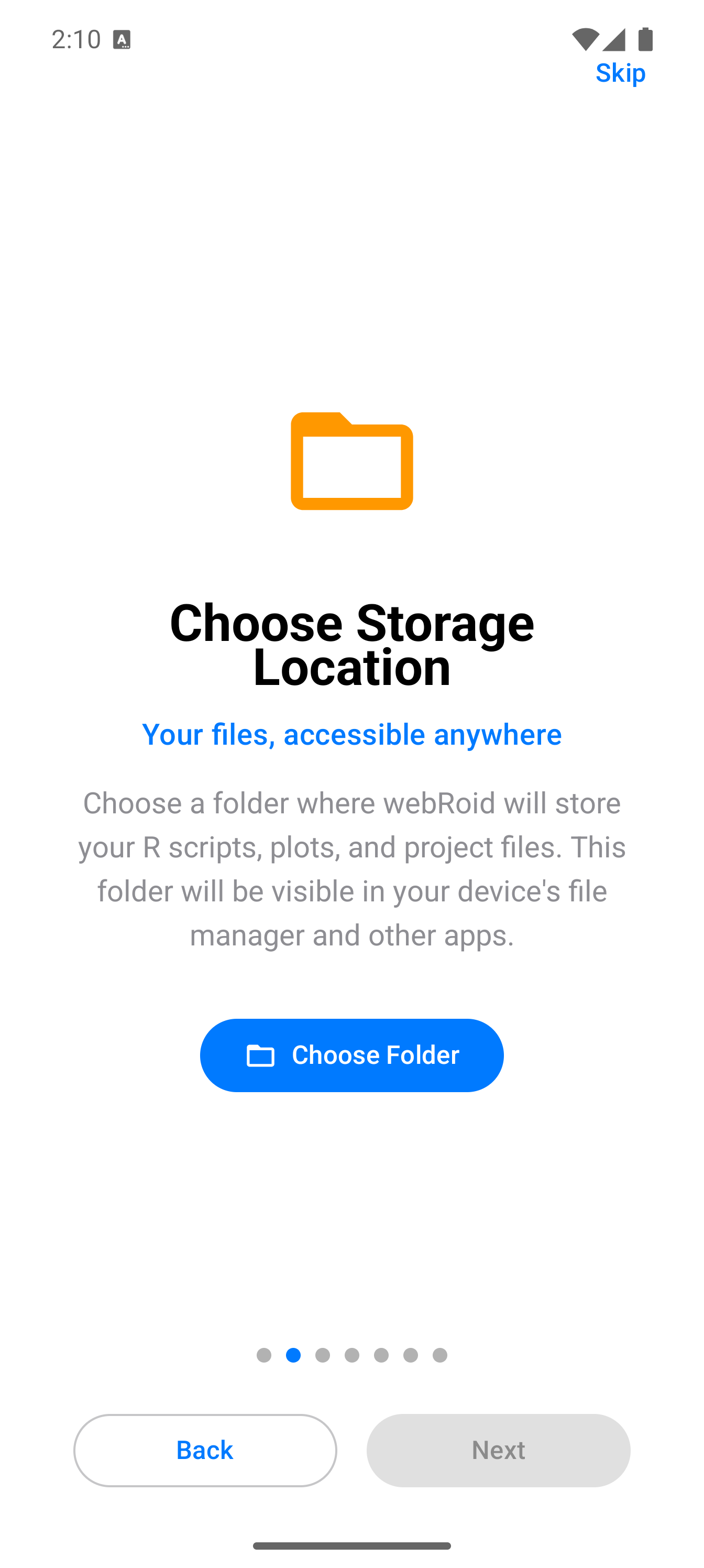
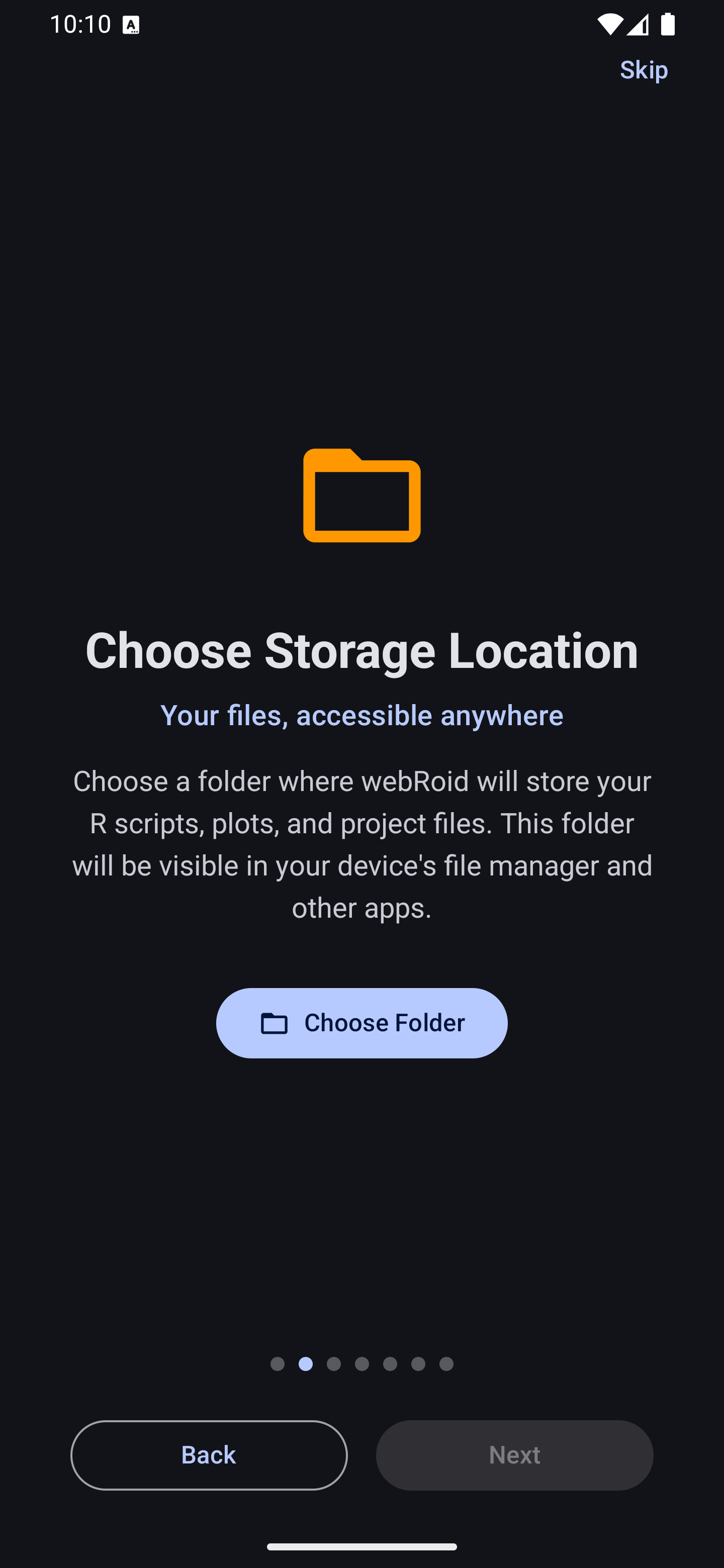
Once set, the Files tab in the app will show the contents of this location, and saving files from the Editor will default to this directory.
If you use a file syncing service (like Syncthing or a cloud provider with a local folder), setting your storage location to that folder means your R scripts are automatically backed up.
Keyboard Shortcuts
webRoid supports external keyboards, and there is a built-in reference for all available shortcuts. Tap Keyboard Shortcuts in the App Info section to open it. Shortcuts can also be customized: tap any shortcut in the reference card to reassign its key combination.
The table below lists the default bindings. All shortcuts use the Ctrl key as the primary modifier, matching conventions familiar from desktop editors.
Run
| Action | Default Shortcut |
|---|---|
| Run Line/Selection | Ctrl+Enter |
| Run All | Ctrl+Shift+Enter |
File
| Action | Default Shortcut |
|---|---|
| Save | Ctrl+S |
| New Tab | Ctrl+N |
| Close Tab | Ctrl+W |
| Open File | Ctrl+O |
Find
| Action | Default Shortcut |
|---|---|
| Find | Ctrl+F |
| Find & Replace | Ctrl+Alt+F |
Edit
| Action | Default Shortcut |
|---|---|
| Toggle Comment | Ctrl+/ |
| Duplicate Line | Ctrl+D |
Insert
| Action | Default Shortcut |
|---|---|
Insert Assignment (<-) |
Alt+- |
Insert Pipe (|>) |
Ctrl+Shift+M |
App Info
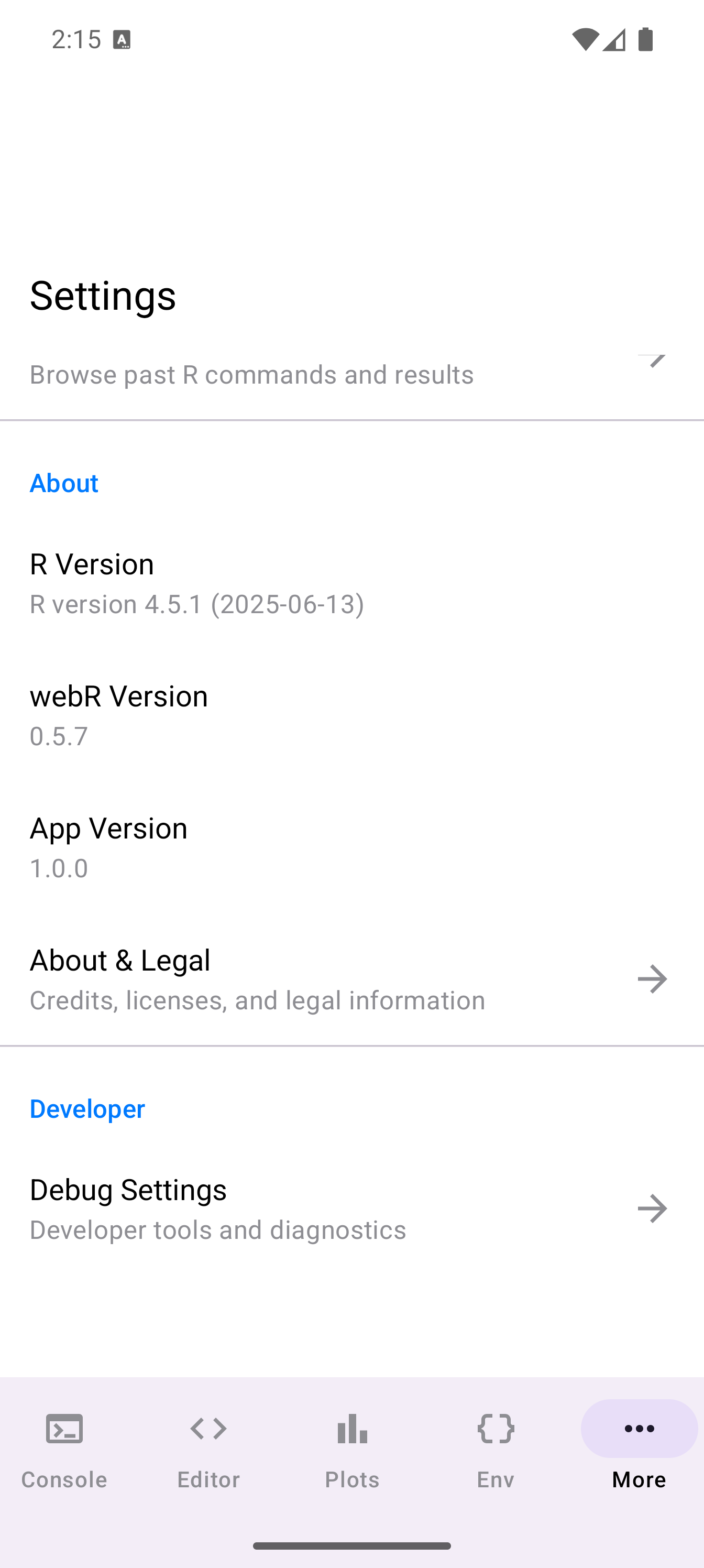
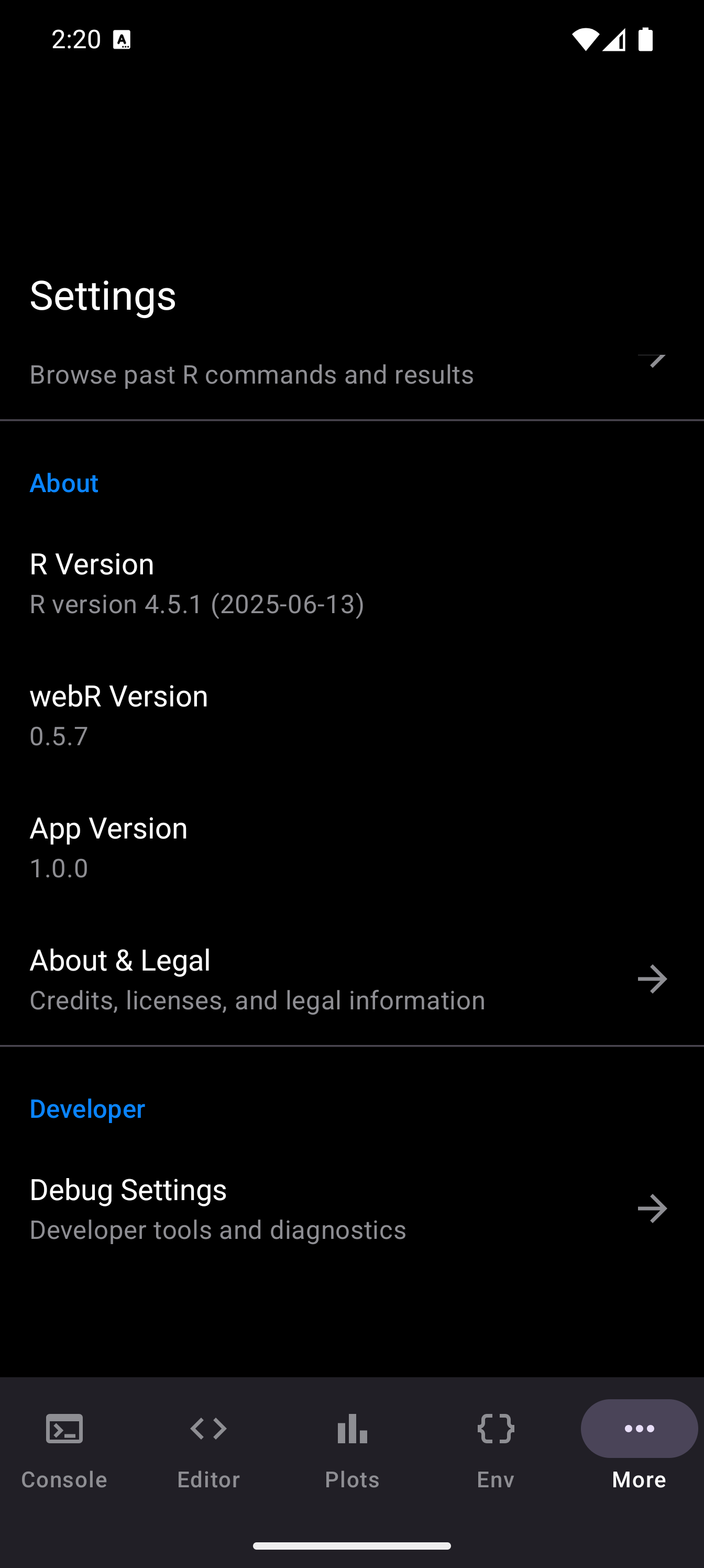
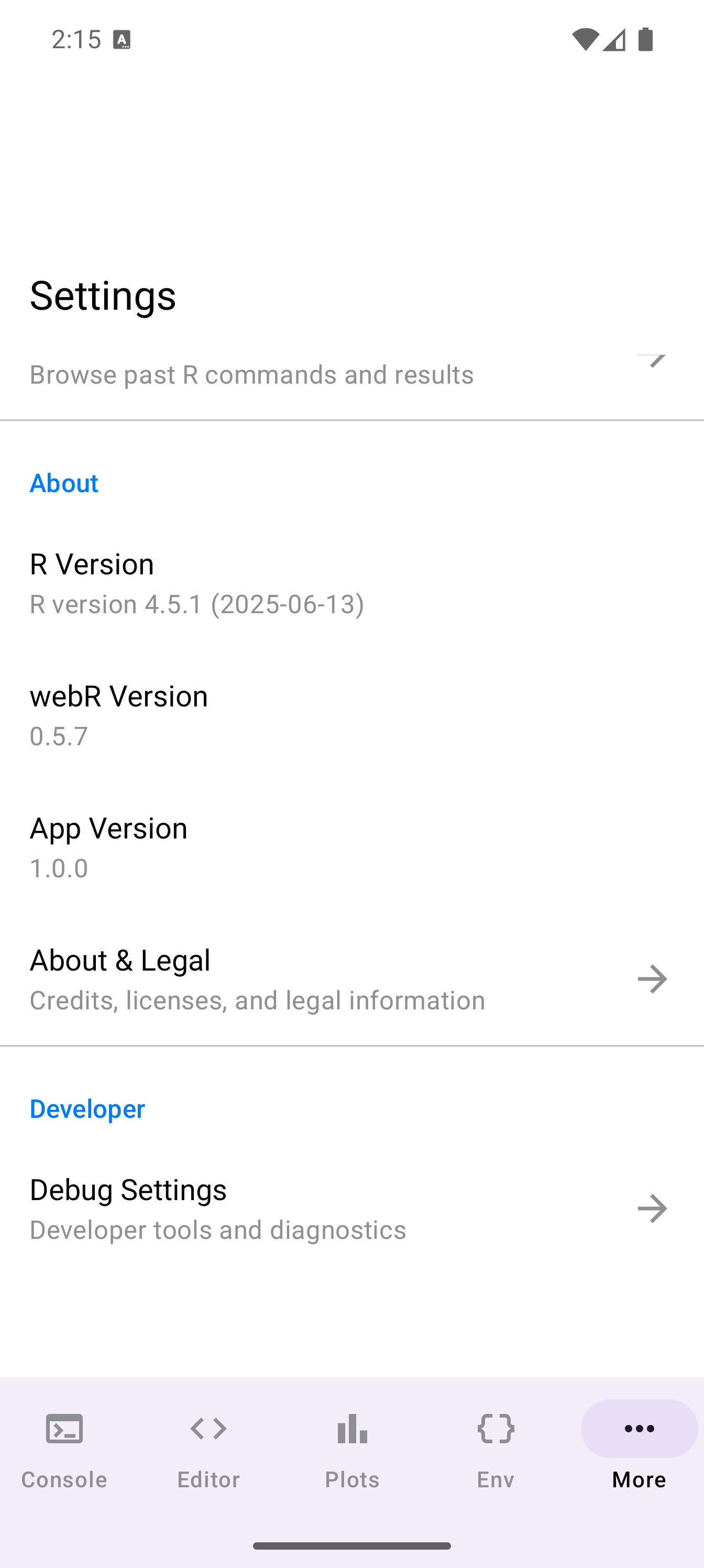
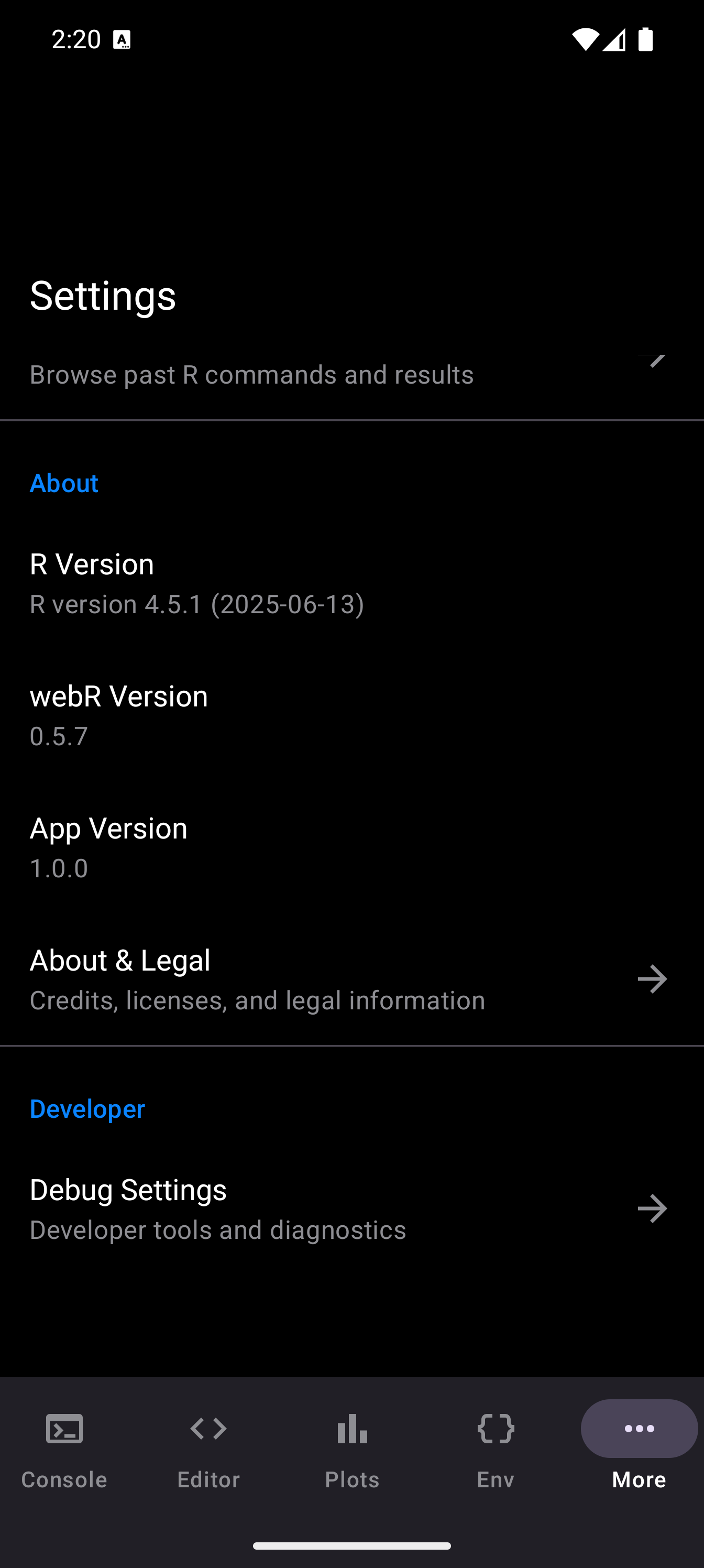
At the bottom of the Settings screen, the App Info section shows:
| Item | Description |
|---|---|
| R Version | The version of R running inside webR (e.g., R 4.4.1). |
| webR Version | The version of the webR WebAssembly runtime used by the app. |
| App Version | The current webRoid release number. |
| Keyboard Shortcuts | Opens the shortcut reference card described above. |
| About | Information about the app and its purpose. |
| Feedback | Opens a feedback form for reporting bugs or requesting features. |
| Debug Settings | Advanced diagnostic options for troubleshooting. Only needed if you are reporting a bug or asked by a developer to enable logging. |
| Open Source Licenses | Lists the open source libraries and frameworks webRoid is built on, along with their license texts. |