Environment
The Environment screen shows you everything R is holding in memory. Instead of typing ls() or str() in the console to check on your variables, you can switch to Environment and see names, types, sizes, and previews at a glance.
Overview
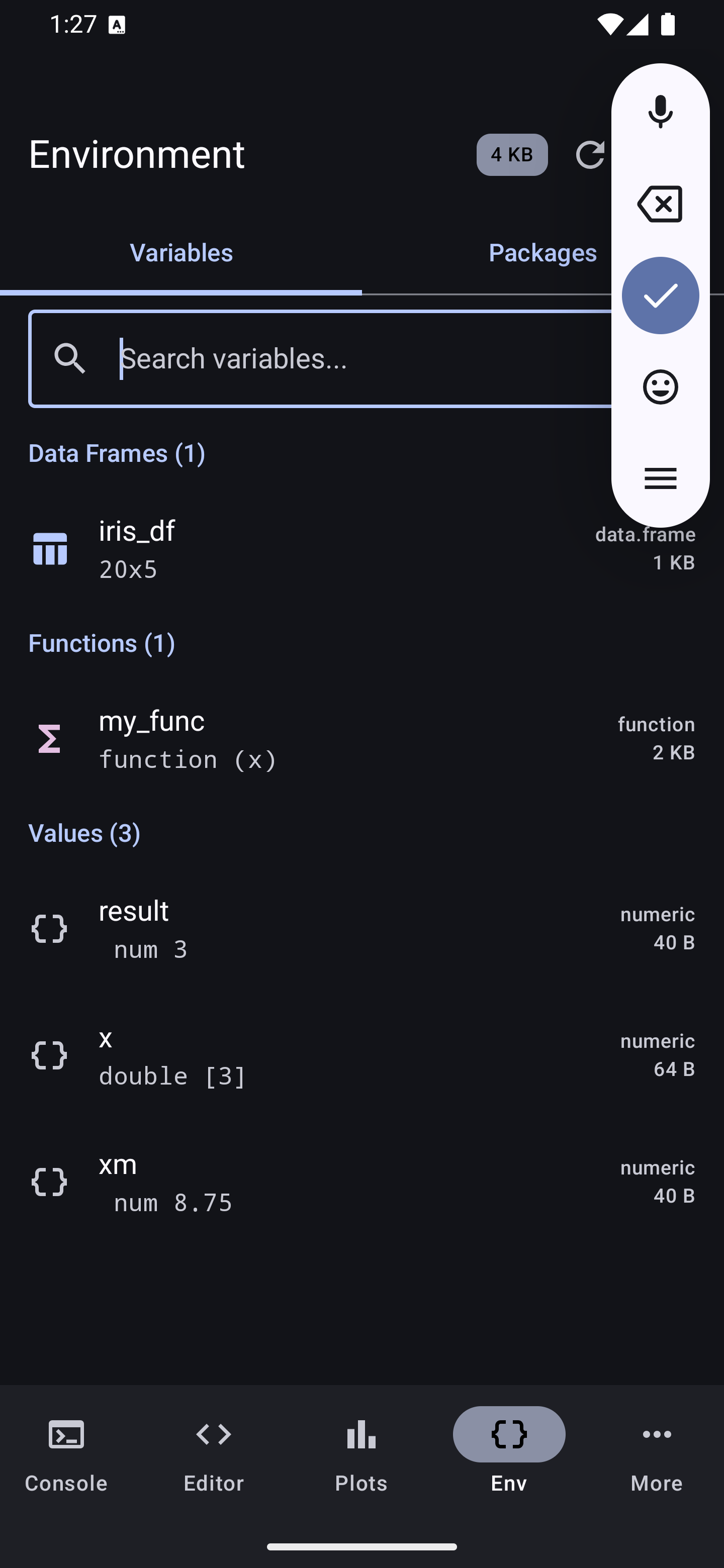
The Environment screen has the following layout:
- Title bar showing “Environment” with a memory badge (e.g., “15.8 KB”), a refresh icon, and an overflow menu
- Two tabs: Variables and Packages
- Search bar with a magnifying glass and “Search variables…” placeholder
- Variable list grouped by type, with each entry showing a type icon, name, value preview, class, and memory size
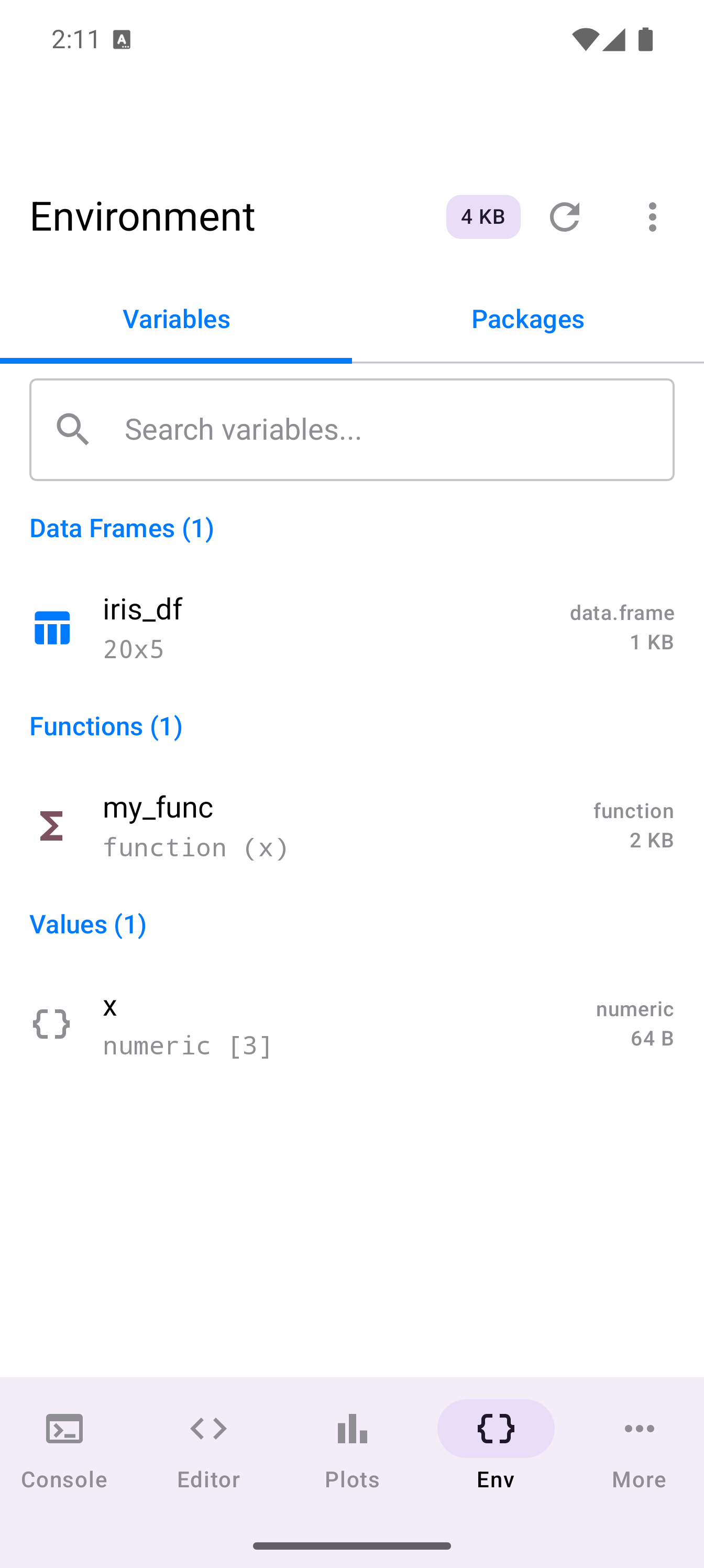
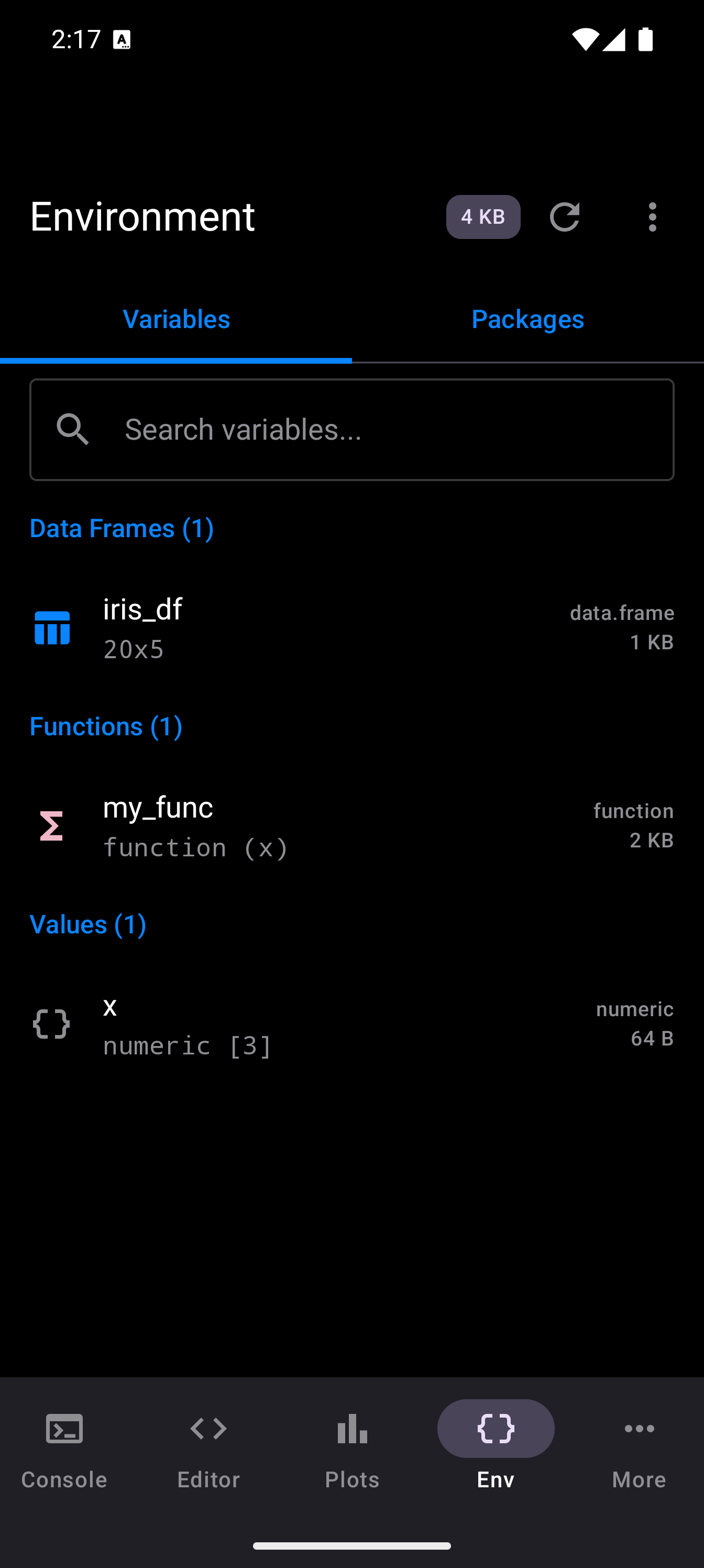
The memory badge in the title bar updates as you create and remove variables, giving you a running total of how much memory your workspace is using.
Variables Tab
The Variables tab is the default view. As you create variables in the Console or Editor, they appear here automatically. The list refreshes in real time.
Variables are grouped into sections by their R type:
- Data Frames: includes
data.frame,tibble, anddata.tableobjects. Each entry shows the name, dimensions (e.g., “32 x 11”), class (data.frame), and memory size (e.g., “7 KB”). A table icon appears on the left. - Values: scalars, vectors, strings, logicals, and other simple objects. Each entry shows the name, a value preview (e.g., “42”), class (
numeric), and size (e.g., “56 B”). A braces icon appears on the left. - Functions: any custom functions you have defined. Each entry shows the name, function signature, class, and size. A sigma icon appears on the left.
- Lists: nested list structures. Each entry shows the name, a summary like “List of 3”, class, and size. A list icon appears on the left.
Each section header shows a count in parentheses (e.g., “Data Frames (2)”) so you can quickly see how many objects of each type you have.
Watch List
The watch list lets you pin important variables to the top of the Environment so they stay visible no matter how many other objects you create. Watched variables appear in their own “Watched” section above the type-based groups.
Adding a variable to the watch list
- Long-press any variable in the list to open the context menu.
- Tap Watch.
- The variable moves to the “Watched” section and displays a star icon next to its name.
Removing a variable from the watch list
- Long-press the watched variable.
- Tap Unwatch.
- The variable returns to its normal type-based group.
Clearing the entire watch list
- Tap the overflow menu (three-dot icon) in the Environment title bar.
- Tap Clear Watch List.
- All variables are unwatched and return to their standard groups.
Watching is especially useful during debugging or data-cleaning workflows where you need to keep an eye on a handful of key variables while the rest of your workspace grows.
Variable Details
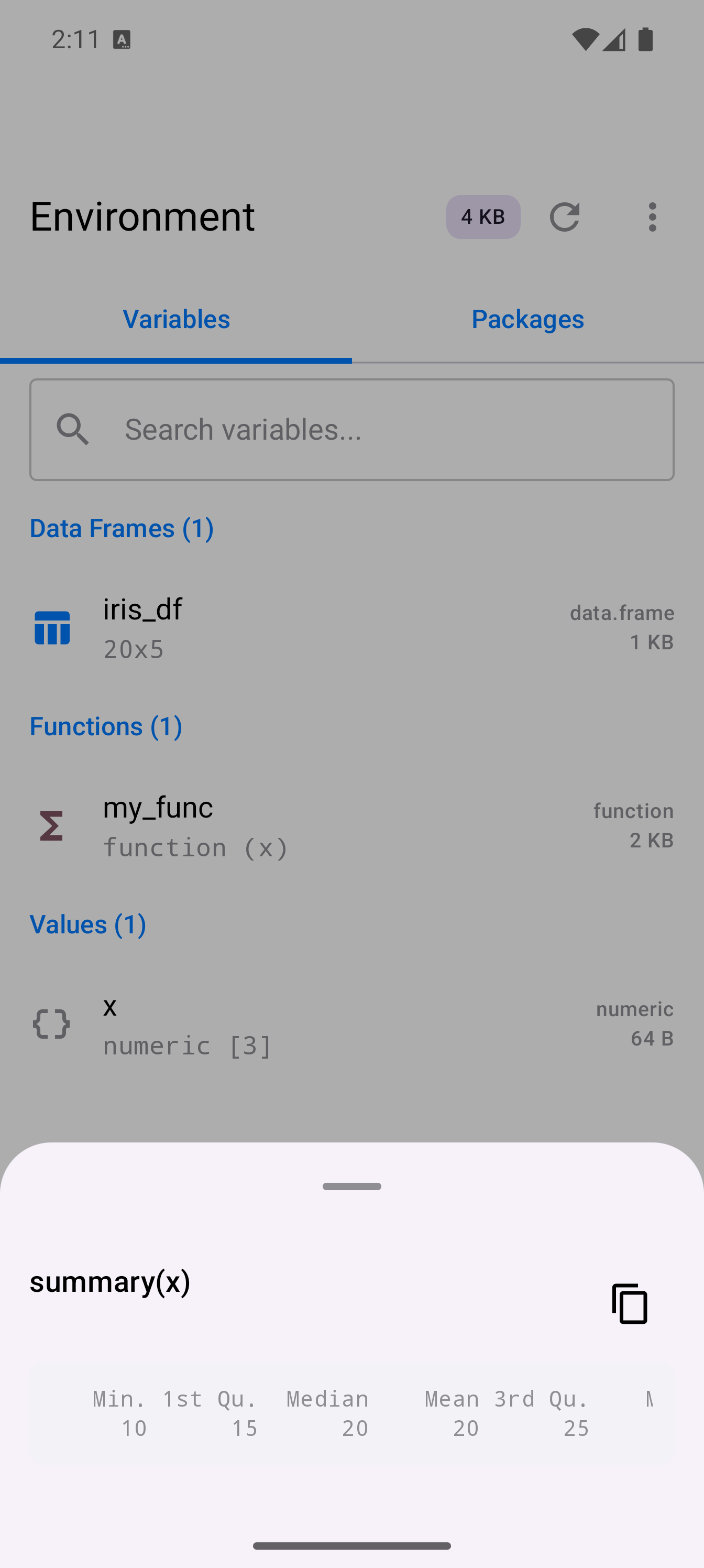
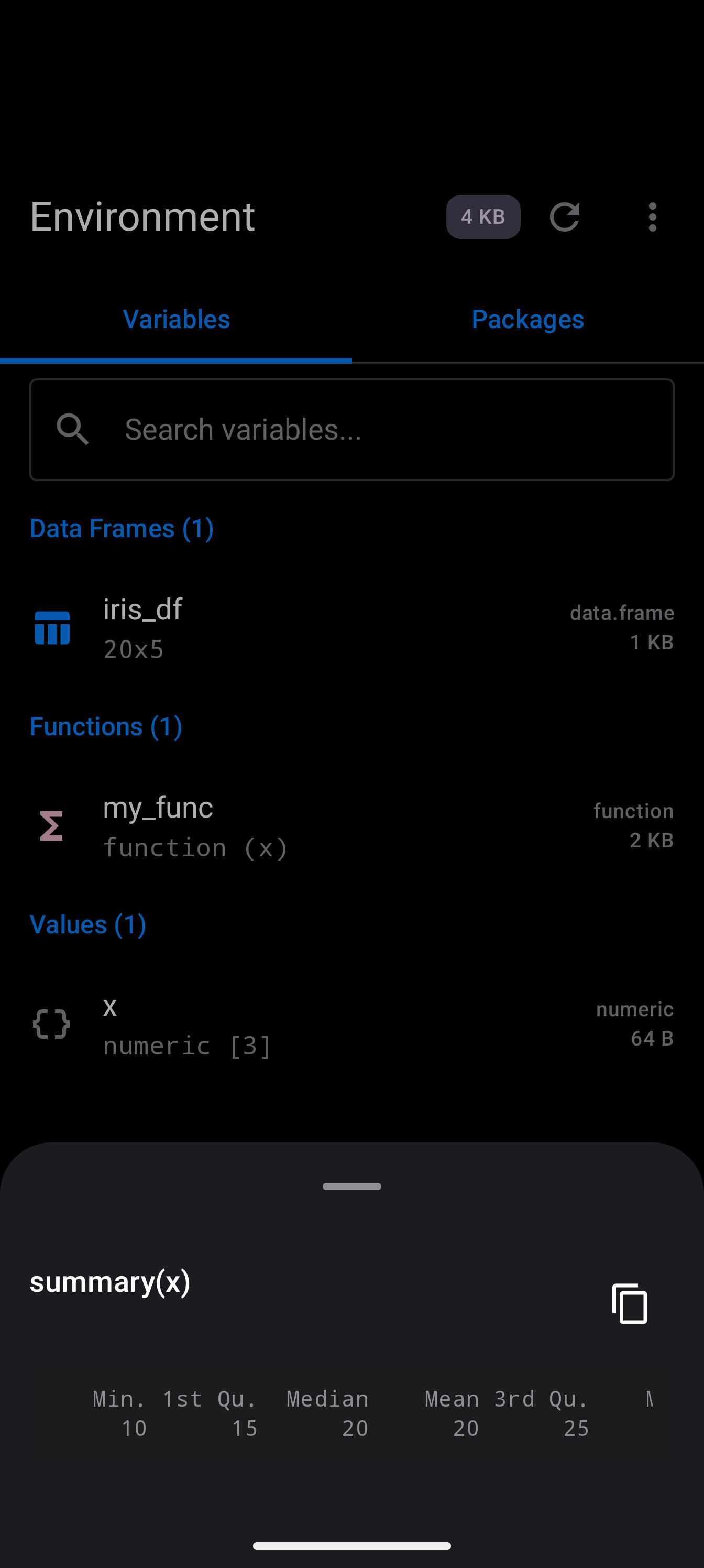
Tap any variable to see quick action buttons. These let you run common inspection commands without switching to the Console:
| Action | What it does |
|---|---|
| Summary | Runs summary() and shows the result |
| str() | Shows the internal structure of the object |
| head() | Displays the first few rows or elements |
| print() | Runs print() for the full output |
| plot() | Generates a quick plot (appears in the Plots tab) |
These quick actions are especially useful for data frames. You can check column types with str(), glance at the first rows with head(), or get summary statistics with Summary, all without typing a single command.
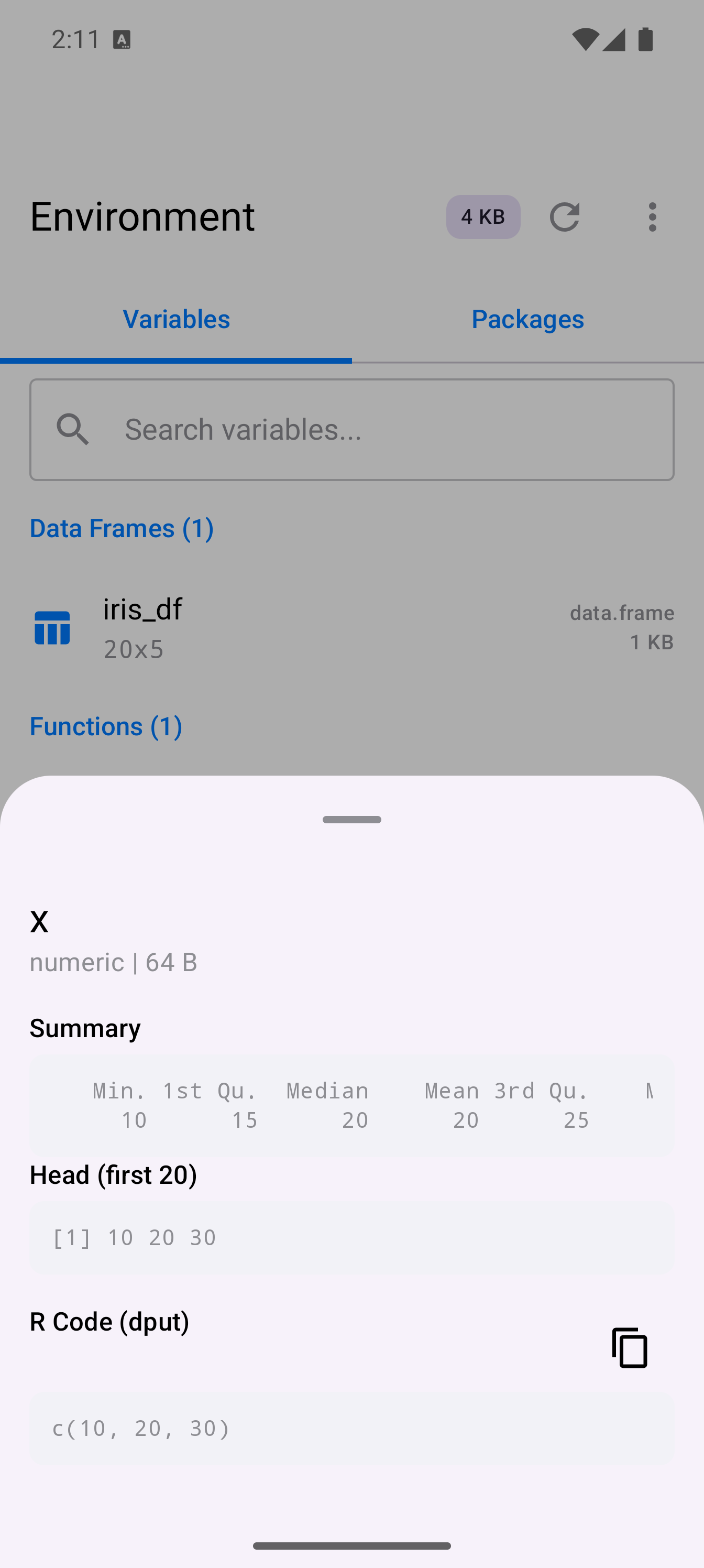
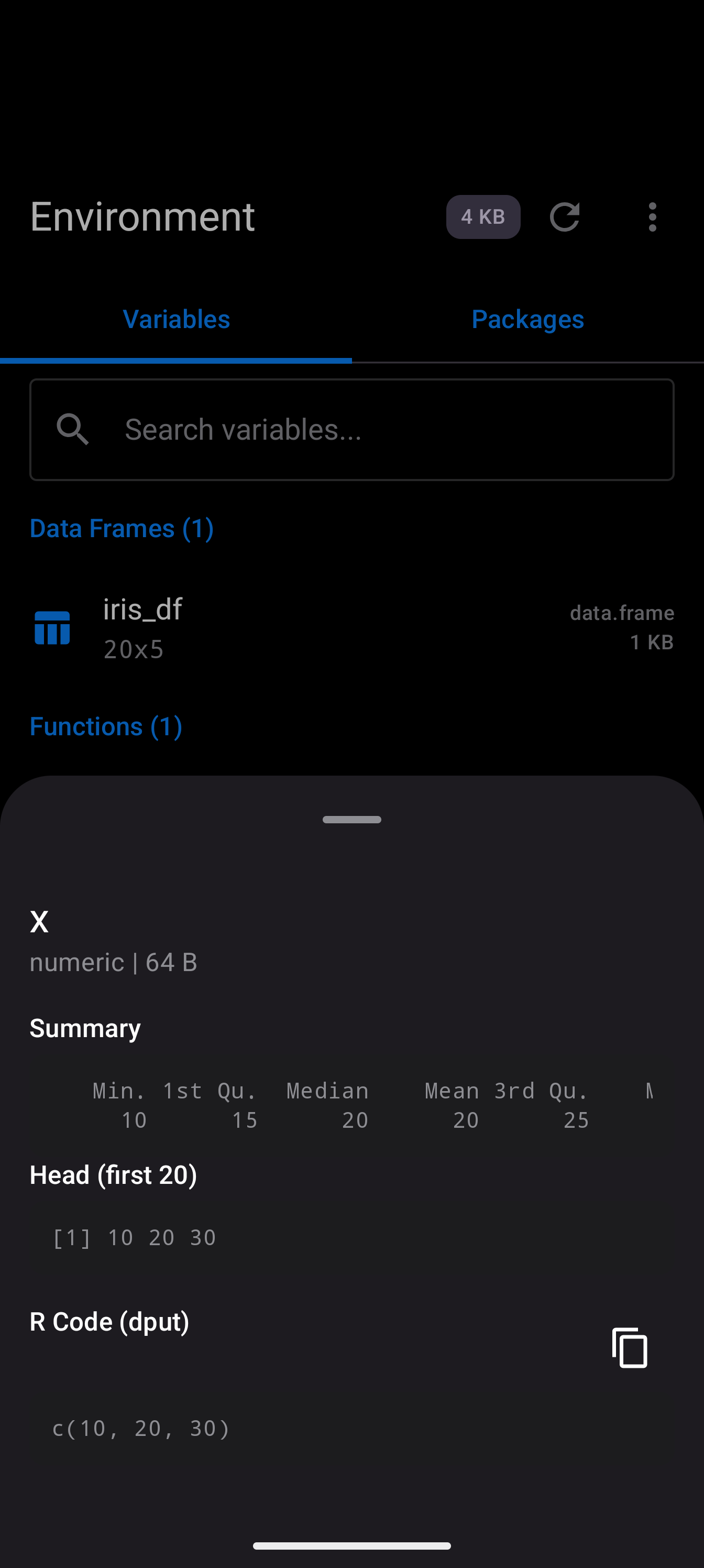
Tap Inspect on any variable to open a detail sheet with structural information. For data frames this includes column types and sample values; for functions, signatures and bodies; for vectors, summary and head output.
Data Frame Viewer
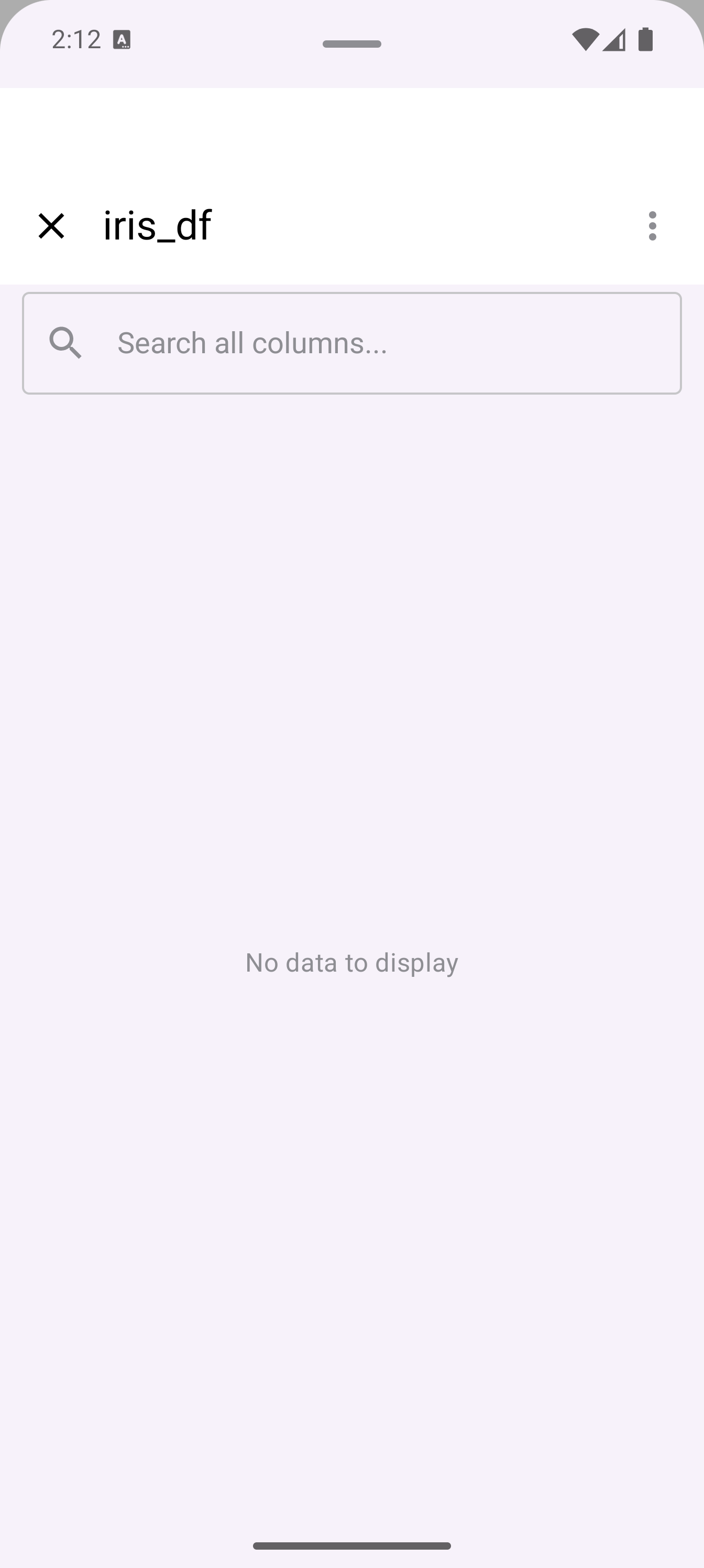
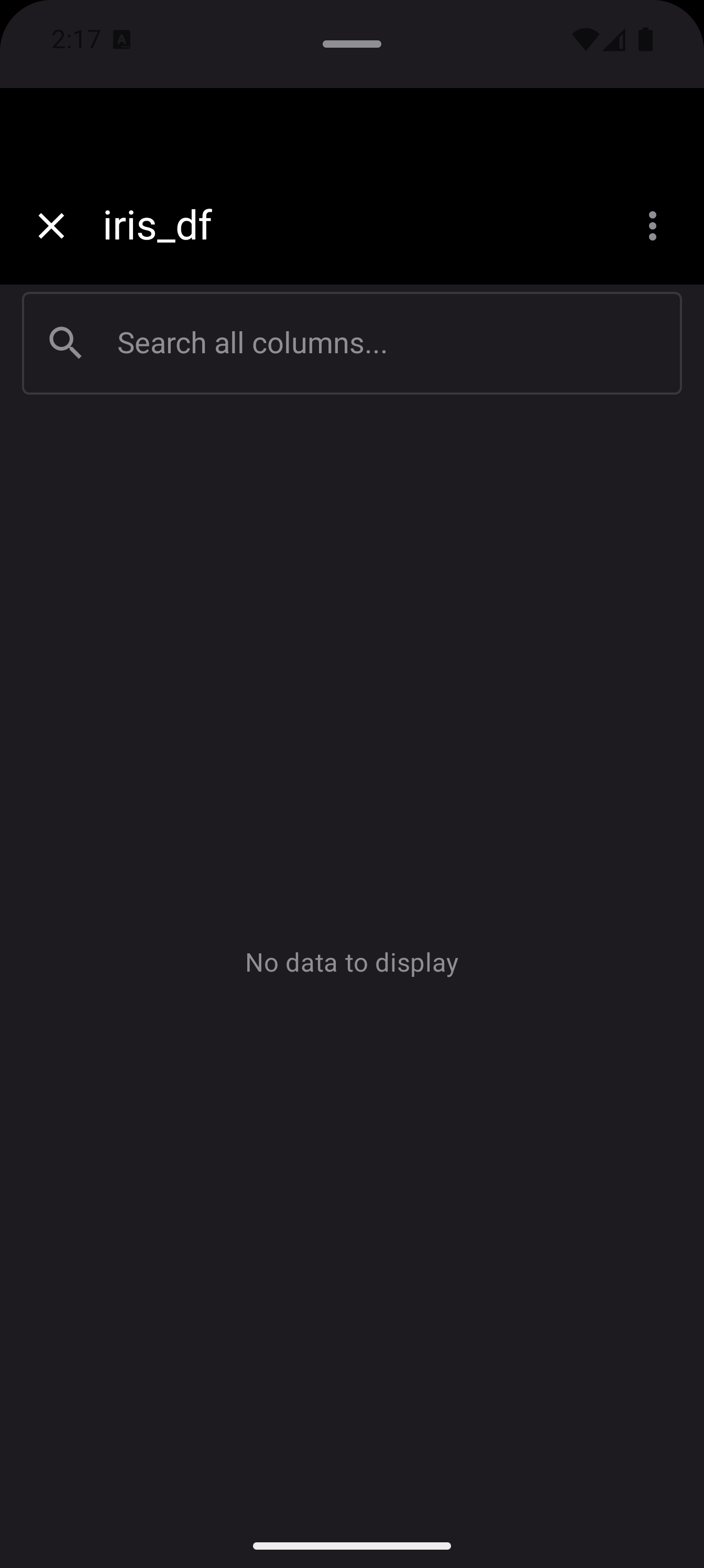
For data frames, you can open a full-screen modal viewer that presents your data as a scrollable table. This gives you a spreadsheet-like view where you can:
- Scroll horizontally and vertically through all rows and columns
- See column headers with their types
- Inspect individual cell values
To open the viewer, long-press a data frame variable in the variable list and choose View Data Frame from the context menu. This is much more practical than printing large data frames to the console.
If you need to load data from Excel files, CSV files, or databases, install the appropriate packages first. See the Packages guide for details on installing packages like readxl, readr, or DBI.
Column details
Long-press a column header to open its detail sheet. The sheet shows:
- Type badge and row/NA counts
- Distribution chart – histogram for numeric columns, frequency bars for categorical columns, TRUE/FALSE bar for logical columns
- Statistics (numeric only) – min, max, mean, and median
- Filter controls adapted to the column type (range for numeric, checkboxes for categorical, search for high-cardinality text, toggles for logical)
- Sort buttons – ascending, descending, or clear
Comparing Data Frames
The Variable Diff feature lets you compare two data frames side by side with color-coded diff highlighting. This is useful for verifying the results of data transformations, checking merge outputs, or spotting unexpected changes between two versions of a dataset.
To open the comparison view:
- Tap the overflow menu (three-dot icon) in the Environment title bar.
- Tap Compare Data Frames.
- In the comparison sheet, select the first data frame from the First dropdown and the second from the Second dropdown. Both dropdowns list all data frame objects currently in your workspace.
- Tap Compare to run the diff.
The results appear as a scrollable grid with color-coded highlights:
- Green cells and rows indicate additions (present in the second data frame but not the first).
- Red cells and rows indicate removals (present in the first but not the second).
- Orange cells indicate modifications (the value changed between the two data frames). Modified cells show the new value on top and the previous value with a strikethrough below it.
- Unchanged cells have no highlight.
A summary bar at the top of the results shows badge counts for added rows, removed rows, modified rows, added columns, and removed columns. You can toggle the Changes only filter chip to hide unchanged rows and focus exclusively on the differences.
Both data frames must exist in your workspace at the same time. If you need to compare a data frame before and after a transformation, assign the original to a temporary variable (e.g., df_backup <- df) before making changes.
Search and Filter
When your workspace grows large, use the search bar at the top of the Variables tab to filter by name. Start typing and the list narrows to matching variables in real time.
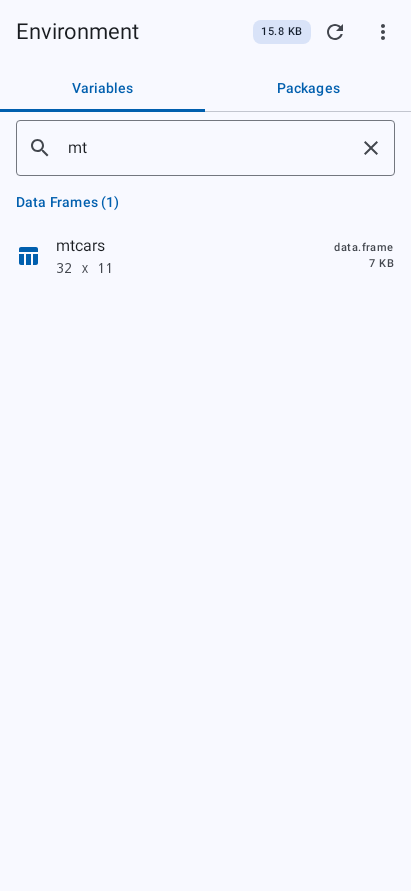
This is faster than scrolling through dozens of entries, especially when you have many similarly named variables.
Packages Tab
The second tab at the top of the Environment screen is Packages. It shows your installed R packages and lets you load, unload, or manage them. For full details on package management, see the Packages guide.
Memory Tracking
The memory badge in the title bar (e.g., “15.8 KB”) shows the total memory footprint of your current R workspace. It updates whenever you create, modify, or remove variables.
Each individual variable also displays its own memory size in the list (e.g., “7 KB” for a data frame, “56 B” for a numeric scalar). This helps you identify which objects are consuming the most memory.
Tap the refresh icon in the title bar to manually update the environment display and memory figures if you think they are out of sync.
If memory usage is climbing and you no longer need certain variables, remove them with rm() in the Console or delete them from the overflow menu. Large data frames and lists are usually the biggest consumers.
Workspace Mode
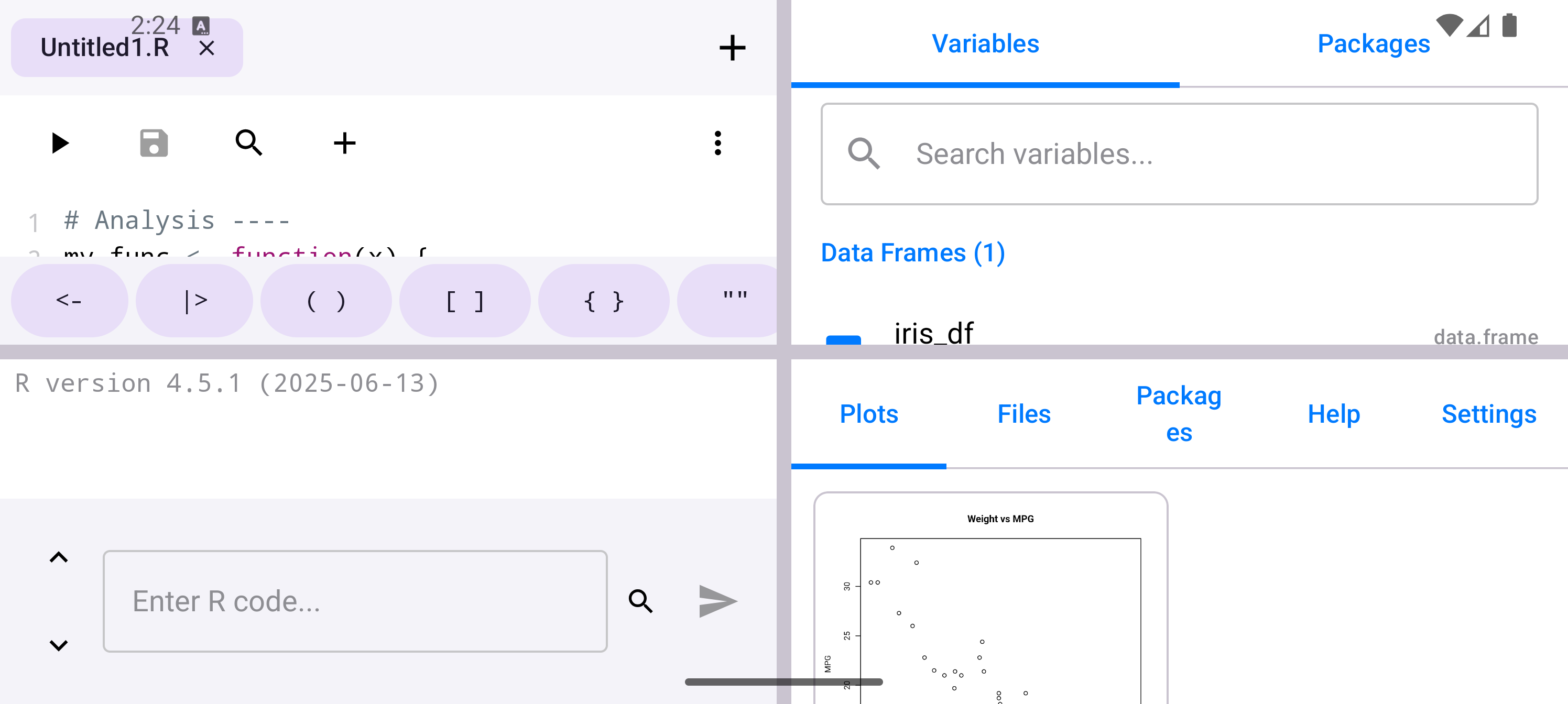
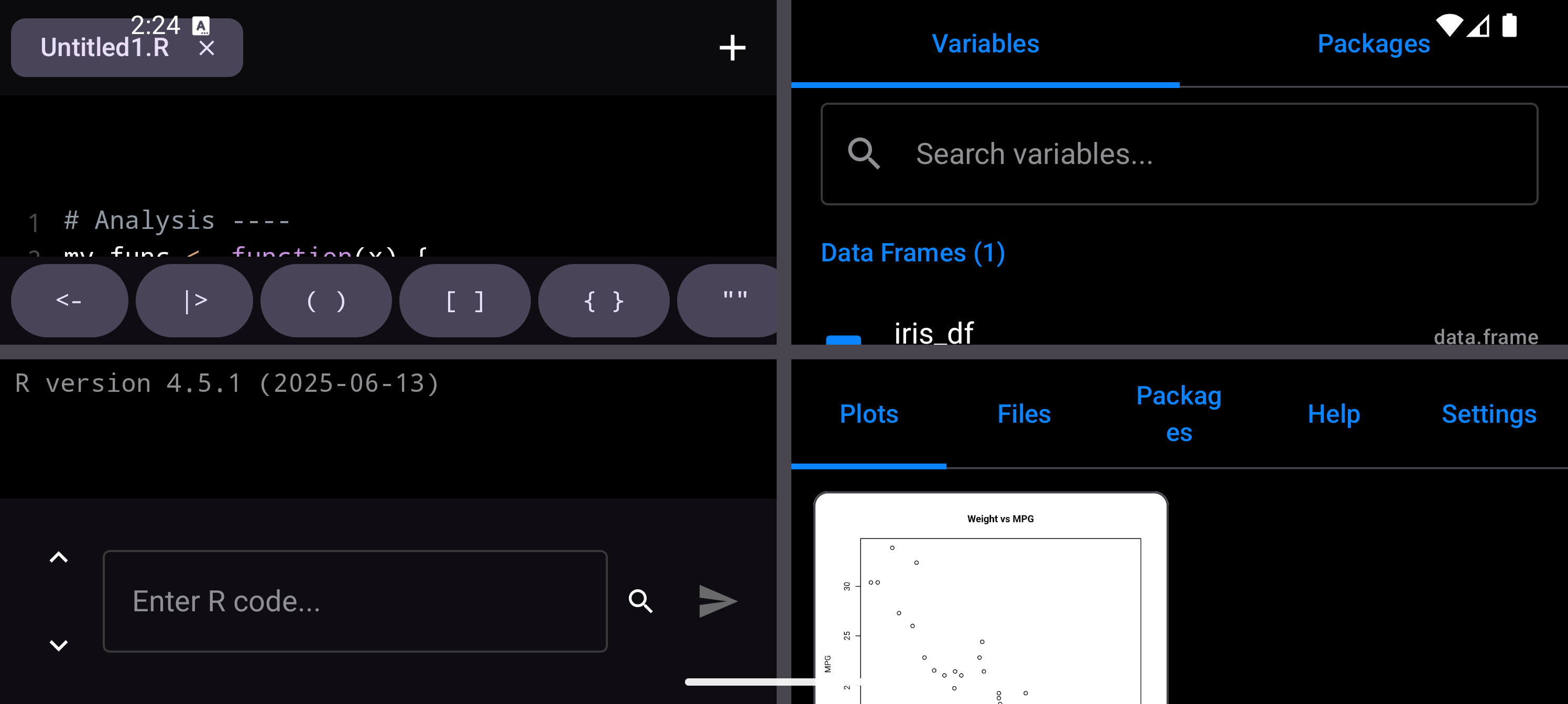
In the four-pane tablet layout, the Environment appears in a compact workspace mode without its own title bar. The content is the same (grouped variables, search, and quick actions), but it is designed to share the screen with the Console, Editor, and other panes.