Themes
webRoid ships with nine built-in color themes and lets you create your own from scratch or import them from VS Code and RStudio. You can assign separate themes to light and dark mode, so the app always looks the way you want regardless of your system setting.
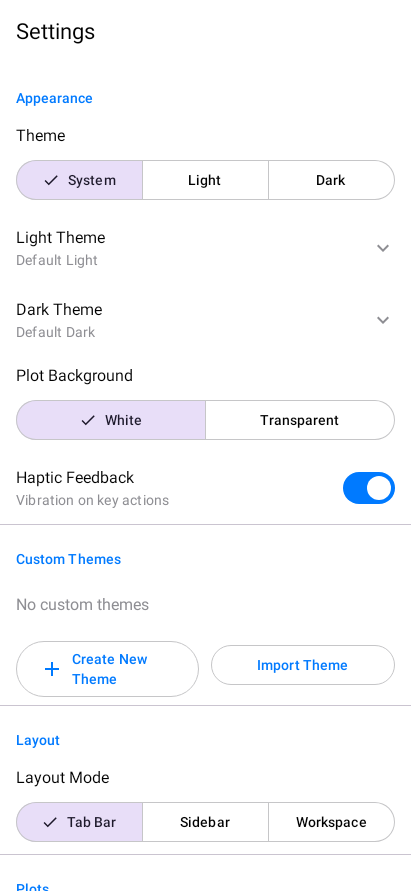
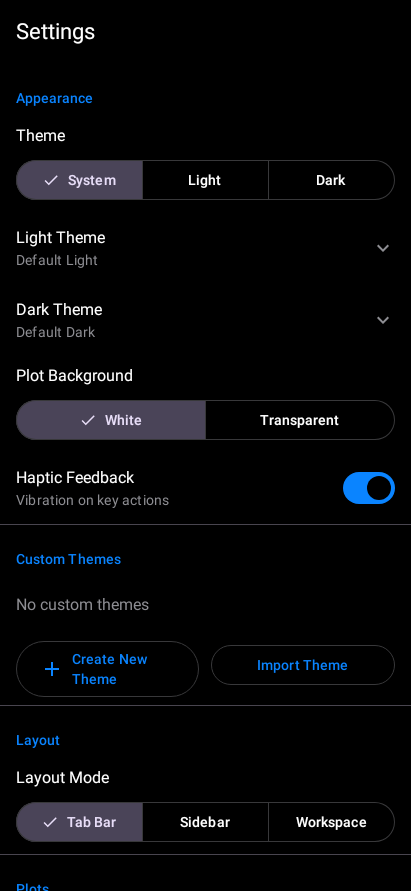
System Theme Mode
A segmented button at the top of the Appearance section in Settings controls whether webRoid follows your device:
| Option | Behavior |
|---|---|
| System | Follows your Android device theme. If your phone is set to dark mode, webRoid uses dark mode too. |
| Light | Always uses light colors regardless of your system setting. |
| Dark | Always uses dark colors regardless of your system setting. |
The change takes effect immediately. No restart needed.
Built-in Themes
webRoid includes nine themes organized by mode. Each theme defines colors for the editor, console, syntax highlighting, and the rest of the UI.
Light Themes
A clean, neutral palette with soft grays and blue accents. The standard starting point.
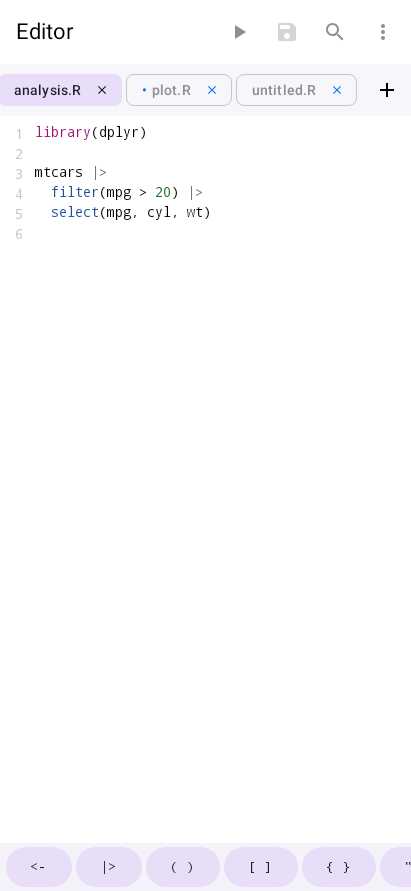
Ethan Schoonover’s warm, low-contrast palette designed for long reading sessions.
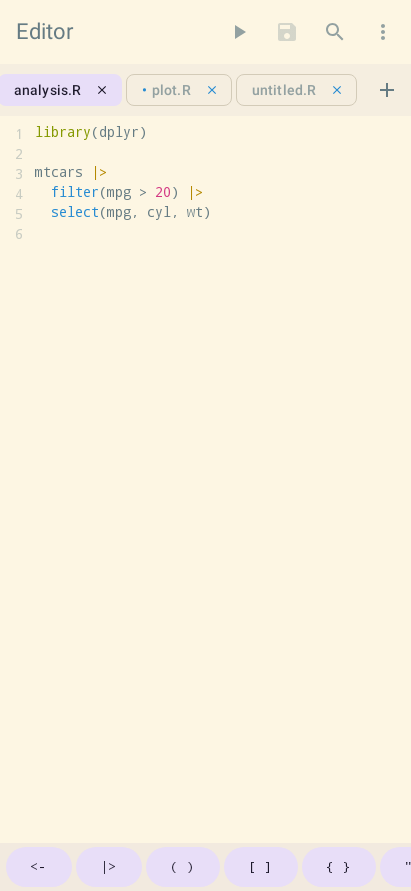
Modeled on the GitHub code view. Familiar if you spend time reading code on the web.
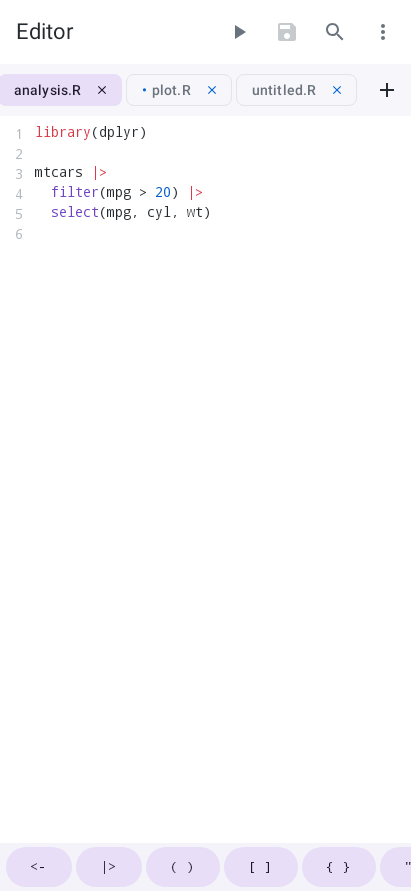
Dark Themes
A balanced dark palette with comfortable contrast and blue accents.
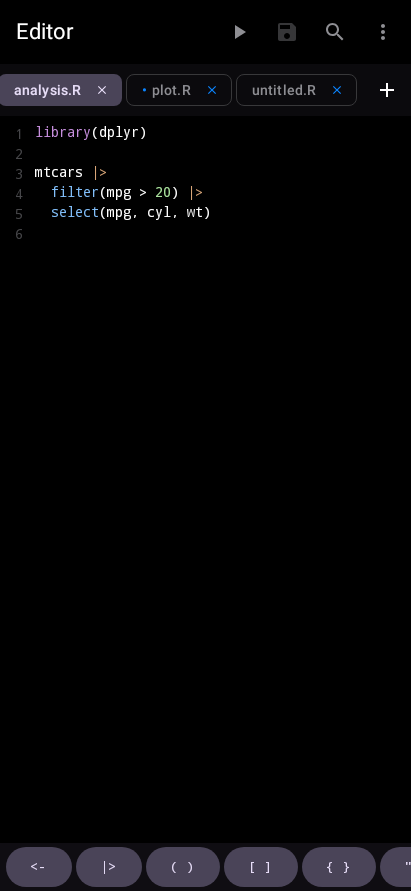
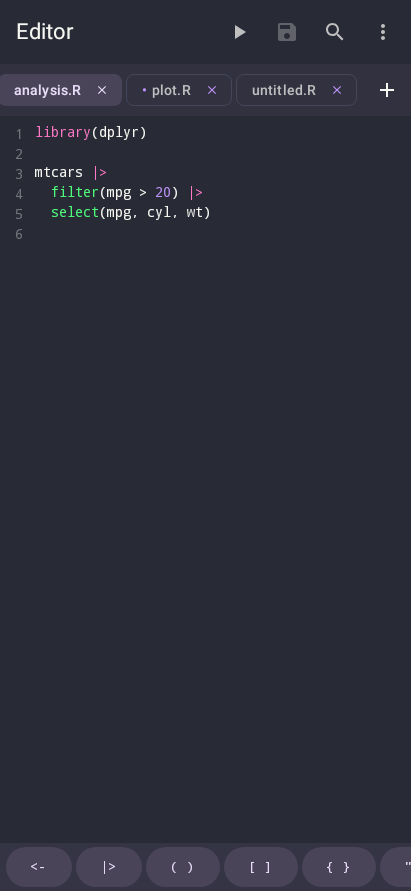
A popular dark theme with vivid purples, pinks, greens, and cyans on a deep background.
The dark counterpart to Solarized Light, with the same carefully tuned color relationships.
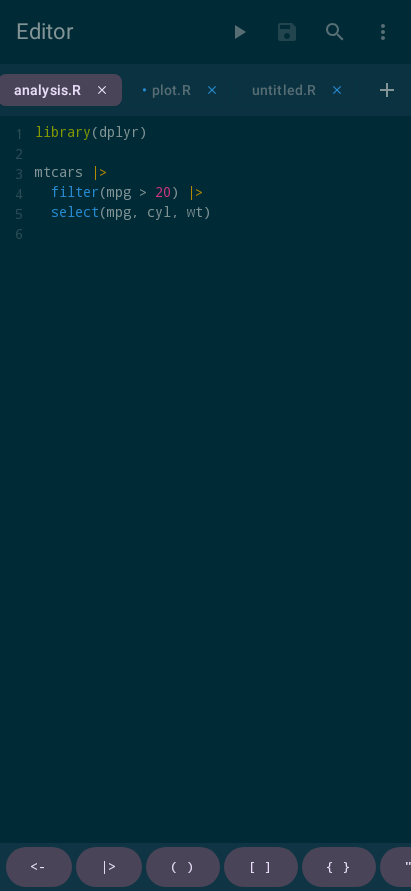
Warm, saturated colors on a near-black background. A classic for code editors.
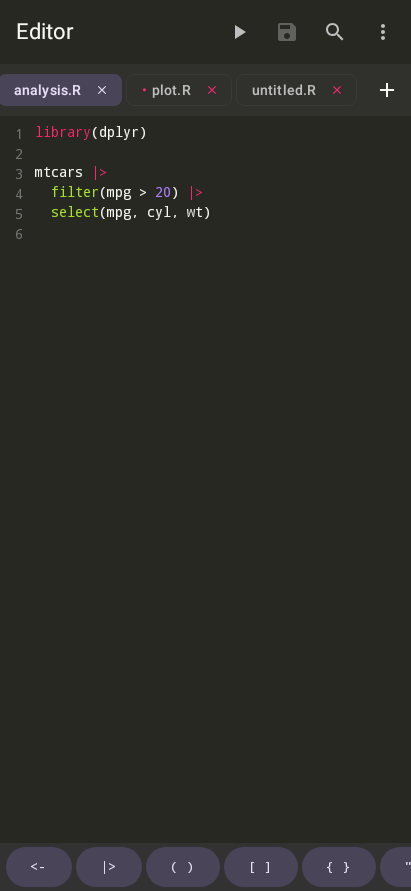
Inspired by Atom’s default dark theme, with muted blues, purples, and greens.
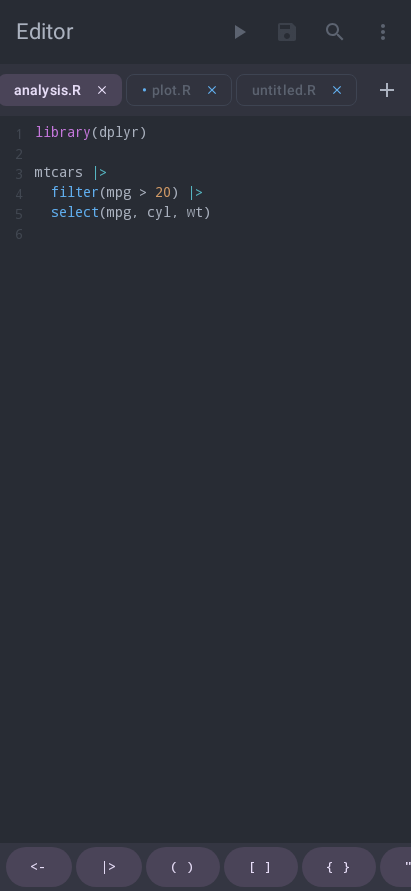
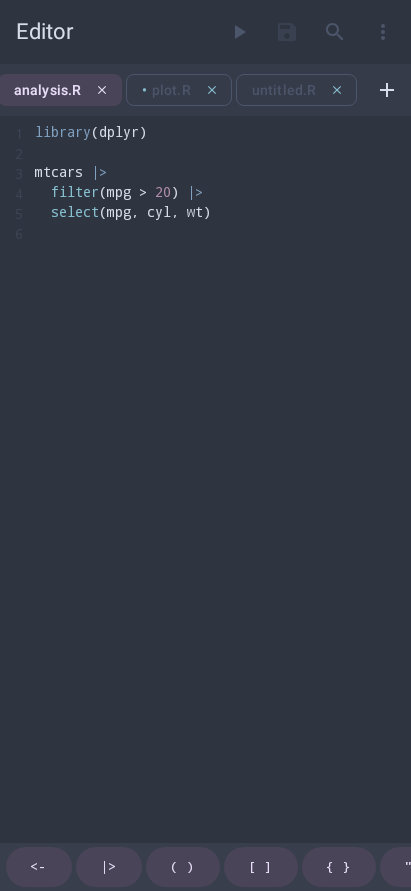
An arctic color palette with cool blues and soft contrasts, designed to be easy on the eyes.
Choosing a Theme
You can assign a different theme for light mode and dark mode independently. This means you can use GitHub Light during the day and Dracula at night, and webRoid will switch automatically when your system mode changes.
To choose a theme:
- Open Settings and scroll to the Appearance section
- Tap Light Theme to expand the light theme picker
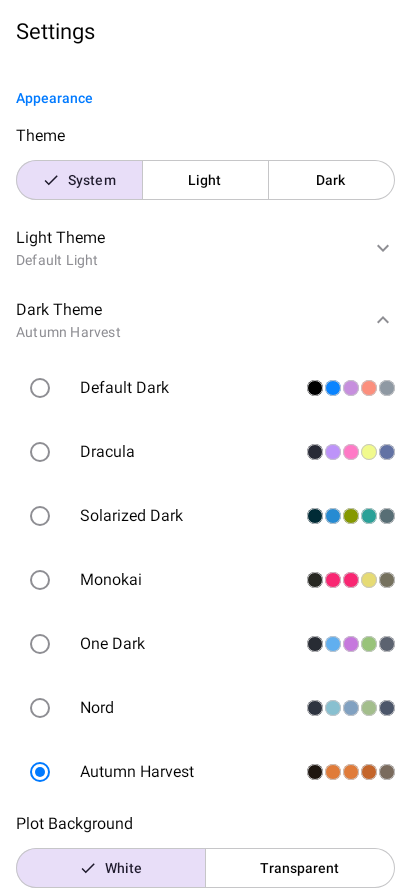
- Each row shows the theme name and five color swatches representing its key colors (background, accent, keyword, string, comment)
- Tap a row to select it. The change applies immediately.
- Repeat with Dark Theme to choose your dark mode theme
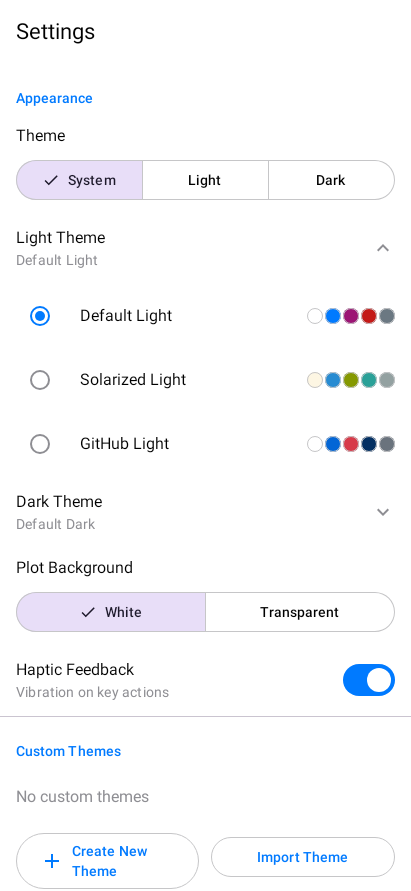
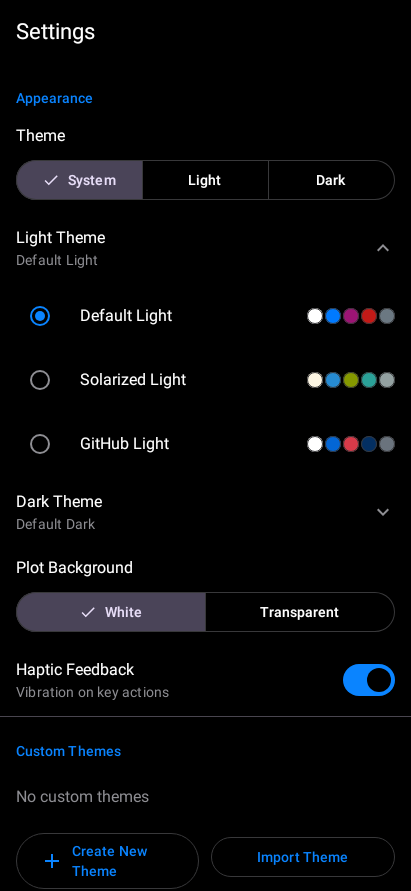
The five color swatches next to each theme name give you a quick preview without switching. Look for colors that match your preferences before tapping.
Creating Custom Themes
If none of the built-in themes are quite right, you can create your own.
Opening the Theme Editor
- In Settings > Appearance, scroll to the Custom Themes section
- Tap Create Theme to open the editor
- Optionally, choose a base theme to start from (clone its colors as a starting point)
Key Colors
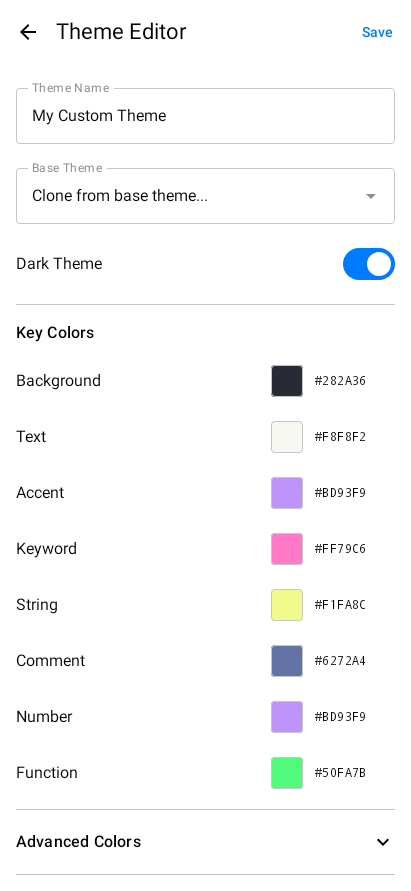
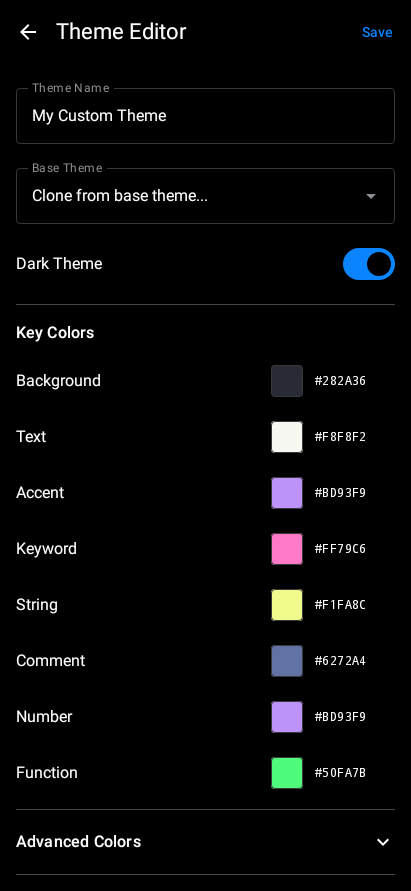
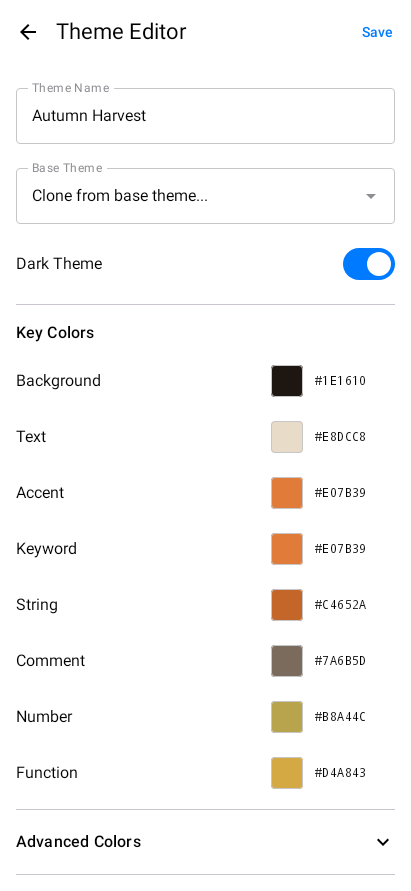
The Theme Editor presents eight key colors that define the core look of your theme:
| Color | What it controls |
|---|---|
| Background | Main editor and console background |
| Text | Default text color |
| Accent | UI highlights, buttons, active indicators |
| Keyword | R keywords like if, for, function, library |
| String | Quoted strings |
| Comment | Code comments |
| Number | Numeric literals |
| Function | Function names and calls |
Tap any color swatch to open the color picker. You can adjust the color using the HSV (Hue-Saturation-Value) selector, the hue slider, or by entering a hex value directly (e.g., #1E1E2E).
Advanced Colors
Expand the Advanced Colors section to fine-tune more than 20 additional colors, including:
- Secondary and tertiary backgrounds
- Gutter and line highlight colors
- Console prompt, stdout, and stderr colors
- Semantic colors (error, warning, success, info)
- Selection and separator colors
Most of these are automatically derived from your key colors, so you only need to adjust them if you want precise control.
Live Preview
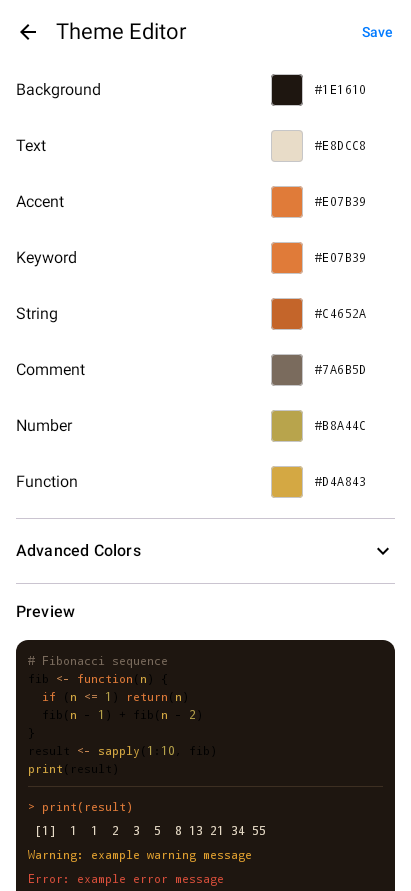
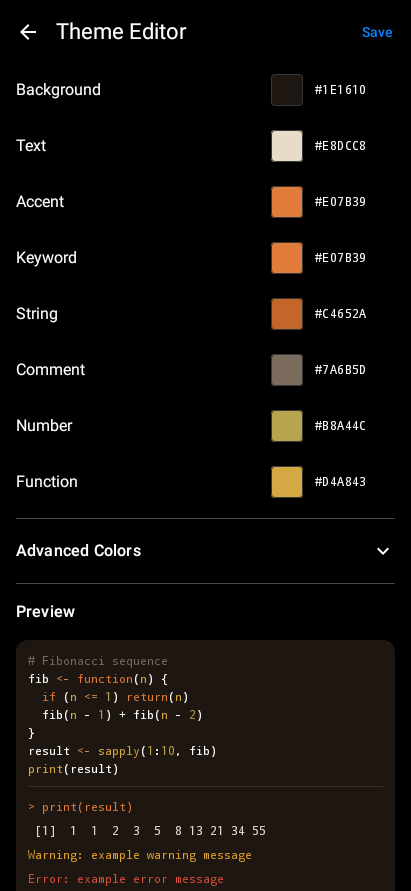
As you change colors, a live preview at the bottom of the editor updates in real time. It shows a sample of syntax-highlighted R code (a Fibonacci function) and console output including prompt, stdout, warning, and error text, so you can see exactly how your theme will look before saving.
Saving Your Theme
- Enter a name for your theme in the text field at the top
- Set whether the theme is for light or dark mode using the toggle
- Tap Save
Your custom theme appears in the appropriate theme picker (light or dark) and can be selected just like any built-in theme.
Editing and Deleting Custom Themes
Custom themes appear in the Custom Themes list under Settings > Appearance with action icons next to each entry.
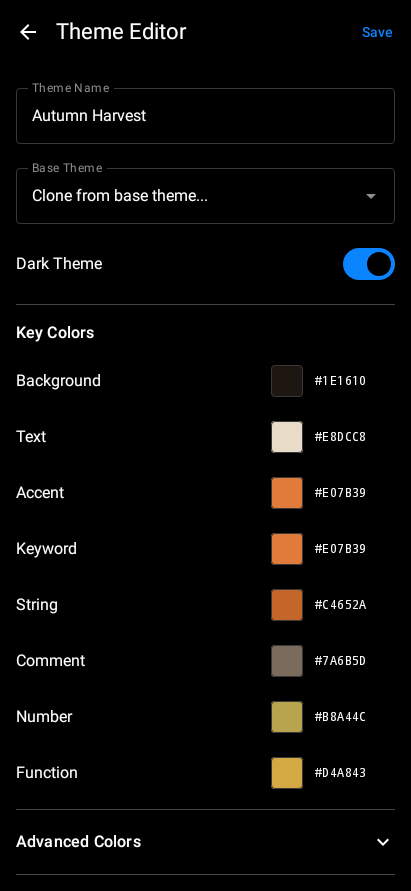
To edit a custom theme, tap the pencil icon next to its name. The Theme Editor reopens with all the theme’s colors pre-filled so you can adjust them.
To delete a custom theme, tap the trash icon. If the deleted theme was your active theme, webRoid falls back to the default theme for that mode.
Built-in themes cannot be edited or deleted. To modify a built-in theme, clone it by selecting it as a base when creating a new custom theme, then adjust the colors.
Importing and Exporting Themes
webRoid can import themes from other editors and share themes with other users.
Importing Themes
webRoid supports three theme file formats:
| Format | Source | File extension |
|---|---|---|
| webRoid native | Themes exported from webRoid or webRios (iOS) | .json |
| VS Code | Export your VS Code color theme as JSON | .json |
| RStudio | RStudio editor themes | .rstheme |
To import a theme:
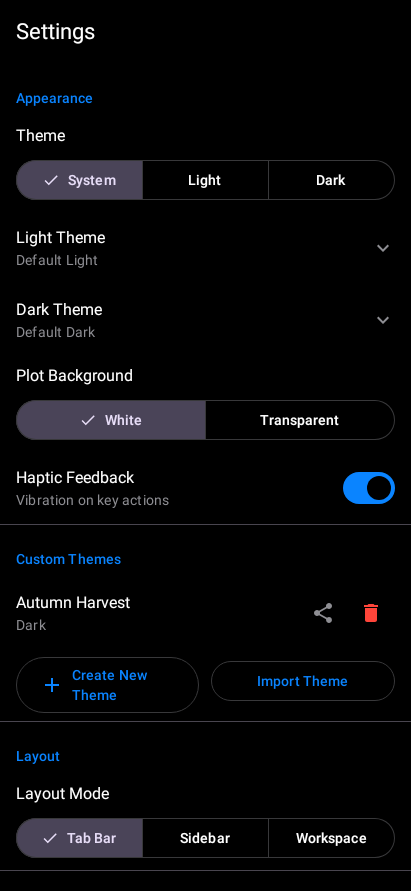
- Open Settings and scroll down to the Custom Themes section
- Tap Import Theme. Android’s file picker opens so you can browse to a
.jsonor.rsthemefile on your device, Downloads folder, or cloud storage (Google Drive, etc.).
The file picker is part of Android, so its appearance varies by device and Android version. Look for the theme file you downloaded or transferred to your device.
Select the theme file. webRoid automatically detects the format and maps colors to its palette. If the imported theme does not define every color, missing values are derived from the colors that are present.
The imported theme appears in the Custom Themes list with its name and a light/dark label.
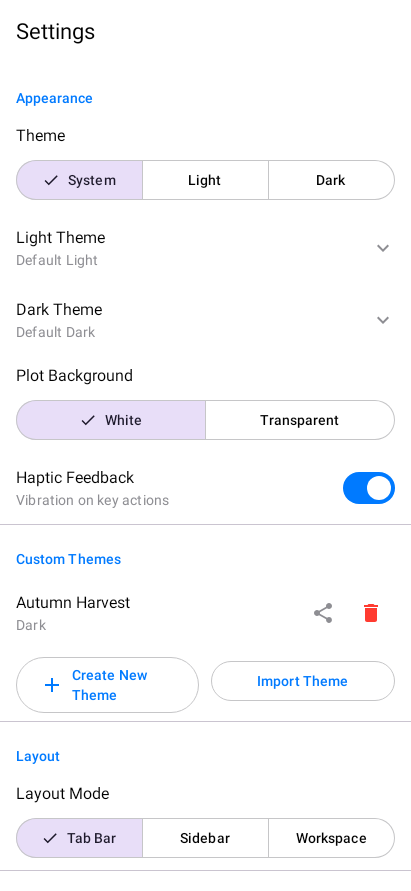
- To activate the imported theme, tap Dark Theme (or Light Theme) to expand the picker. The imported theme appears at the bottom of the list with its color swatches. Tap it to select it.
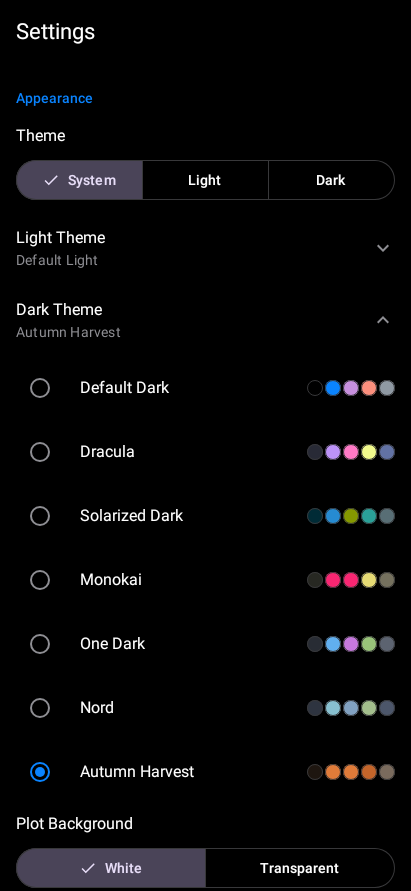
- The theme takes effect immediately. Here is the editor with Autumn Harvest applied:
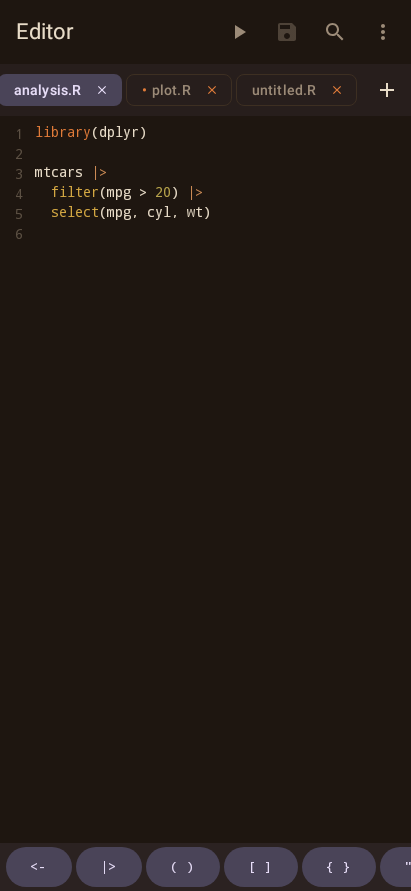
If you have a favorite VS Code or RStudio theme, you can bring it into webRoid. The mapping handles most themes well, though highly customized themes may need minor adjustments in the Theme Editor after import.
Example Theme Files
To try importing, download one of these example files. Both define the same “Autumn Harvest” palette (warm oranges, reds, and golds on a dark brown background) in different formats.
webRoid native format (download):
{
  "id": "autumn-harvest-example",
  "name": "Autumn Harvest",
  "isDark": true,
  "isBuiltIn": false,
  "palette": {
    "syntax": {
      "keyword": "#E07B39",
      "function": "#D4A843",
      "string": "#C4652A",
      "number": "#B8A44C",
      "comment": "#7A6B5D",
      "operator": "#CC8B55",
      "text": "#E8DCC8"
    },
    "ui": {
      "primaryBackground": "#1E1610",
      "secondaryBackground": "#2A2017",
      "tertiaryBackground": "#362A1E",
      "primaryText": "#E8DCC8",
      "secondaryText": "#9C8B78",
      "accent": "#E07B39",
      "separator": "#3D2F22",
      "selection": "#E07B3933"
    },
    "semantic": {
      "error": "#D94F3B",
      "warning": "#E0A030",
      "success": "#7BAF52",
      "info": "#5A9EC4"
    },
    "console": {
      "stdout": "#E8DCC8",
      "stderr": "#D94F3B",
      "input": "#D4A843",
      "prompt": "#E07B39"
    },
    "editor": {
      "background": "#1E1610",
      "lineHighlight": "#2A2017",
      "gutterBackground": "#171009",
      "gutterText": "#7A6B5D"
    }
  }
}
RStudio format (download):
/* Autumn Harvest - A warm, cozy dark theme with autumn colors */
/* RStudio .rstheme format - import into webRoid or RStudio */

.ace_editor, .rstudio-themes-flat .ace_editor_theme {
  background-color: #1E1610;
  color: #E8DCC8;
}

.ace_cursor {
  color: #E07B39;
}

.ace_gutter {
  background: #171009;
  color: #7A6B5D;
}

.ace_gutter-active-line {
  background-color: #2A2017;
}

.ace_marker-layer .ace_active-line {
  background-color: #2A2017;
}

.ace_marker-layer .ace_selection {
  background: #E07B3933;
}

.ace_keyword {
  color: #E07B39;
}

.ace_function {
  color: #D4A843;
}

.ace_string {
  color: #C4652A;
}

.ace_constant.ace_numeric {
  color: #B8A44C;
}

.ace_comment {
  color: #7A6B5D;
  font-style: italic;
}

.ace_keyword.ace_operator {
  color: #CC8B55;
}

.ace_variable {
  color: #E8DCC8;
}

.ace_support.ace_function {
  color: #D4A843;
}
The native JSON format is a direct serialization of webRoid’s internal theme structure, so every color is preserved exactly. The .rstheme format maps Ace editor CSS selectors to webRoid’s palette; colors not covered by CSS rules (like semantic or console colors) are derived automatically from the colors that are present.
Exporting Themes
To share a custom theme:
- Find it in the Custom Themes list
- Tap the export/share icon
- Choose where to save or share the JSON file
Exported themes use webRoid’s native JSON format and can be imported on another device, shared with other webRoid users, or used in webRios on iOS.
Plot Background
The Plot Background setting (in Settings > Appearance) controls the background color behind R plots:
| Option | Behavior |
|---|---|
| White | Plots always render on a white background, regardless of your theme. This is the default and matches how plots look in desktop R. |
| Transparent | Plots render with a transparent background, allowing your theme’s background color to show through. Best when you want plots to blend seamlessly with dark themes. |
This setting only affects how plots are displayed in the app. Exported plot images use whatever background the R graphics device specifies.