Packages
R packages extend the language with additional functions, data sets, and documentation. The Packages tab in webRoid lets you browse your installed packages, install new ones from the WebR repository, and manage them with load, unload, and remove actions.
Overview
webRoid runs R through WebAssembly (via the webR project), which means packages must be specially compiled for the WebAssembly platform before they can be used. The app downloads packages from repo.r-wasm.org, a repository maintained by the webR project that hosts pre-compiled versions of many popular CRAN packages.
This is different from desktop R, where install.packages() downloads source or binary packages directly from CRAN. In webRoid, only packages that have been compiled for WebAssembly are available. Most pure-R packages and many packages with C/C++/Fortran code are supported, but some that depend on external system libraries (database drivers, specialized numerical libraries, etc.) are not available.
Package installation requires an internet connection. Once a package is installed, it works offline.
Browsing and Searching
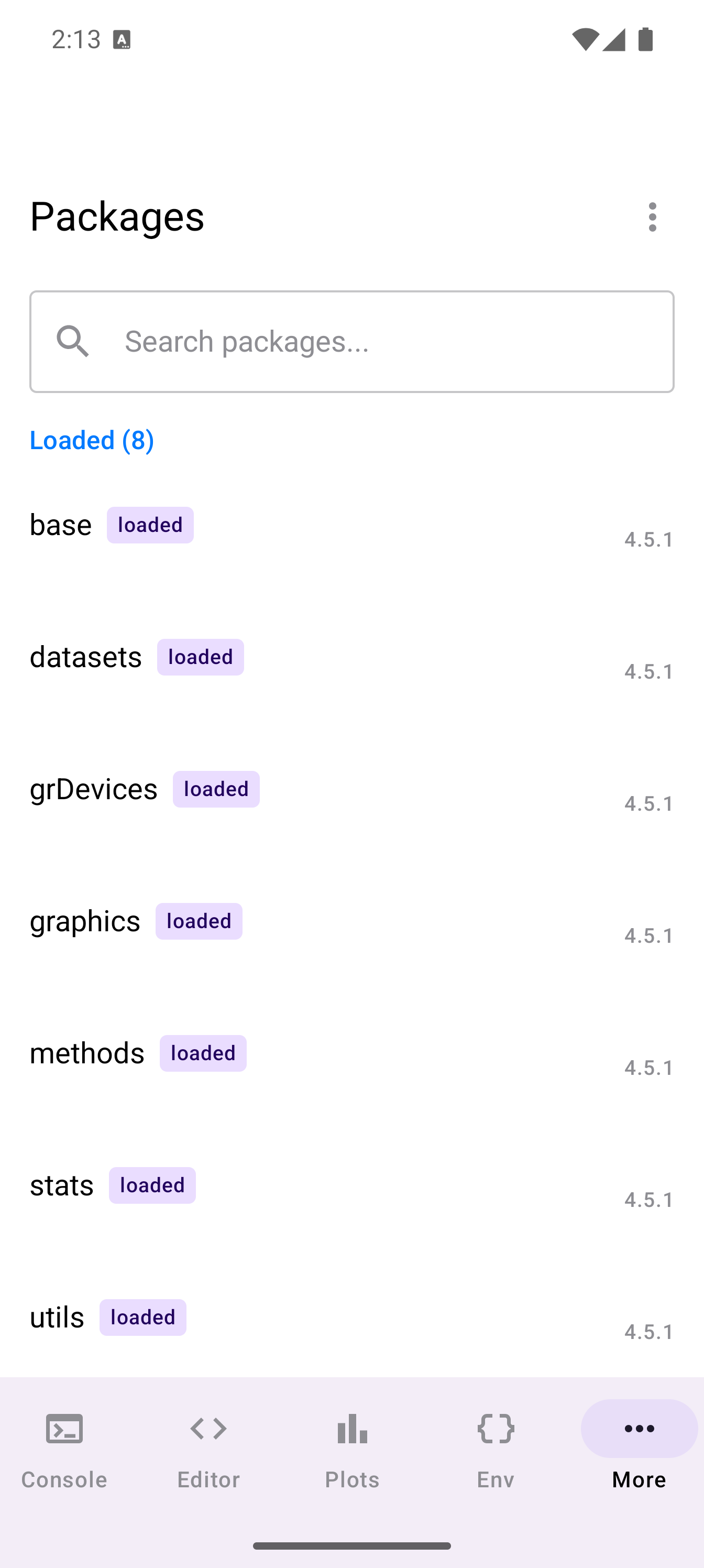
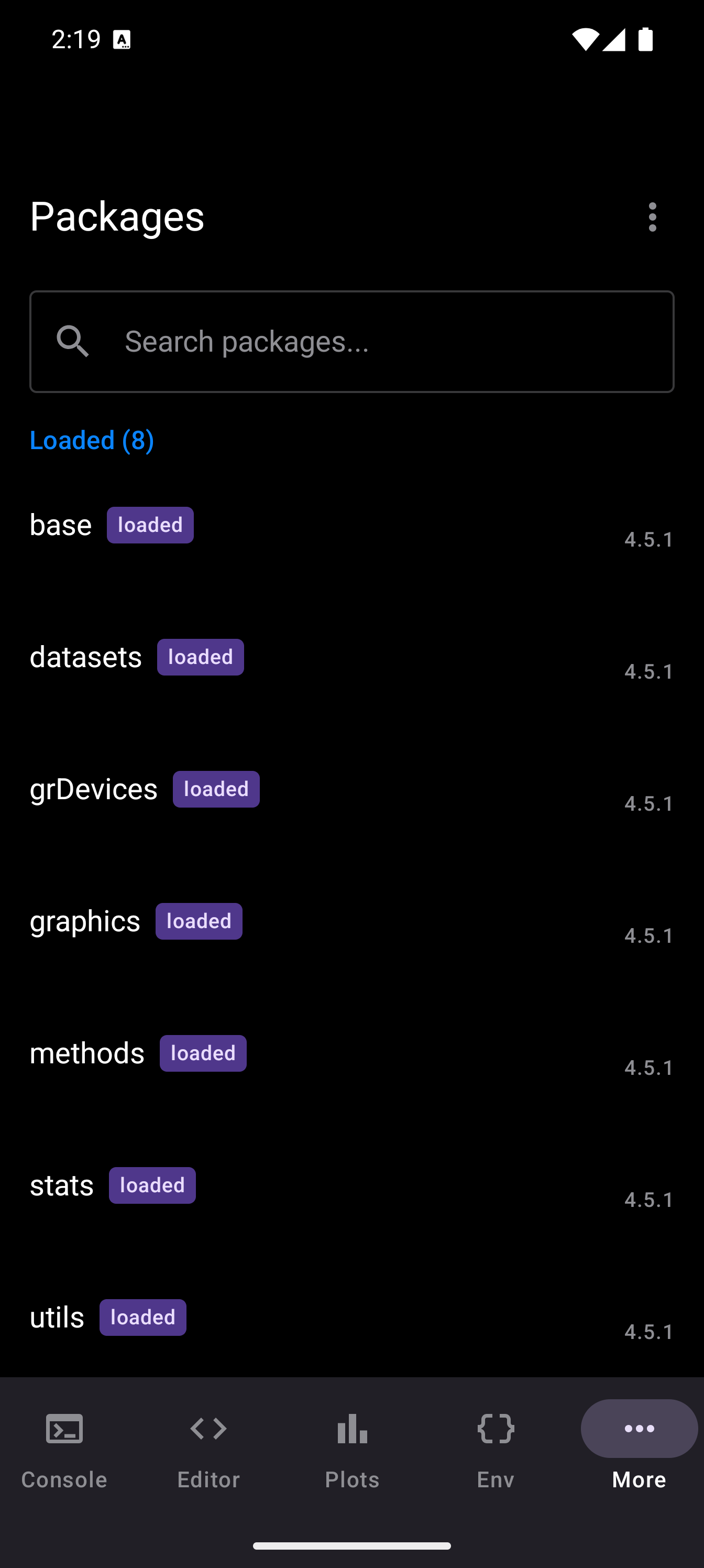
The Packages screen shows all installed packages in a scrollable list, divided into two sections:
- Loaded: packages that are currently attached to the R session. Each of these has a “loaded” chip next to its name.
- Available: packages that are installed on the device but not currently loaded.
Each row shows the package name, a brief description (or version number), and the version in the trailing position.
A search bar at the top filters the list as you type. It matches against both the package name and description, so you can search for “plot” to find visualization-related packages or “string” to find text-processing packages.
Installing Packages
There are two ways to install a package:
Install by Name
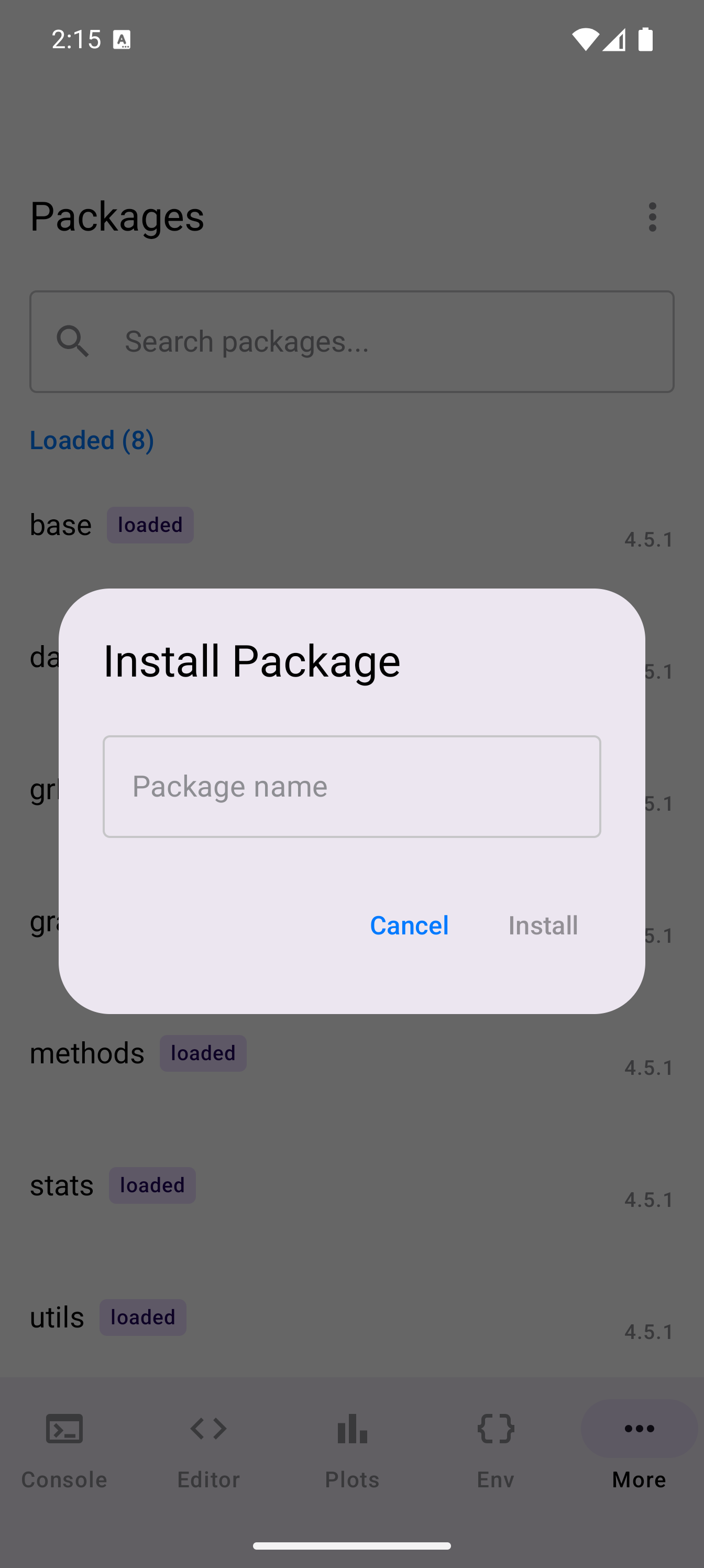
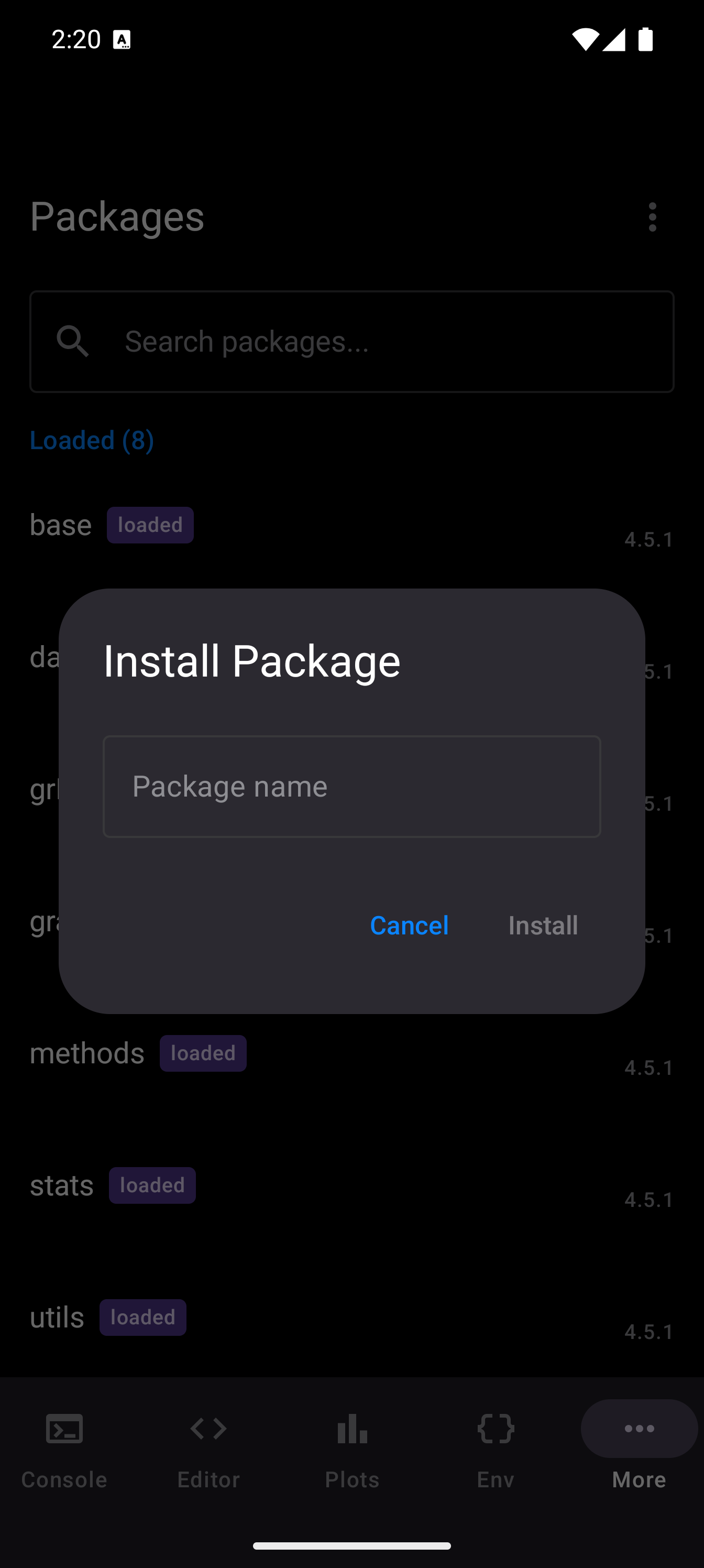
- Tap the three-dot menu in the toolbar
- Choose Install Package
- Type the exact package name (e.g.,
ggplot2,dplyr,jsonlite) - Tap Install
A progress banner appears below the search bar with a linear progress indicator and a status message (e.g., “Installing ggplot2…”). When installation completes, the message updates to confirm success and the package list refreshes automatically.
Dependencies are resolved and installed automatically. You do not need to install them manually.
Load and Unload
Installing a package puts it on the device, but you still need to load it before its functions are available. This is the same two-step process as desktop R.
To load or unload a package:
- Long-press a package row to open its context menu
- Choose Load (for unloaded packages) or Unload (for loaded packages)
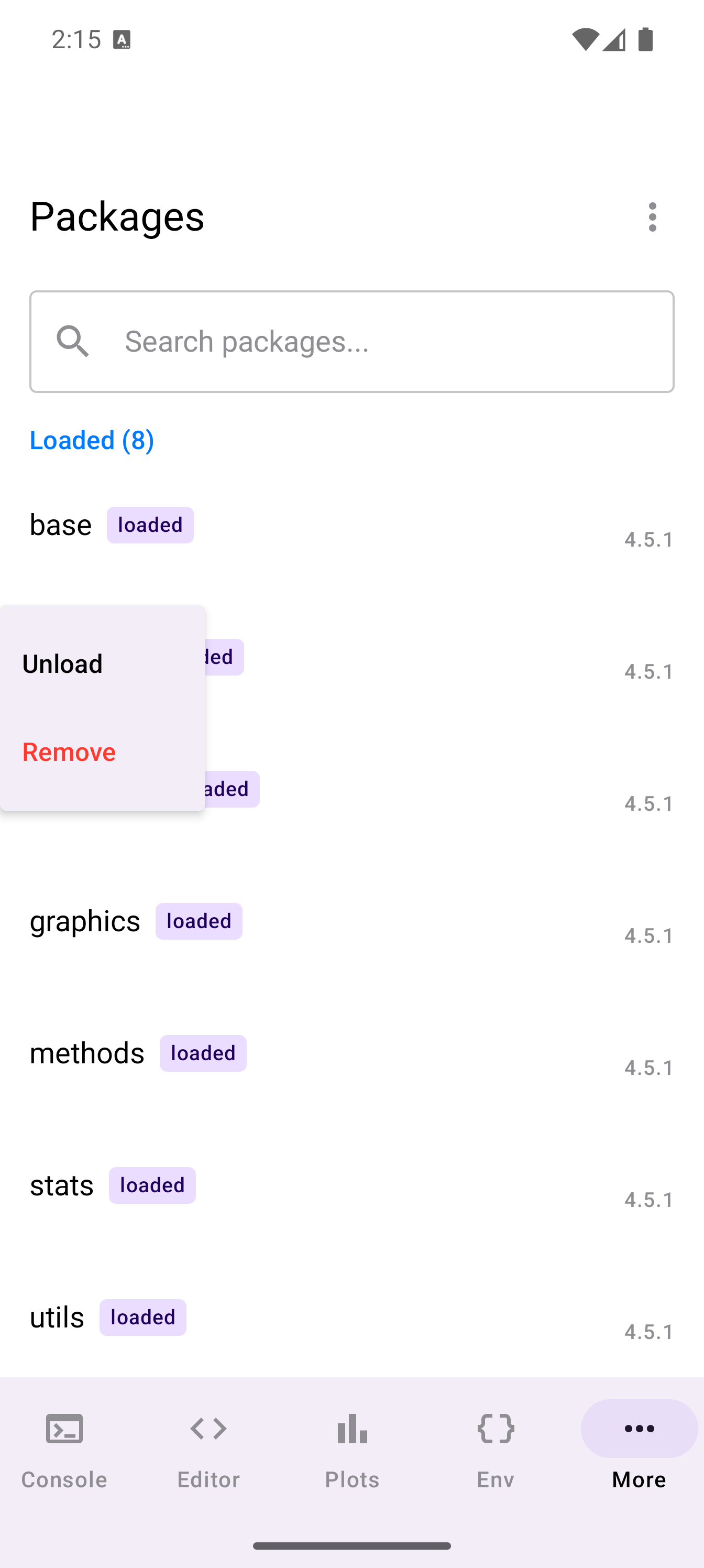
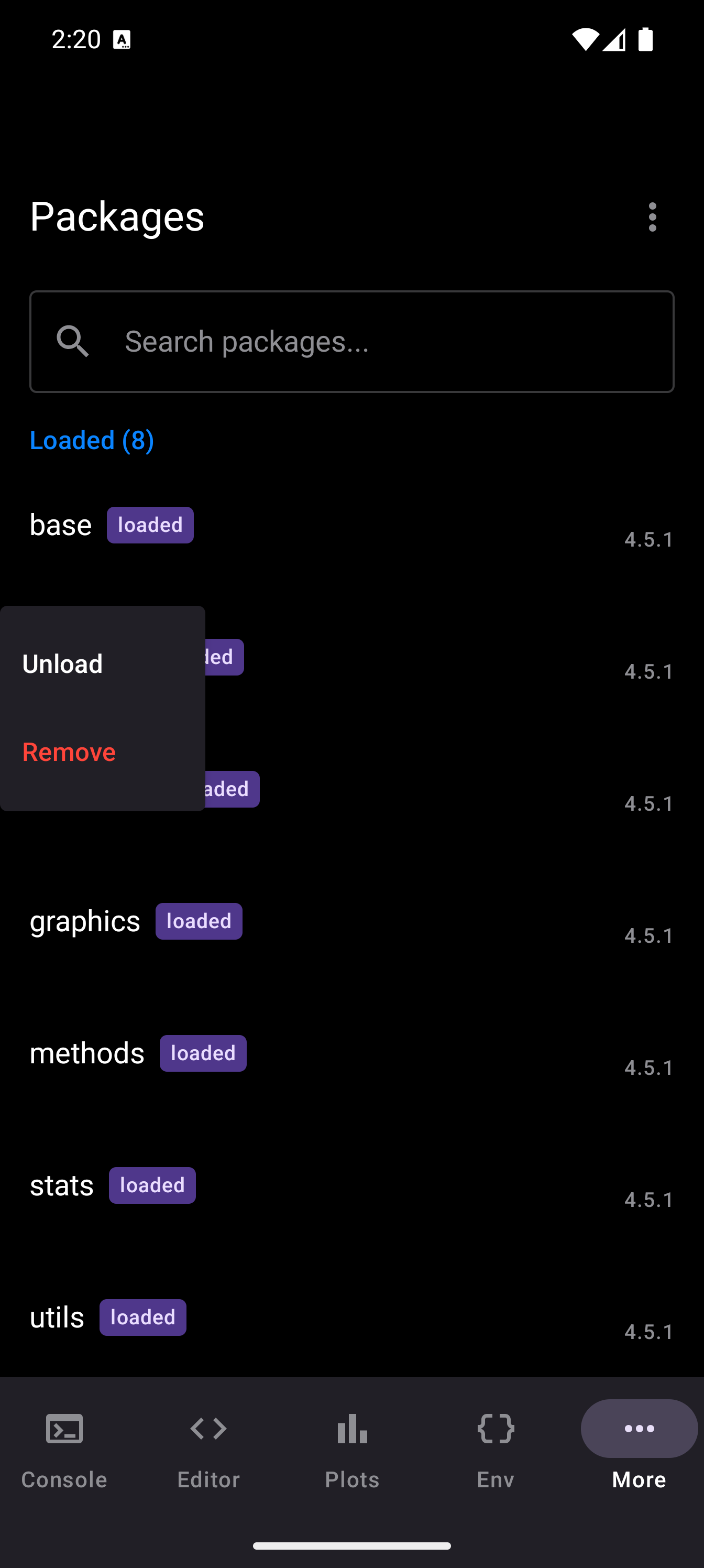
You can also load packages from the Console with standard R code:
library(ggplot2)
library(dplyr)
Loading is a per-session action. If you restart R or relaunch the app, packages return to their unloaded state. Put your library() calls at the top of your scripts so they run automatically.
Remove a Package
To free up storage, long-press a package and choose Remove from the context menu. This deletes the package files from the device. You can reinstall it later if needed.
During removal, the progress banner shows “Removing [package name]…” and confirms once the operation completes.
Package Bundles
If you are not sure which packages to start with, webRoid offers pre-built bundles that install a curated group of related packages in one action.
To access bundles:
- Tap the three-dot menu in the toolbar
- Choose Bundles
- A dialog appears listing the available bundles
Each bundle shows its name, a short description, and the list of included packages. Tap a bundle to install all of its packages sequentially. The progress banner updates with each package as it installs.
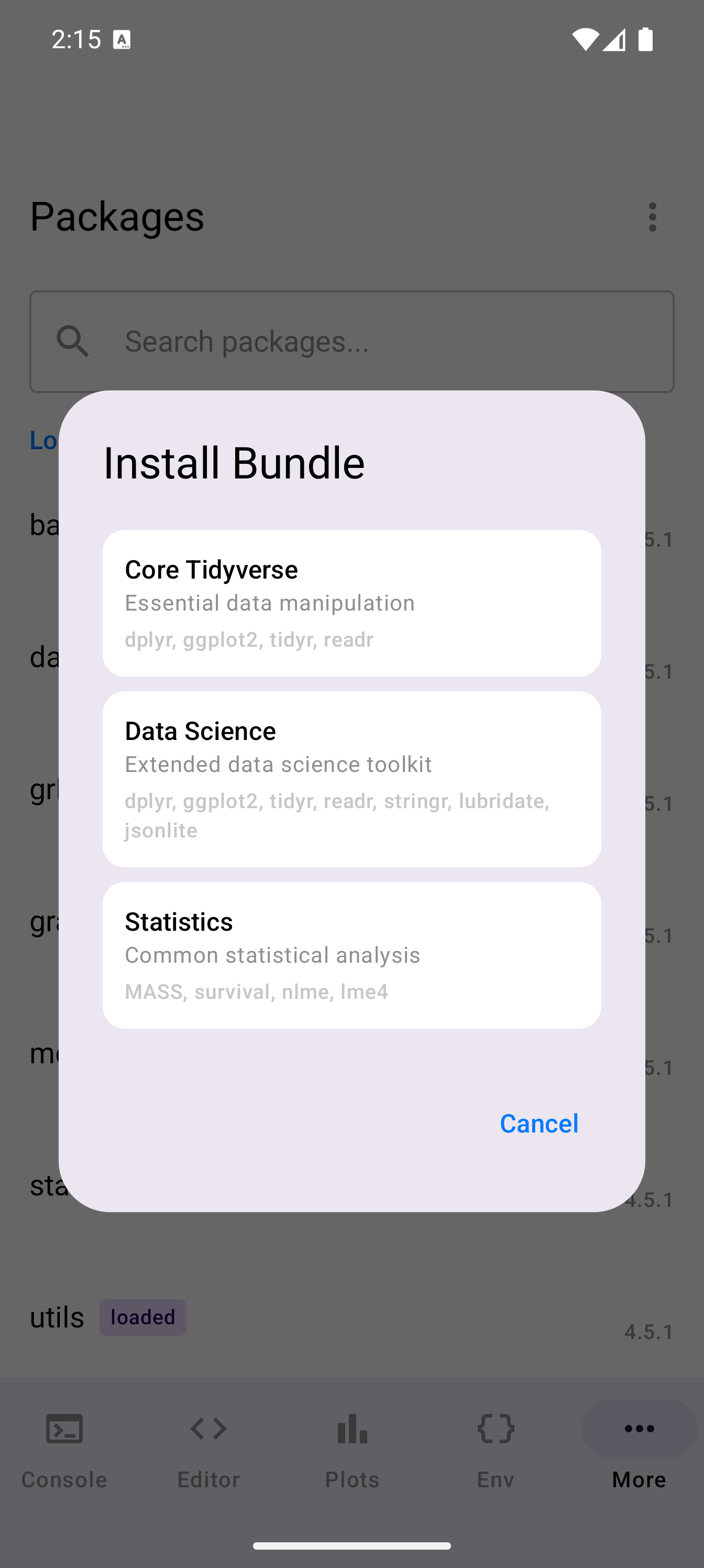
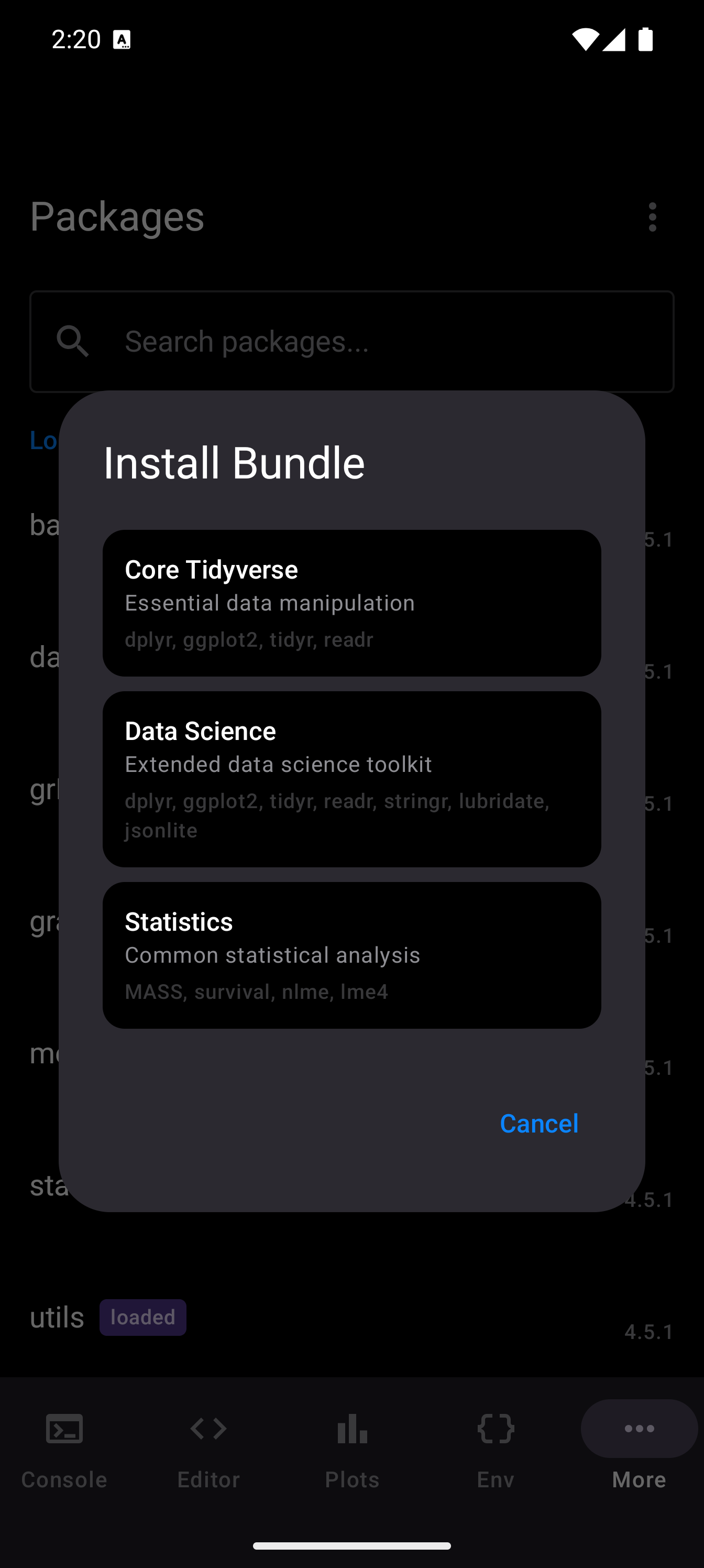
The built-in bundles are:
- Core Tidyverse
-
Essential data manipulation. Includes
dplyr,ggplot2,tidyr, andreadr. A great starting point for most R workflows. - Data Science
-
An extended toolkit that includes everything in Core Tidyverse plus
stringr(string operations),lubridate(dates and times), andjsonlite(reading and writing JSON). - Statistics
-
Focused on statistical modeling. Includes
MASS(classic statistical methods),survival(survival analysis),nlme(mixed-effects models), andlme4(advanced mixed models).
Bundles are a quick way to bootstrap a new session. If you mainly do data visualization, “Core Tidyverse” is a good starting point. For general-purpose data science work, the “Data Science” bundle covers most common needs.
Which Packages Are Available
The WebR repository at repo.r-wasm.org hosts thousands of packages, but not every CRAN package is available. The limitations are:
- Packages with compiled code (C, C++, Fortran) must be pre-compiled for the WebAssembly target. The webR project handles this, but some packages with complex system dependencies cannot be compiled.
- Packages that depend on external system libraries (e.g., database drivers like RMySQL, graphics libraries like rgl, or Java-dependent packages like rJava) are generally unavailable.
- Pure R packages are the most likely to be available, since they do not require platform-specific compilation.
In practice, the most popular data science, statistics, and visualization packages work well. If you try to install a package that is not available, the installation will fail with an error message.
The webR package repository is updated regularly. A package that is unavailable today may be added in a future update. Check repo.r-wasm.org for the current list of supported packages.
Restoring Packages on Startup
webRoid can automatically restore your installed packages when the app launches. This is controlled by a setting in Settings > R Session. Look for the “Restore on Startup” option.
When enabled, the app saves a record of your installed packages and reinstalls them each time the R session initializes. This means you do not need an internet connection every launch (packages are cached locally), and your environment is ready to go without manually reinstalling everything.
Use the Refresh option in the three-dot menu to reload the package list at any time.