Console
The Console is your direct line to R. You type a command, tap the play button, and the result appears immediately. It is the fastest way to try out ideas, inspect variables, and explore data without writing a full script.
Overview
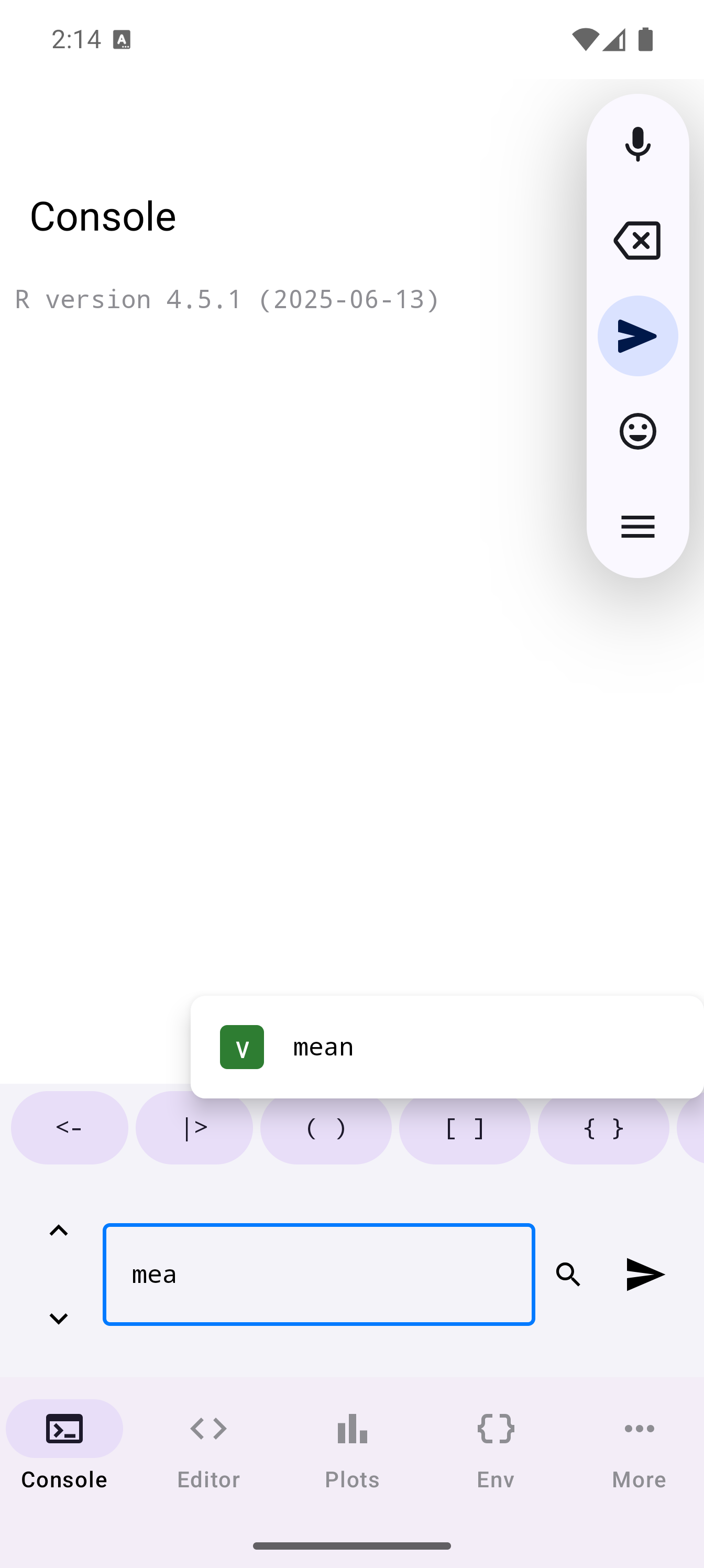
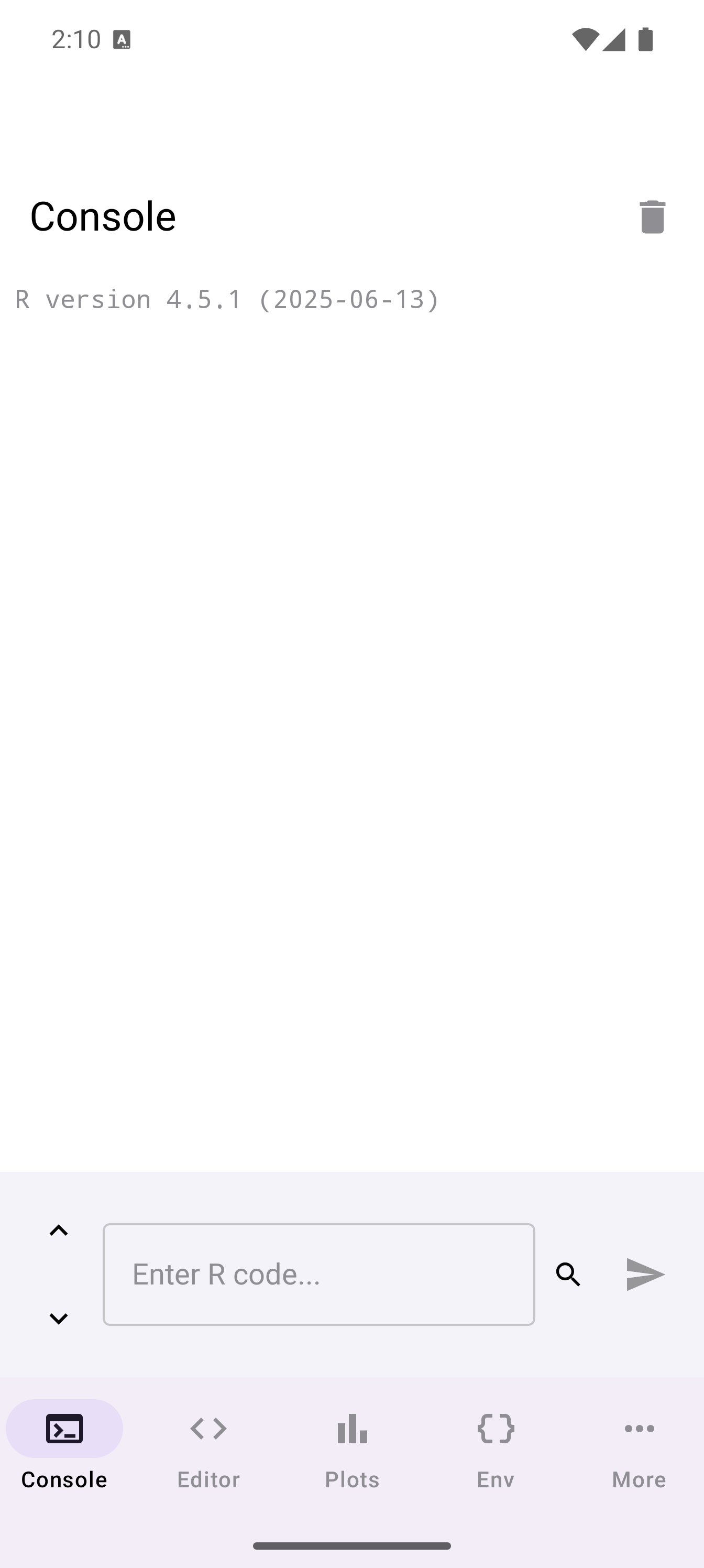
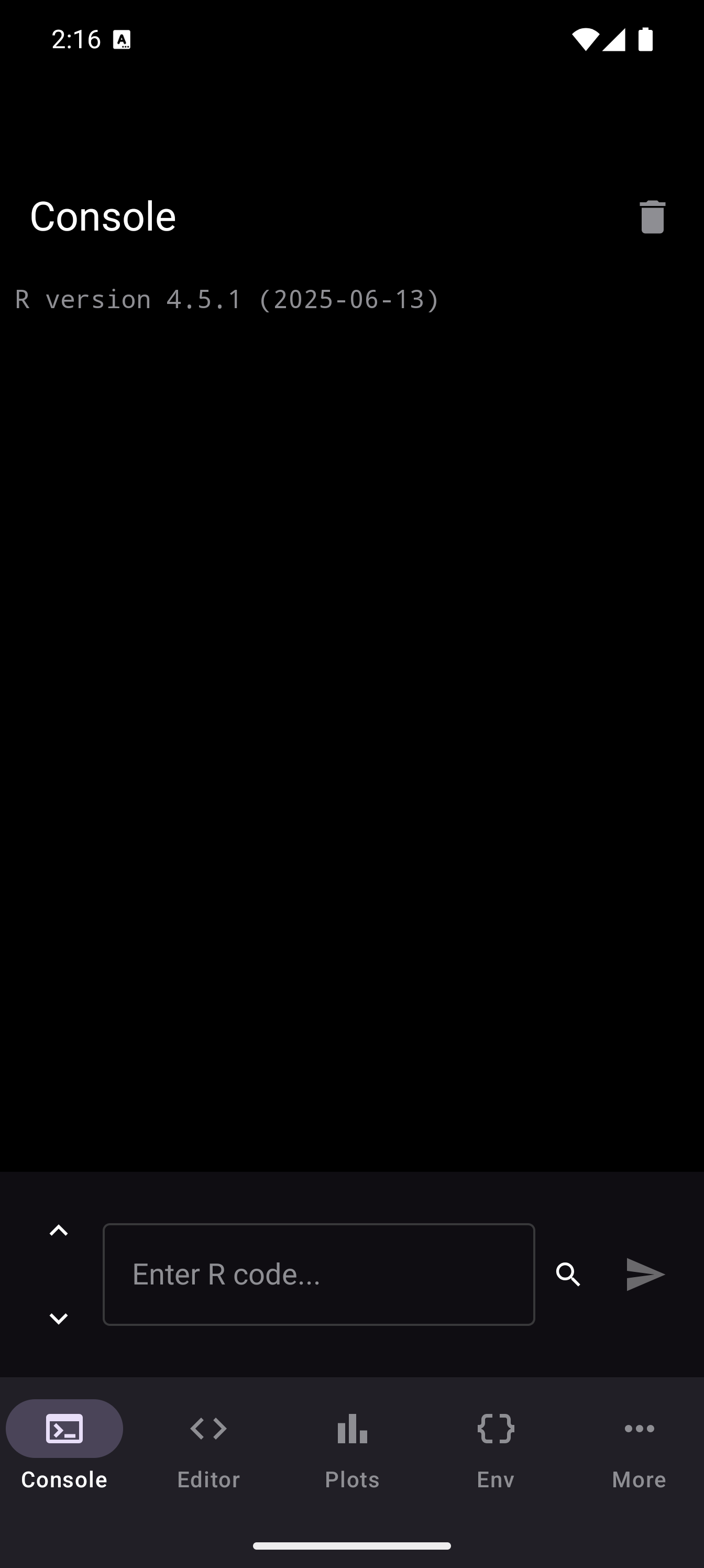
The Console screen has three main areas:
- Title bar at the top, showing “Console” with a trash icon to clear the output
- Output area in the middle, a scrollable view of everything you and R have exchanged
- Input field at the bottom, a rounded text field with an “Enter R code…” placeholder, a blue play button on the right, and history navigation arrows on the left
Running Code
To execute R code:
- Tap the input field at the bottom of the screen. The software keyboard appears along with the R keyboard toolbar.
- Type your R expression (for example,
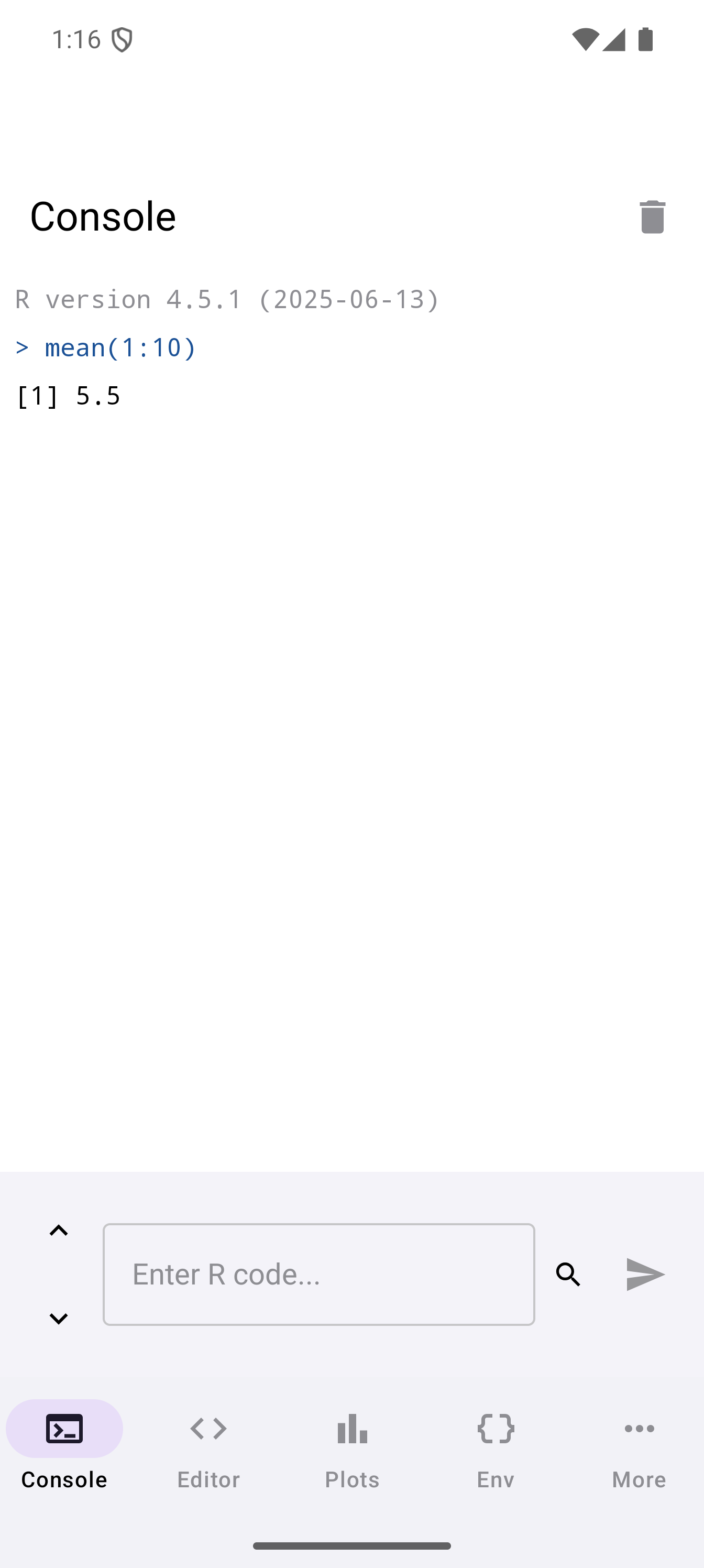
mean(1:10)). - Tap the blue play button to execute.
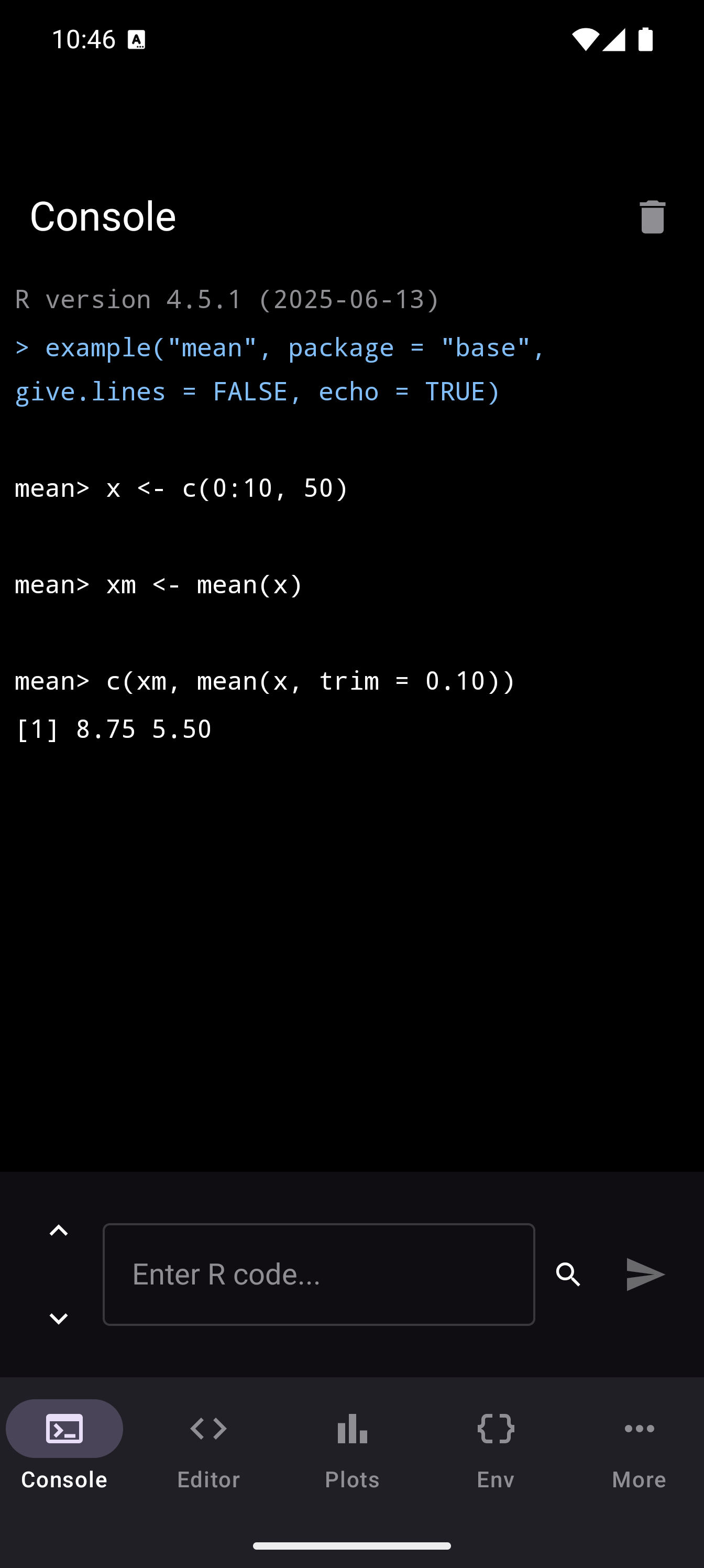
The command you typed appears in the output area in blue, prefixed with >. The result appears directly below it. You can keep entering commands one after another. The output scrolls to show the latest result.

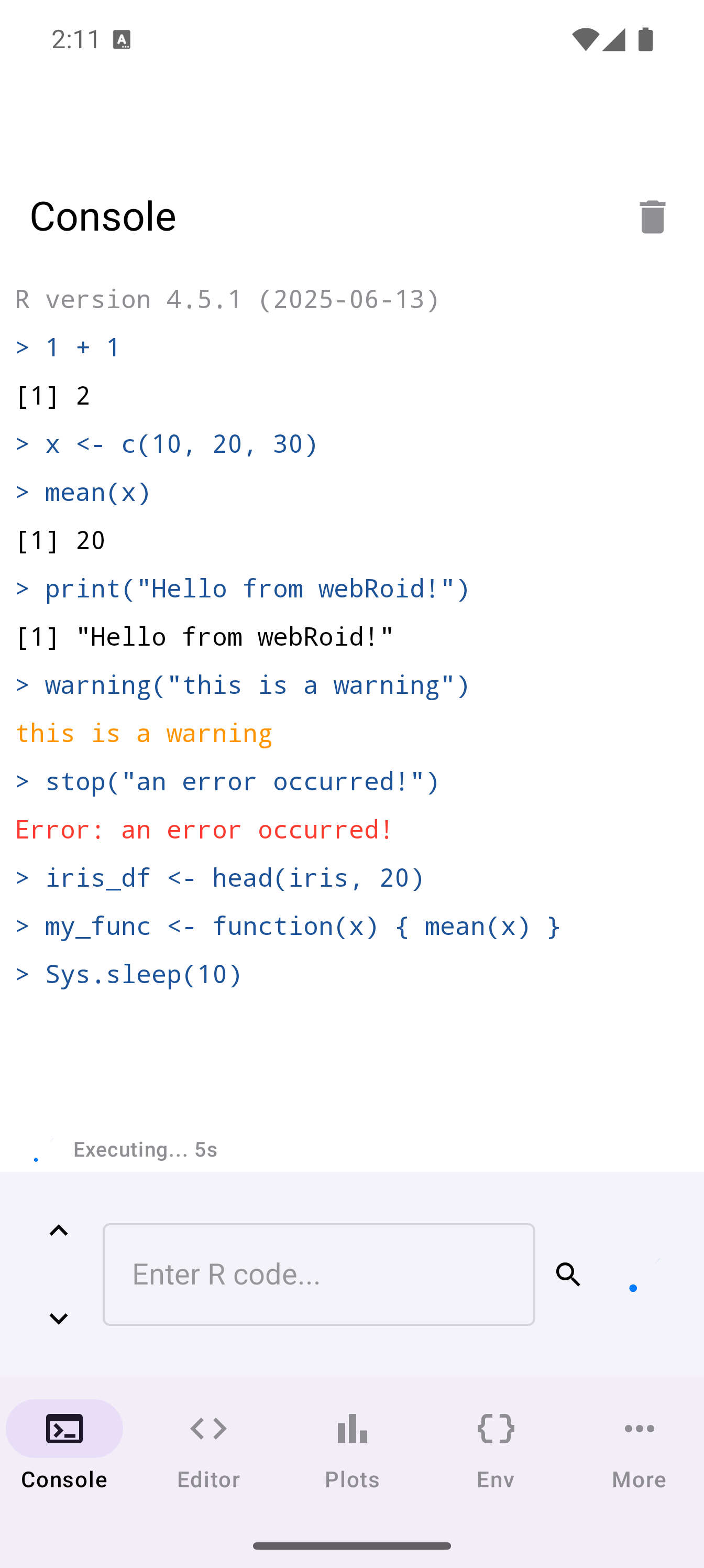
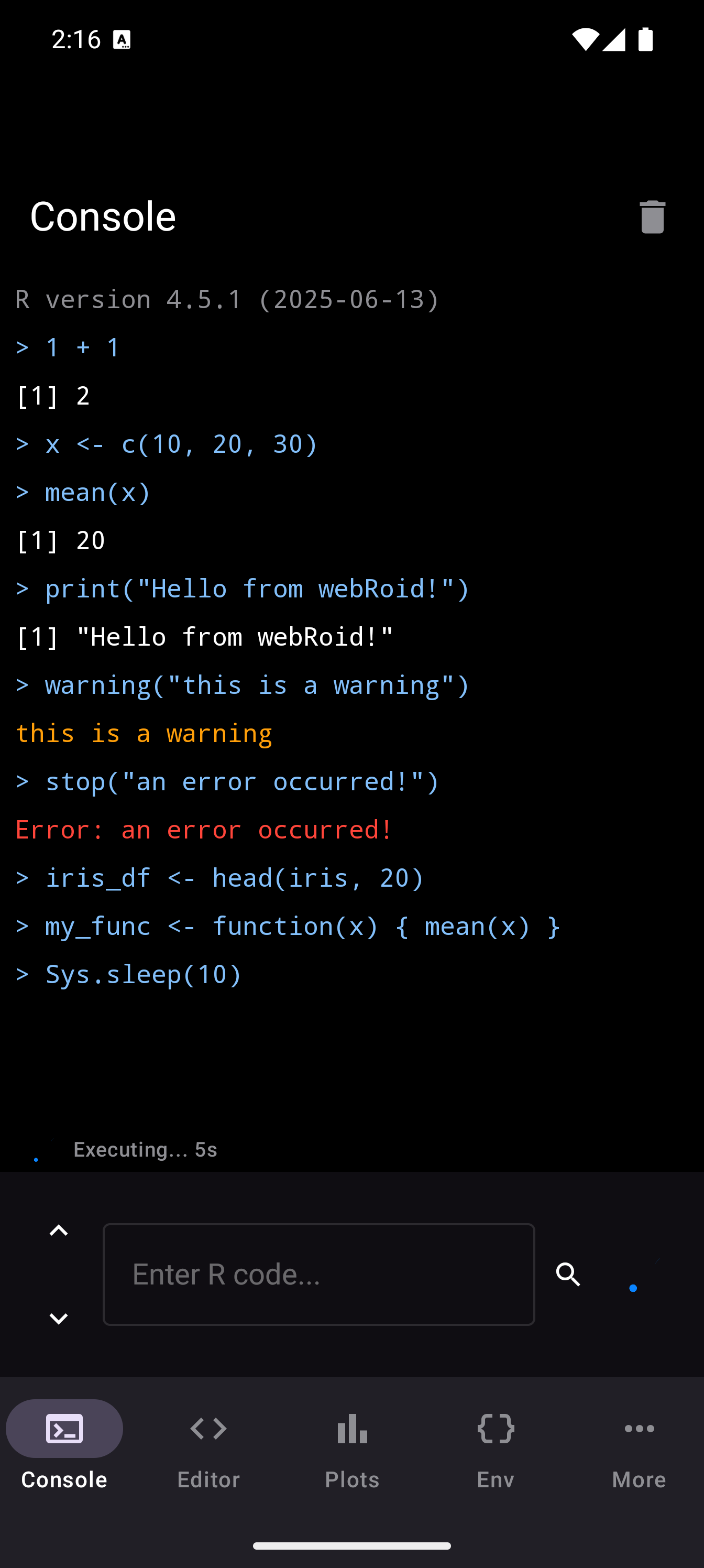
While code is running, an “Executing… 0s” indicator appears at the top of the output area with an animated dot. The timer counts up so you know how long your code has been running.
If you have an external keyboard connected, press Return to execute instead of tapping the play button.
Output Colors
The console uses color to help you scan results at a glance. Each color represents a different type of output:
| Color | Meaning | Example |
|---|---|---|
| Blue | Your input commands, prefixed with > |
> mean(1:10) |
| Black (light mode) / White (dark mode) | Normal R output printed to standard output | [1] 1 2 3 4 5 |
| Green | Values returned by expressions | [1] 5.5 |
| Orange | Warnings: R completed the operation but something may be off | Warning: NAs introduced by coercion |
| Red | Errors: R could not complete the operation | Error in eval(expr): object 'y' not found |
| Gray | Informational messages from R or packages | Loading required package: stats |
Try running these commands one at a time to see each color in action:
x <- 42
x
print("hello")
message("this is a message")
warning("something looks off")
stop("this is an error")
y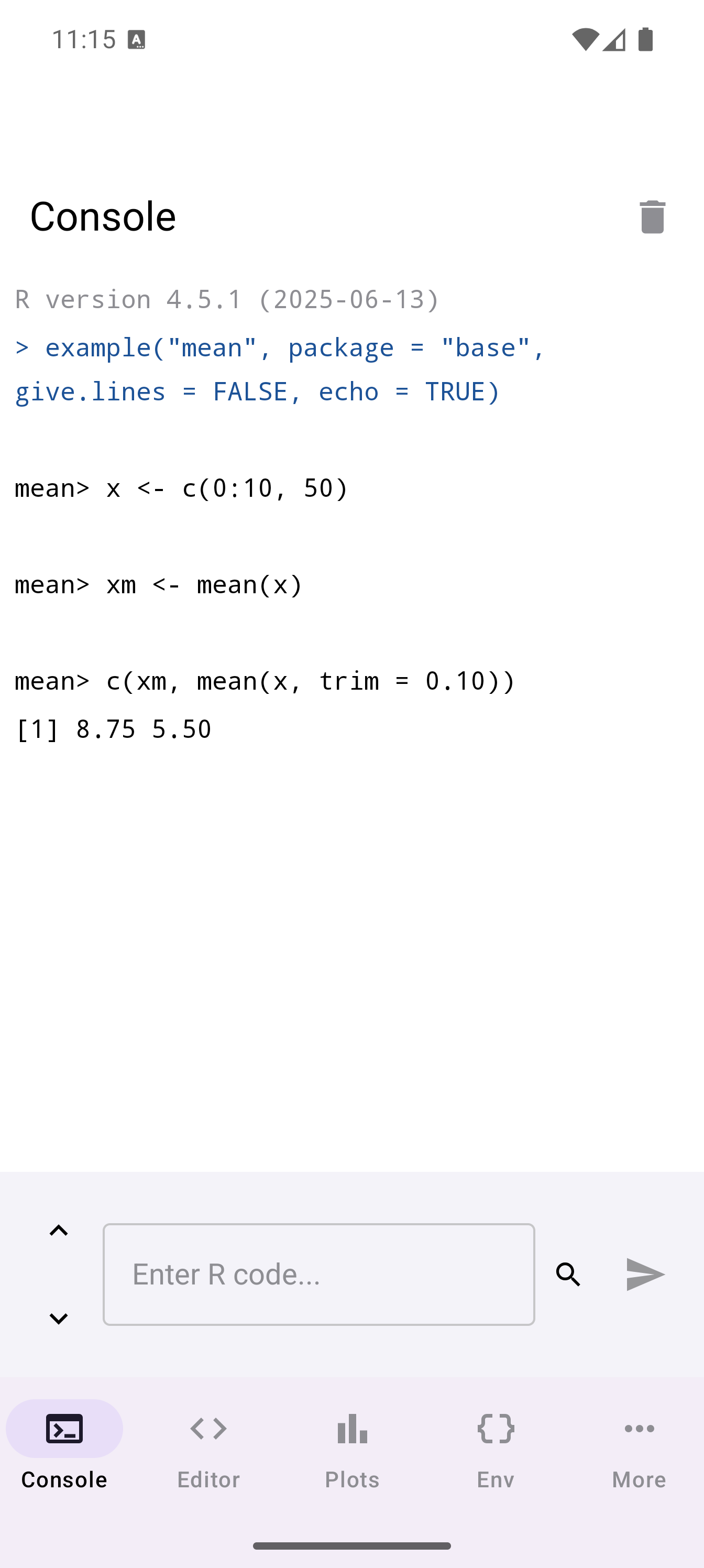
Read error messages carefully. R usually tells you exactly what went wrong. For example, Error in eval(expr): object 'y' not found means you used a variable named y that has not been assigned a value.
Copying output
Long-press any output line to copy its text to the clipboard. You will feel a brief haptic vibration and see a “Copied to clipboard” confirmation.
R Keyboard Toolbar
When the software keyboard is open, a scrollable toolbar appears directly above it with buttons for common R symbols and operators. This saves you from hunting through the Android symbol keyboard for characters you use constantly in R.
The toolbar includes:
| Button | Purpose |
|---|---|
<- |
Assignment operator |
\|> |
Native pipe operator |
() |
Matched parentheses (inserts both) |
[] |
Matched square brackets |
{} |
Matched curly braces |
"" |
Matched double quotes |
~ |
Formula operator |
c() |
Quick vector wrapper |
:: |
Namespace access (e.g., dplyr::filter) |
$ |
List/data frame column access |
@ |
S4 slot access |
%in% |
Value matching operator |
! |
Logical NOT |
& |
Logical AND |
\| |
Logical OR |
# |
Comment prefix |
| Tab | Inserts indentation |
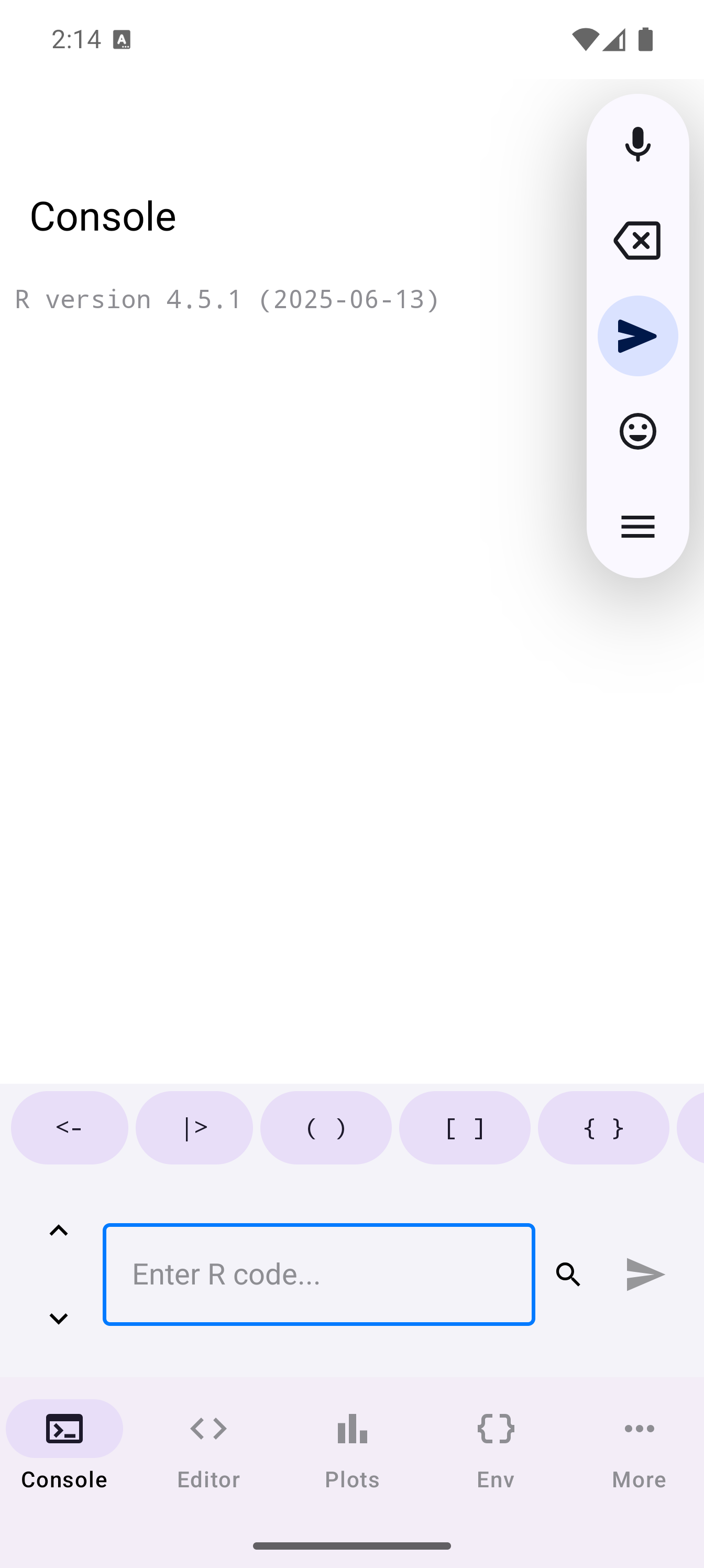
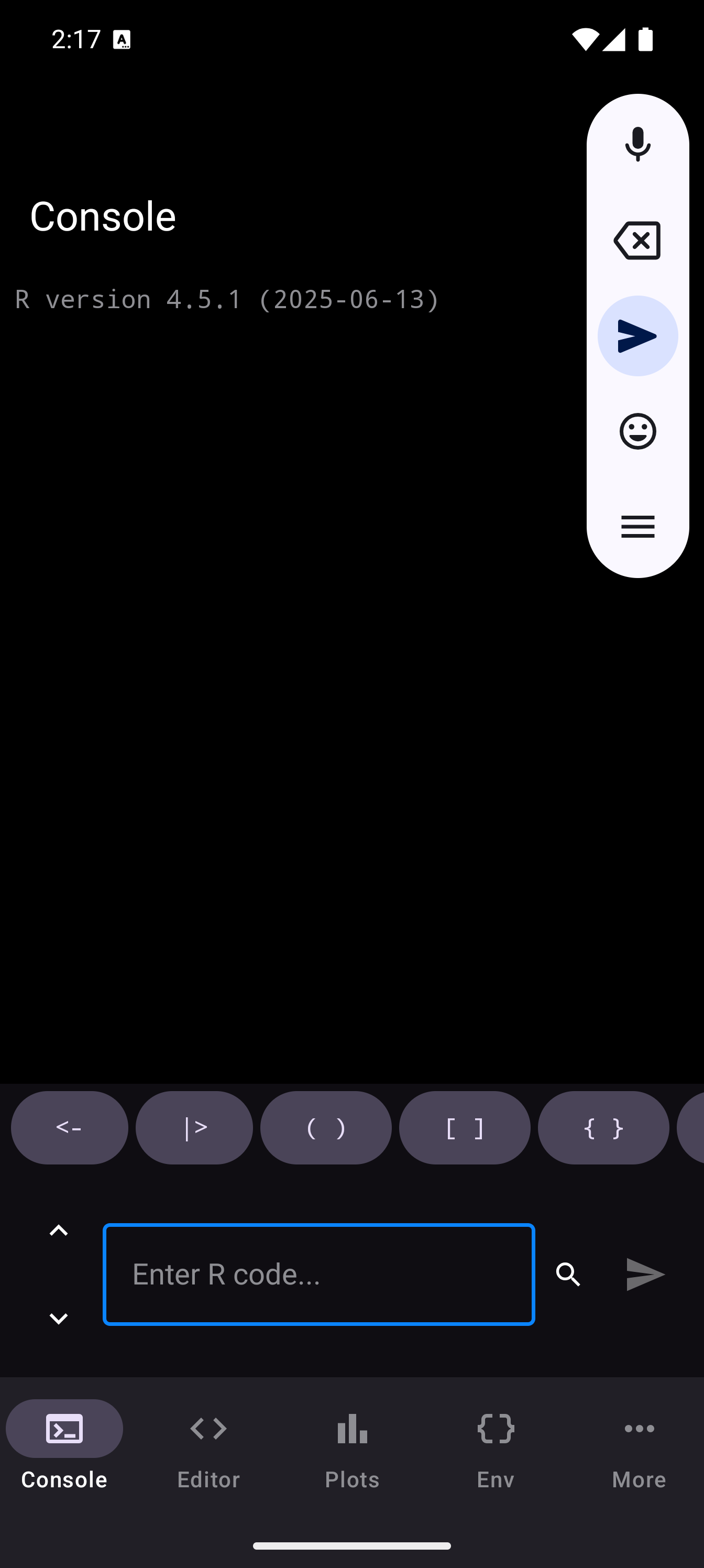
This is the same toolbar you will see in the Editor. The paired characters ((), [], {}, "") insert both the opening and closing character at once, placing your cursor between them.
The toolbar buttons can be customized. See Customizing the R Toolbar in the Settings guide.
Code Completion
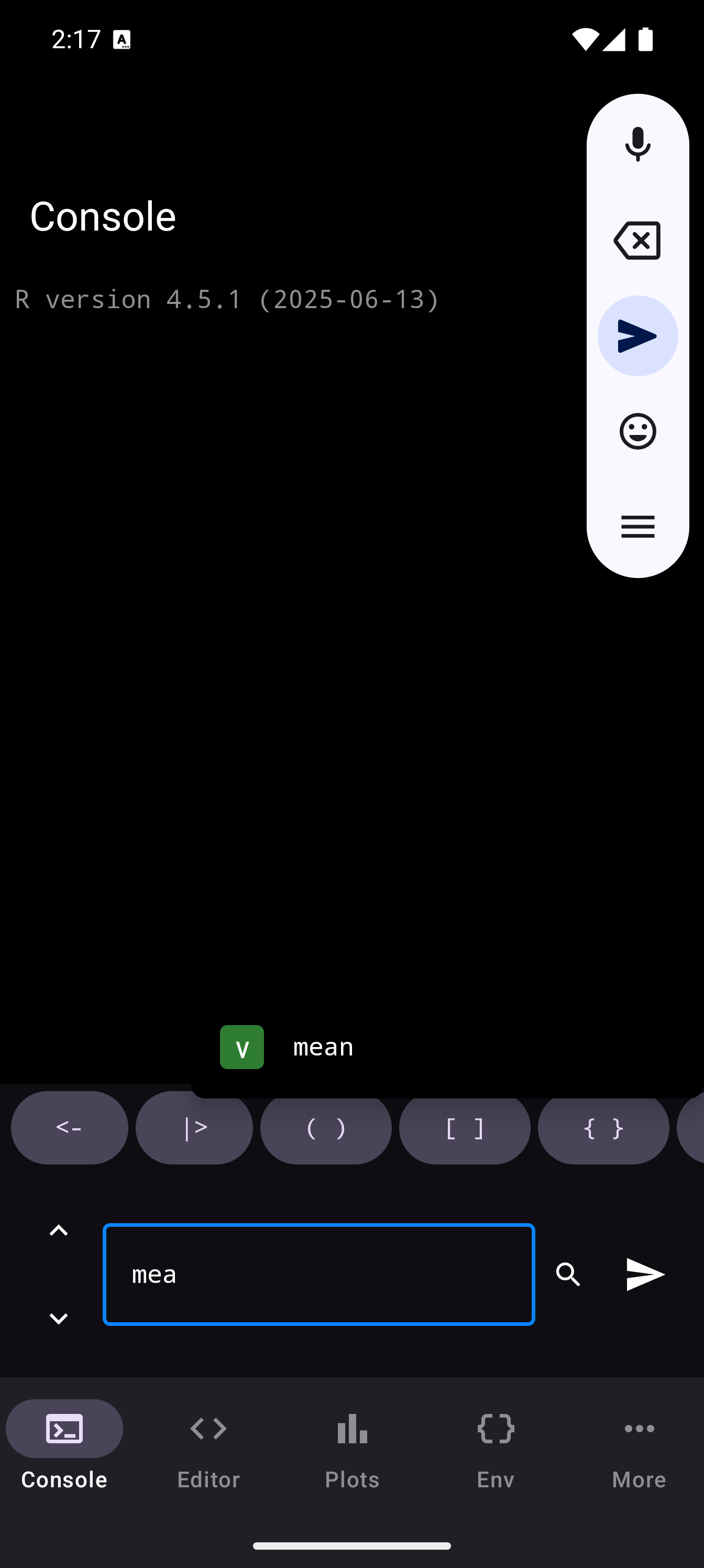
As you type in the input field, a popup of suggestions appears above it. These include function names, variable names, package members, and argument names. Tap a suggestion to insert it, saving you from typing out long names like as.data.frame() or your own custom variable names.
Completions update as you type, narrowing down to the best matches. They work for:
- Base R functions and constants
- Functions from loaded packages
- Variables you have created in the current session
- Column names when typing after
$