History
The History screen keeps a complete record of every R command you have executed, whether from the Console or the Editor. You can search past commands, filter by source or outcome, review execution statistics, and send any previous command back to the Console or Editor with a single tap.
Overview
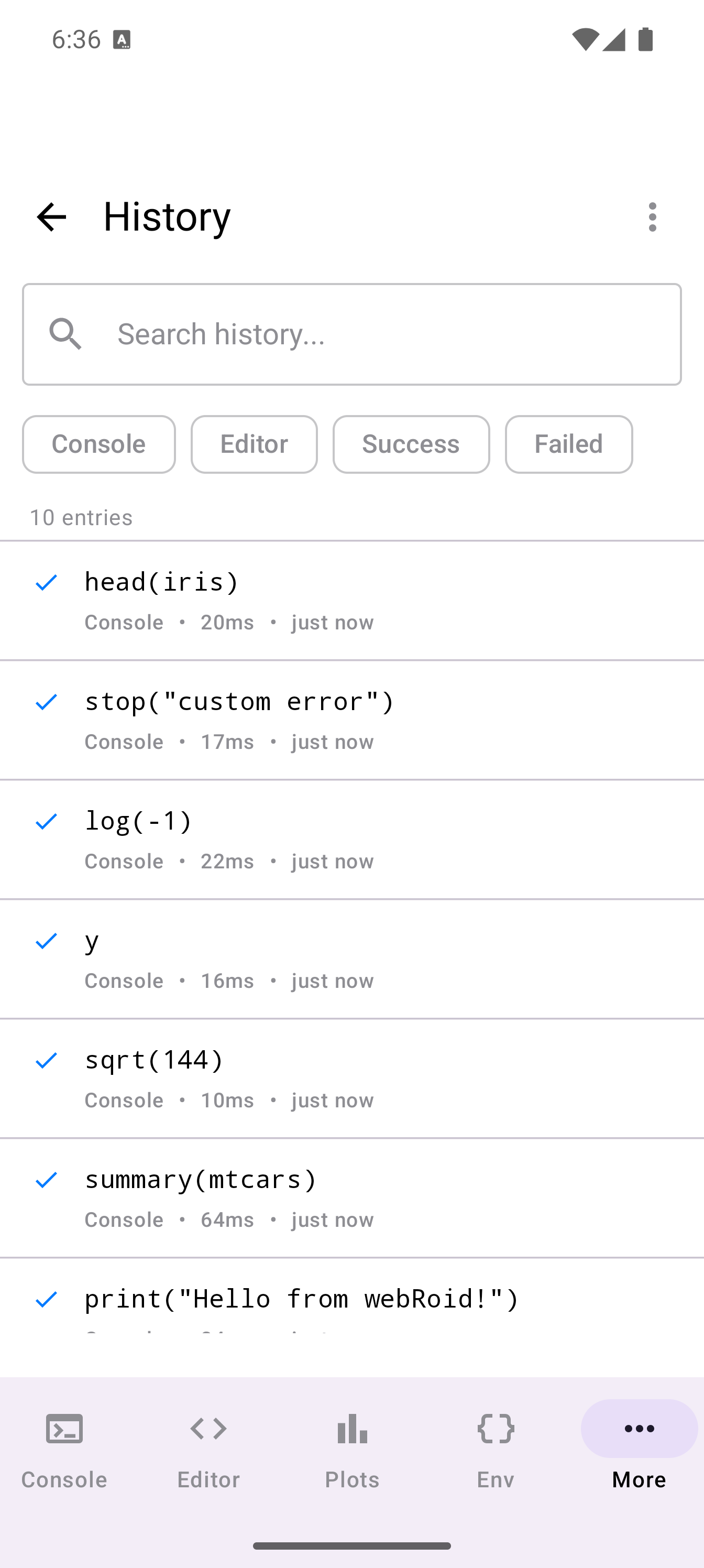
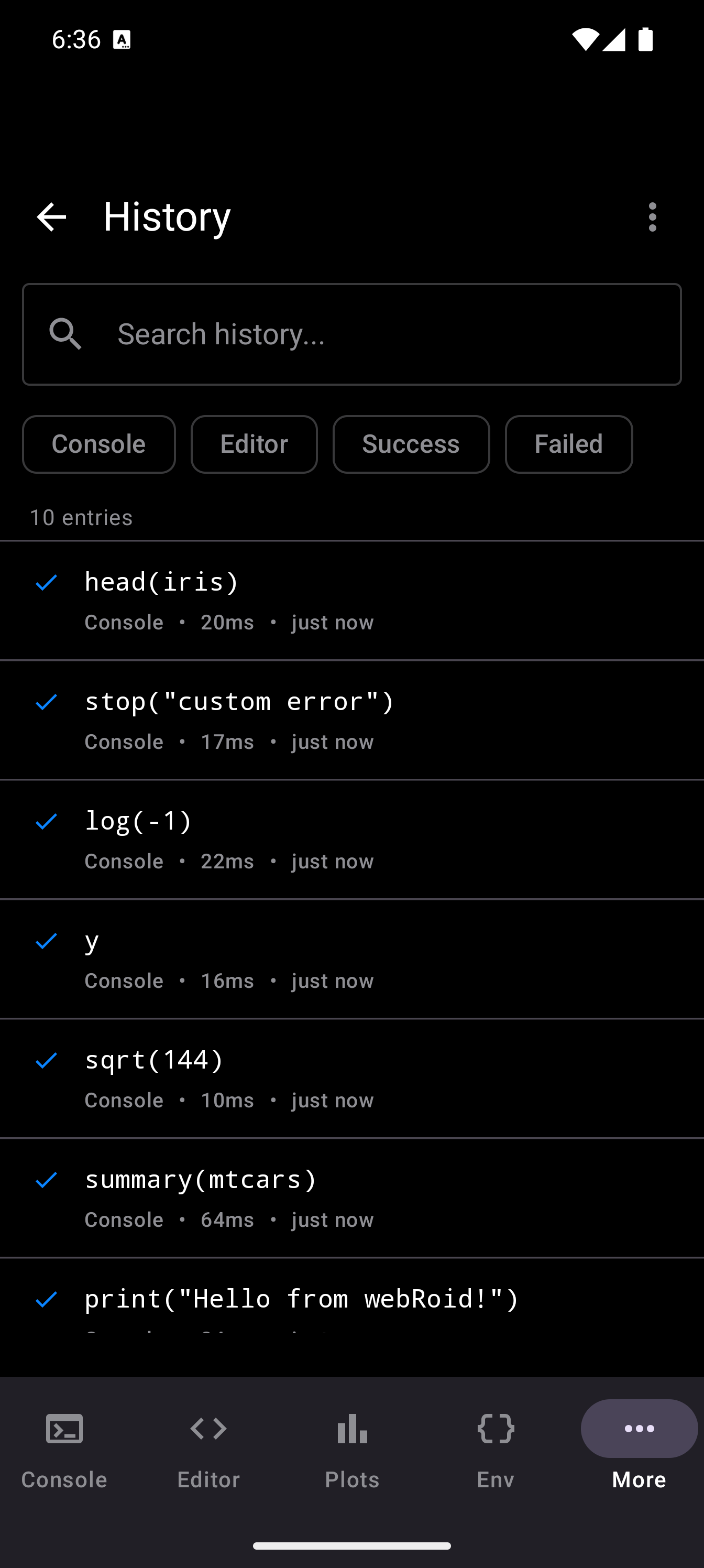
The History screen has the following layout:
- Title bar showing “History” with a back arrow and an overflow menu (three-dot icon)
- Search bar for filtering entries by keyword
- Filter chips for narrowing results by source (Console, Editor) and outcome (Success, Failed)
- Entry count showing how many entries match the current filters
- Entry list with each row showing a code preview, source label, execution duration, relative timestamp, and a success or failure icon
Accessing History
Navigate to More > History to open the History screen. You can also reach it from the Console by tapping the overflow menu (…) and choosing Search History, which opens the search interface.
Entry List
Each entry in the list displays:
| Element | Description |
|---|---|
| Status icon | A checkmark (success) or an X (failure) on the left side of the row |
| Code preview | The first line of the command, truncated if it exceeds 50 characters |
| Source label | “Console” or “Editor”, indicating where the command was run |
| Duration | How long the command took (e.g., “42ms”, “1.3s”) |
| Relative time | When the command was run (e.g., “5m ago”, “2h ago”, “3d ago”, or a date like “Mar 1”) |
| Error preview | For failed commands, a one-line preview of the error message appears below the metadata |
Tap any entry to open its detail sheet. Swipe an entry from right to left to delete it. The delete background turns red as you swipe, with a trash icon confirming the action.
Searching
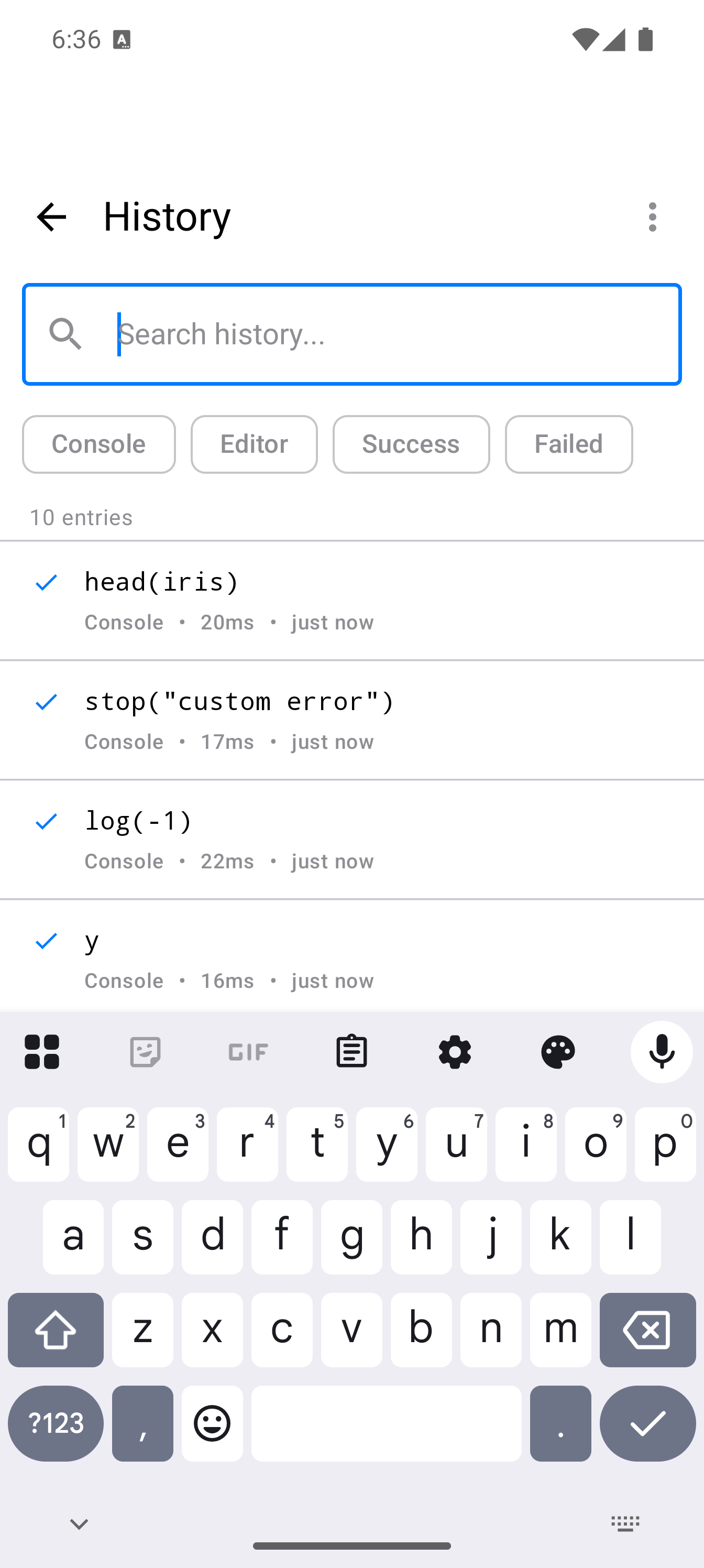
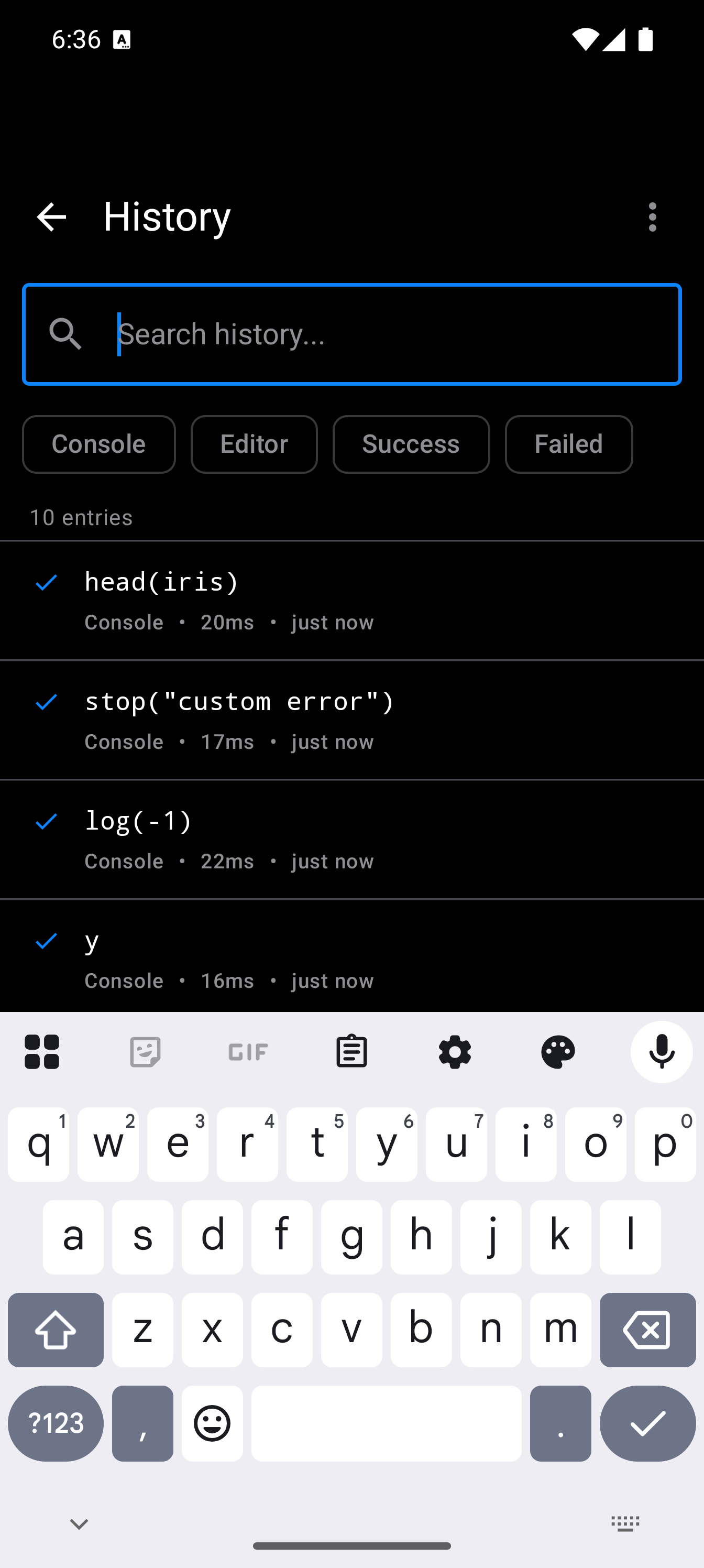
The search bar at the top of the screen filters entries in real time as you type. The search checks against:
- The command code itself
- Output summaries (if present)
- Error messages (if present)
Matching is case-insensitive. Tap the clear button (X icon) in the search field to reset the search.
Filtering
Below the search bar, four filter chips let you narrow the list:
| Chip | Effect |
|---|---|
| Console | Show only commands run from the Console |
| Editor | Show only commands run from the Editor |
| Success | Show only commands that completed without errors |
| Failed | Show only commands that produced errors |
Filters are toggles: tap a chip to activate it, tap it again to deactivate it. You can combine one source filter with one outcome filter (e.g., “Console” + “Failed” to see only failed console commands).
When any filter is active, a Clear button appears at the end of the chip row. Tap it to reset all filters and the search query at once.
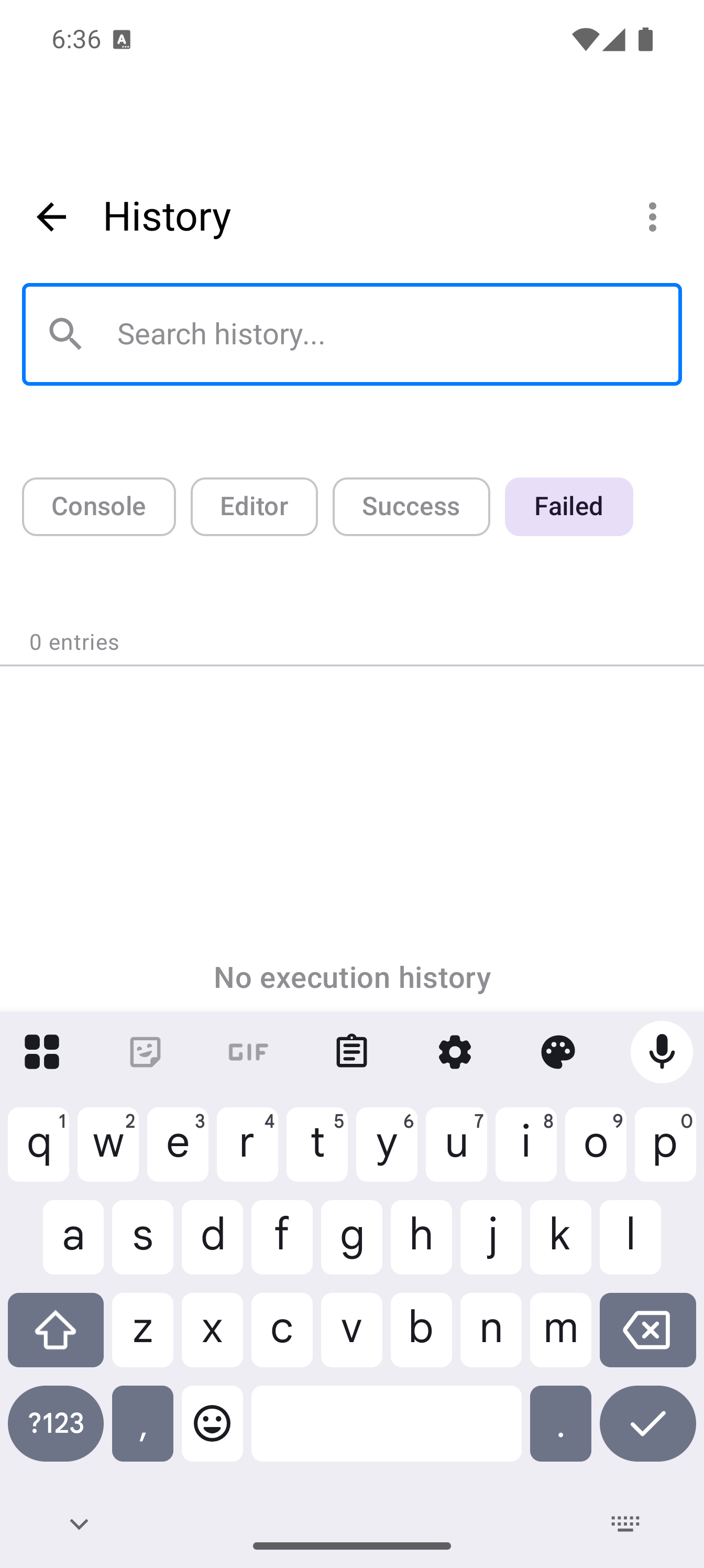
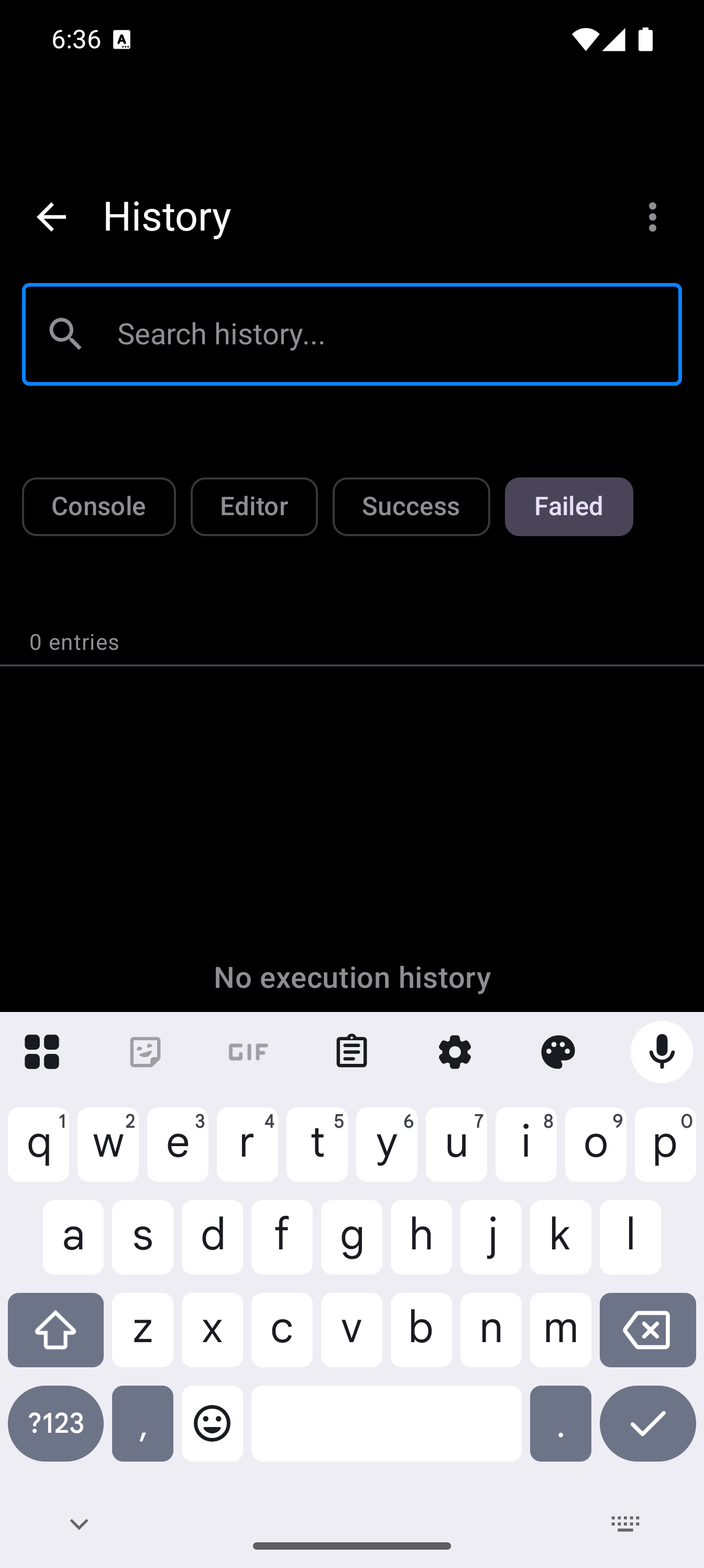
The entry count below the filter row updates to reflect the number of matching entries (e.g., “12 entries” or “1 entry”).
Entry Details
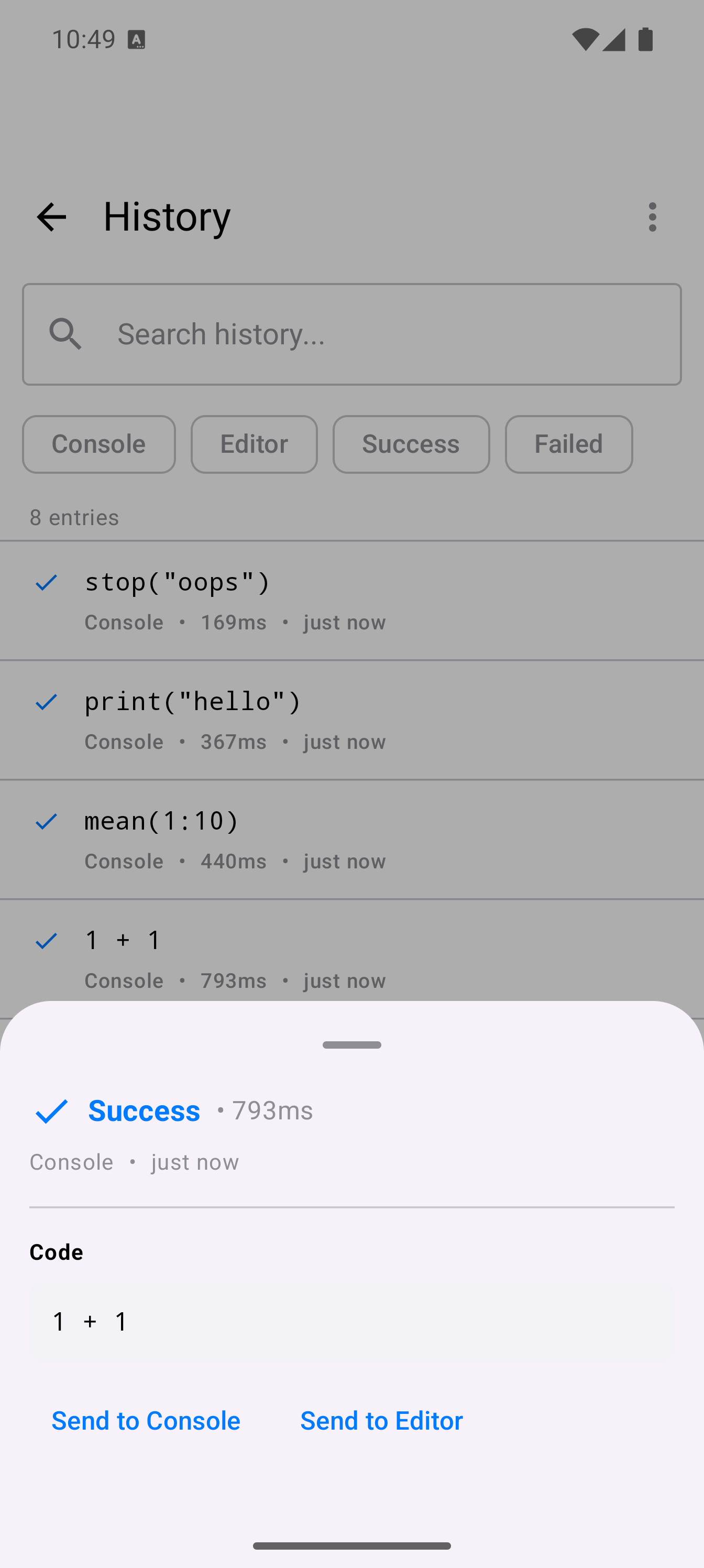
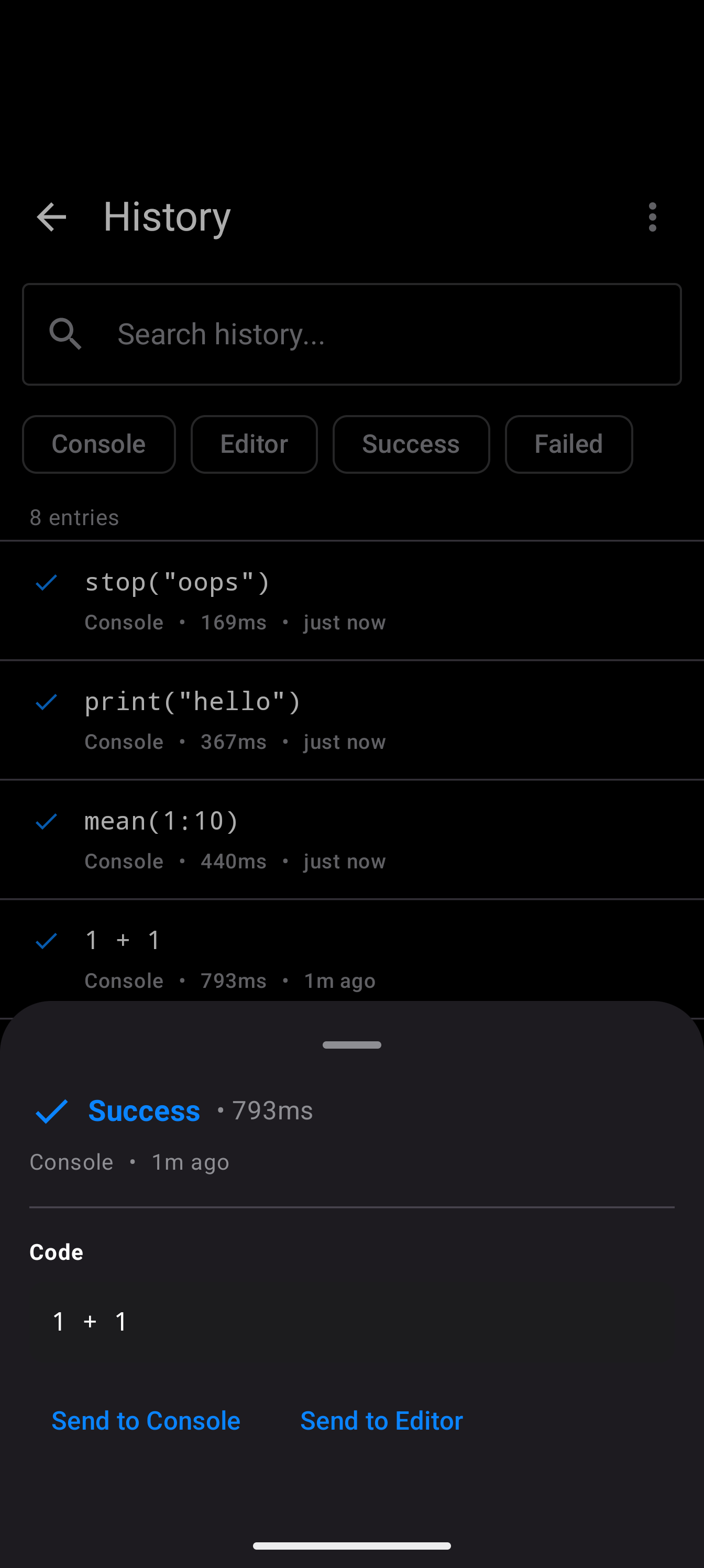
Tapping an entry opens a bottom sheet with full details:
- Status header showing “Success” or “Failed” with the execution duration
- Source and timestamp (e.g., “Console - 5m ago”)
- Code section with the full command displayed in a monospaced font on a shaded background
- Action buttons to send the code to the Console or Editor
- Error section (for failed commands) showing the complete error message on a red-tinted background
- Output section (when available) showing a summary of the command’s output
Send to Console
Tap Send to Console to copy the command into the Console input field. The History screen closes and the Console appears with the code ready to run. This is useful for re-running or tweaking a previous command.
Send to Editor
Tap Send to Editor to insert the command into the Editor. This is helpful when you want to build on a command you originally ran interactively.
Statistics
To view aggregate statistics about your execution history:
- Tap the overflow menu (three-dot icon) in the title bar.
- Tap Statistics.
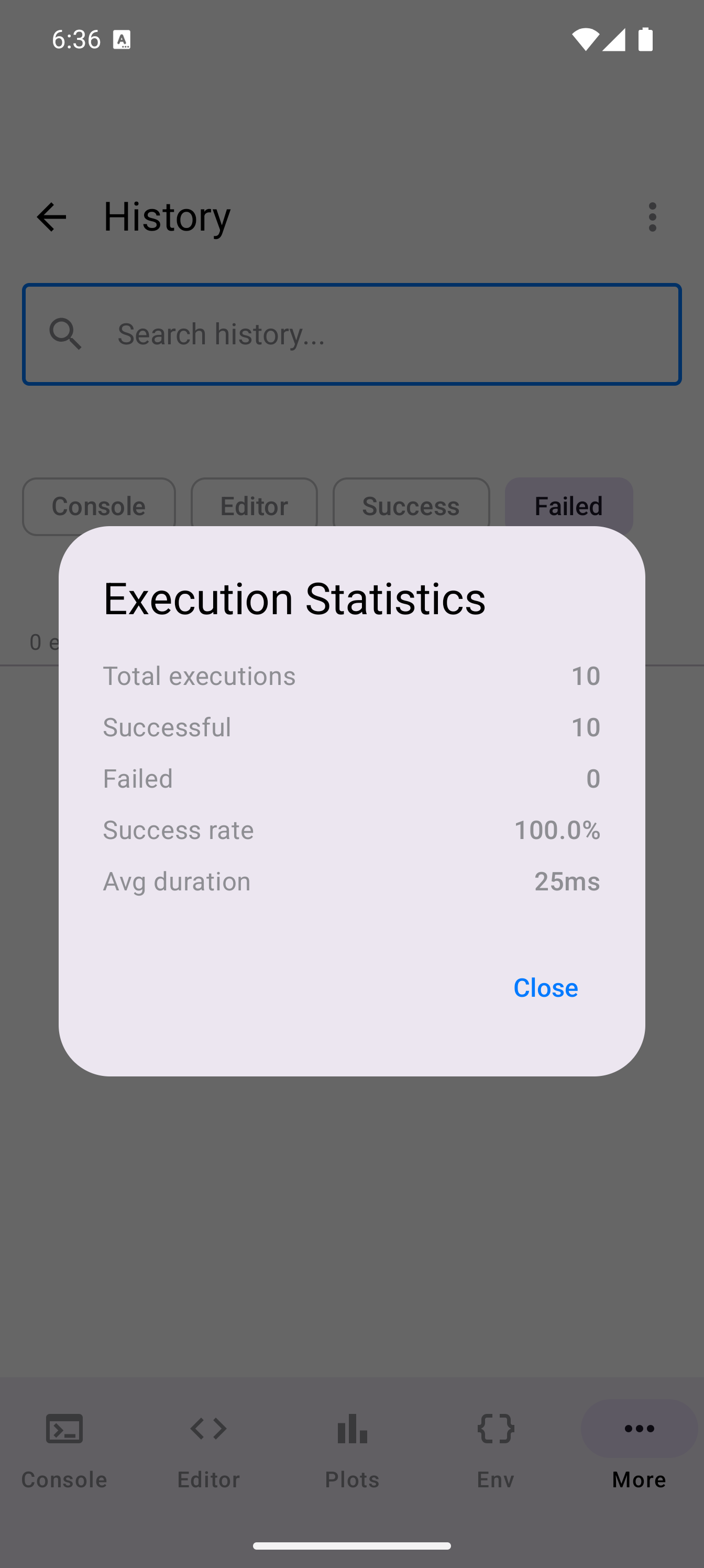
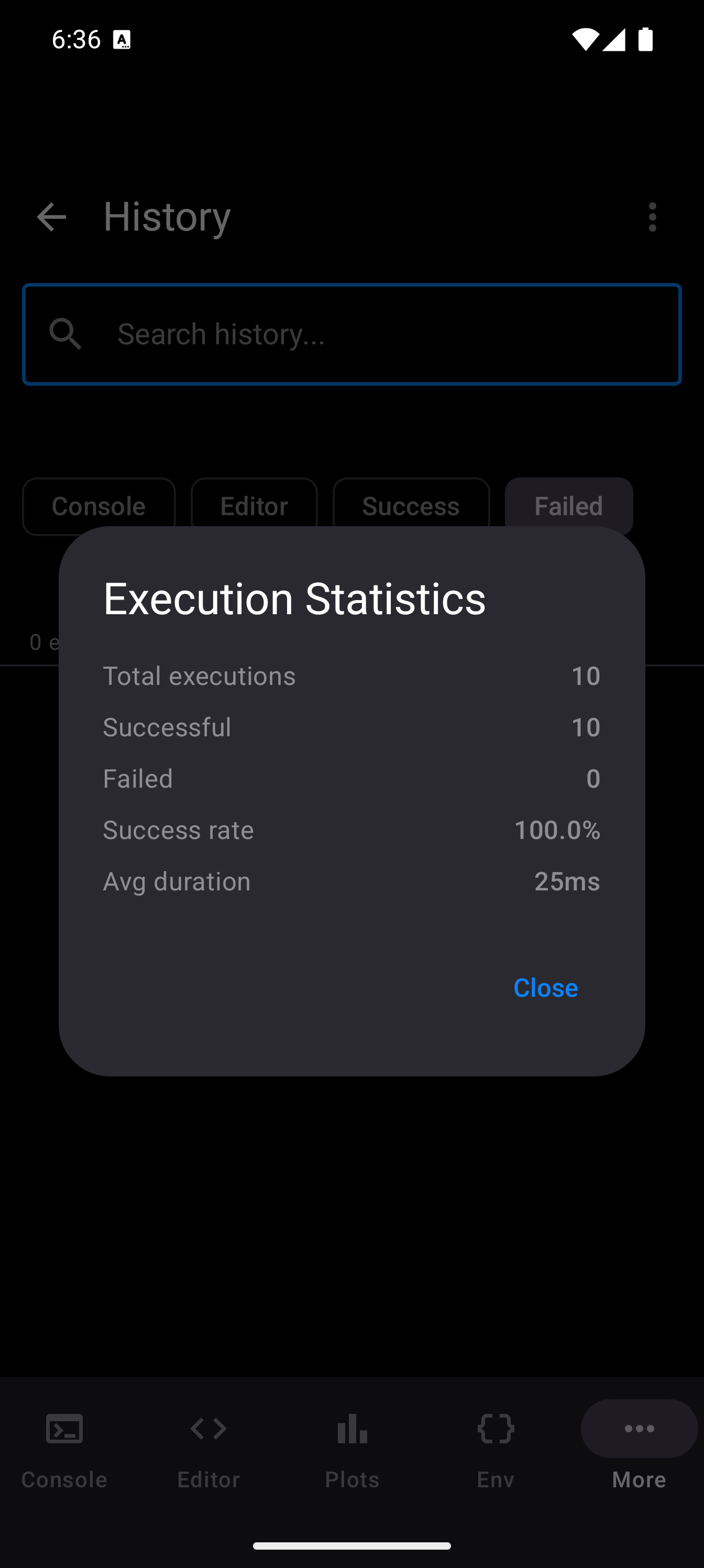
A dialog appears with the following metrics:
| Statistic | Description |
|---|---|
| Total executions | The total number of commands recorded |
| Successful | How many commands completed without errors |
| Failed | How many commands produced errors |
| Success rate | The percentage of successful executions (e.g., “87.5%”) |
| Avg duration | The average execution time across all commands |
Tap Close to dismiss the dialog.
Deleting Entries
You can remove entries from the history in two ways:
Swipe to Delete
Swipe any entry from right to left. The row background turns red and a delete icon appears. Release to confirm the deletion. This removes a single entry permanently.
Clear All
To delete the entire history:
- Tap the overflow menu (three-dot icon) in the title bar.
- Tap Clear All.
- A confirmation dialog warns that this will permanently delete all entries and cannot be undone.
- Tap Clear All to confirm, or Cancel to keep your history.
Clearing all history is irreversible. There is no way to recover deleted entries.
Persistence
History entries are saved to persistent storage on your device. Your full execution history carries over between sessions, so you can close the app and return later to find all your past commands intact.
If you ran a useful command days ago and cannot remember the exact syntax, open History, search for a keyword, and send it back to the Console or Editor. No need to retype it from scratch.