Sending a Diagnostic Report
When something goes wrong, webRoid can put together a report for you to send us. It is made on your device, and nothing leaves it until you send it.
Send a Report
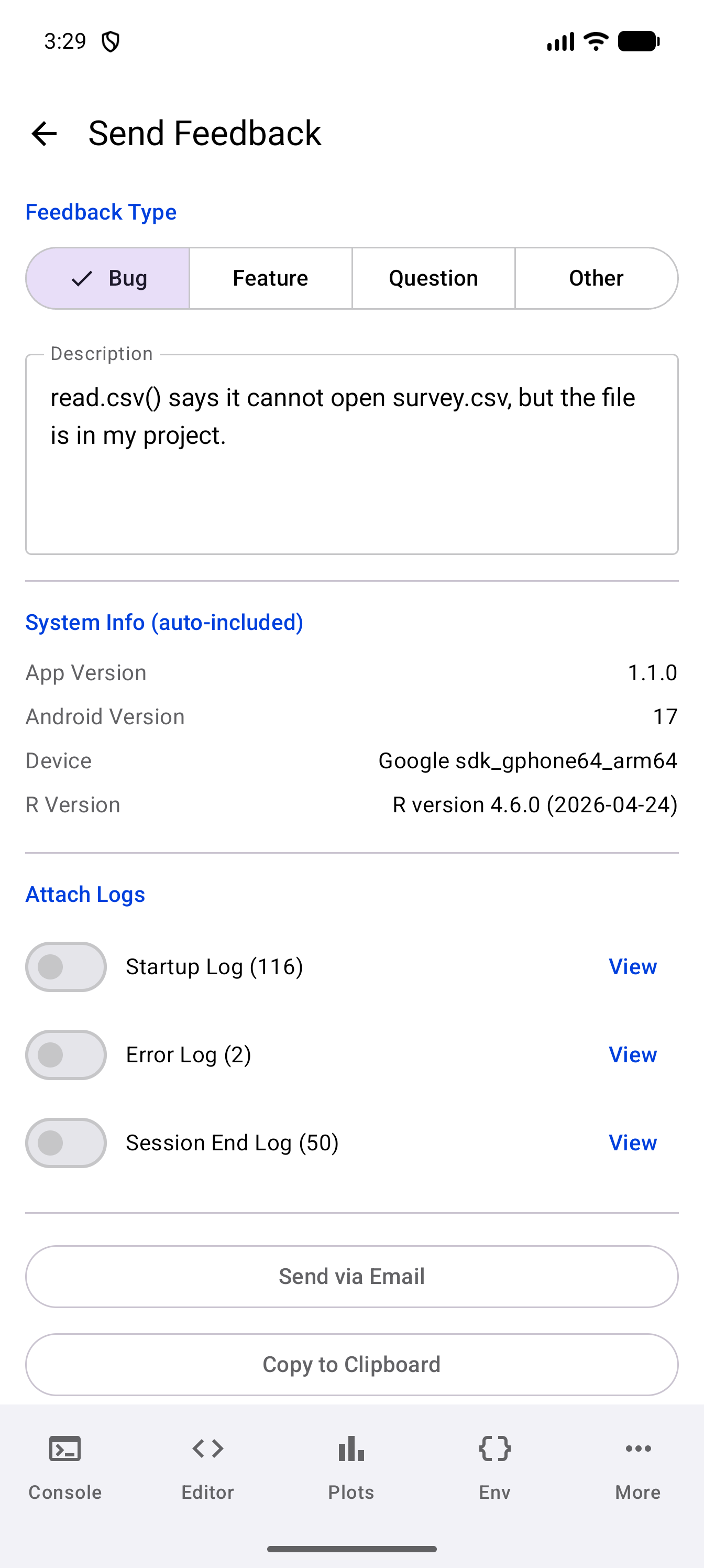
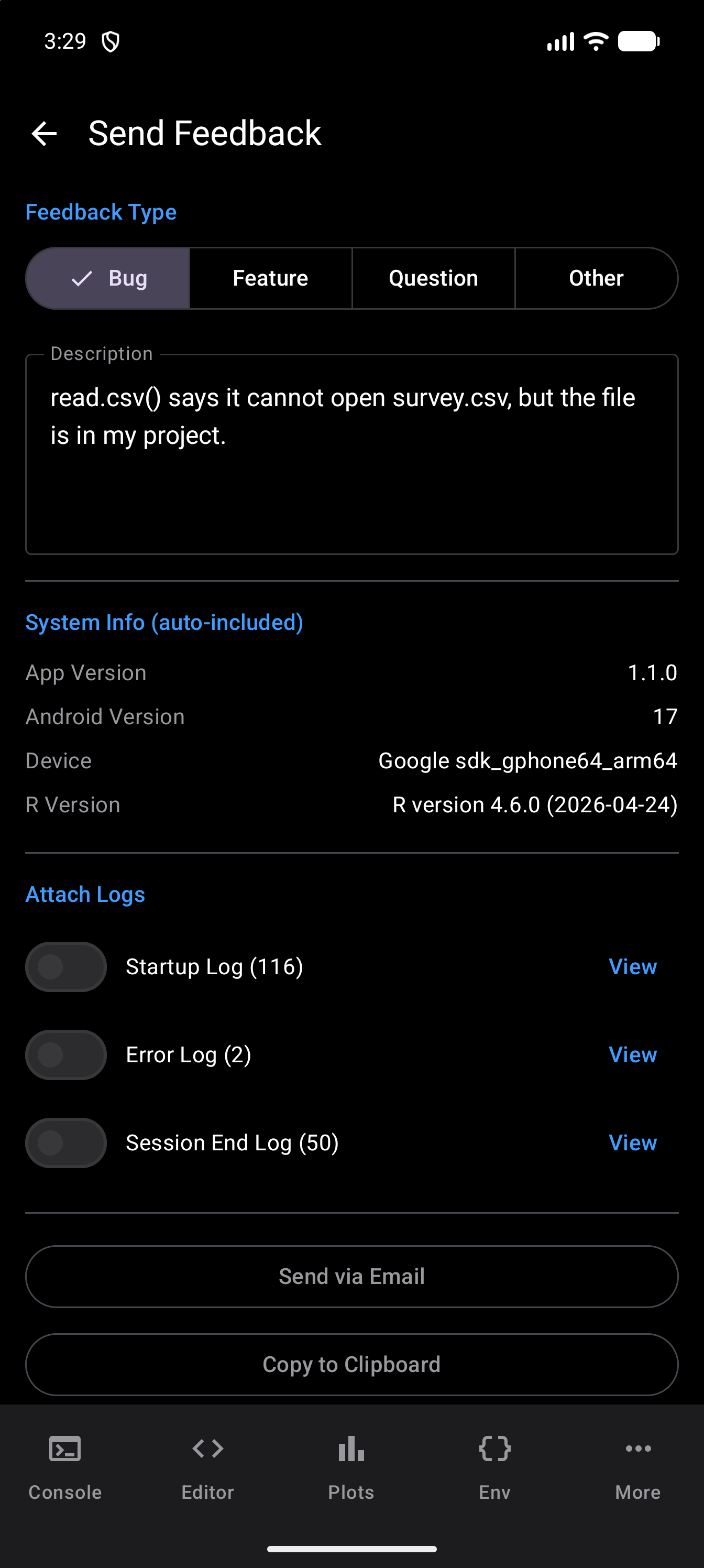
- Open Settings > Support > Send Feedback.
- Pick a Feedback Type: Bug, Feature, Question or Other.
- Describe what you did and what happened, including the last thing you ran.
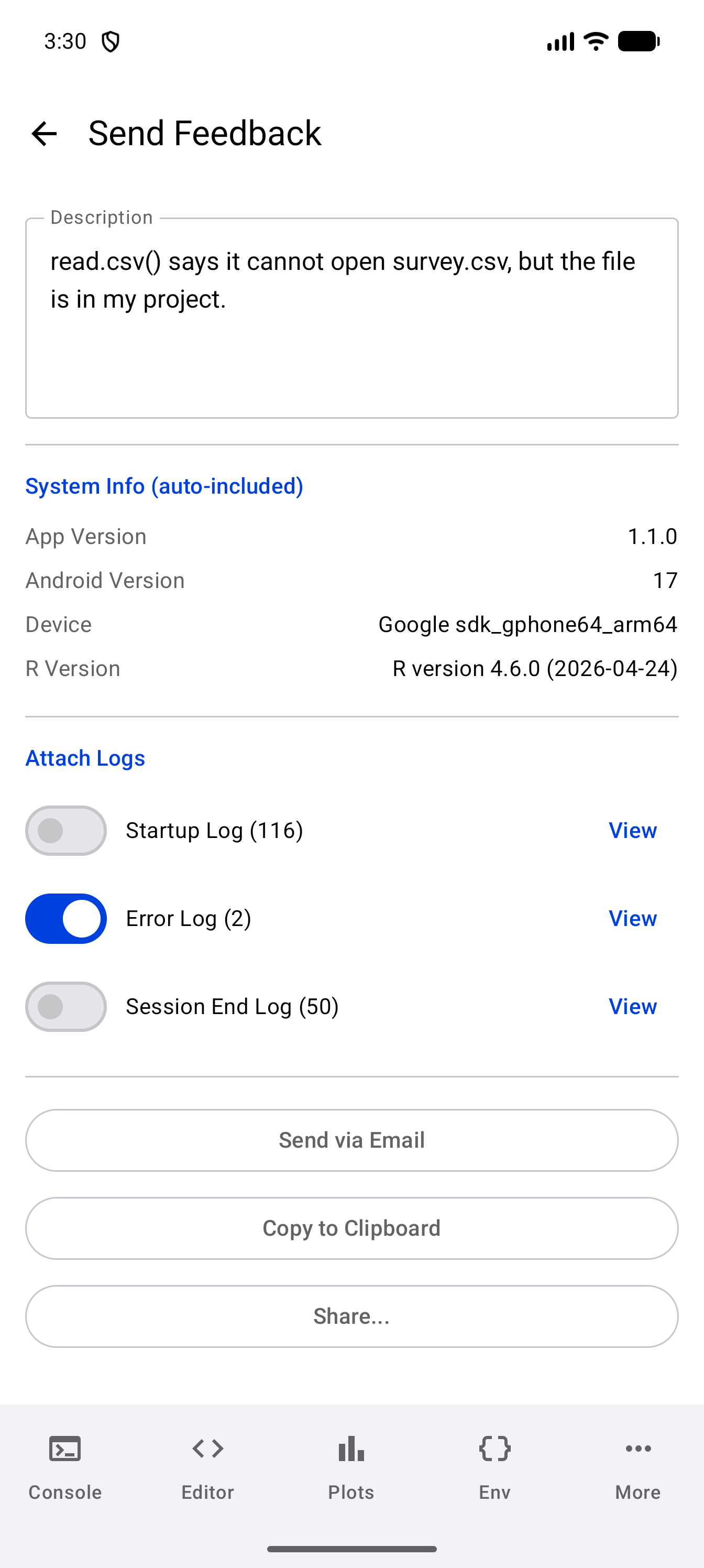
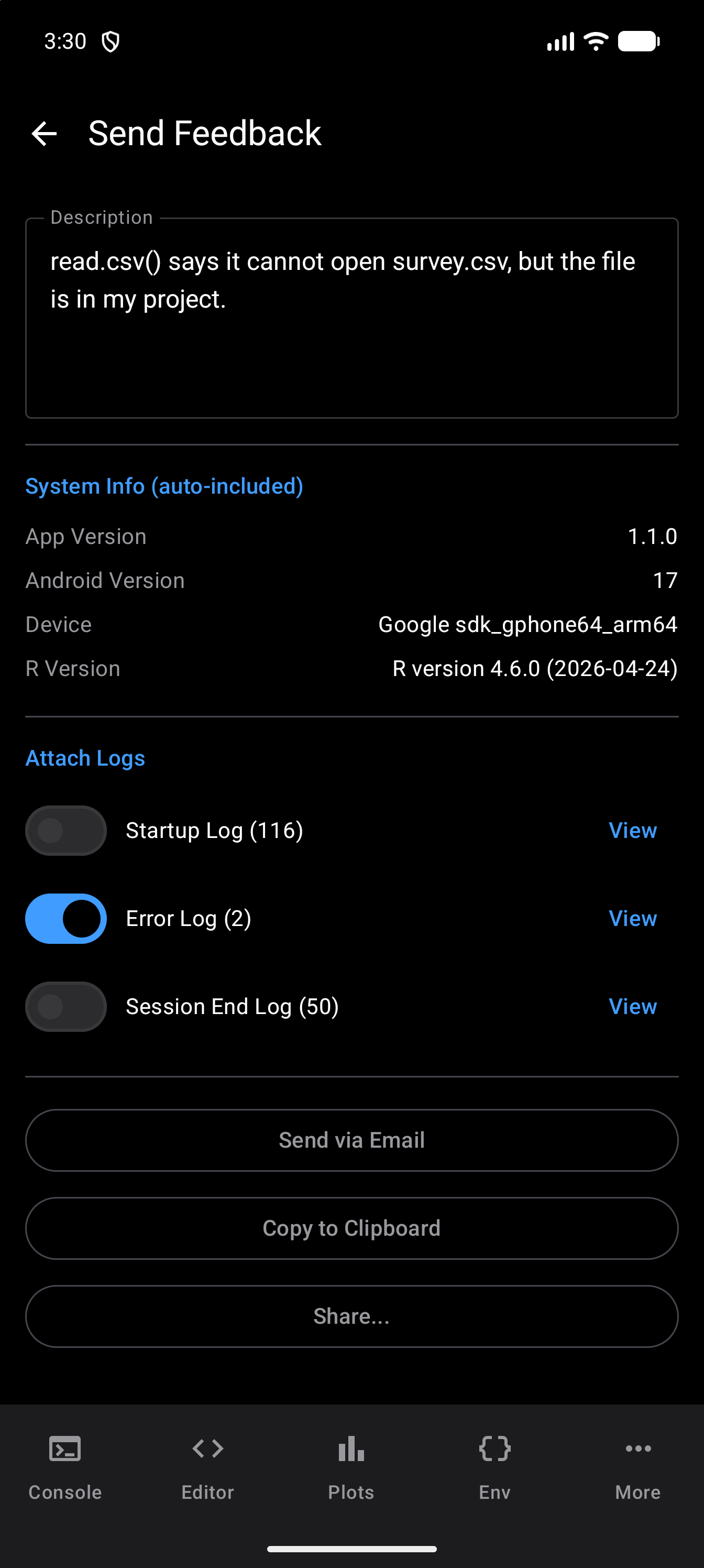
- Under Attach Logs, turn on the logs you want to include. All three start off. Tap View beside a log to read it first.
- Choose how to send it: Send via Email opens your mail app, Copy to Clipboard copies it for pasting into a GitHub issue, and Share… sends it with another app.
Your app version, Android version, device and R version are added for you, under System Info. GitHub issues are public, and logs can include your code, so read a log with View before you post it (see the Privacy Policy).
Which Log to Attach
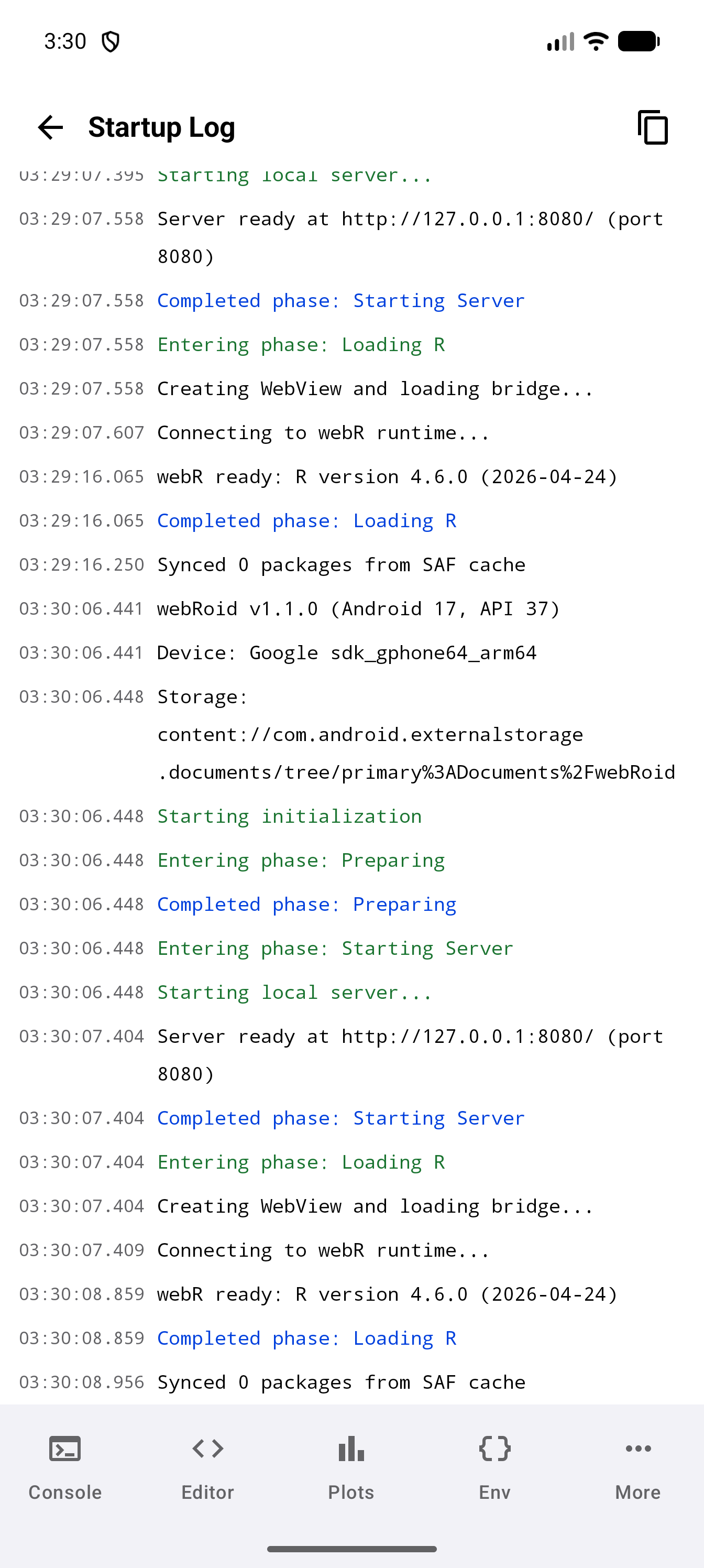
- If the app hangs or fails while it starts, turn on the Startup Log.
- If a command gives an error or misbehaves, turn on the Error Log. It holds only the current session, so run the command that fails, then go straight to Send Feedback.
- If R stopped, or your work was gone when you came back to the app, turn on the Session End Log. It remembers the last 50 times a session ended, and why.
Reading a Log
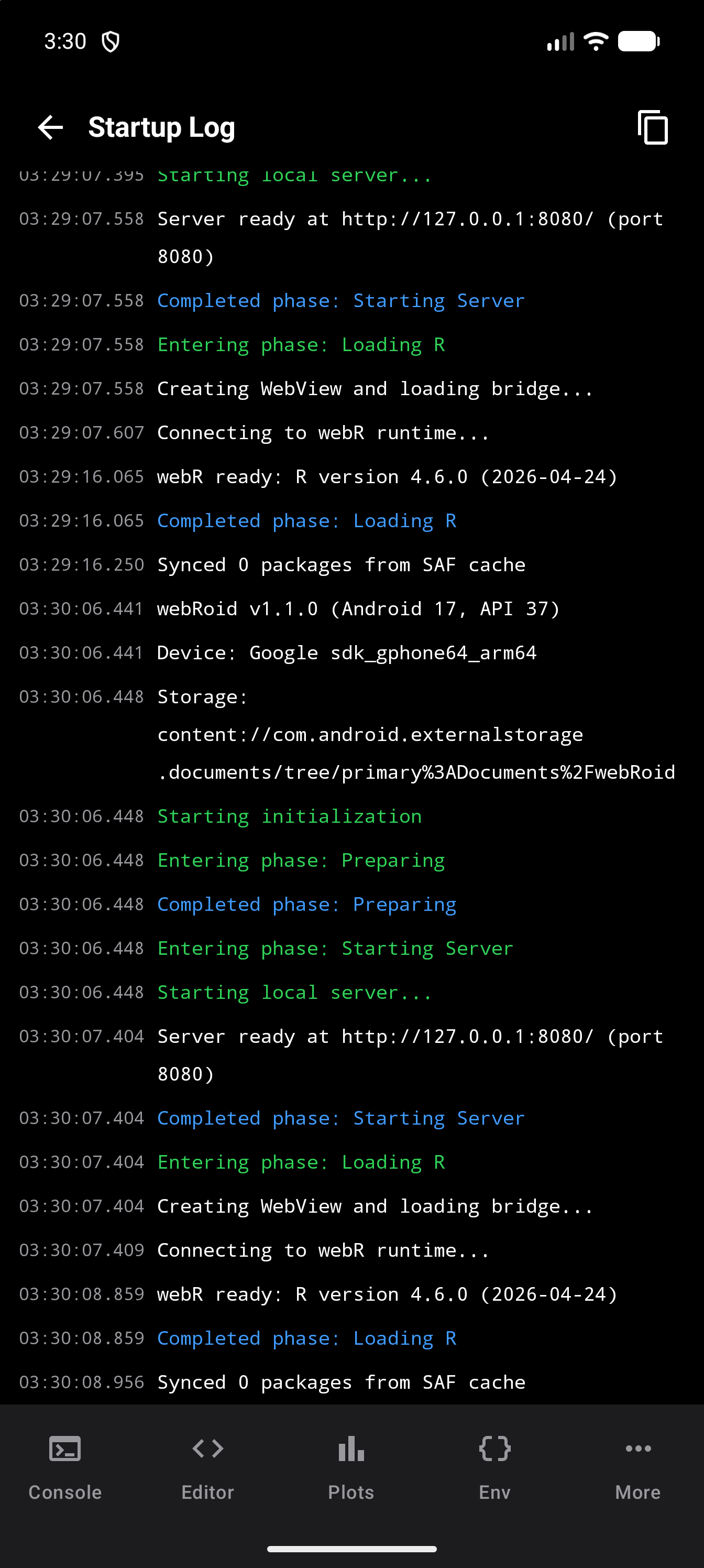
Tapping View opens the log in place of the form, at its newest entries. The copy button at the top copies the whole log, and the back arrow takes you back to Send Feedback.
Reporting from an Error Screen
If R cannot start, you cannot reach Settings. Use Report Issue on the Unable to Start R screen instead. Its email has your device details but no logs, so tell us what the screen said and whether Try Again helped. If Try Again gets you in, send a report from Settings as well, with the Startup Log on: it keeps the attempt that failed.
The R Session Stopped screen has the same Report Issue button. Tell us what R was doing when it stopped. The FAQ explains what that screen means.
You can also reach us directly on the Support page.